Table of Contents
If Bluetooth disappears after a Windows update, check whether the adapter is merely turned off or missing from Device Manager. A missing toggle usually points to a stopped service, disabled adapter, incompatible driver, or hardware detection problem. Roll back a driver only when the problem began immediately after that driver changed.
Check the simple causes first
- Turn Airplane mode off, then open Settings > Bluetooth & devices and enable Bluetooth.
- Restart Windows—not just Shut down and power on—so the driver stack reloads fully.
- Charge the Bluetooth accessory, put it in pairing mode, and keep it close to the PC.
- Open Settings > Windows Update > Update history and note the date and type of the update that preceded the problem.
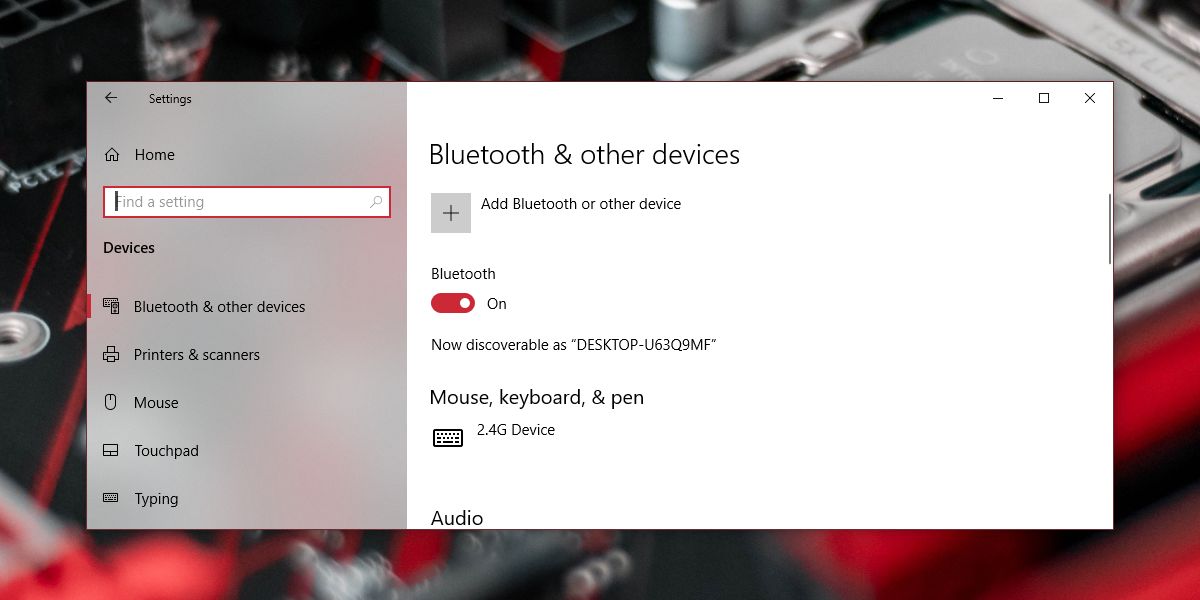
Restart Bluetooth services
Press Windows + R, enter services.msc, and open Bluetooth Support Service. Start or restart it and set its startup type to the default recommended for the PC. Some systems also list Bluetooth User Support services. Do not disable them.
Roll back the Bluetooth driver
- Right-click Start and open Device Manager.
- Expand Bluetooth. If it is absent, select View > Show hidden devices and Action > Scan for hardware changes.
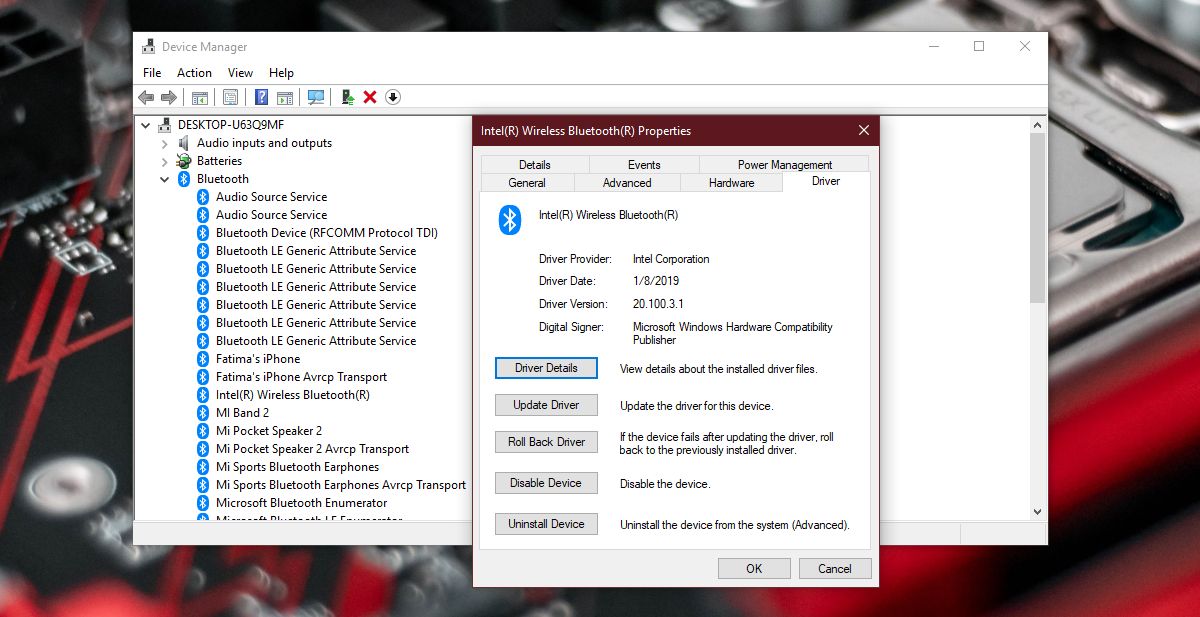
- Open the Bluetooth adapter—not a paired headset or mouse—and choose the Driver tab.
- If Roll Back Driver is available and the failure followed a driver update, select it and restart.
If Bluetooth works again, pause only the specific problematic driver while you obtain a corrected version. Do not stop all Windows security updates.
Reinstall the correct driver
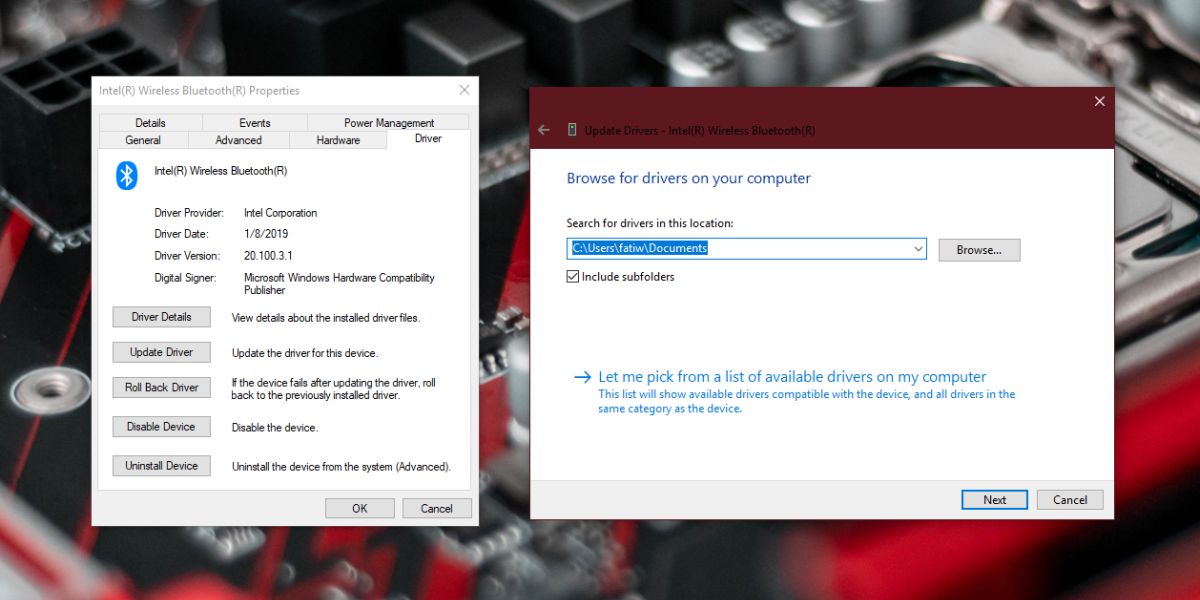
Download the Bluetooth or wireless package from the laptop, motherboard, or adapter manufacturer's support page for the exact model and Windows version. The PC maker's combined Wi-Fi/Bluetooth package is usually safer than an unrelated generic download.
- In Device Manager, right-click the Bluetooth adapter and choose Uninstall device.
- Do not select an option to remove the driver package unless you have a verified replacement ready.
- Restart Windows, then install the downloaded package.
For a current Windows 11 system whose adapter remains absent, see the focused guide to restoring missing Bluetooth in Windows 11.
Remove and pair one device again
If the adapter is present and only one accessory fails, open Bluetooth & devices, remove that device, restart both devices, and pair it again. Remove duplicate or stale entries for the same accessory. For audio devices, also select the correct playback and microphone endpoints in Sound settings.
Use BIOS or UEFI checks only when the adapter is absent
Some business laptops expose wireless or Bluetooth controls in firmware. Check that onboard Bluetooth or wireless radio support is enabled. Resetting firmware defaults can change storage, virtualization, Secure Boot, and fan settings, so record the current configuration first.
Do not downgrade BIOS merely because Bluetooth is missing. Update or roll back firmware only when the manufacturer documents the issue for the exact model and provides a supported recovery path. Review safe BIOS update precautions before flashing.
If Bluetooth still does not appear
- Install chipset and USB controller drivers from the PC manufacturer.
- Shut the PC down, disconnect power where safe, wait briefly, and start it again to reset an integrated radio that is stuck.
- Test a known-good USB Bluetooth adapter. If it works, the internal module or its antenna connection may have failed.
- On a managed computer, ask IT whether device installation is restricted by policy.
Windows 10 general support ended on October 14, 2025. If the PC is still using it, plan a move to a supported Windows release rather than relying on increasingly old Bluetooth drivers.
Related Articles
 How to Fix Lost Bluetooth Error on Windows 10 Settings Settings4 minutes read
 Steps to Connect Windows Computer Bluetooth with Speakers6 minutes read
 How to Downloading and Updating Bluetooth Drivers for Windows 10, Fixing5 minutes read
 What Is Bluetooth? Useful Information About Bluetooth Technology15 minutes read
 How to Fix Bluetooth Metered Connection Error on Windows 106 minutes read
 How to Use Swift Pair for Super-fast Bluetooth Connection on Windows 103 minutes read
Reader Comments 0
Sign in with email or Google to join the discussion.