Table of Contents
Learn how to enable full-screen xbox on Windows 11 with clear steps, practical tips, and troubleshooting guidance for a reliable result.
How to enable full-screen Xbox on Windows 11
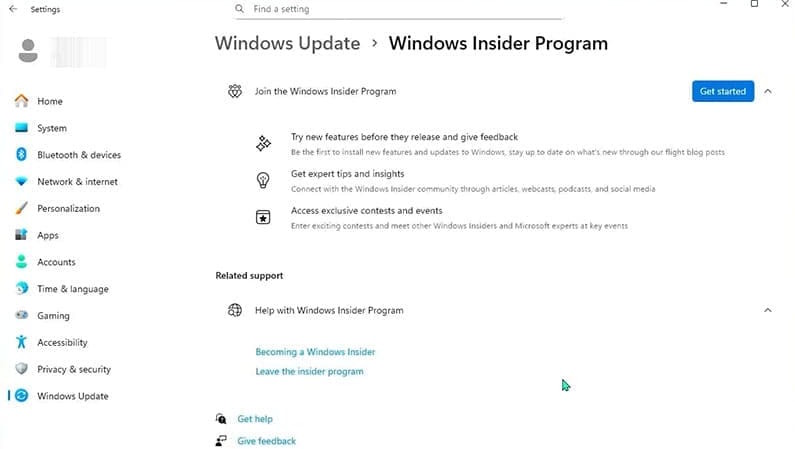
Please note that to play Xbox games in full screen on your PC, you need to join the Xbox Insider Hub and have Windows Insider Preview Build 26220.7271.
- How to register for the Windows Insider Program to experience Windows 11 early.
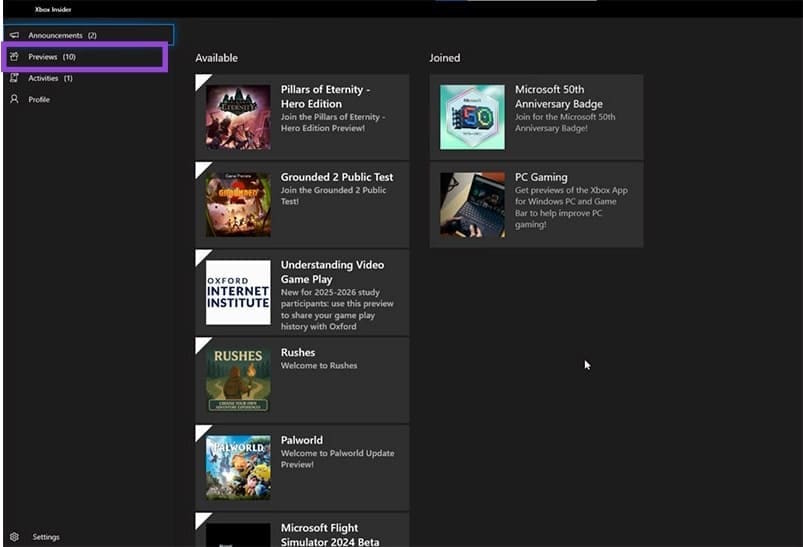
Download and install Xbox Insider Hub from the Microsoft Store, then sign in to your Microsoft account. In the Xbox Insider Hub interface, select Previews .
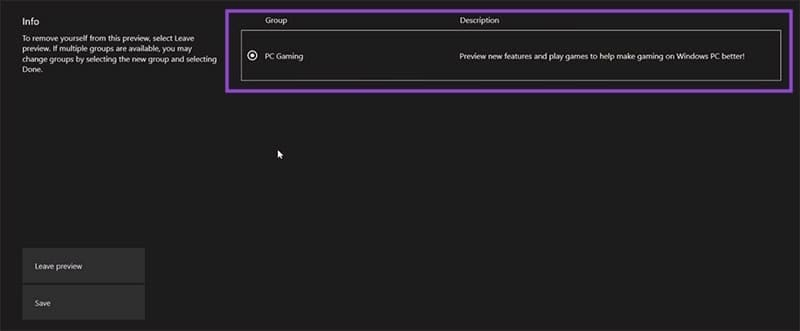
Next, click on PC Gaming , select to join the previews, and then click Save to save the changes.
Step 1
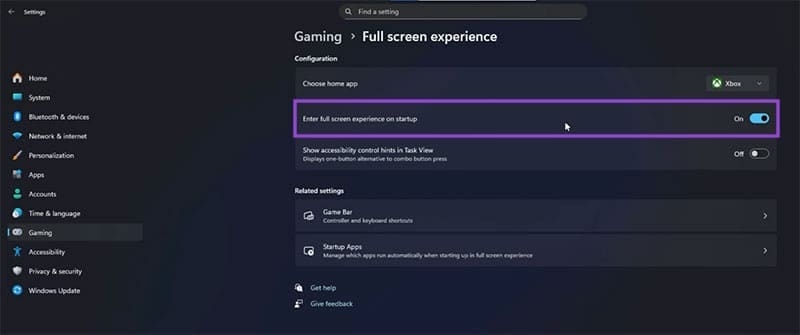
Go to Settings , then tap Gaming in the left-hand menu. On the right, select Full screen experience to adjust the settings.
Step 2
We enable the "Enter full screen experience in startup" option to play Xbox games in full screen on Windows.
Step 3
Now, to access full-screen mode, press the Win + G key combination to open the Game Bar and select "Enter full screen experience ," or press Win + F11 to switch between screens.
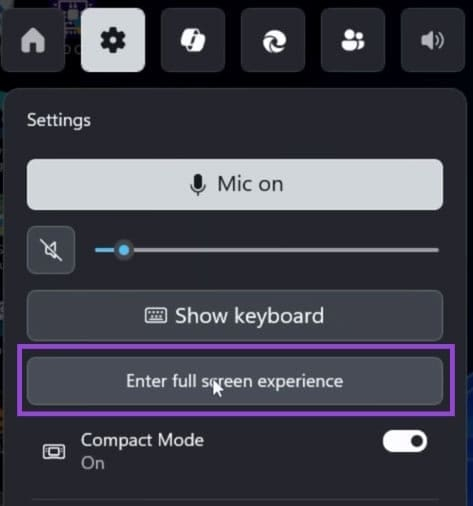
Step 4
Press the Xbox button on your controller to switch between windows. From the game's main screen, you can easily open games from Steam, other apps, and your computer. You can run multiple games, apps, and tabs simultaneously; however, keep in mind that this can consume RAM and processor resources.
Final Thoughts
Use this guide as a practical checklist for how to enable full-screen xbox on windows 11. Work through the steps in order, verify each result, and adjust the options to match your needs.
FAQ
What do you need before following this How to Enable Full-screen Xbox on Windows 11 guide?
Review the required tools, accounts, settings, or materials mentioned in the article. Learn how to enable full-screen xbox on Windows 11 with clear steps, practical tips, and troubleshooting guidance for a reliable result.
What are the main steps for how to enable full-screen xbox on windows 11?
Follow the sections in order, especially How to enable full-screen Xbox on Windows 11, Step 1, Step 2. Complete each step before continuing and verify the result as you go.
What should you do if the process does not work as expected?
Recheck the prerequisites, update the relevant app or service, review the settings, and repeat the step that caused the issue. Use any troubleshooting notes included in the guide.
Related Articles
 How to Turn Off (or Enable) Xbox Game Bar on Windows 104 minutes read
 How to Receive Full Screen Calls on iPhone3 minutes read
 How to Use Xbox Game DVR to Record Screen in Windows 1010 minutes read
 Windows 11 Screen Recording: Complete Guide5 minutes read
 Microsoft: Gaming Experience on Windows 11 Will 'Reach a New Level' in 20264 minutes read
 How to Enable / Disable the Start Menu Full Screen in Windows 103 minutes read
Reader Comments 0
Sign in with email or Google to join the discussion.