Table of Contents
If How to Fish shows Connection Failed, start by having every player update the game and create a fresh lobby. If that fails, fully restart Steam, switch the host, and verify the game files. These checks separate a temporary server or lobby problem from an issue on one PC.
Fast troubleshooting order
- Confirm that Steam and How to Fish are not undergoing maintenance or a widespread outage.
- Install the latest game update on every PC.
- Close the old lobby and create a new one.
- Let a different player host.
- Exit Steam completely, reopen it, and sign in again.
- Verify the How to Fish installation.
- Temporarily disable a VPN or proxy and test the firewall rules.
- Restart the router and PC only if the earlier checks fail.
Test after each step. Changing several network settings at once makes it difficult to identify the real cause and can create a second problem.
1. Check whether the problem affects everyone
Ask each player to try the following:
- Open the Steam Store or Community page.
- Launch another online Steam game if one is available.
- Join a different How to Fish lobby.
- Note the exact error and whether it occurs while creating or joining.
If every group member fails at the same time, the game or Steam service may be unavailable. Local changes will not fix a server outage; wait and try again later. If only one person fails, continue with that PC.
2. Make sure every player has the same game version
A lobby can reject a member whose build does not match the host. In Steam, open Library, right-click How to Fish, select Properties, and review Updates. Allow the pending download to finish before launching the game.
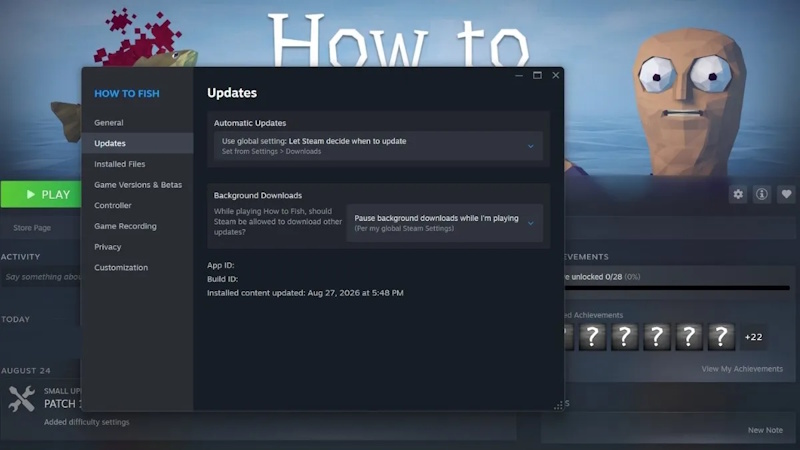
Repeat this check on every PC in the session. A host who updated while another player left Steam open in the background can create an apparent connection error even when both internet connections are working.
3. Create a completely new lobby
Have all players leave the current session instead of repeatedly using the same invitation. The new host should return to the main menu, create a fresh lobby, and send a new Steam invite.
This often fixes a black screen or endless join attempt caused by stale lobby state. It is also faster and safer than reinstalling the game.
4. Change the host
Let another player create the room and invite the group. The result provides a useful diagnosis:
- Everyone can join the new host: focus on the original host's firewall, VPN, router, and game files.
- One person cannot join any host: troubleshoot that player's PC and Steam session.
- No one can host or join: recheck versions and service availability.
Do not assume that the player with the fastest advertised connection is automatically the best host. Stability, NAT behavior, packet loss, and firewall rules can matter more than download speed.
5. Restart Steam completely
Closing the Steam window may leave the client running. Use Steam > Exit or right-click the Steam icon in the Windows system tray and choose Exit. Wait until Steam processes close, reopen the client, sign in, and launch How to Fish again.
A full restart clears a stale authentication or lobby session without changing saved data. If Steam refuses to close, use Task Manager only for the remaining Steam process, then reopen normally.
6. Verify the game files
Missing or damaged files can produce errors that look like networking failures.
- Open the Steam Library.
- Right-click How to Fish and choose Properties.
- Select Installed Files.
- Choose Verify integrity of game files.
- Wait for Steam to finish and download any replacement files.
- Restart the game and create a new lobby.
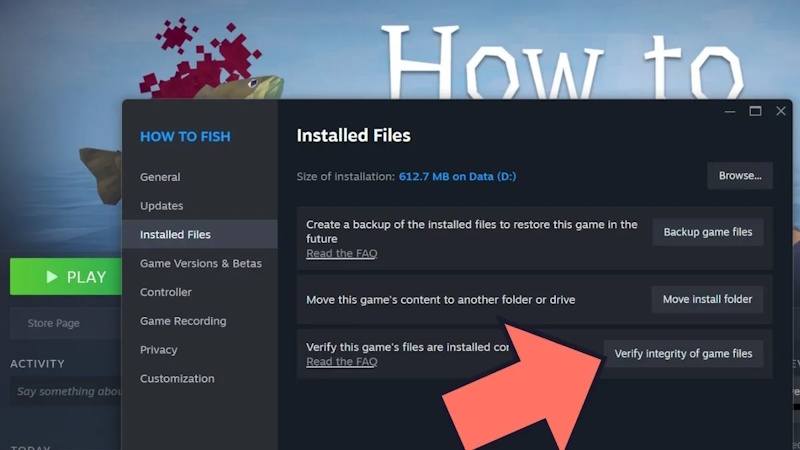
This is Steam's supported repair method; see Steam Support's update and installation guidance. A small number of files may be reacquired after verification, which is normal.
7. Disable VPN or proxy for a test
Disconnect any VPN or manually configured proxy on the affected PC, restart Steam, and try a new lobby. A VPN can change routing or NAT behavior and may interfere with peer connections, but it is not correct to assume that one player's VPN always breaks the entire group.
If the connection works without the VPN, try a nearer server, allow Steam through the VPN's split-tunneling settings, or keep the VPN off while playing. Re-enable it afterward if it is needed for other traffic.
8. Check Windows Firewall without leaving it disabled
Open Windows Security > Firewall & network protection > Allow an app through firewall. Make sure Steam and the How to Fish executable are allowed on the network profile you use.
If you temporarily disable the firewall to test, turn it back on immediately. When the game works only with the firewall disabled, create or repair a narrow application rule instead of leaving the PC unprotected.
9. Restart the network
Close the game, restart the PC, then power-cycle the router only if you control it: unplug its power, wait about 30 seconds, reconnect it, and allow the internet connection to return fully. Avoid resetting the router to factory defaults, which erases its configuration.
Try Ethernet or a stable 5 GHz/6 GHz Wi-Fi connection if available. Pause large downloads and cloud backups during the test. If Steam itself cannot connect, resolve that broader network issue before troubleshooting the game.
10. Reset only the relevant local settings
Remove unsupported mods, overlays, or injectors and launch a clean copy. Do not delete save folders or reinstall Windows for a lobby error. Reinstalling How to Fish is a final step after file verification fails repeatedly; confirm that Steam Cloud or a manual backup protects any local saves first.
What information to collect for support
- the exact error text or screenshot;
- game version and Steam client version;
- whether hosting, joining, or both fail;
- whether another host works;
- whether the problem occurs in other Steam games;
- the time of the failure and any recent game update;
- steps already tried.
That information is more useful than simply reporting “multiplayer does not work” and helps distinguish a game patch issue from a local network problem.
Related Articles
 Fish Eat Fish: Go: Explained4 minutes read
 Instructions to Fix Wi-Fi Connection Error on iOS 63 minutes read
 Fish Have Nostrils and Mouths but Are Not Present3 minutes read
 Good Fish Oil, Uses and How to Drink: Omega 3 Fish Oil10 minutes read
 How to Fix Errors Your Connection Is Not a Private4 minutes read
 Marvel at Bizarre Fish in the Ocean10 minutes read
Reader Comments 0
Sign in with email or Google to join the discussion.