Table of Contents
Bluetooth setup differs between Windows and smart TVs, but the basic process is the same: confirm both devices support the required Bluetooth profile, put the accessory into pairing mode, and select it from the host device. Bluetooth support does not guarantee that every type of accessory will work.
Turn on Bluetooth in Windows 11
- Open Settings > Bluetooth & devices.
- Turn the Bluetooth switch on.
- Select Add device > Bluetooth.
- Put the accessory into pairing mode and select its exact name.
- Confirm any matching code shown on both devices.
Quick Settings also has a Bluetooth control. Select the network/sound/battery area of the taskbar; edit the panel if the tile is hidden.
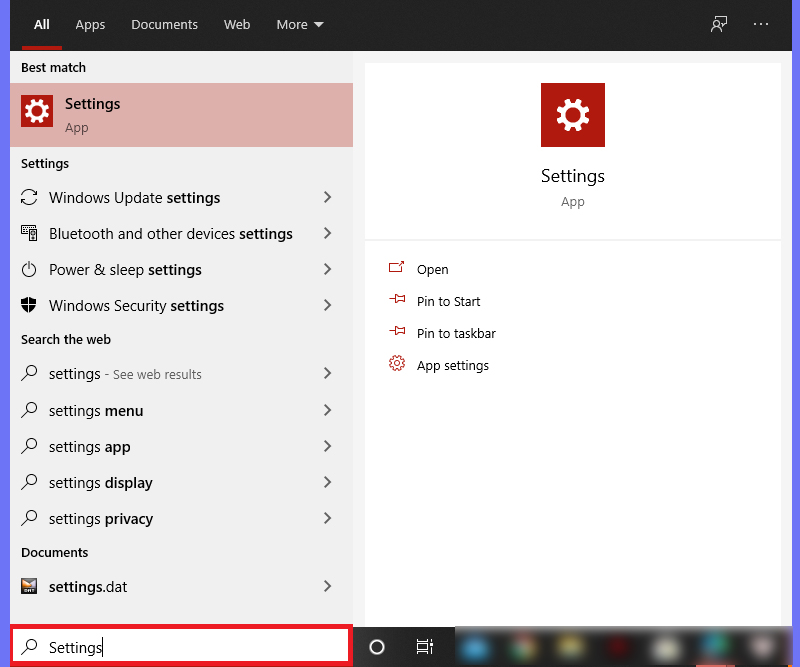
Turn on Bluetooth in Windows 10
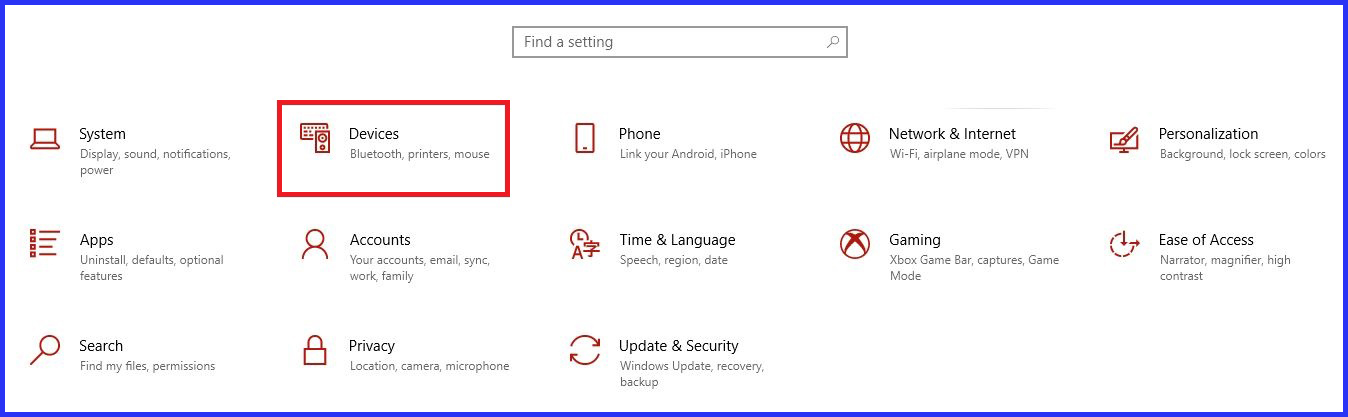
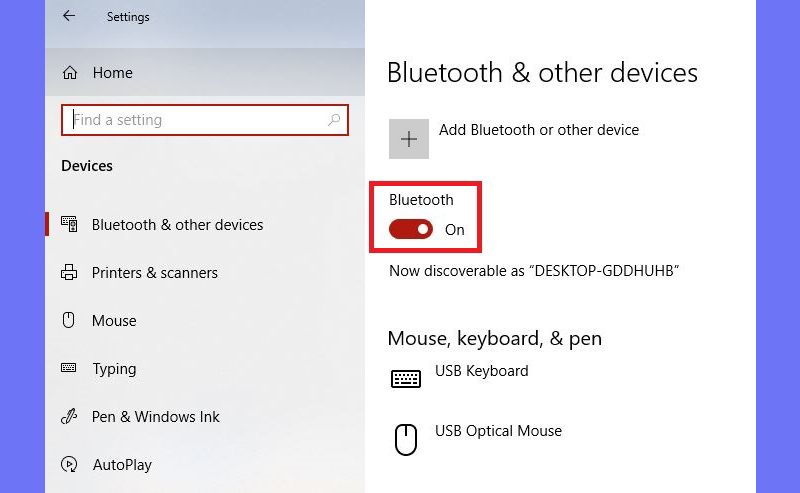
- Open Settings > Devices > Bluetooth & other devices.
- Turn Bluetooth on.
- Select Add Bluetooth or other device > Bluetooth.
- Choose the accessory and finish the prompts.
Normal Windows 10 support ended in 2025. Keep the PC on an applicable supported update path.
What about Windows 7?
Windows 7 is unsupported and its interface and drivers vary by manufacturer. For security, do not keep an internet-connected Windows 7 computer as a normal daily system. If an offline legacy device must pair, use the laptop or Bluetooth-adapter maker's documented control panel and driver, not an unknown driver package.
Pair headphones, a keyboard, or a mouse
- Charge the accessory and disconnect it from devices that reconnect automatically.
- Activate its documented pairing mode; merely powering it on may not be enough.
- Keep it close to the PC and select it from the Bluetooth list.
- For audio, choose the new headphones under Windows Sound output.
- For a keyboard, type and confirm the pairing code if requested.
Turn on Bluetooth on a smart TV
First check the exact TV manual. Some TVs use Bluetooth only for the remote, while others support audio output, game controllers, keyboards, or phone connections. Menu names commonly include Settings > Sound > Sound Output, Remotes & Accessories, or Connections > Bluetooth.
- Put the accessory into pairing mode.
- Open the TV's supported Bluetooth device list.
- Select the device and confirm pairing.
- For speakers or headphones, select them as audio output and adjust volume cautiously.
A TV that lacks Bluetooth audio output may use a compatible external transmitter connected to optical, HDMI ARC/eARC, USB, or analog audio, depending on available ports.
If the device is not found
- Verify pairing mode and remove the accessory from its previous host.
- Restart both devices and move them closer.
- Remove an old pairing record, then add the device again.
- Update Windows, the official Bluetooth driver, TV firmware, and accessory firmware.
- Test another accessory to isolate the failing side.
If the Bluetooth switch is missing in Windows, follow how to restore a missing Bluetooth adapter. For repeated pairing failures, see Bluetooth pairing fixes.
Privacy and interference
Turn off discoverable or pairing mode after setup, remove devices you no longer own, and reject unexpected pairing requests. Bluetooth shares the 2.4 GHz band with many Wi-Fi and USB 3 devices, so moving a hub or changing placement can reduce interference.
Related Articles
 How to Enable Bluetooth on Windows Laptops and MacBooks (Detailed Guide)9 minutes read
 How to Set Up and Manage Bluetooth Devices in Windows: Practical Guide9 minutes read
 How to Use Swift Pair for Super-fast Bluetooth Connection on Windows 103 minutes read
 How to Enable and Connect Bluetooth on Windows 115 minutes read
 How to Install Bluetooth for Laptops4 minutes read
 How to Connect Bluetooth Devices on Windows 10, 8, And 75 minutes read
Reader Comments 0
Sign in with email or Google to join the discussion.