Table of Contents
You do not need to uninstall AdBlock just because one website asks you to turn it off. Choose the narrowest action that solves the problem: pause it on the current site, disable it temporarily in the browser, hide only its toolbar icon, or remove it completely.

| Action | What it changes | Use it when |
|---|---|---|
| Pause or allowlist a site | Ads are allowed only on a selected site or page | A trusted site breaks or requests an exception |
| Disable the extension | AdBlock stops filtering in that browser until re-enabled | You are troubleshooting or taking a temporary break |
| Hide the icon | Only the toolbar button disappears; blocking continues | You want less toolbar clutter |
| Remove the extension | AdBlock and its local settings are uninstalled | You no longer want to use it |
Pause AdBlock on one website
- Open the website you trust.
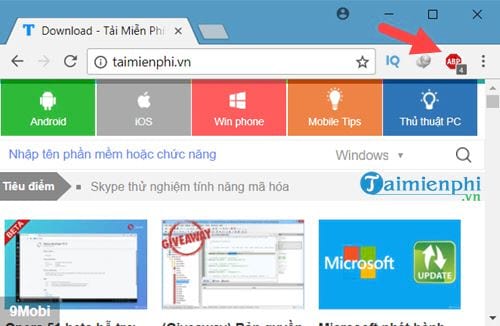
- Select the AdBlock icon beside the address bar. If it is hidden, open the browser's Extensions menu first.
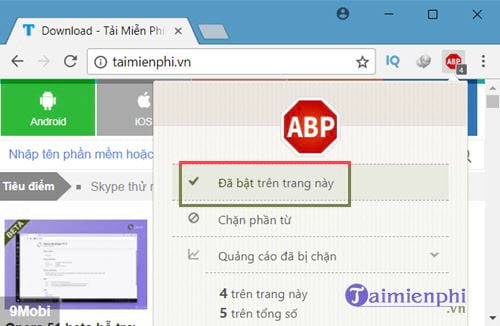
- Choose Pause on this site. For a narrower page-level or wider site-level exception, open the product's additional pause options if available.
- Reload the page and test the content.
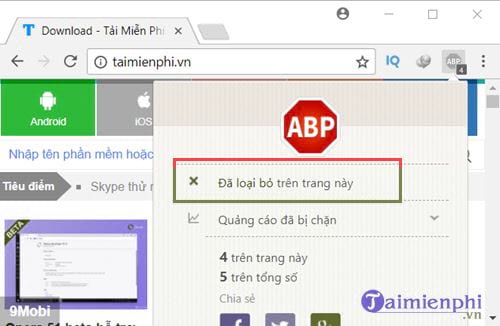
Current AdBlock versions may treat a simple site pause as a temporary smart-allowlist entry rather than a permanent exception. Use Resume Blocking Ads from the AdBlock menu when you want filtering back. The developer's allowlisting guide documents the current controls.
The following screenshots show an older AdBlock menu. “Enabled on this page” has been replaced by newer pause and allowlist wording, but the basic idea is unchanged.
Before allowing ads
Make an exception only for a site you intended to visit and trust. If a page uses aggressive redirects, fake download buttons, or unexpected permission prompts, leaving the site is safer than disabling protection. Also remember that another privacy or script-blocking extension may trigger an anti-adblock message even after AdBlock is paused.
Disable or remove AdBlock in Chrome
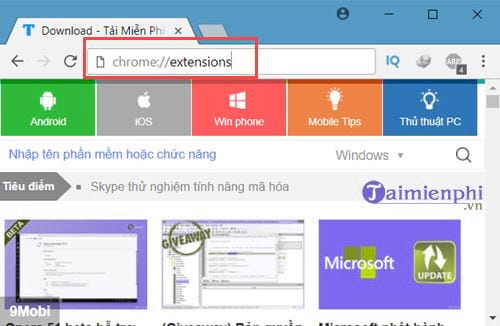
- Enter
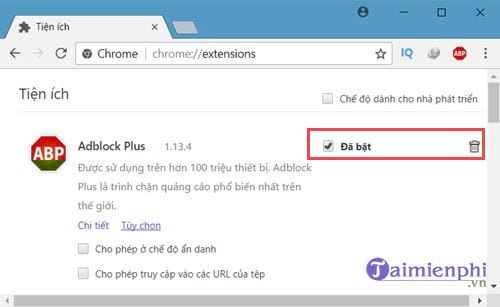
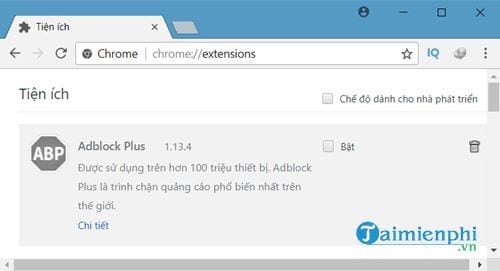
chrome://extensionsin Chrome's address bar. - Find AdBlock and verify its icon and publisher.
- Turn its switch off to disable it temporarily.
- Select Remove and confirm if you want to uninstall it.
To re-enable it, return to the same page and turn the switch on. Google also documents extension controls in its Chrome extension guide.
These legacy screenshots use a checkbox and trash-can icon. Current Chrome uses a toggle and a Remove button.
Hide the AdBlock icon in Chrome
Select Chrome's Extensions puzzle-piece button, then change the pin setting next to AdBlock. Hiding the button does not stop ad blocking; it only moves the control into the Extensions menu.
Disable or remove AdBlock in Firefox
- Enter
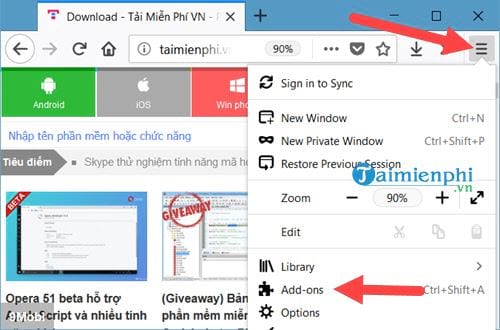
about:addonsin the address bar, or choose Menu > Add-ons and themes. - Select Extensions.
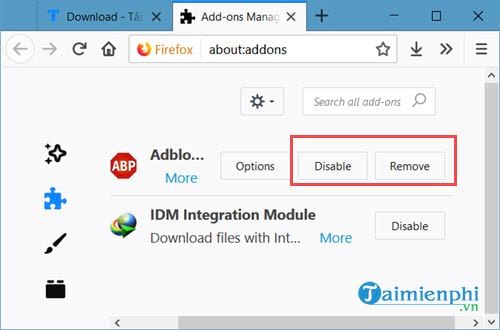
- Turn off the blue switch next to AdBlock to disable it.
- To uninstall, open the extension's three-dot menu and choose Remove.
Mozilla's current Firefox instructions distinguish disabling from removing an extension.
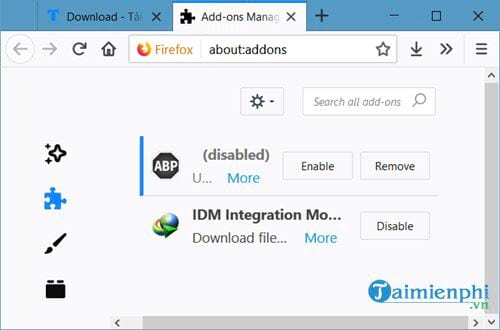
The older Firefox interface below used separate Disable and Remove buttons. Current releases use a toggle and a three-dot menu.
Hide the AdBlock icon in Firefox
Open Firefox's Extensions button and use the extension's toolbar controls to unpin or remove the button from the toolbar. The extension remains enabled unless you turn it off in about:addons.
Disable or remove AdBlock in Opera
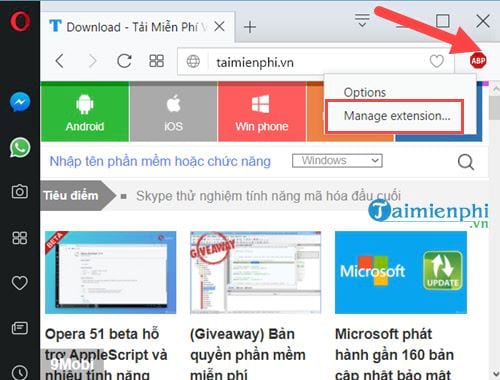
- Open Opera's Extensions page from the extensions icon in the sidebar, or press Ctrl+Shift+E on Windows and Linux.
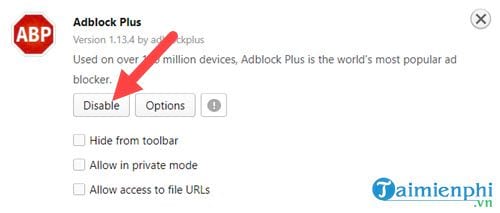
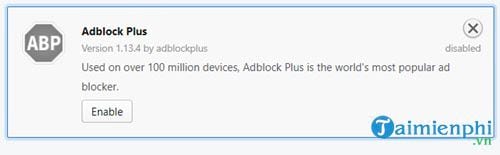
- Find AdBlock and choose Disable.
- Use the remove control on the extension card if you want to uninstall it.
Opera's customization guide provides the current extension-page route. Opera also has a built-in ad blocker; if ads remain after disabling AdBlock, check Settings > Privacy protection > Block ads.
Disable or remove AdBlock in Microsoft Edge
- Enter
edge://extensionsin the address bar, or choose Extensions > Manage extensions. - Find AdBlock and turn its switch off.
- Select Remove and confirm if you want to uninstall it.
Microsoft's Edge extension guide also explains how to remove an extension from its toolbar icon.
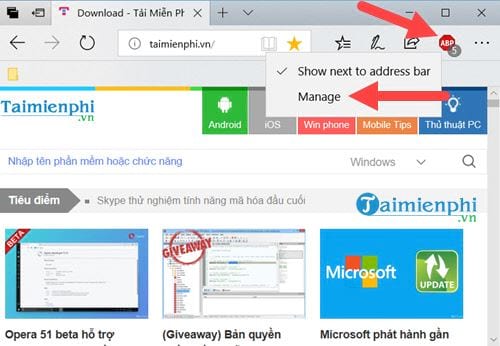
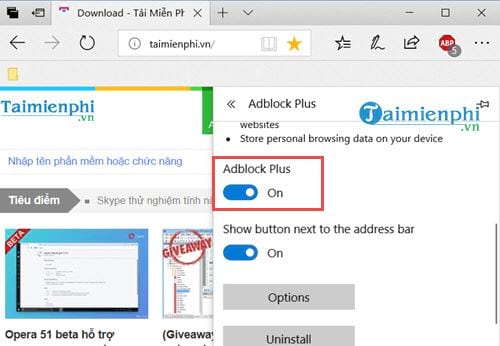
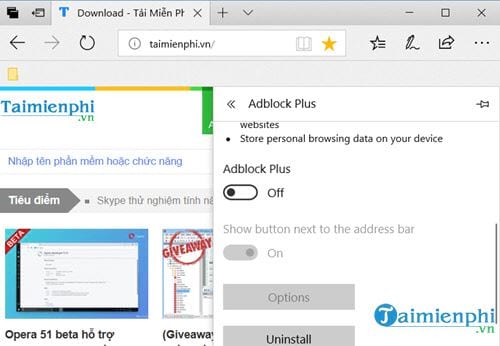
Hide the AdBlock icon in Edge
Open Edge's Extensions menu and change whether AdBlock is shown on the toolbar. As in Chrome, hiding the icon does not disable the extension.
If a site still detects an ad blocker
- Reload the page after pausing AdBlock.
- Check for Adblock Plus, uBlock, privacy tools, antivirus browser extensions, or a browser's built-in blocker.
- Test in a private window where extensions are not enabled, or disable extensions one at a time.
- Clear the site's data only if the warning appears to be stored after all blockers are off.
- Resume blocking when you leave the site if you intended the exception to be temporary.
AdBlock and Adblock Plus are separate products, so their menu wording is not identical. See our AdBlock versus Adblock Plus comparison if you are unsure which extension is installed. If you want to reinstall one safely, follow the official-store checks in our Adblock Plus installation guide.
Related Articles
 How to Turn Off Adblock: Complete Guide6 minutes read
 What Is the Difference Between Adblock and Adblock Plus?5 minutes read
 How to Turn Off Adblock on Chrome, Coc Coc3 minutes read
 Adblock and Adblock Plus: What Are the Differences?5 minutes read
 Adblock Download Link 4.16.09 minutes read
 What Is Adblock? How to Use Adblock to Block Ads3 minutes read
Reader Comments 0
Sign in with email or Google to join the discussion.