Table of Contents
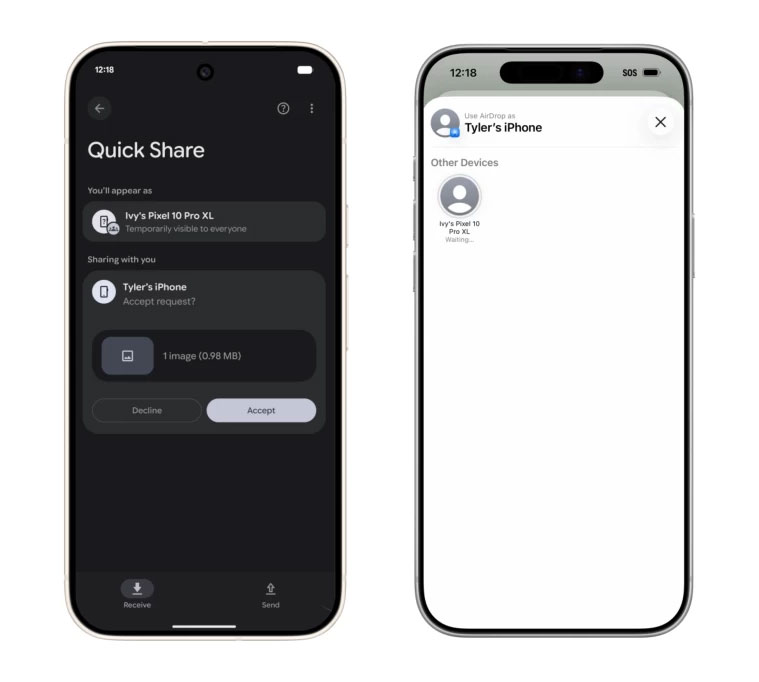
Quick Share can send files to—and receive files from—Apple's AirDrop on supported Android devices. It is not available on every Android phone simply because the phone has Quick Share. Check compatibility before trying to send a photo or document.
Google introduced the feature in November 2025, initially for the Pixel 10 family. Support has since expanded to additional models. The original Pixel-10-only announcement should not be treated as the current device list.
Check support and prepare both phones
Use Google's current Android-to-iPhone compatibility guide and your phone manufacturer's instructions. The guide includes the Pixel 10 family and selected Samsung and other manufacturers' models. Availability can depend on the exact model, region and installed updates.
Keep both phones nearby, unlocked, with Bluetooth and Wi-Fi enabled. Install available system and Quick Share updates. On supported Samsung devices, check that Share with Apple devices is enabled in Quick Share settings.
Send from Android to iPhone
- On the receiving iPhone, open Settings → General → AirDrop and select Everyone for 10 Minutes. The setting is also available through Control Center.
- On Android, open the photo or file, tap Share and choose Quick Share.
- Select the intended iPhone from the nearby-device list. Confirm the device name with its owner.
- Have the iPhone user accept the AirDrop request, then keep the phones close until the transfer finishes.
If an additional verification prompt appears, follow the instructions on both devices. Check that the file has arrived before deleting any source copy.
Send from iPhone to Android
- On the compatible Android phone, open Quick Share and enter Receive mode, or choose the receiving visibility option described for that model.
- On the iPhone, select the file, tap Share → AirDrop and choose the Android device.
- Accept the request on Android and wait for completion.
Google's Quick Share help describes receiving requirements and where shared files are saved. Settings and supported transfer directions can vary, so check the instructions for the exact device if it is not visible.
If the other phone does not appear
First confirm AirDrop interoperability is supported on the Android model. Then check receiving visibility, the Samsung Apple-sharing switch if present, Wi-Fi, Bluetooth and physical proximity. Reopen the receive screen if its temporary visibility has expired.
Apple's current AirDrop versions may show a verification-code prompt for sharing with someone outside your contacts. Follow the on-screen flow rather than assuming the transfer has failed. Do not accept an unexpected file from an unfamiliar device.
For Android devices without direct AirDrop support, Quick Share may offer Use QR code. The recipient scans the code and downloads through a web page. That is an internet-based sharing method, rather than a direct AirDrop transfer; both devices need internet access. Review the feature's current limits in Google Help.
Other Quick Share and AirDrop connections
This interoperability does not establish AirDrop support for every Quick Share platform. See using Quick Share with Windows for the PC workflow, and using AirDrop on a Mac for Apple's desktop controls. Return receiving visibility to your preferred restricted setting after sharing.


Reader Comments 0
Sign in with email or Google to join the discussion.