Table of Contents
RapidTyping is a free Windows typing tutor with guided lessons, an on-screen keyboard, finger prompts, and progress statistics. It is available as an installer and a portable version, making it suitable for individual practice or a classroom network. This guide explains how to configure the program and build correct touch-typing habits.
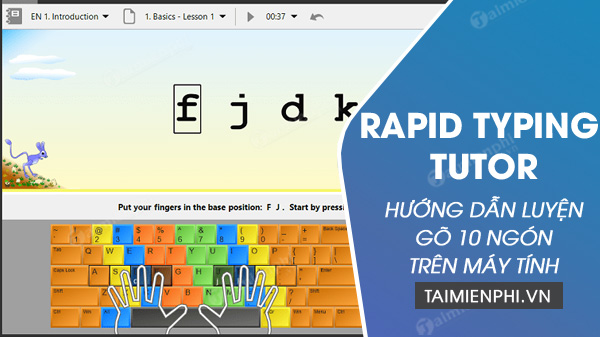
Download and set up RapidTyping
Get the current installer or portable package from the official RapidTyping download page. Choose the 64-bit build for most modern Windows PCs; use the 32-bit build only when your Windows installation requires it. Scan any downloaded file with your security software before opening it.
Install the program, or extract the portable package to a folder you can write to. Then launch RapidTyping.
1. Choose the keyboard and finger scheme
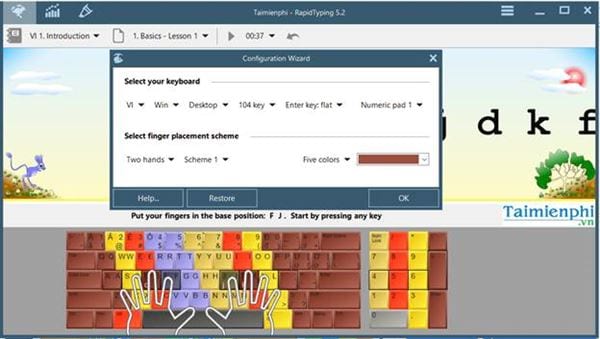
On first run, select the keyboard layout that matches your physical keyboard and the finger-placement scheme you want to learn. Click OK to open the tutor.
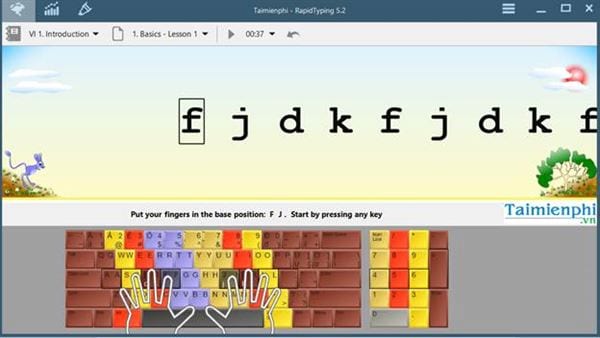
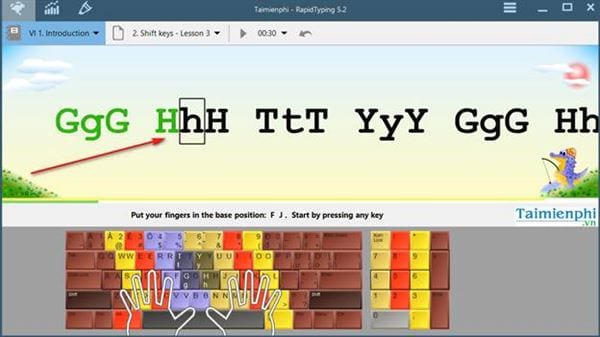
The main window displays the lesson text, an on-screen keyboard, and the finger that should press the next key.
2. Adjust the interface
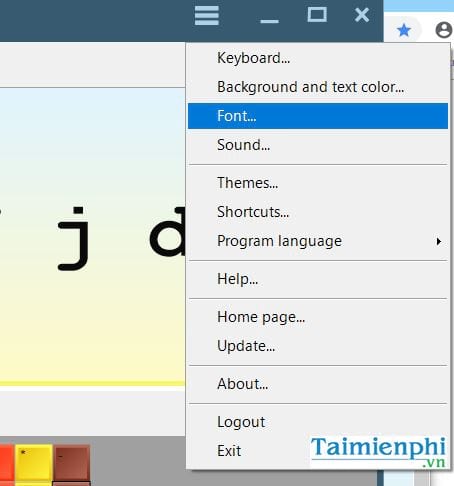
Open Options to change the keyboard layout, colors, font, sound, theme, and program language. Visual customization is optional, but the correct keyboard layout is essential because a mismatched layout teaches the wrong key positions.
3. Select a course and lesson
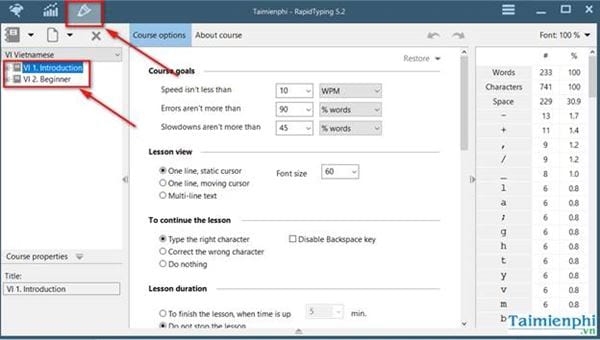
Choose a beginner course if you are learning touch typing for the first time. Work through its sections in order; later lessons assume that you already know the keys introduced earlier.
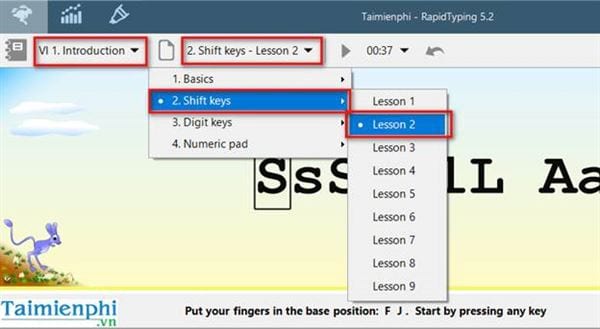
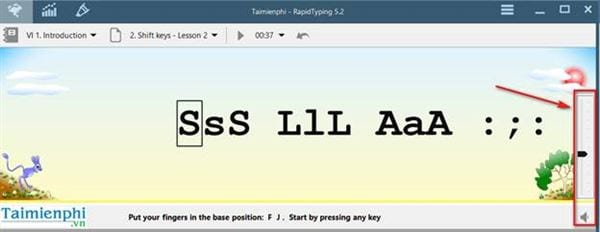
Adjust or mute lesson sounds if they make it harder to concentrate.
Use the results screen effectively
After a lesson, RapidTyping reports speed, accuracy, and an overall result. Do not advance based on speed alone. Repeat a lesson when the error rate is high or when you still need to look at your hands.
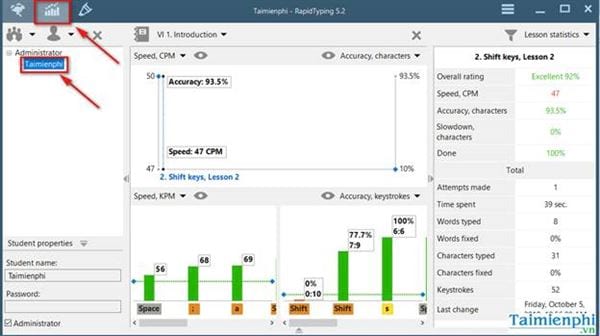
Open the detailed statistics to find frequently mistyped characters or combinations. Those errors tell you which lesson deserves another attempt.
Learn the correct finger zones
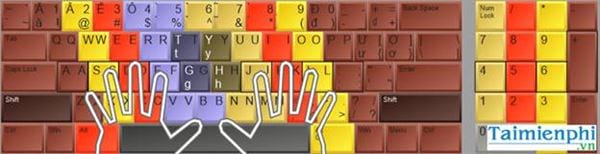
Place the left fingers on A, S, D, F and the right fingers on J, K, L, ;. The raised marks on F and J help your index fingers find the home row without looking down. Use a thumb for the space bar.
| Finger | Left-hand keys | Right-hand keys |
|---|---|---|
| Little finger | Q, A, Z and nearby left-side controls | P, ;, / and nearby right-side controls |
| Ring finger | W, S, X | O, L, . |
| Middle finger | E, D, C | I, K, , |
| Index finger | R, F, V, T, G, B | Y, U, H, J, N, M |
| Thumb | Space bar | |
Number-row and punctuation assignments follow the same vertical zones, but exact symbols vary by keyboard layout. Follow the on-screen diagram that matches your hardware.
Complete a lesson
- Select a course and lesson, then press the key indicated by the program to begin.
- Keep your eyes on the lesson text and use the highlighted finger for each character.
- Return each finger to the home row after it moves.
- Use the space bar between words and correct errors only as the lesson allows.
- When the lesson ends, review accuracy and weak keys before choosing the next exercise.
A practice routine that builds accuracy
Practice for 10–15 minutes at a time, four or five days a week. Start slowly enough to use the assigned fingers correctly. Increase pace only after your error rate becomes consistent; rushed repetition can reinforce poor movements.
If you prefer not to install a program, TipsMake's guide to practicing touch typing online covers the same home-row principles. You can measure improvement with these online typing tests, or use Tux Typing for game-based practice. If input feels delayed or characters are missed, troubleshoot the Windows keyboard response before relying on a speed score.
Classroom use
RapidTyping can store multiple student profiles and display progress in tables or charts. A teacher can run the program from a shared network location and monitor results from the teacher's computer. Before deployment, test write permissions, profile storage, keyboard layouts, and backups on a small group of PCs.
Related Articles
 Rapidtyping - Rapidtyping Download and Installation Guide5 minutes read
 How to Install Rapid Typing Tutor and Practice 10-Finger Typing5 minutes read
 How to Download and Use Kiran's Typing Tutor to Practice 10-Finger Typing8 minutes read
 Tux Typing - Free Typing Practice Tool for Kids: Main Insights6 minutes read
 How to Practice 10-Finger Typing Online6 minutes read
 Practice Typing with 10 Fingers, Effective 10-Finger Typing Practice Software5 minutes read
Reader Comments 0
Sign in with email or Google to join the discussion.