Table of Contents
The safest way to make Windows start faster is to reduce unnecessary startup apps, keep enough storage free, and investigate any recent driver or update problem. Do not disable hardware in Device Manager just to shorten boot time; that can break USB ports, printers, storage devices, or other features without producing a meaningful improvement.

1. Disable startup apps you do not need
On Windows 11 or Windows 10, press Ctrl + Shift + Esc to open Task Manager, select Startup apps, and review the list. Select a nonessential item and choose Disable. Task Manager also shows each app's estimated startup impact, which helps identify the best candidates.
You can also open Settings > Apps > Startup and turn off apps that do not need to launch when you sign in. Microsoft provides a current reference for configuring startup applications.
Good candidates include chat clients, game launchers, and vendor update utilities you use only occasionally. Leave security software, touchpad or input utilities, audio controls you rely on, and unfamiliar business-management tools enabled until you know what they do. Disabling an entry does not uninstall the app; you can enable it again later.
2. Remove software you no longer use
Go to Settings > Apps > Installed apps, sort or review the list, and uninstall programs you no longer need. Avoid generic “PC cleaner” packages that promise automatic speed gains; they can add more background processes or remove settings indiscriminately.
If the whole system feels slow after startup, use the broader checks in Computer Running Slow and How to Fix It.
3. Check free space, updates, and malware
- Free storage: a nearly full system drive can interfere with updates, temporary files, and normal Windows operation. Use Settings > System > Storage to see what is using space.
- Install updates: complete pending Windows updates and restart. If the slowdown began immediately after a driver or update, check its support information before removing anything.
- Run a security scan: use Windows Security or your installed security product if startup became slow unexpectedly.
Windows automatically optimizes supported drives. Do not repeatedly run manual defragmentation tools on an SSD; use the built-in Defragment and Optimize Drives interface if you need to check optimization status.
4. Measure before changing advanced settings
Restart once after disabling a small group of startup apps and compare the time from power-on to a usable desktop. Change only a few items at a time so you can reverse a change that causes a missing feature.
If boot is slow before the Windows logo appears, the delay may be in firmware, hardware detection, an external drive, or the storage device rather than a startup app. Disconnect unnecessary external storage for one test and check the computer manufacturer's diagnostics.
Legacy steps for Windows 7 and Windows 8.1
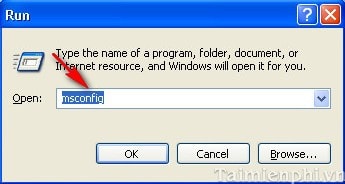
These systems are no longer supported for normal consumer security updates, so moving to a supported operating system should take priority. On a legacy installation, press Windows + R, enter msconfig, and press Enter.
Open the Startup tab. Windows 8.1 directs you to Task Manager; Windows 7 lists startup items in System Configuration.
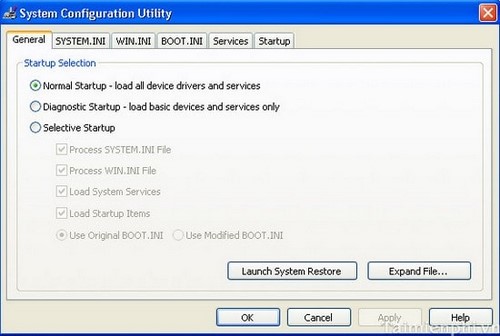
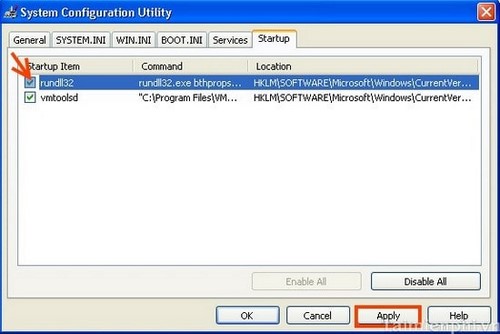
Clear only items you recognize and do not need at sign-in, apply the change, and restart. The related guide to startup apps in Windows 8 explains that older interface.
If startup is still unusually slow
A clean boot is a diagnostic procedure, not a permanent performance setting. It temporarily starts Windows with fewer non-Microsoft services and startup items to isolate a conflict. Follow Microsoft's clean-boot instructions carefully and restore normal startup afterward.
If Windows fails to reach the sign-in screen, use Startup Repair from the Windows Recovery Environment. Back up important files before attempting major recovery or hardware changes.
Related Articles
 Start Windows Faster: How to Make Windows Boot Faster11 minutes read
 How to Fix Pin to Start Error on Windows 105 minutes read
 Disable Programs That Start with the System on Windows6 minutes read
 Microsoft Gives Reasons to Make Windows 11 Faster Than3 minutes read
 Simple Ways to Help Your Windows PC Boot Faster8 minutes read
 How to Set Virtual Ram for Win 10 to Make the Computer Run Faster and3 minutes read
Reader Comments 0
Sign in with email or Google to join the discussion.