Table of Contents
Explore 5 annoying features on Google photos you should turn off immediately.
Note: The features below apply to Google Photos on Android and iPhone, not to the web version on computers. Some options are only available on Android.
1. The 'Quick Edit' step is unnecessary when sharing photos
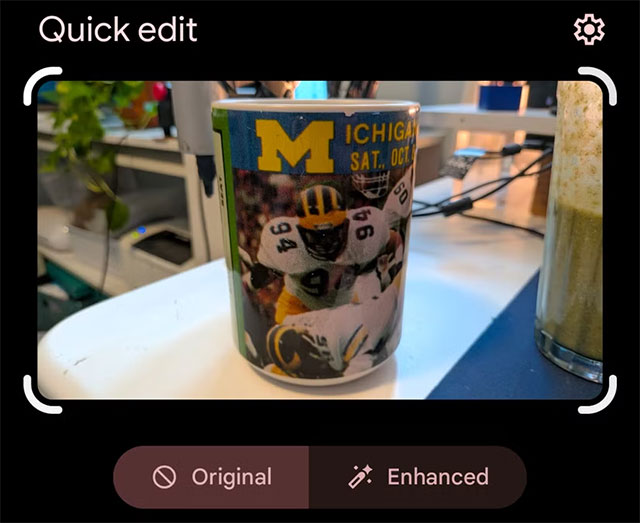
Added last year, Quick Edit adds an unnecessary step to sharing photos. Every time you tap Share, Google Photos takes you to a simplified editing screen, assuming you want to edit the photo before sending it.
If you've already edited the photo beforehand (or simply don't need to), this screen is actually quite annoying.
How to turn it off:
- Photos settings → Sharing
- Turn off Quick edit before sharing
2. Memories shows you people you don't want to see
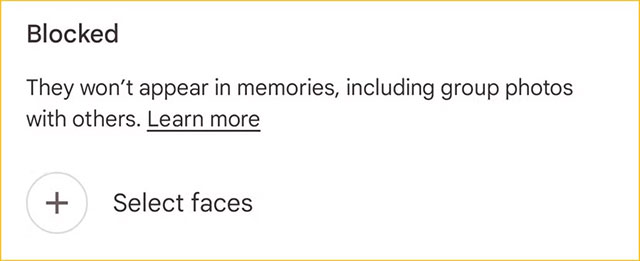
Memories is the content that appears at the top of the Google Photos homepage. And those memories aren't always… pleasant.
The good news is you can hide people or pets you don't want to appear in Memories.
Making:
- Photos settings → Preferences → Memories
- Select Hide people & pets
- Add people/pets to the Blocked list.
Additionally, you can choose "Show more" or "Show less" for each person so that Google Photos can adjust the frequency of their photos being displayed.
3. Being reminded of days you don't want to remember
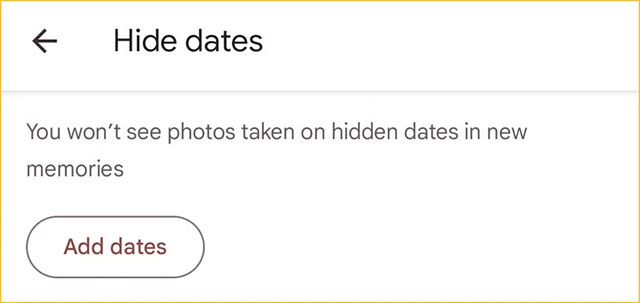
If the issue isn't about people but about specific dates, Google Photos also allows you to hide photos by date.
Making:
- Photos settings → Preferences → Memories
- Select Hide dates
- Choose a day, a time period, or even a year.
All photos and videos taken during these time periods will no longer appear in Memories.
4. Google's photo printing service advertisement
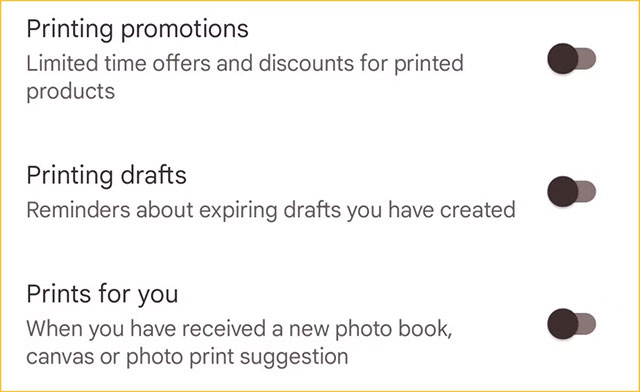
Google Photos has a built-in photo printing service, and chances are you're aware of it… unintentionally. The app frequently sends promotional notifications to sell photo books, printed photos, etc.
How to turn off photo printing ads:
- Photos settings → Notifications
- Turn off the following items:
- Printing promotions
- Printing drafts
- Prints for you
Note: If you have turned off all Google Photos notifications, these options will not appear.
5. Videos automatically play when scrolling through photos
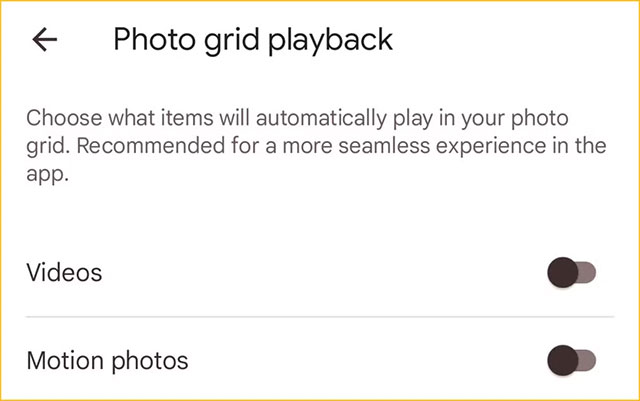
By default, Google Photos automatically plays videos and GIFs as you scroll through your timeline, much like Instagram. For many, this is a distracting feature—not to mention it consumes extra mobile data.
How to turn it off:
- Photos settings → Preferences
- Turn off Photo grid playback
The photos will be much quieter, and you'll save a little data too.
Google Photos hasn't been overly "AI-driven" like some other Google products, but it's clearly no longer just a simple photo gallery app. Taking a few minutes to disable these unnecessary features will make your Google Photos experience much more pleasant.
Final Thoughts
Understanding 5 annoying features on google photos you should turn off immediately makes it easier to evaluate the information and apply the most relevant recommendations. Focus on the key points above and verify details that may change over time.
FAQ
What is 5 annoying features on google photos you should turn off immediately?
Explore 5 annoying features on Google photos you should turn off immediately.
What key points does this article cover?
The article focuses on 1. The 'Quick Edit' step is unnecessary when sharing photos, 2. Memories shows you people you don't want to see, 3. Being reminded of days you don't want to remember, with practical explanations and examples.
How can you use this information in practice?
Use the explanations to compare options, verify important details, and make a more informed decision. Apply the recommendations that best match your goals and situation.
Related Articles
 6 Annoying Google Photos Features You Should Turn Off5 minutes read
 Turn Off These Annoying Features Immediately on iOS 107 minutes read
 5 Settings That Make Using Google Photos Easier: Explained8 minutes read
 How to Turn Off Moving Photos in Google Photos: Step-by-Step Guide4 minutes read
 What Are the 6 New AI Features in Google Photos: Clear Explanation5 minutes read
 8 Google Photos Features You're Missing7 minutes read
Reader Comments 0
Sign in with email or Google to join the discussion.