Table of Contents
You do not have to use every Galaxy AI feature enabled on a Samsung phone. One UI lets you switch off many tools individually, and a separate setting can prevent supported Galaxy AI features from sending data to the cloud. The names and options vary by phone, region, and One UI version, so use Settings search if a menu is not in the location shown below.
Turn off individual Galaxy AI features
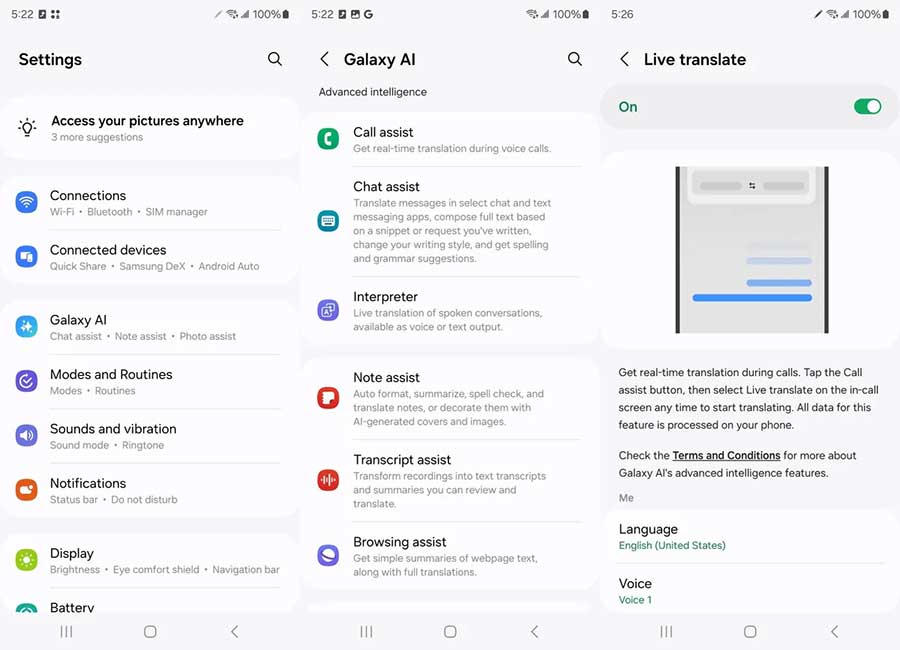
- Open Settings.
- Tap Galaxy AI. On some models, first open Advanced features; the menu may instead be called Advanced intelligence or Awesome Intelligence.
- Select a category such as Call assist, Writing assist, Note assist, or Photo assist.
- Turn off the feature or options you do not want.
There is not always one master switch for every AI function. Some controls are inside the relevant Samsung app instead. Check the settings in Phone, Notes, Gallery, Camera, Samsung Internet, Messages, Health, or SmartThings if a feature is missing from the main Galaxy AI list. A restart may be required before a disabled feature stops appearing everywhere.
Limit Galaxy AI to on-device processing
To prevent supported Galaxy AI tasks from using cloud processing, go to Settings > Galaxy AI and enable Process data only on device. On older software, look under Settings > Advanced features > Advanced intelligence.
This option is a cloud-processing control, not an off switch for all AI. Translation and some suggestions can run locally, but cloud-dependent functions—including some summarization, formatting, and generative image tools—may be unavailable or more limited. The exact effect depends on the device and software version.
Change the default digital assistant
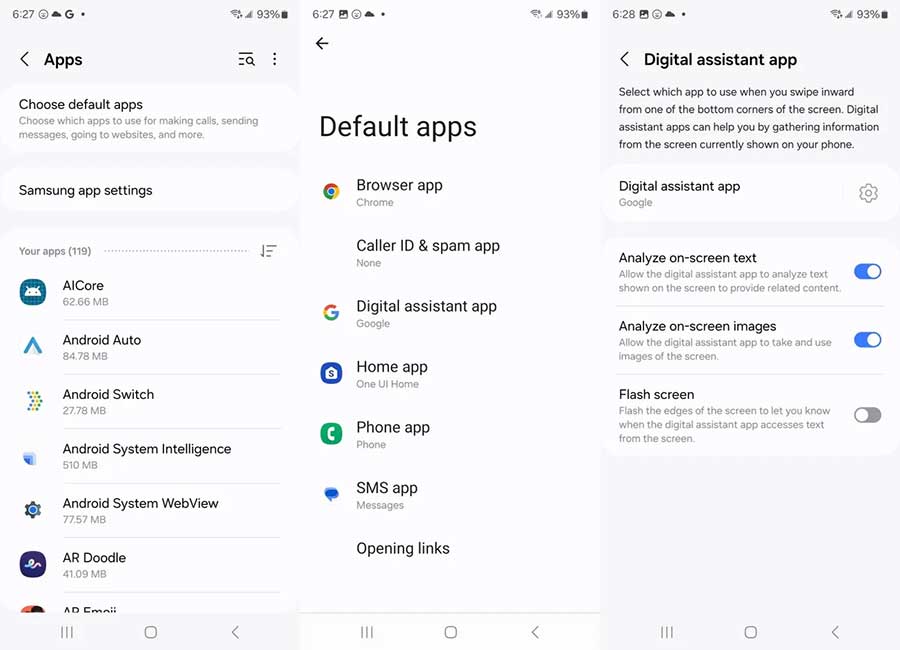
Galaxy AI and the phone's digital assistant are separate systems. Changing the default assistant does not disable Galaxy AI, and it does not necessarily turn off Bixby.
- Open Settings > Apps.
- Tap Choose default apps.
- Open Digital assistant app, then tap the current digital assistant entry.
- Select an installed option, such as Google or Gemini where available, and confirm.
The available choices depend on which compatible assistant apps are installed. If swiping from a bottom corner still opens the old assistant, recheck this menu.
Stop the Side button from launching Bixby
Changing the default digital assistant may leave Bixby assigned to a long press of the Side button. Open Settings > Advanced features > Side button (or search Settings for “Side button”) and choose a different press-and-hold action if your model offers one. You can also open Bixby settings and turn off Voice wake-up if you do not want “Hi, Bixby” to activate it.
Review related privacy controls
The on-device switch applies to Galaxy AI processing, not every app or assistant on the phone. A third-party assistant has its own account, history, permission, and activity controls. Review Settings > Security and privacy > Permission manager to see which apps can access the microphone, camera, contacts, location, and files. Remove permissions that an assistant does not need.
Choose the level of AI that suits you
For most people, the practical approach is to disable unused features individually and enable on-device processing when privacy matters more than cloud-only capabilities. If the goal is to minimize AI more broadly, also change the default assistant, remove Bixby shortcuts, and review AI controls inside individual Samsung and Google apps. Software updates can add or rename options, so revisit these settings after a major One UI upgrade.
Related Articles
 6 Top New Features on Samsung's Galaxy S20 Flagship Device6 minutes read
 The Experience Video Series Showcases All the New Features on Galaxy S9 and S9 +4 minutes read
 Official Information About Samsung Galaxy S8, S8 Plus: Price, Date of Sale, Specifications12 minutes read
 10 Features of Samsung Galaxy S8 That the iPhone Cannot Do5 minutes read
 How to Turn Off the Now Bar on Samsung Galaxy3 minutes read
 Some Advanced Galaxy S20 Features Are About to Be Updated4 minutes read
Reader Comments 0
Sign in with email or Google to join the discussion.