Table of Contents
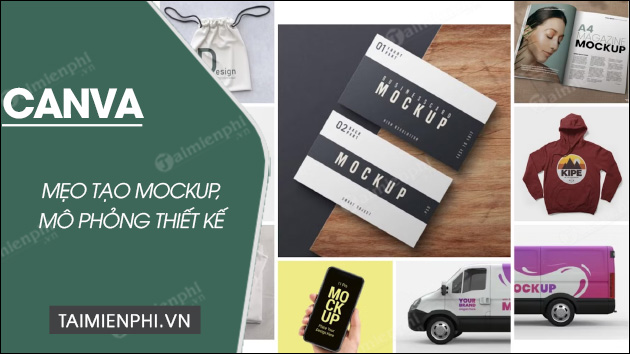
Canva's current Mockups app can place a logo, screenshot or artwork into device, apparel, packaging, print and home-decor scenes. In the editor, select the source image, choose Apps > Mockups, pick a scene, then adjust the crop and apply the result.
Create a mockup from an uploaded image
- Open Canva and create a design at the final presentation size.
- Upload a clean PNG, JPG or PDF of the artwork. For a screen mockup, capture the interface at an appropriate aspect ratio and resolution.
- Add the artwork to the page and select it.
- Choose Edit, then under Apps select Mockups. You can also open Apps from the editor sidebar and choose Canva's Mockups app.
- Browse the available scenes and select one that matches the intended product or device.
- Adjust fit, fill, alignment or crop so no important content is cut off, then choose Apply changes.
- Place the result in the design, add any supporting text, and download or share the completed presentation.
What the older screenshots show
The workflow below uses Canva's older Smartmockups interface. Smartmockups.com closed in September 2024, and Canva now directs users to its integrated Mockups tools. The general sequence—upload, choose a scene, adjust and export—remains useful even though the buttons have changed.
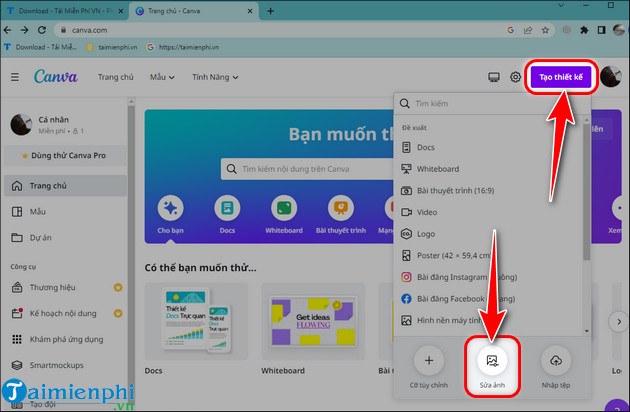
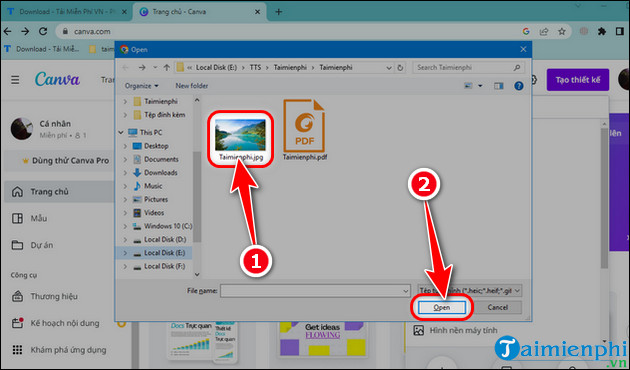
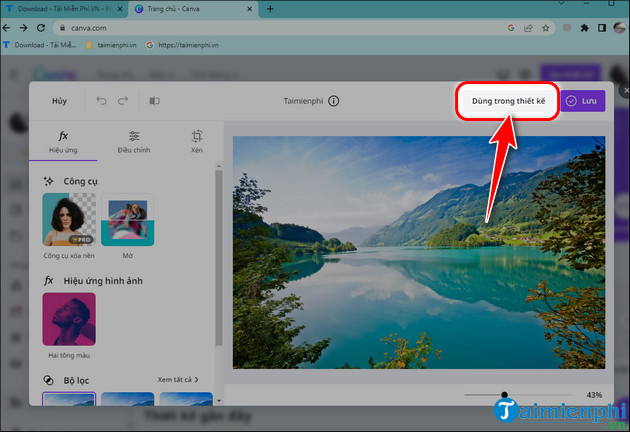
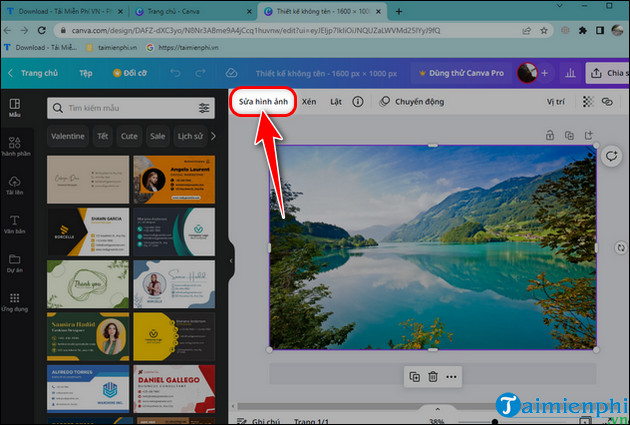
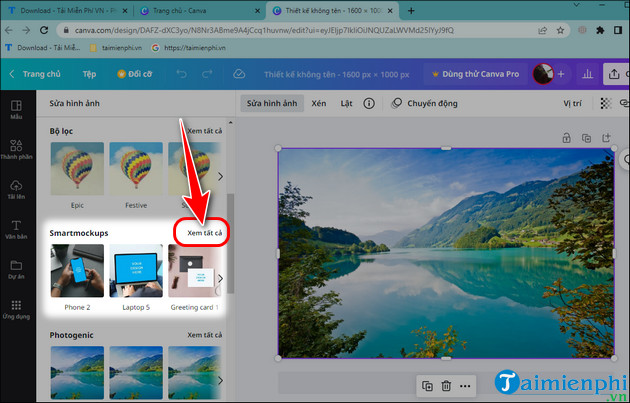
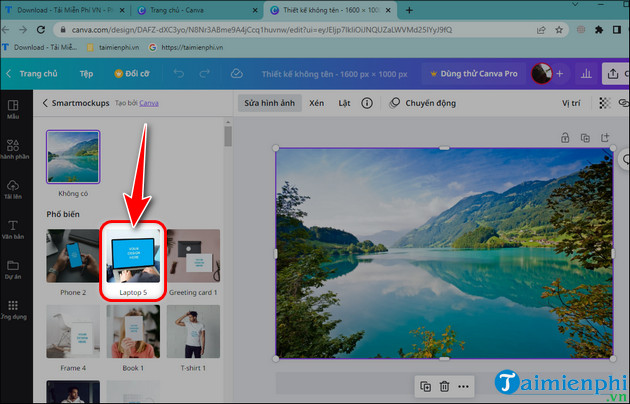
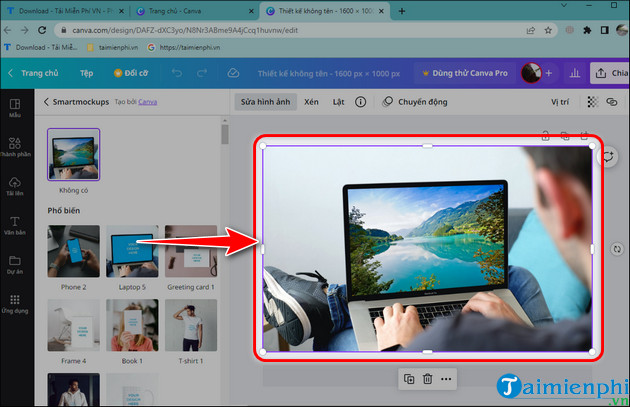
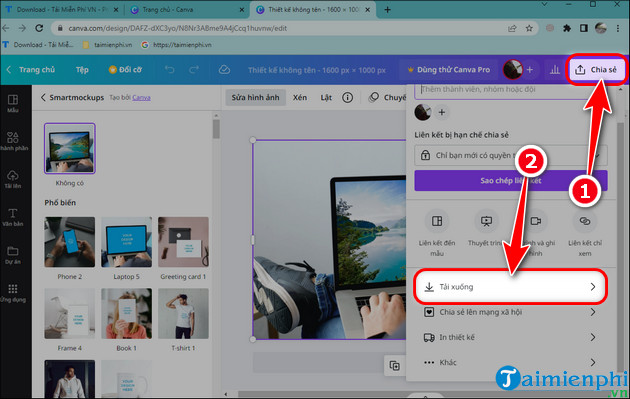
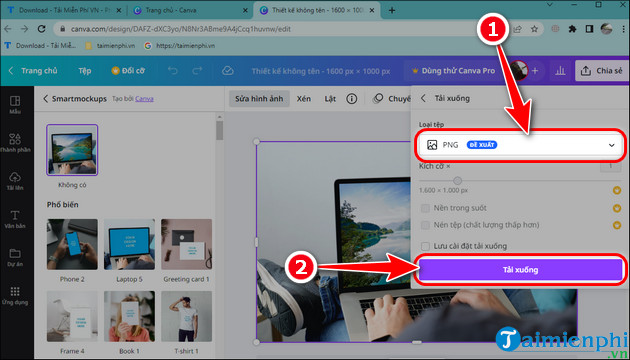
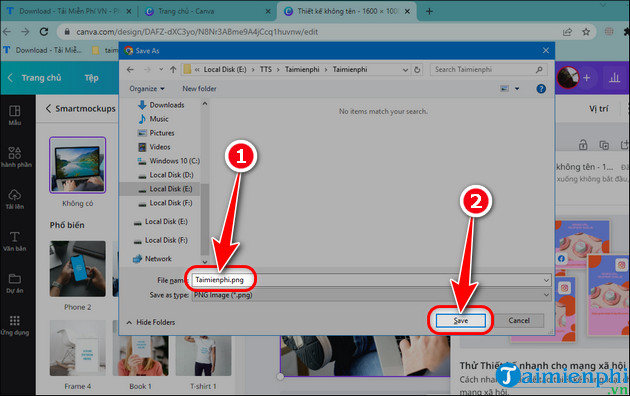
Prepare the source design
- Match the aspect ratio: a mobile screenshot in a laptop frame will crop poorly.
- Use adequate resolution: low-resolution artwork remains blurry inside a high-resolution mockup.
- Keep safe margins: do not place essential text against edges that a frame may hide.
- Use transparency deliberately: a transparent logo can sit naturally on apparel or packaging; screen designs usually need a complete rectangular background.
- Remove temporary guides: export the clean artboard, not selection handles or layout notes.
Choose the right mockup
| Design | Useful mockup types |
|---|---|
| Website or app | Phone, tablet, laptop or browser frame |
| Logo | Signage, stationery, packaging or apparel |
| Poster or artwork | Wall frame, billboard or print sheet |
| Book cover | Paperback, hardcover or e-reader |
| Packaging | Box, pouch, bottle or label scene that matches the real structure |
Mockup limitations
A mockup demonstrates appearance, not manufacturing accuracy. It does not validate print color, material, dimensions, folds, screen responsiveness, accessibility or product safety. Use dielines, physical proofs, device testing and production specifications for final approval.
Licensing and honest presentation
- Use artwork, logos and photographs you own or are licensed to use.
- Do not imply that a concept is a manufactured product or live application when it is only a mockup.
- Check the license for the selected scene before commercial distribution. Canva says exported Mockups images may be used in personal and commercial projects but may not be resold or redistributed as new mockups.
- Keep the editable design and the original source artwork separately.
Canva's official Mockups instructions document the current editor path, and its Mockups overview explains supported uses and licensing. The Smartmockups closure notice confirms the old standalone site is gone. For alternatives, compare mockup resource websites, Canva alternatives, or photo collage tools.
Related Articles
 How to Create Mockups for Designs Using Canva's Smartmockups: Complete Guide6 minutes read
 Instructions for Creating QR Codes on Canva3 minutes read
 Instructions for Creating Stickers on Canva3 minutes read
 How to Fix the Error of Not Being Able to Access Canva Super Fast6 minutes read
 4 New Canva Features You'll Love11 minutes read
 Instructions for Creating Podcast Covers on Canva3 minutes read
Reader Comments 0
Sign in with email or Google to join the discussion.