Table of Contents
Download AutoCAD only from Autodesk or an organization-managed deployment. For an individual subscription, sign in to Autodesk Account, choose AutoCAD under All Products and Services, select the available version, operating system and language, then use Autodesk's recommended download method.
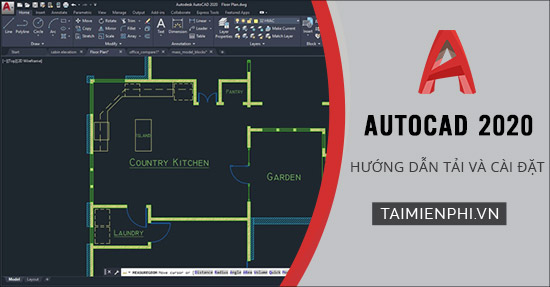
Before downloading
- Confirm that your Autodesk account has an AutoCAD subscription, trial, Flex access or eligible education entitlement.
- Check the system requirements for the exact AutoCAD version. Operating-system, processor, memory, storage, display and graphics requirements change between releases.
- Install operating-system updates and obtain current graphics drivers from the hardware vendor.
- Back up custom templates, plot styles, fonts, plugins and workspace settings before replacing an existing installation.
Download and install the current AutoCAD version
- Go to Autodesk Account and sign in.
- Open All Products and Services and find AutoCAD.
- Choose the version, operating system and language available to your account.
- Select a download method. Autodesk may offer direct browser download, custom install or other deployment options depending on the product and account.
- Open the downloaded installer from your trusted Autodesk source and approve the operating-system prompt.
- Review the license terms, choose the components and installation location, and begin installation.
- Launch AutoCAD, sign in to activate the assigned license, then install applicable updates through Autodesk Access.
Can you still download AutoCAD 2020?
AutoCAD 2020 is now a legacy release. Autodesk says most individual subscribers can download the current product and a limited number of previous versions from Autodesk Account. Its current instructions describe access to the three previous versions, with older eligible releases sometimes handled through Autodesk Assistant according to support entitlement.
If AutoCAD 2020 does not appear in your account, do not download a repackaged copy from a file-sharing site. Use an available supported version or contact Autodesk to determine whether your license qualifies for legacy access.
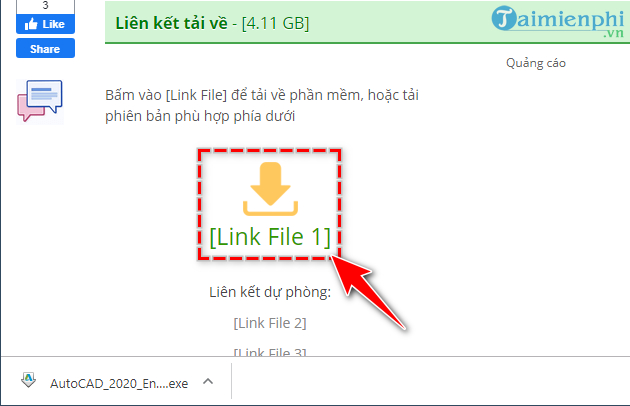
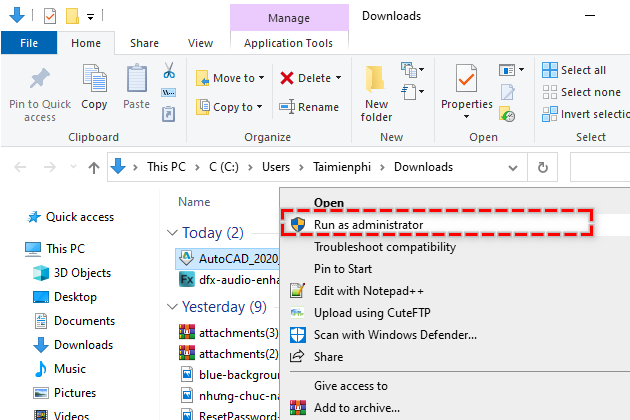
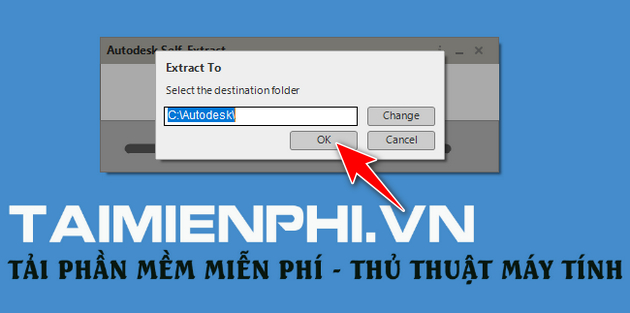
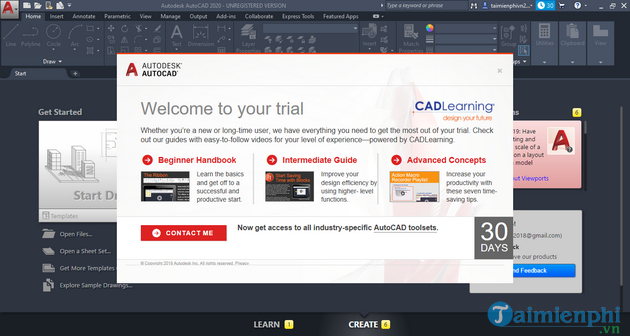
Legacy AutoCAD 2020 installer screens
These images document the historical setup flow only. Button names and steps may not match a current Autodesk installation.
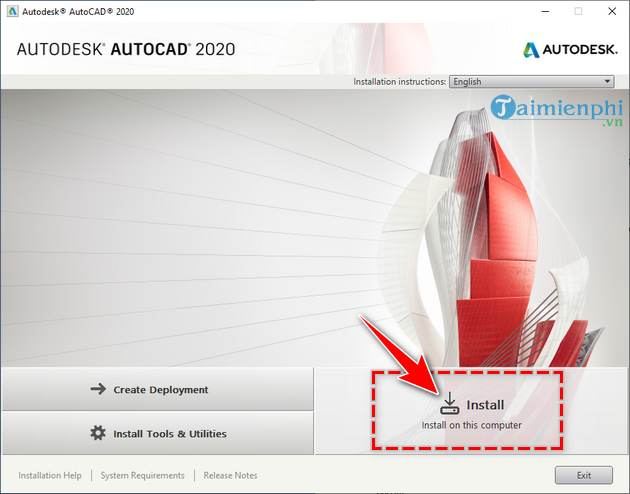
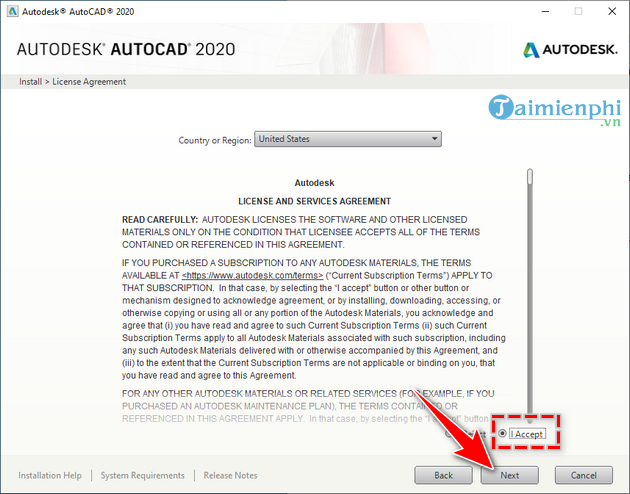
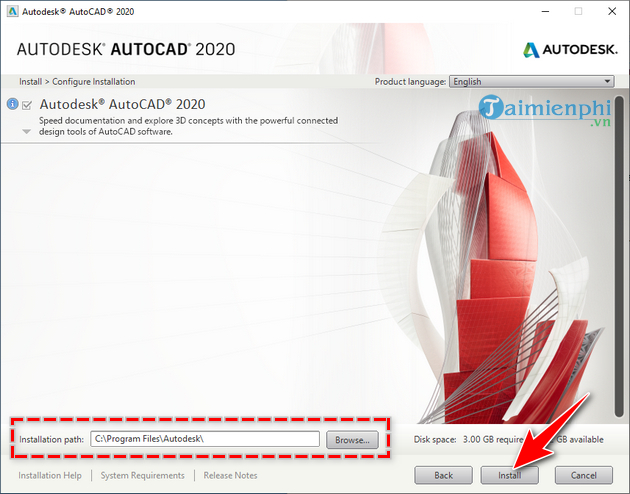
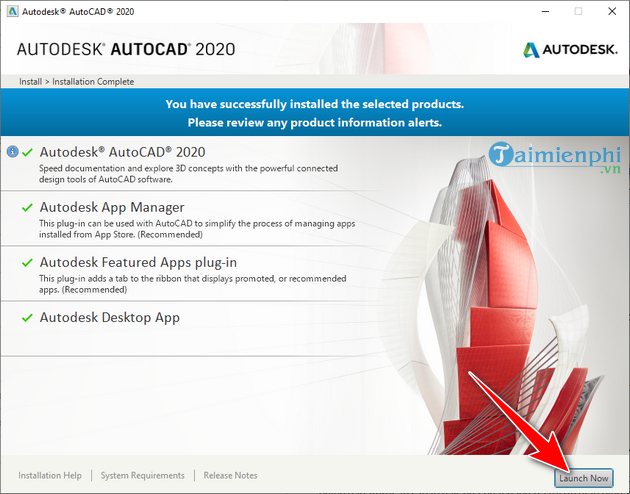
Trial and education access
Autodesk provides an official AutoCAD trial for evaluation. Eligible students and educators can receive time-limited, renewable education access for educational purposes after verifying eligibility. Education access is not a general commercial license; follow the current Autodesk terms for permitted use.
Common installation problems
The installer will not start
Confirm the file came from Autodesk, compare the system with the selected version's requirements, restart Windows or macOS, and ensure enough free disk space. Do not disable security protection to run an unknown installer.
AutoCAD installs but will not activate
Verify that the signed-in Autodesk account is the assigned user for the subscription. Organization administrators may need to assign the product before it appears.
The download is incomplete
Use a stable connection, retry from Autodesk Account, and choose another Autodesk-provided download method if available. Avoid “download managers” supplied by unrelated sites.
Graphics or display problems appear
Install a supported GPU driver and compare the card with Autodesk's certified-hardware guidance. If necessary, test hardware acceleration settings after the product opens.
After installation
- Install updates through Autodesk Access.
- Create a small test drawing and save, close and reopen it.
- Verify plotting, fonts, external references and required plugins.
- Keep project backups and note the AutoCAD version used by collaborators.
Use Autodesk's official download and installation center, AutoCAD system requirements, previous-version guide, and official trial page. For related help, compare AutoCAD alternatives, review beginner CAD tools, or learn how to recover unsaved AutoCAD files.
Related Articles
 Instructions for Downloading and Installing Autocad 20215 minutes read
 How to Install AutoCAD 2019 on a Computer5 minutes read
 The Most Complete Font Set for AutoCAD4 minutes read
 5 Best Autocad Alternatives9 minutes read
 How to Install SPSS on a Computer4 minutes read
 Copyright Autocad 3 Years, Register Now3 minutes read
Reader Comments 0
Sign in with email or Google to join the discussion.