Table of Contents
In Canva, a watermark can be simple text, a logo or another graphic placed over a photo with reduced transparency. You can add it directly inside each design, or create a reusable transparent PNG. Canva currently lists transparent-background download as a premium feature, so the direct method is the simplest free-plan workflow.

Method 1: Add a text watermark directly
- Open Canva and create a design at the image's final dimensions, or upload the photo and choose Edit image.
- Add the photo to the page and size it to fill the canvas.
- Select Text, add your name, website or copyright notice, and choose a readable font.
- Position the text in a corner or over an area where cropping and cloning would be difficult.
- Select the text, open Transparency in the editor toolbar, and lower the value until the mark is visible but does not dominate the image.
- Duplicate and rotate the text if the image needs broader coverage, then download the finished design.
Method 2: Create a reusable logo watermark
This workflow creates the mark separately, then places it in multiple designs.
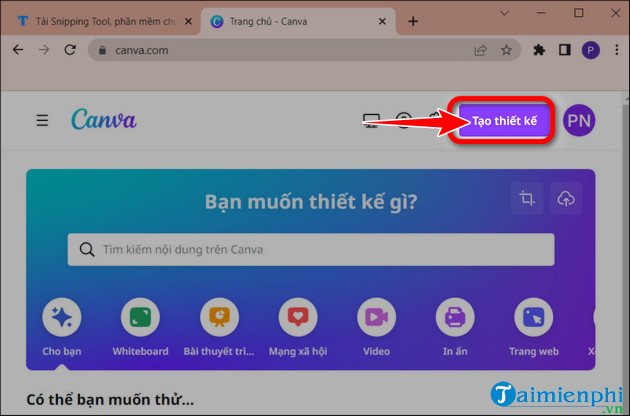
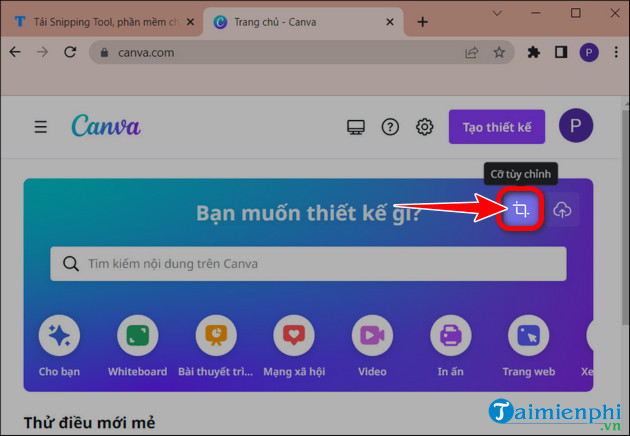
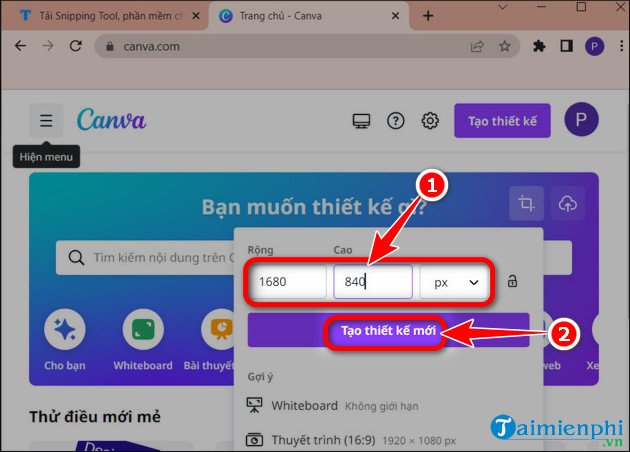
- From the Canva home page, choose Create a design and use a custom size appropriate for the logo or wordmark.
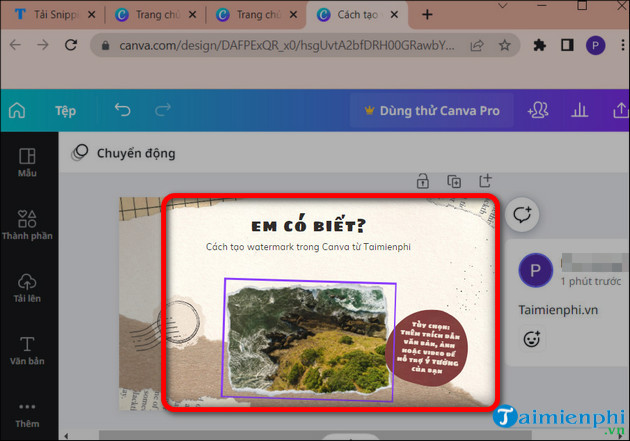
- Add your logo, text and any simple supporting shape. Keep the design legible at small sizes.
- Group the elements and save the design with a clear name such as “Brand watermark.”
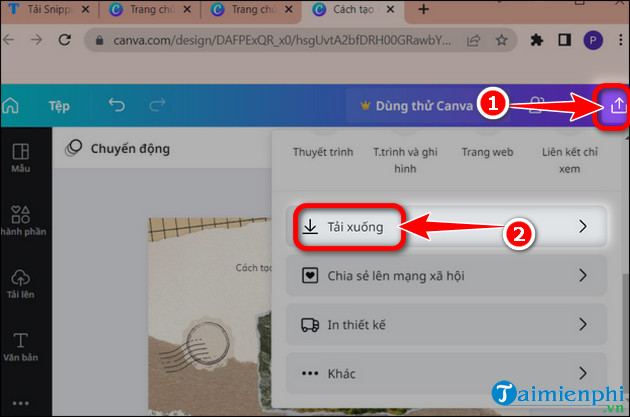
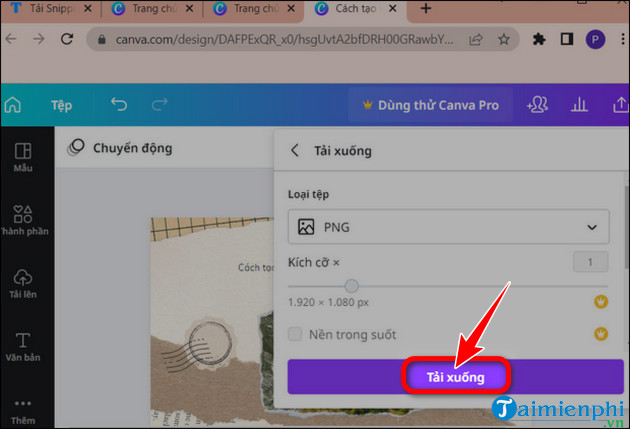
- Choose Share > Download and select PNG. Enable Transparent background if your plan includes it.
- If transparent download is unavailable, keep the Canva design as the reusable source and copy its grouped elements into each target design instead.
Add the saved watermark to a photo
- Create a design at the target image size or open an existing project.
- Upload the photo and the watermark PNG, or copy the grouped watermark elements from the saved Canva design.
- Place the watermark, resize it proportionally and adjust its transparency.
- Check both the full image and a small preview before export.

Choose the right placement
| Placement | Advantage | Risk |
|---|---|---|
| Corner | Least distracting | Easy to crop out |
| Near the subject | Harder to remove cleanly | Can distract from the focal point |
| Centered | Strong attribution | May obscure important detail |
| Repeated pattern | Useful for proofs and previews | Reduces viewing quality |
Watermark limitations
A watermark discourages casual reuse and helps with attribution, but it cannot guarantee copyright protection or prevent determined removal. Keep original files and creation records, publish only the resolution needed, and use platform reporting or appropriate legal advice when serious infringement occurs.
Export checks
- Confirm spelling and the correct brand mark.
- Check visibility on both light and dark areas.
- Do not claim a transparent PNG if the exported file still has a solid background.
- Make sure the watermark does not cover faces, product details or important text.
- Open the downloaded image to verify placement and quality.
Canva's official watermark tool page explains placement and opacity, while its transparency help shows the current control. Canva also documents transparent-background downloads as a premium feature. For related design work, compare mobile logo apps, online logo makers, or learn how to create a tilted image in Canva.
Related Articles
 How to Insert, Delete Watermark in Word Documents5 minutes read
 Instructions for Creating QR Codes on Canva3 minutes read
 Instructions for Creating Stickers on Canva3 minutes read
 How to Separate the Background in Canva Quickly and Simply: Complete Guide7 minutes read
 4 New Canva Features You'll Love11 minutes read
 Instructions for Creating Podcast Covers on Canva3 minutes read
Reader Comments 0
Sign in with email or Google to join the discussion.