Table of Contents
Creating an EFI System Partition is only one part of making a UEFI Windows installation bootable. The partition also needs the correct type, filesystem and Windows startup files. An MSR partition and a Windows recovery partition have different purposes; naming three ordinary volumes EFI, MSR and Recovery does not configure them.
Choose the correct task first: repairing an existing installation should preserve its Windows and data partitions, while a clean deployment deliberately replaces the selected layout. Do not delete C: as a routine step in an EFI repair.
Understand the partition roles
| Partition | Purpose | Important distinction |
|---|---|---|
| EFI System Partition (ESP) | Stores UEFI startup files | FAT32 with the EFI partition type; an empty ESP cannot start Windows by itself |
| Microsoft Reserved (MSR) | Reserved space for Windows GPT disk management | Not a personal-data volume and not the Windows bootloader |
| Windows | Contains the installed operating system | Its recovery-environment drive letter may differ from C: |
| Windows RE tools | Holds the recovery environment | Needs an appropriate recovery image and configuration, not just a label |
Microsoft's current UEFI/GPT layout guidance specifies an ESP of at least 200 MB for 512/512e-sector devices or 300 MB for 4K-native devices, and a 16 MB MSR. Recovery space depends on the image and servicing needs. Its default layout places the recovery partition after Windows, contradicting the old claim that every utility partition must precede C:.
Back up and identify the layout
Back up important files and retain any BitLocker recovery key before changing partitions. Boot trusted Windows installation or recovery media in UEFI mode. In its command prompt, inspect first:
diskpart
list disk
list volume
exit
Match the physical disk by capacity, model and volumes. Do not assume Disk 0 is the target or C: is the installed Windows volume. Inspect the candidate Windows folder before using it as a repair source. An ESP can exist on another connected disk, so its absence immediately before Windows does not prove it is missing.
For background, see disk and volume terminology. If the drive is failing, or the layout is unclear, preserve the source before making further writes.
For a clean installation
When intentionally replacing a backed-up installation, Windows Setup can create the required partitions in suitable unallocated space on the selected GPT disk. Confirm the destination carefully. Deleting old partitions removes their contents and is not a repair shortcut.
For an image-based deployment, use a complete documented deployment procedure that applies Windows, startup files and recovery configuration. The WinNTSetup installation guide covers a related workflow; it is separate from preserving an existing installation.
For repair: reuse an existing ESP where possible
Try the appropriate Windows startup-repair options before manually replacing partitions. If the correct ESP still exists, repairing its boot files may avoid any resizing or formatting. Do not format an existing ESP merely because it lacks a drive letter; it may contain working files for Windows or another operating system.
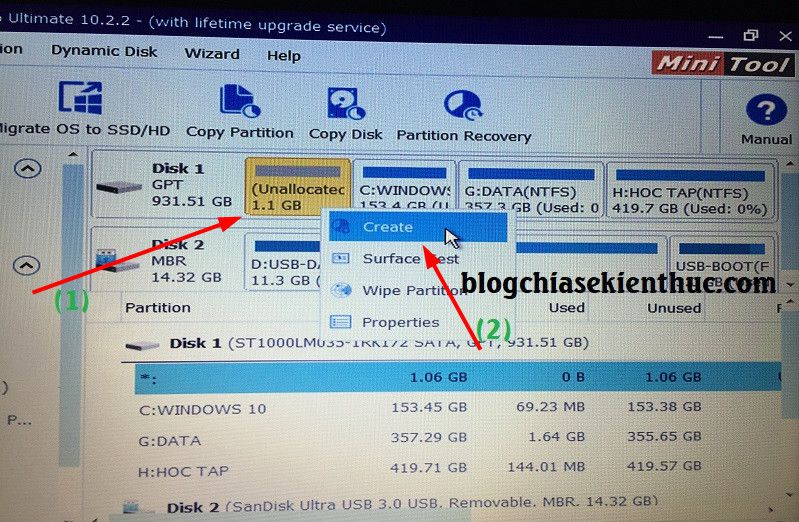
Creating an ESP only when it is genuinely missing
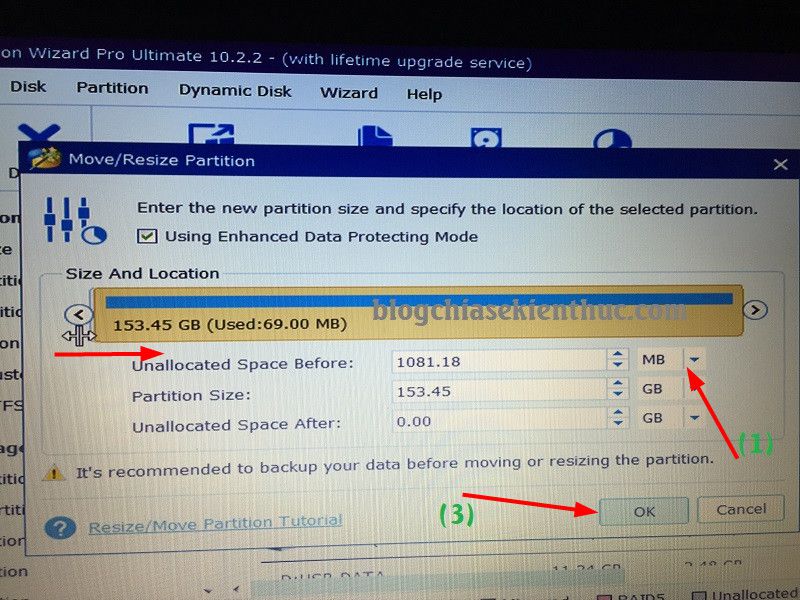
Manual creation requires confirmed unallocated space on the intended GPT disk. If none exists, resizing is a separate backed-up operation. Moving the start of a Windows partition is not a harmless prerequisite.
The following is an example for a confirmed GPT destination with sufficient unallocated space. Replace N with the verified disk number, and use S: only if that letter is unused. Review each command rather than pasting the block blindly:
diskpart
select disk N
create partition efi size=300
format quick fs=fat32 label=System
assign letter=S
exit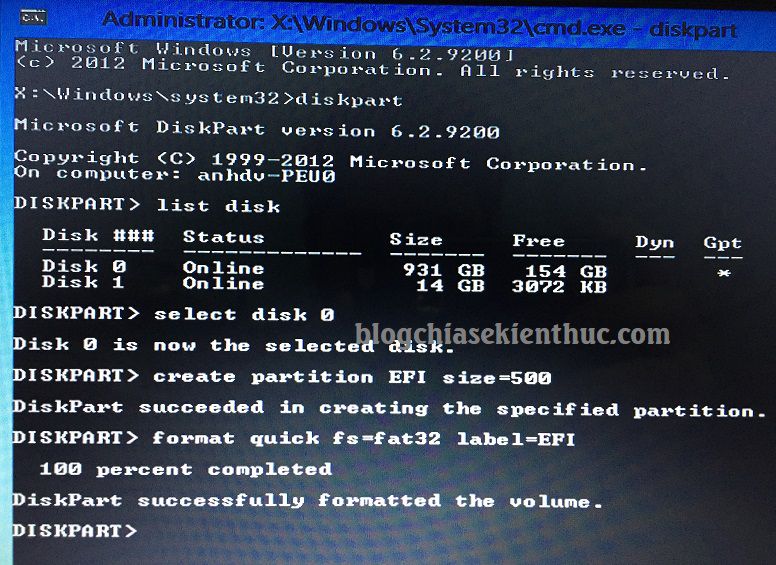
Populate the startup files
If the installed Windows folder has been verified as W:Windows and the intended ESP is S:, an illustrative command is:
bcdboot W:Windows /s S: /f UEFIReplace both letters with the actual verified locations. /s explicitly targets a system partition and affects firmware-entry behavior; this command is not a universal fix for every multi-disk configuration. Read the BCDBoot options before choosing the repair. A successful file copy still requires a reboot test through the intended firmware entry.
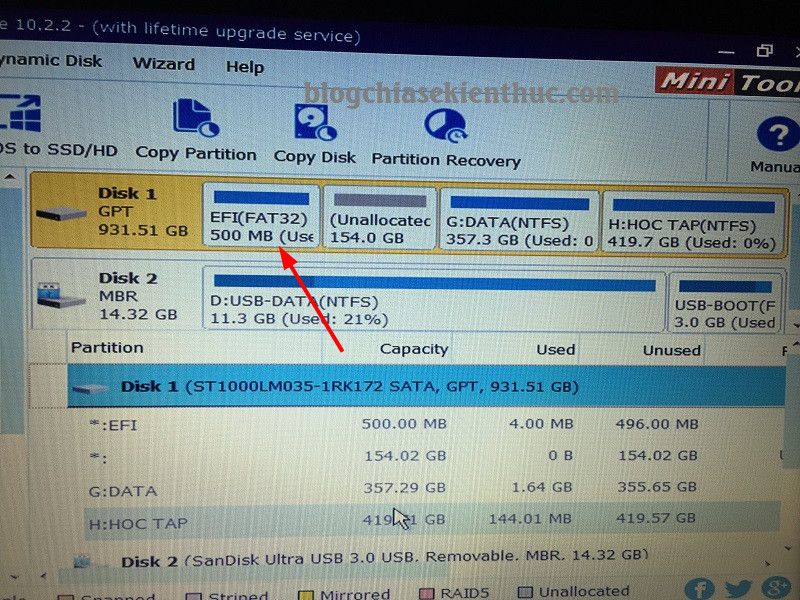
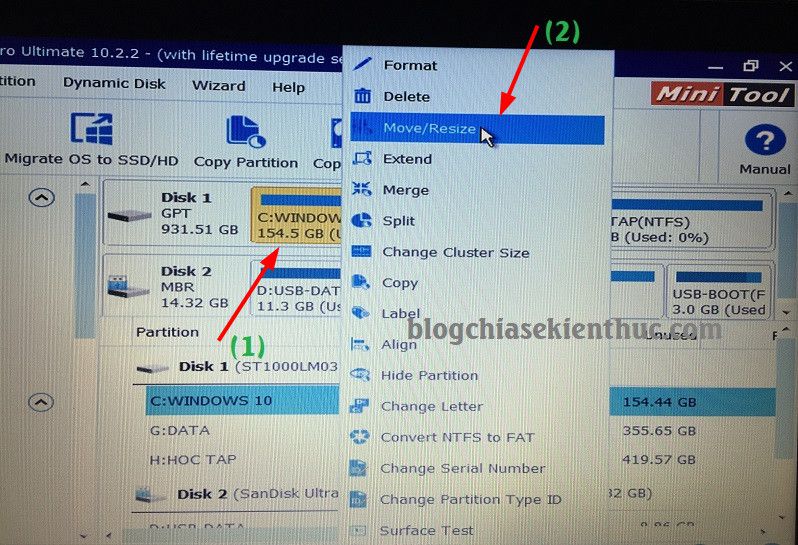
What the older partition-manager screenshots show
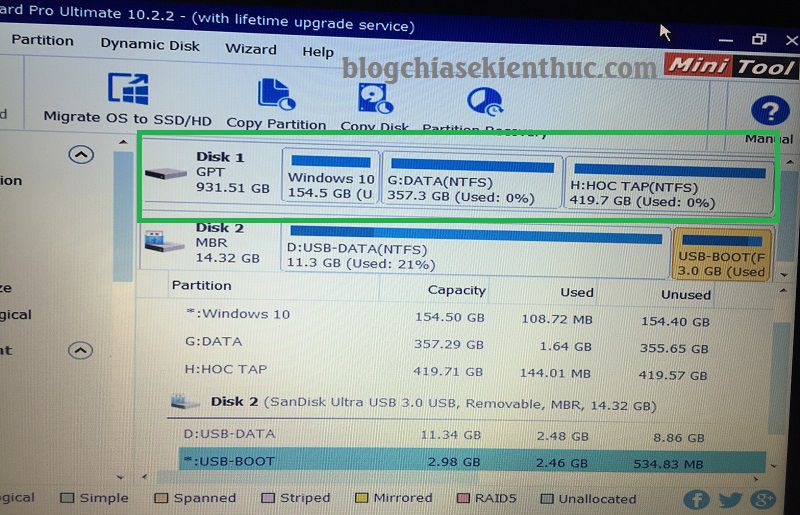
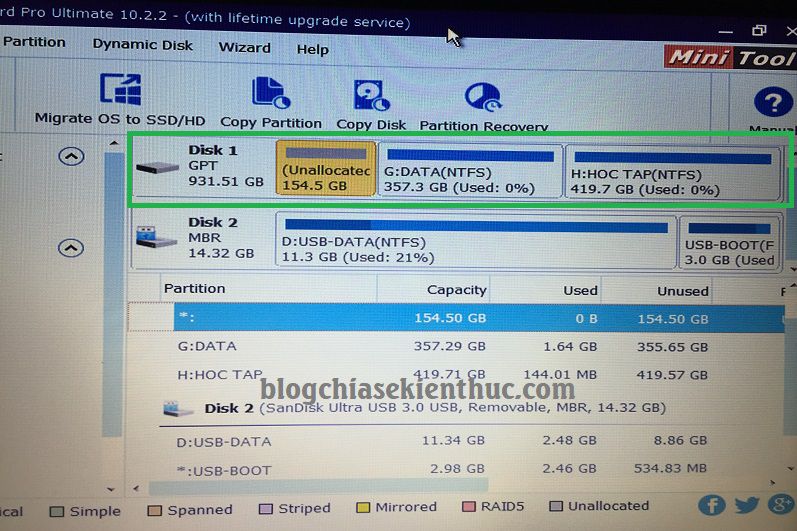
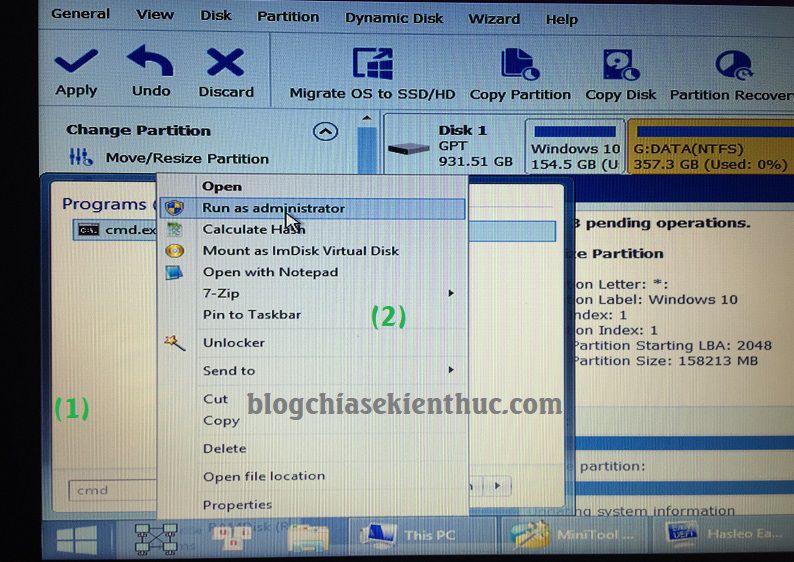
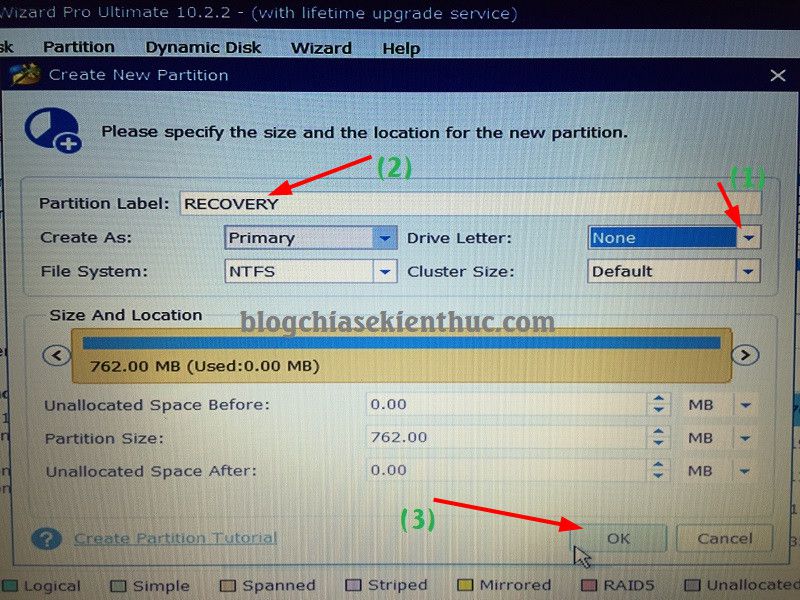
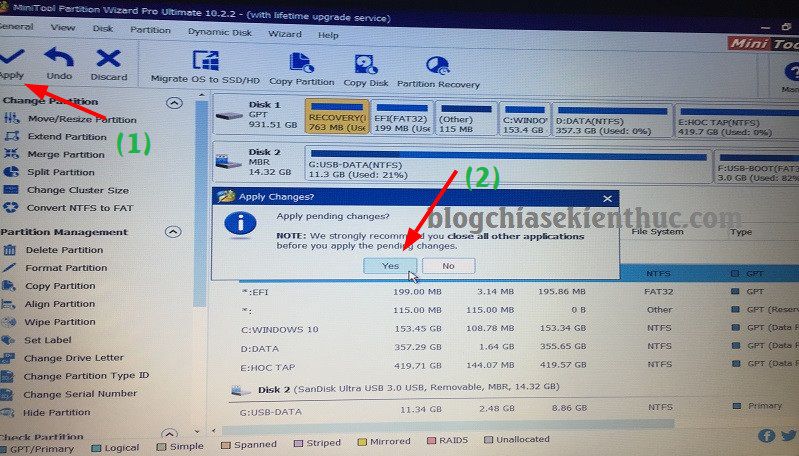
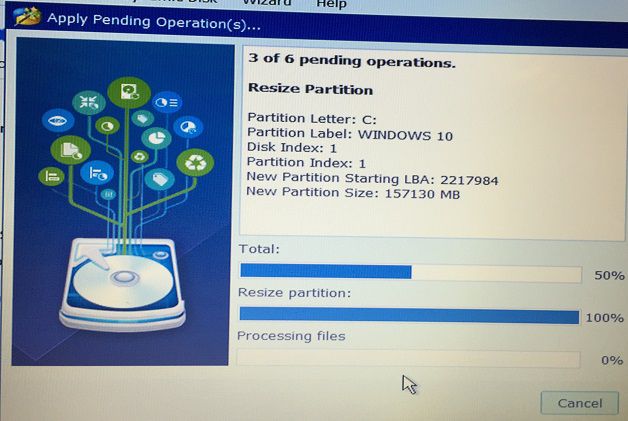
The retained illustrations below document the original graphical workflow. Treat them as interface references, not a complete current recipe. Partition sizes, order, type and contents must be planned for your installation.
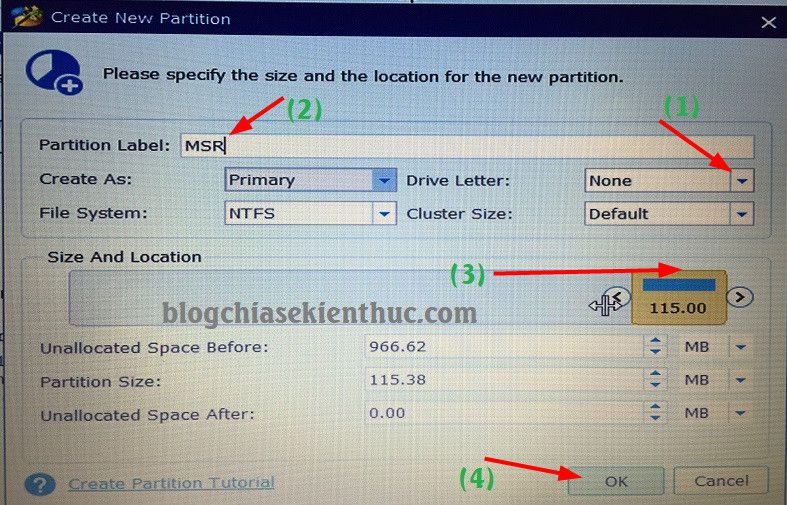
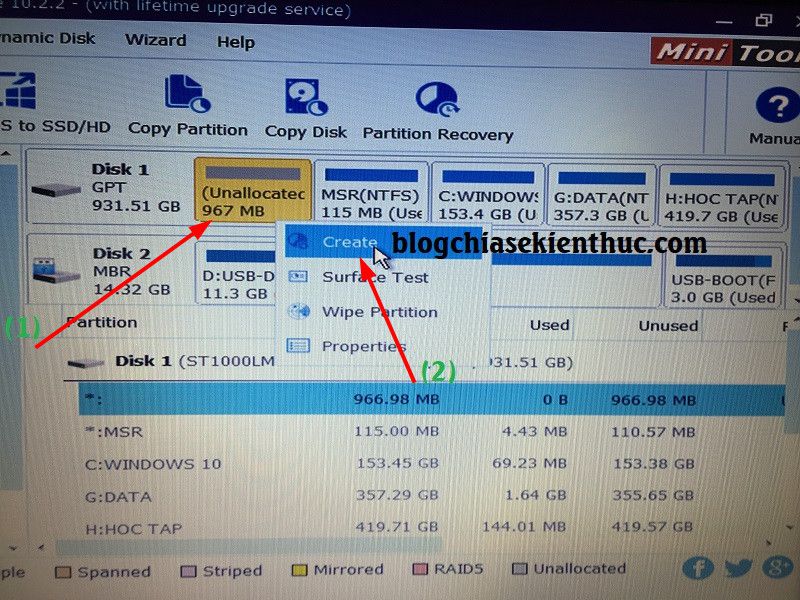
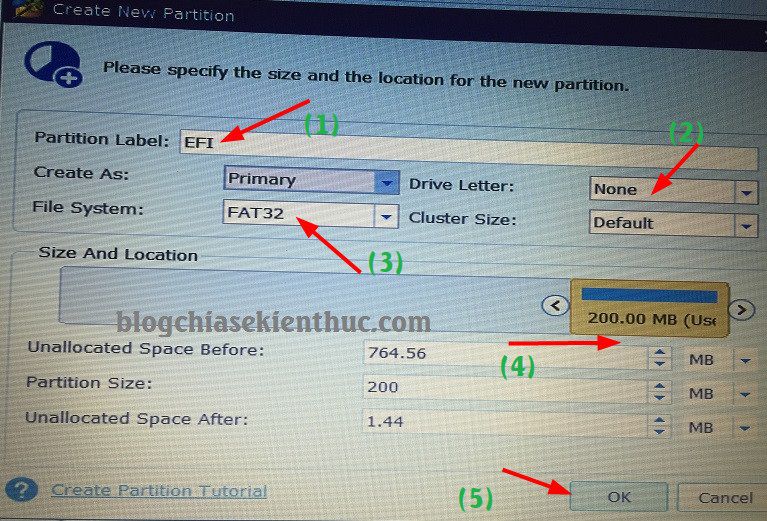
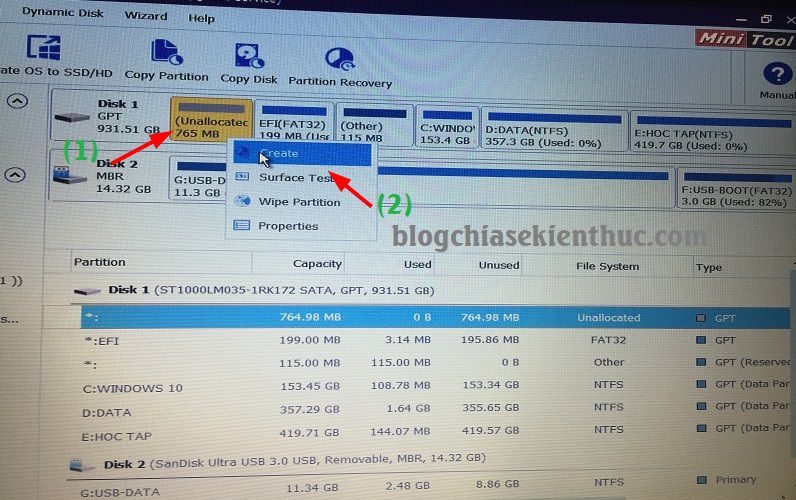
Partition types and Windows RE configuration
The next screens show type selection in an older partition manager. A type identifies a partition's intended role; changing it does not populate its files. Never change a data partition's type simply to make the layout resemble a screenshot.
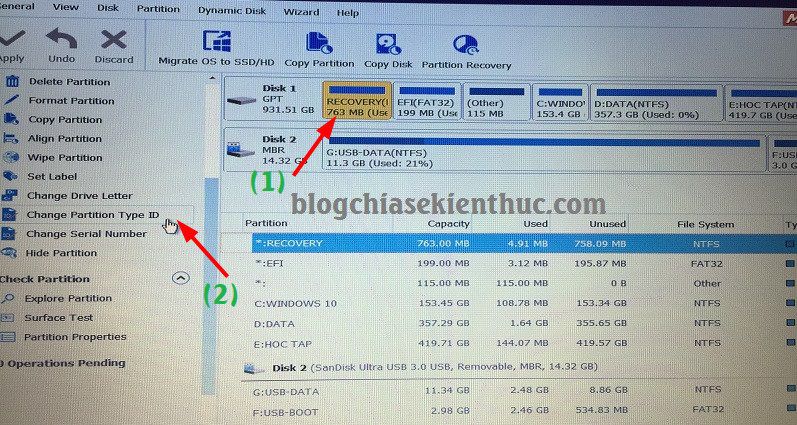
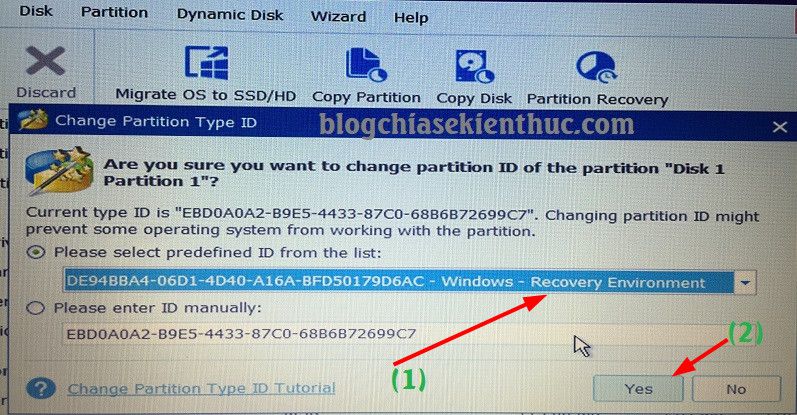
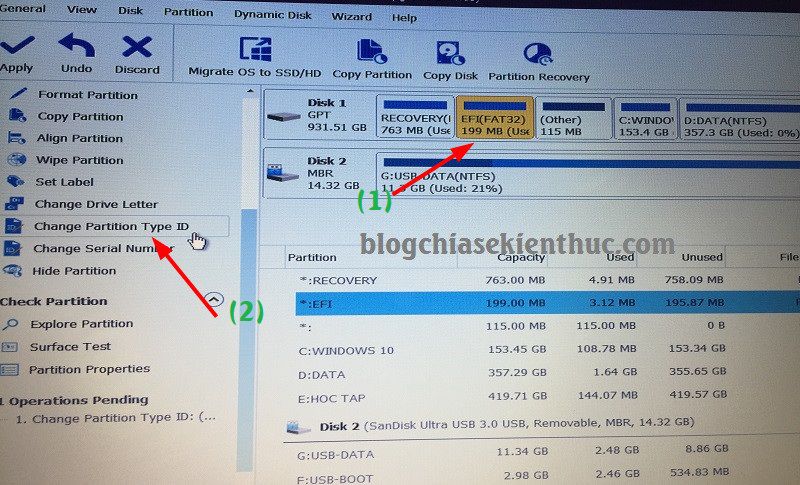
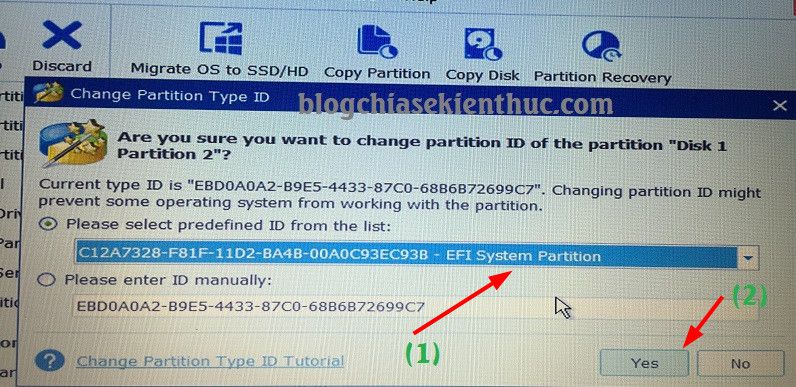
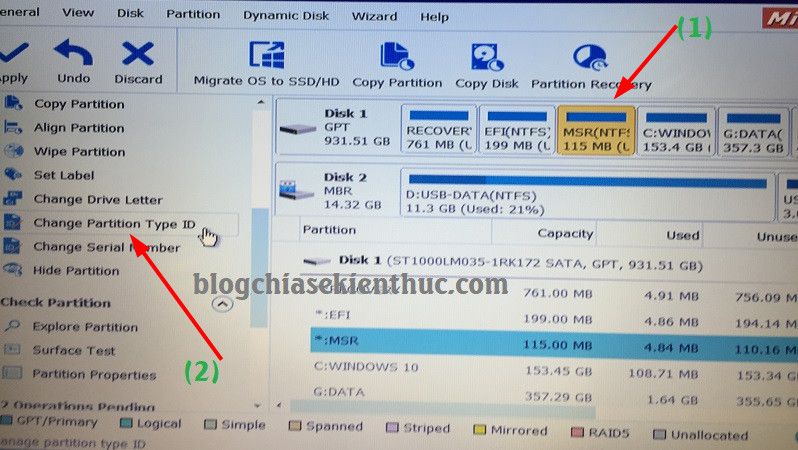
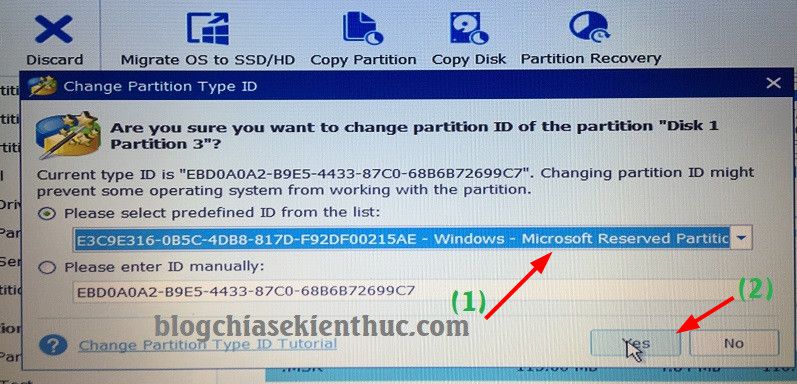
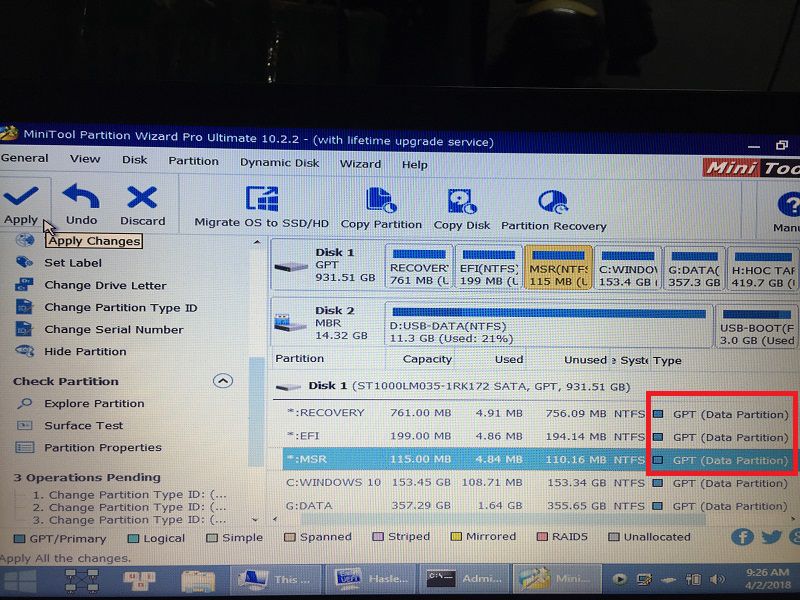
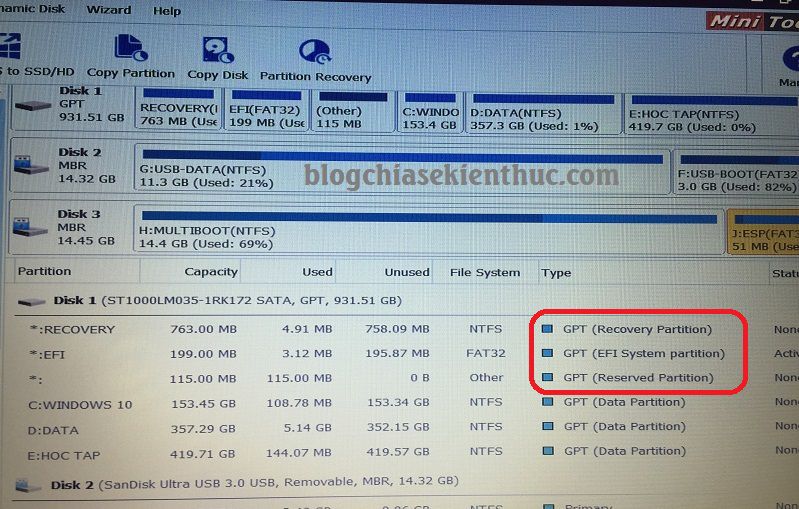
For Windows RE, the recovery image must exist and be configured for the intended installation. Use REAgentC documentation for registration and status checks. On a running installation, reagentc /info reports its recovery configuration; offline use requires the appropriate target.
Verify the result
Remove recovery media and test Windows startup from the intended disk. Verify that other operating systems still start if present, then check Windows RE separately. If startup still fails, record the exact error and disk layout instead of repeatedly deleting or recreating partitions.
Related Articles
 Create a hidden NHV-BOOT recovery partition on an external HDD or SSD
 Create recovery disk for Mac OS X Lion operating system
 20 best USB boot software
 How to Create and Utilize a Recovery Boot Disk with TeraByte Unlimited Software
 How to create USB Boot, USB install Windows by Rufus
 How to import Recovery Console in Windows XP?
Reader Comments 0
Sign in with email or Google to join the discussion.