Table of Contents
Press Windows + R, enter msinfo32 and press Enter. In System Summary, read BIOS Mode: it reports whether the current Windows session started in UEFI or Legacy mode.
This is different from asking whether the computer supports UEFI, or whether a particular disk uses GPT. Keep those three questions separate before preparing installation media or changing firmware settings.
Read the current boot mode
- Open System Information with
msinfo32. - Select System Summary.
- Find BIOS Mode in the details pane.
- Record the result without changing anything.
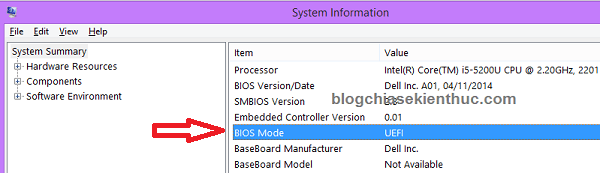
A Legacy result does not necessarily mean the hardware lacks UEFI. It may be using a compatibility mode for an older installation. Likewise, a computer supporting UEFI does not prove Windows is currently using it.
What UEFI and legacy BIOS mean
Firmware initializes the platform and starts an operating-system loader. UEFI defines a modern interface for that process; legacy BIOS is the older PC boot approach. The UEFI Forum's explanation describes the relationship.
| Term | What it describes |
|---|---|
| UEFI / Legacy | The firmware mode used to start the operating system |
| GPT / MBR | The partition style of an individual disk |
| Secure Boot | A UEFI-related startup security feature with its own configuration and compatibility requirements |
A mouse-driven setup screen does not define UEFI, and overclocking options are not the reason to identify boot mode. Firmware features and startup speed vary by implementation.
Disk tools check partition style, not boot mode
Windows UEFI boot normally uses a GPT system disk; a legacy Windows installation uses an MBR system disk. However, other attached data disks can use different styles. Inspecting any one GPT disk is therefore not a reliable substitute for reading BIOS Mode.
DiskPart
In a terminal with the required privileges, run:
diskpart
list disk
exit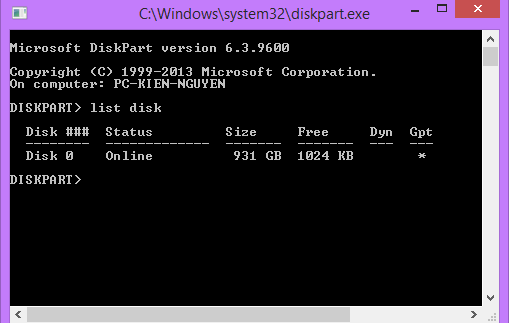
An asterisk in the GPT column identifies GPT. A blank column on an initialized disk normally indicates MBR, but an uninitialized or unreadable device needs further inspection. Do not run formatting or conversion commands as part of this check.
PowerShell
Get-Disk | Select-Object Number, FriendlyName, Size, PartitionStyle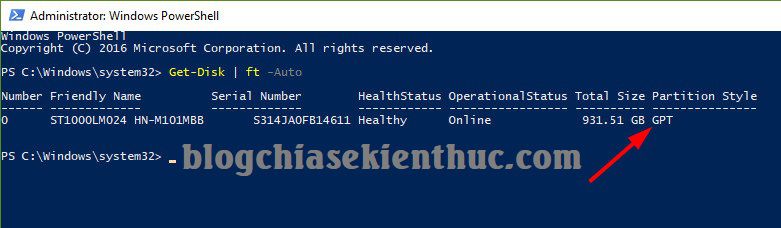
Match each entry to the intended physical disk. A result from a data drive does not establish the firmware mode.
Partition managers
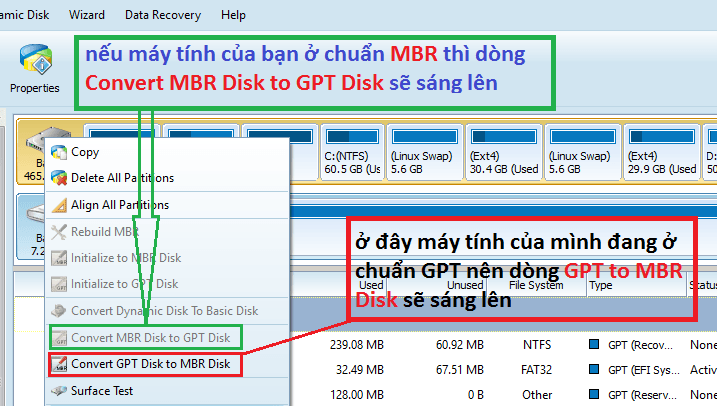
A trusted partition manager can show disk properties, but its conversion menus are actions rather than boot-mode tests.
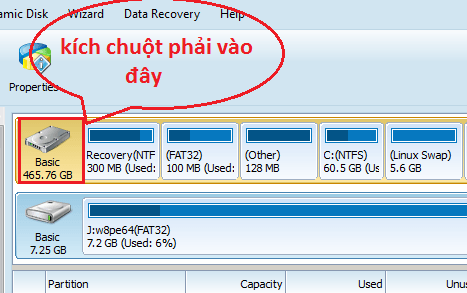
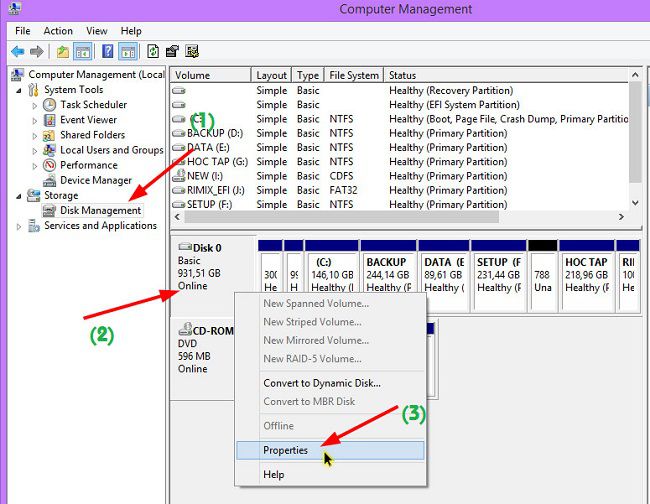
Disk Management
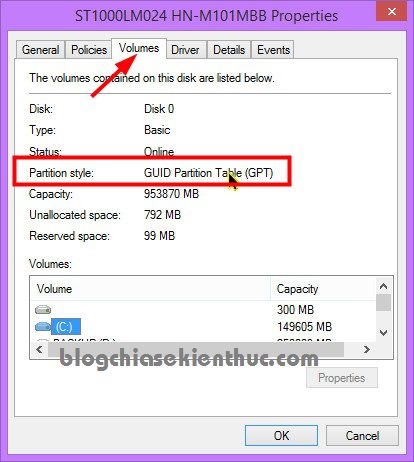
Run diskmgmt.msc, right-click the physical disk label, open Properties → Volumes and read Partition style. Do not assume Disk 0 always contains Windows.
Check whether the hardware supports UEFI
Use the manufacturer's manual or support page for the exact computer or motherboard model. Firmware setup may show UEFI, CSM or legacy boot options. Their availability and names differ by model.
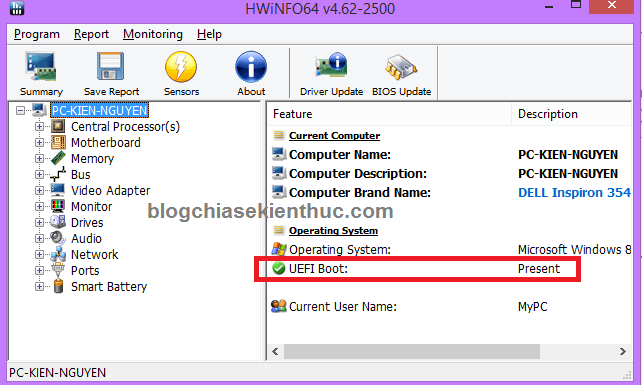
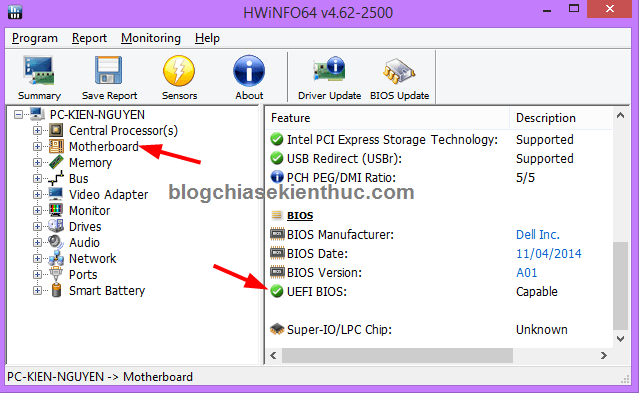
Hardware-information tools such as HWiNFO may provide additional clues. Distinguish a capability field from a field reporting the active boot session, and verify ambiguous results against the manufacturer's documentation.
Before switching modes
Do not toggle Legacy to UEFI on a working installation as an experiment. The existing Windows layout and boot files must be compatible, and changing only the firmware setting can prevent startup. Back up the system, keep recovery media and locate encryption recovery keys before planning a migration.
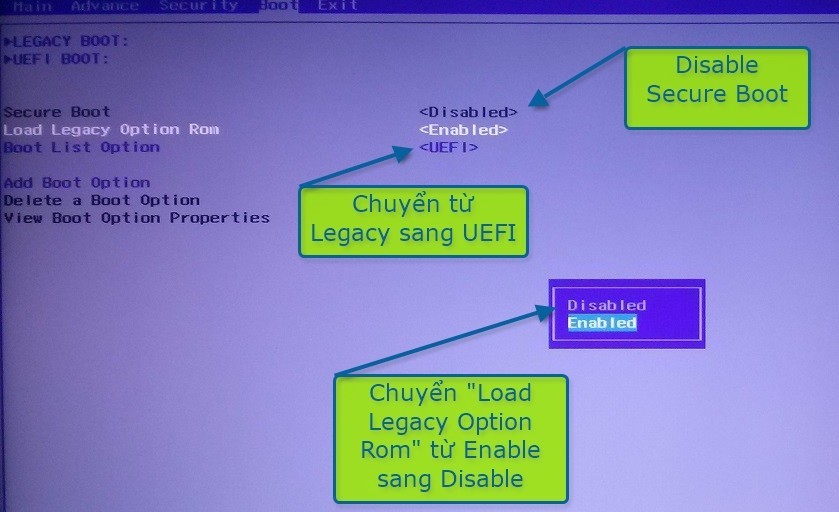
Microsoft's boot-mode documentation explains selecting the appropriate mode. If your goal is simply creating an installer, see UEFI or legacy Windows USB creation. Treat any Legacy-to-UEFI migration as a separate task requiring compatibility checks.
Related Articles
 How to check the computer that supports EFI / UEFI or Legacy BIOS
 What is UEFI and Legacy standards? Differences between UEFI, Legacy, BIOS
 How to convert from Legacy to UEFI in BIOS
 How to switch from Legacy to UEFI in your computer's BIOS
 Convert Windows from Legacy BIOS to UEFI without reinstalling
 Restore a GHO Windows Image on UEFI: Compatibility and Boot Checks
Reader Comments 0
Sign in with email or Google to join the discussion.