Table of Contents
A separate NHV-BOOT partition lets an external HDD or SSD carry recovery tools alongside a data partition. Hiding the recovery partition can reduce accidental changes in File Explorer. It does not encrypt the files or protect the drive against failure.
Back up the entire destination drive before changing its partitions. Restoring an image or writing an ISO can overwrite existing volumes. The older screenshots below illustrate the workflow; use the instructions supplied with your particular NHV-BOOT release for its required partition size and supported firmware.
Choose the right package and destination
- Download the release and its instructions from the official NHV-BOOT download page. An ISO and an RDR image require different creation methods.
- Use an external drive you can erase if necessary. Identify it by capacity and model, not just its drive letter. Disconnect other removable drives to reduce confusion.
- Keep a separate backup of files already on the destination. A second partition on that same disk is not a backup.
- Check the target computer's UEFI or legacy boot requirements. See this explanation of UEFI and legacy boot media for the distinction.
Do not disable antivirus protection simply to make a recovery package run. If a download is flagged, verify its origin and investigate the warning before proceeding.
Method 1: Restore the RDR recovery image
This method applies to releases distributed with an RDR image and a compatible image-restoration utility. Do not select an ISO in an RDR restoration workflow.
- In your partition manager, inspect the external drive's existing layout. If the release supports restoring into a separate area, prepare enough unallocated space for its image. The old 3 GB figure is not a reliable requirement for newer releases. Review pending operations before applying them.
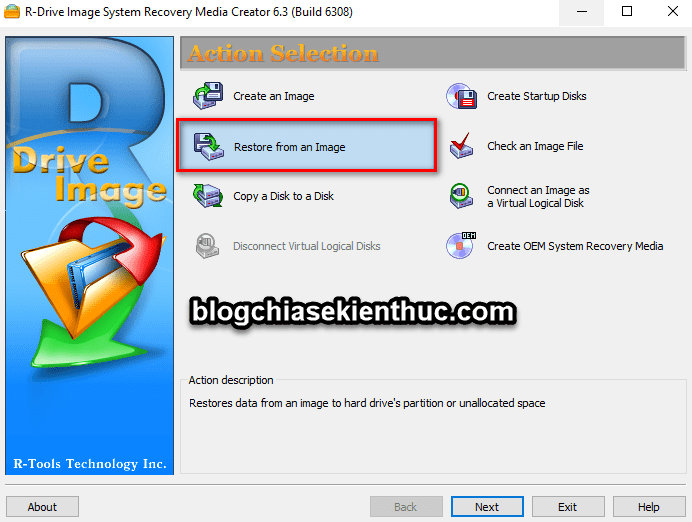
- Open the supplied restoration utility and choose Restore from an Image. Use a trusted copy from the release package.
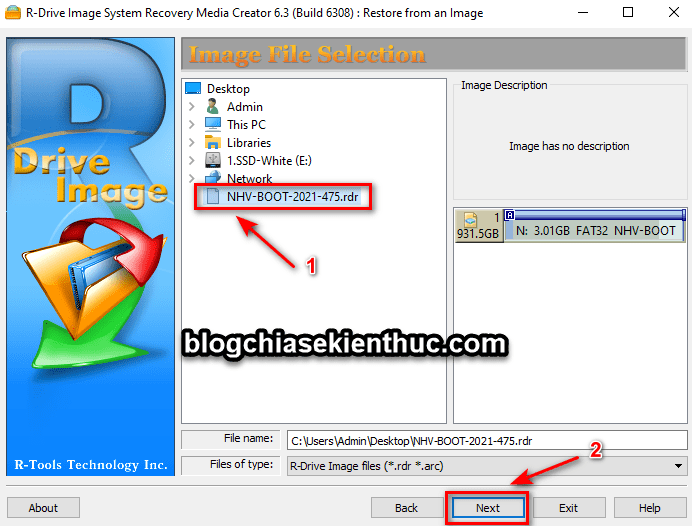
Select the NHV-BOOT .rdr file, then review the image contents before continuing.
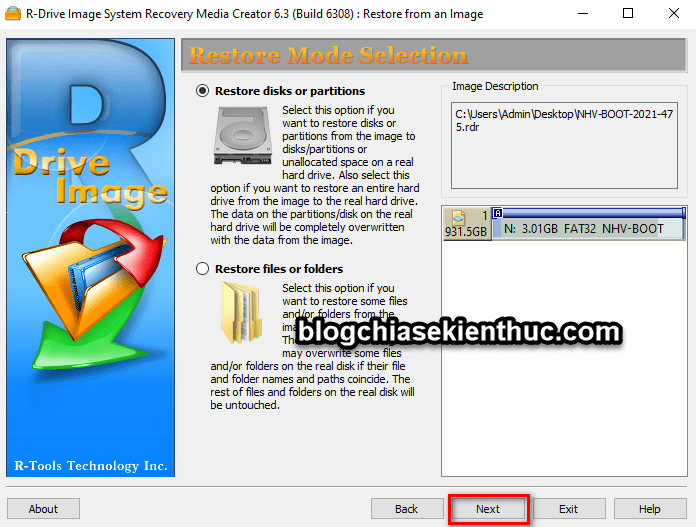
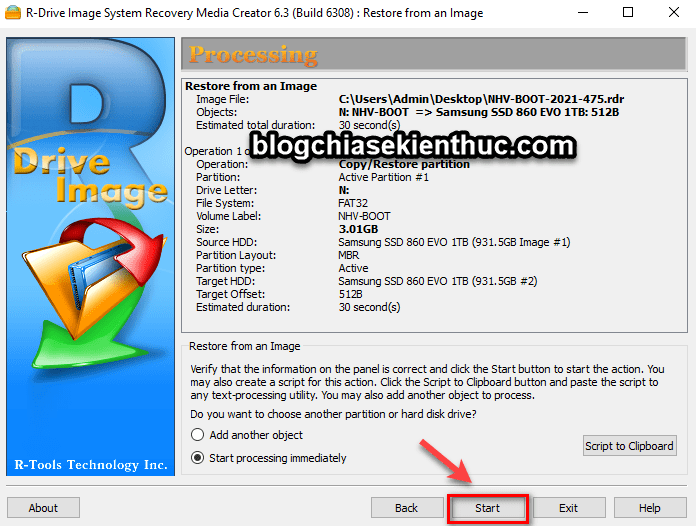
At the destination-selection screens, confirm the physical disk and the space to receive the image. A whole-disk restore can replace a partition table; restoring an individual partition has a different scope. Stop if the proposed layout removes a data partition you intend to keep.
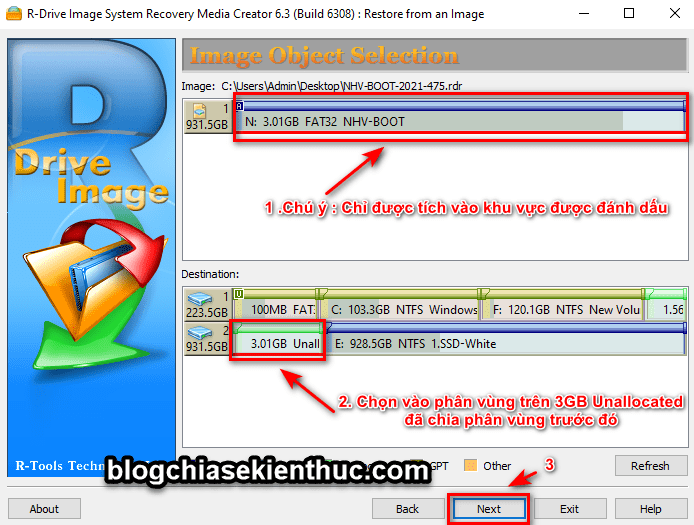
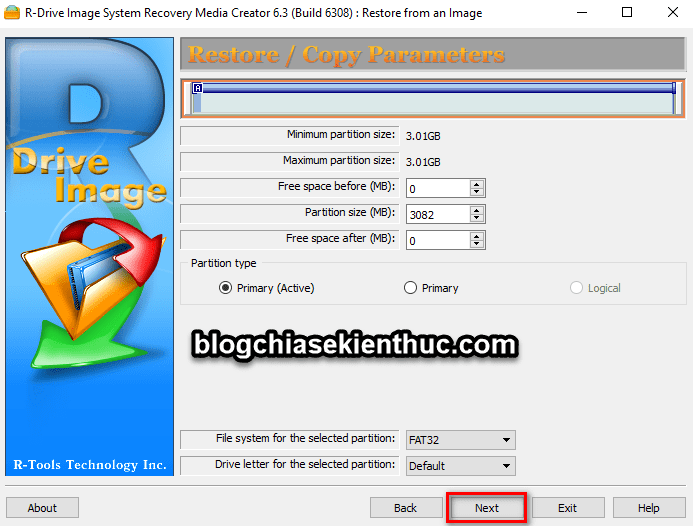
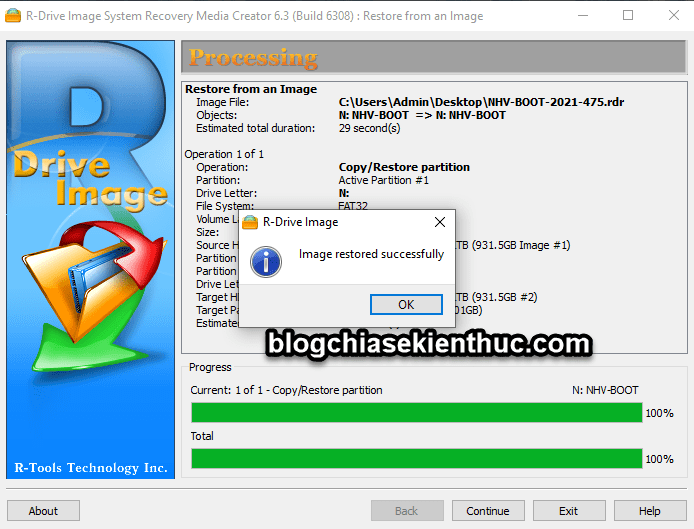
Read the final operation summary. Start only after the source image, destination disk and overwritten space are correct.
Method 2: Write the ISO with Rufus
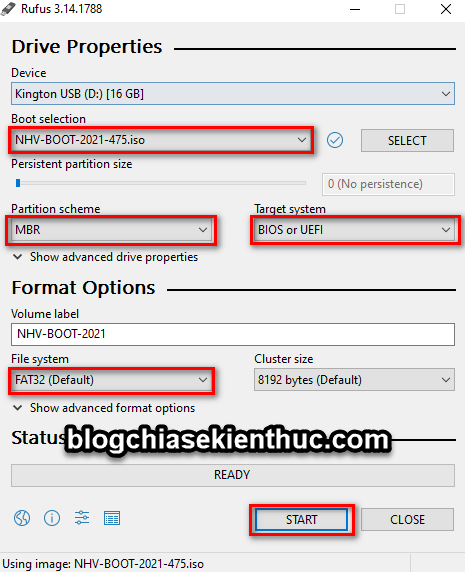
For an ISO release, follow NHV-BOOT's instructions for Rufus. Treat this as a drive-writing operation that may erase the destination, rather than a way to add files safely to a populated disk.
- Select the correct external device and NHV-BOOT ISO.
- Choose the partition scheme and target firmware recommended for that release and computer. Do not copy every setting from an old screenshot.
- Review the erase warning and write the image only after backing up the destination.
- After creation, inspect the resulting partitions. Create a separate data volume only where the layout and available space allow it; do not format or resize boot partitions blindly.
Test first, then hide the recovery partition
Restart the computer, open its one-time boot menu and select the external drive in the intended firmware mode. Confirm that NHV-BOOT loads and can see the drives you need. Exit without performing recovery operations, then check that your data partition remains accessible in Windows.
Once it works, use the hiding method documented for the installed layout. NHV-BOOT's partition-hiding instructions describe selecting the correct disk and recovery partition in BOOTICE before removing its drive letter and hiding it. That page also covers an internal-disk installation method with different requirements; do not apply its internal-disk setup steps indiscriminately to an external drive.
Never select your Windows system or EFI partition just because it has a similar size. Test booting again after hiding the recovery partition. If you only need a dedicated rescue device, a standalone option such as Hiren's BootCD PE may be simpler than maintaining a mixed recovery and data disk.



Reader Comments 0
Sign in with email or Google to join the discussion.