What you will learn
- Explain the difference between a physical disk, partition, volume, drive letter and folder.
- Check total capacity, free space and storage categories in Windows.
- Connect and eject removable storage safely.
- Recognize disk-management actions that require a backup and deeper knowledge.
What you need
- A Windows PC.
- Optional: a non-critical USB drive for the removable-storage exercise.
- A verified backup before any partition or formatting action.
Build a correct storage model
A physical SSD or hard disk can contain one or more partitions. Windows presents usable partitions as volumes, often with letters such as C: or D:. A folder is only an organizational location inside a volume. This distinction matters because deleting a folder is not the same as deleting a partition, and formatting a volume is far more destructive than clearing temporary files.
Microsoft describes Disk Management as the built-in tool for initializing disks and creating, formatting, extending or shrinking volumes. Those are administrative operations, not routine cleanup steps.
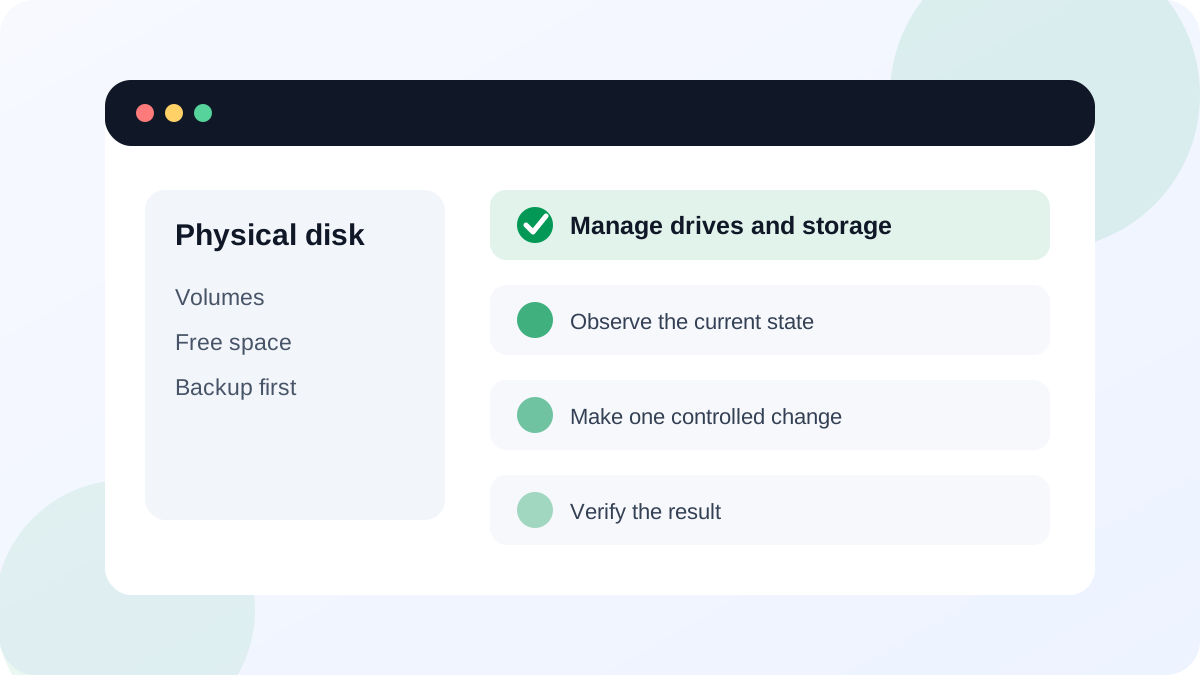
Inspect capacity in Settings and File Explorer
Open Settings > System > Storage to see the system drive's usage by category. Applications, temporary files, documents and other categories help explain where space went. Then open File Explorer > This PC to compare total and available space across visible drives.
Low free space can affect updates, temporary work and application performance. Do not react by deleting the largest unknown folder. Open the relevant category or application first and determine whether the data is personal, cached, synchronized or required by Windows.
- 1
Press Windows + I and open System > Storage.
- 2
Record the C: drive's total used and available space.
- 3
Open the largest storage category and note what Windows includes in it.
- 4
Open File Explorer > This PC and compare the capacity shown for each visible drive.
- 5
If a removable drive is connected, identify its letter and label before opening it.
- 6
Close all files on the removable drive and use Eject before disconnecting it.
Use Disk Management as an inspection tool first
Right-click Start and open Disk Management. Read the lower pane from left to right: each disk is listed with its partitions, file system, health state and size. Recovery and EFI System partitions are normally present and should not be assigned letters or deleted simply because they are unfamiliar.
Shrinking, extending, formatting or initializing changes the disk layout and can make data inaccessible if performed on the wrong target. Before any such action, confirm the disk number, capacity, connection type, backup status and intended result. Screenshots and model numbers are not substitutes for a restorable backup.
- The system volume and its drive letter are identified.
- Free space was checked in both Storage settings and This PC.
- Hidden recovery or EFI partitions were left unchanged.
- The USB drive, if used, was ejected only after files and applications were closed.
Choose a cleanup action with a recovery path
Windows Storage settings and Storage Sense provide supported ways to review temporary files and automate selected cleanup. They are safer starting points than deleting folders inside Windows or Program Files manually.
For personal files, move only content you recognize and verify the destination copy. For installed applications, uninstall through Settings rather than deleting the program folder. For cloud-synced files, understand whether an item is online-only, locally available or being removed from every synchronized device.
Create a storage map and safe cleanup plan
Document the visible drives and identify one low-risk action that can recover space without touching partitions.
- 1
Record each visible drive letter, label, capacity and free space.
- 2
Open Storage settings and list the three largest categories.
- 3
Open Disk Management only to identify the physical disk and system/recovery partitions.
- 4
Choose one cleanup candidate such as temporary files or an unused application.
- 5
Write the verification and rollback step before performing the cleanup.
Common mistakes to avoid
- Calling every drive a separate physical disk.
- Deleting recovery or EFI partitions because they lack familiar names.
- Formatting a drive after an unexpected prompt without checking for needed data.
- Deleting application folders instead of uninstalling the application.
Key takeaways
- Disk, partition, volume, drive letter and folder describe different storage layers.
- Storage settings and File Explorer are sufficient for most routine capacity checks.
- Disk Management is powerful; inspect first and change layouts only with a verified backup and exact target.
Frequently asked questions
Why does my PC have a small partition with no drive letter?
Windows commonly uses hidden EFI, recovery or system partitions for startup and repair. Their absence from File Explorer is intentional; do not modify them without a specific recovery plan.
Can I unplug a USB drive when nothing appears to be copying?
Close files and apps using the drive and use Eject. Background writes and cached data may still be active even when no copy window is visible.
Sources and further reading
- Overview of Disk ManagementMicrosoft Learn
- Storage settings in WindowsMicrosoft Support
Ready to continue?
Mark the lesson complete so your Learning Path progress stays current on this device.