Table of Contents
An Autounattend.xml answer file can automate parts of Windows Setup, including language and installation choices. It does not guarantee a completely hands-free installation on every computer. Missing settings, driver problems, and differences between Windows images can still require attention.
Disk automation can erase an entire physical drive. Test the answer file on a disposable virtual machine or blank test computer before using it on real hardware. Back up every drive that matters.
1. Create and test an ordinary Windows installer
First make a working installation USB from official Windows media. Use the Windows 11 USB creation guide or the appropriate Windows 10 UEFI/legacy media workflow. Confirm that it boots before adding automation; this makes later troubleshooting easier.
2. Create an answer file for the intended image
Microsoft documents answer-file creation with Windows System Image Manager. Use a compatible Windows image and validate the answer file against it. The Microsoft answer-file guide explains the relevant tools and settings.
Online generators can provide a starting point, but their output must be inspected. The original article used Windows Answer File Generator; the screenshot below is an older example, not a set of safe defaults to copy onto every PC.
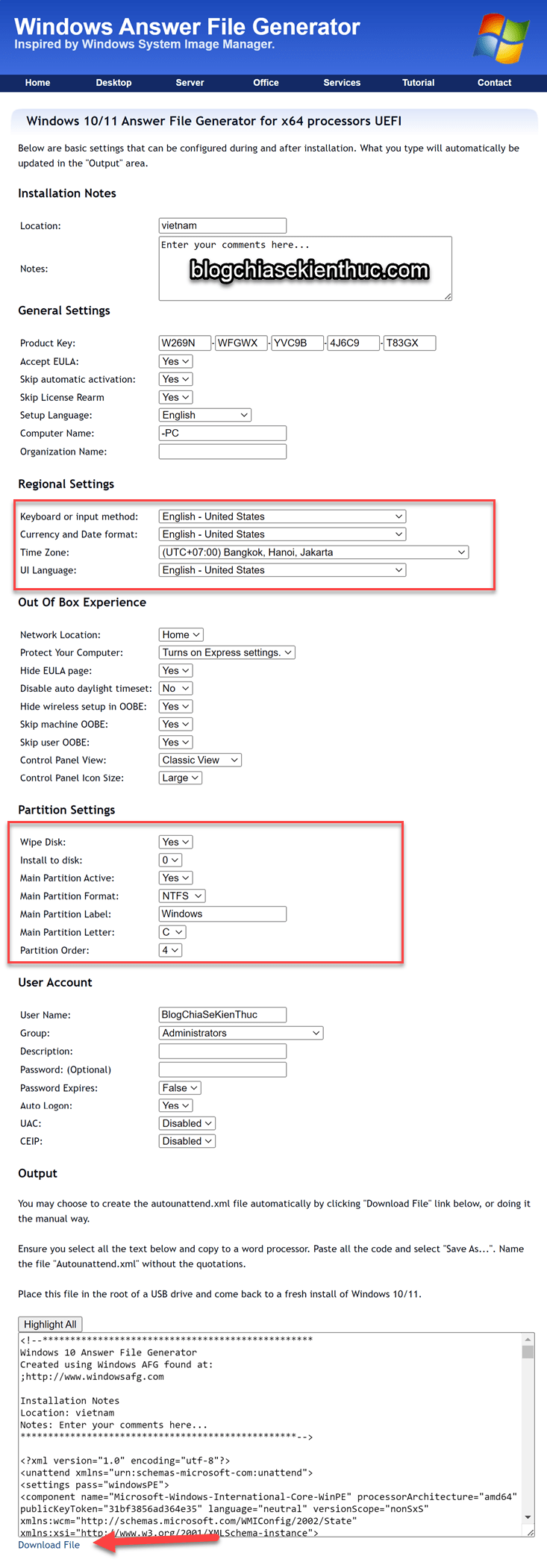
Start with the settings you understand, such as language, keyboard, and time zone. Choose the image edition and architecture deliberately. Do not enable automatic disk wiping simply to reduce the number of setup screens.
3. Review every disk-related setting
- Disk identity:
Disk 0is an enumerated disk number, not a guarantee that it is the drive you intend to erase. Recheck the hardware configuration for each deployment. - Wiping:
WillWipeDiskset totrueinstructs Setup to erase the selected disk's partitions and data before applying further disk configuration. - Partition changes: creating, formatting, or selecting a partition can still destroy data even when a whole-disk wipe is disabled.
- Firmware layout: use a layout suitable for the target's UEFI/GPT or legacy BIOS/MBR installation. The legacy active-partition setting is not a universal UEFI requirement.
- Install destination: verify both the physical disk and the partition selected for Windows.
Read the WillWipeDisk reference before enabling that setting. Having a second data drive does not make an automated install safe: choosing the wrong disk can erase that data drive.
If existing partitions must be preserved and you cannot verify the complete XML behavior, keep disk selection and formatting manual. Do not rely on deleting a couple of unspecified tags from a generated file.
4. Add the file to the USB root
Save the validated file as Autounattend.xml in the top-level directory of the removable media used for Setup. Ensure that the filename is not accidentally Autounattend.xml.txt. Review any other answer files that might also be discovered.
When the installation media boots, Setup can find the answer file and apply its settings. Simply plugging the USB into a running computer does not start a clean installation. The computer must boot into the intended Windows Setup environment.
5. Test the complete installation
- Use a virtual machine or test PC with no valuable data.
- Boot the intended media in the intended firmware mode.
- Confirm which disk and partitions are changed.
- Check language, edition, account setup, drivers, and the resulting desktop.
- Repeat validation whenever the image, answer file, or hardware layout changes.
Automation can include commands and account information. Read any included scripts, avoid storing reusable passwords in shared media, and keep the USB under your control. Label it clearly as automated installation media so it is not mistaken for an ordinary recovery drive.
If Setup stops or ignores a setting
Check the filename, file location, XML validation errors, image compatibility, and the configuration pass for the setting. Troubleshoot on the test system rather than repeatedly restarting installation on a computer containing data. Microsoft's Windows Setup automation reference explains the available setup controls.
Related Articles
 How to set up the Windows Store app installation to any D drive or drive
 How to Create a Windows 7/Vista Bootable USB Drive
 How to Put Multiple Windows Installers on One USB Drive
 How to Create a Windows Installation USB with Rufus
 How to Create a Windows Installation USB on macOS
 How to Create a Windows 11 Installation USB with Rufus or Media Creation Tool
Reader Comments 0
Sign in with email or Google to join the discussion.