Table of Contents
Ventoy can turn one USB drive into multiboot installation media: install Ventoy once, then copy several ISO files to the USB as ordinary files. At startup, Ventoy presents a menu so you can choose which installer to boot. This is simpler to maintain than repeatedly reformatting the drive for Windows 11, Windows 10, or other supported tools.
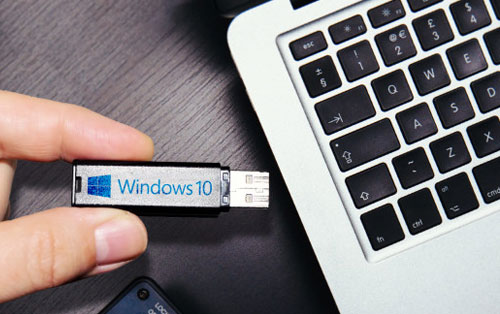
Windows 7, 8.1, and most Windows 10 editions are out of support. Keep their installers only for a legitimate legacy need, and do not use unsupported Windows versions for routine internet-connected work.
What you need
- A USB drive large enough for Ventoy and every ISO you plan to store. Add the file sizes and leave free space for future updates.
- The current Ventoy package from the official Ventoy download page.
- Legitimate ISO files obtained from the operating-system publisher or your organization's authorized channel.
- A backup of the USB. Installing Ventoy erases the selected device.
Microsoft provides current Windows 11 media on its Windows 11 download page. The Windows 10 ISO page remains available for reinstall scenarios, but Windows 10's support status must be considered separately. Do not use unofficial “all-in-one,” activated, or modified Windows images.
Install Ventoy on the USB
- Extract the downloaded Ventoy archive to a folder.
- Connect the USB and disconnect other removable drives to reduce the chance of selecting the wrong device.
- Run
Ventoy2Disk.exeas an administrator. - Under Device, verify the USB by model and capacity. Do not rely on the drive letter alone.
- Choose MBR or GPT only after considering the computers that must boot the drive. MBR is often useful for mixed legacy BIOS and UEFI environments; GPT is appropriate when every target uses compatible UEFI firmware.
- Click Install and read both erase warnings. Continue only after confirming the exact device and backup.
Ventoy creates a small boot partition and a larger data partition. The official Ventoy start guide documents the layout and installation options.
Add multiple Windows installers
- Open the large Ventoy data partition in File Explorer.
- Create folders if helpful, such as
Windows,Linux, andUtilities. - Copy each trusted ISO to the drive. Do not extract the ISO or rename files inside it.
- Eject the USB safely after copying finishes.
Ventoy scans folders and lists supported image files in its boot menu. To update or replace an installer later, delete the old ISO and copy the new one—Ventoy itself does not need to be reinstalled each time.
Test the multiboot USB
Before relying on the drive, test it on at least one computer representative of the systems you support. Our guide to checking whether a USB is bootable covers several test approaches.
- Restart the computer and open its one-time boot menu.
- Select the USB entry that matches the required firmware mode, such as a UEFI-labeled entry.
- When the Ventoy menu appears, select an ISO and press Enter.
- Stop at the installer's first screen unless you actually intend to install. Do not select or format a disk merely to test booting.
- Repeat with the other critical images.
Common problems
The USB is missing from the firmware menu
- Try a different port and avoid unpowered hubs.
- Confirm that the Ventoy partition style and the PC's boot mode are compatible.
- Check the PC manufacturer's Secure Boot guidance. Do not disable firmware security as an automatic first step.
- Reinstall Ventoy only after verifying that you selected the correct USB and backed it up.
An ISO appears but will not boot
- Verify the ISO was copied completely and that its size matches the source file.
- Obtain the image again from the publisher if integrity is uncertain.
- Check Ventoy's official tested-image and known-issue documentation for that operating system.
- Try a current ISO. Old installers may lack drivers or boot files required by newer UEFI hardware.
Windows Setup cannot see the internal drive
This usually concerns storage drivers or firmware configuration, not the USB menu. Obtain the correct storage driver from the PC or motherboard manufacturer. Do not randomly change RAID/AHCI settings on a system that already contains data; doing so can make the installed OS unbootable.
Maintain the drive safely
- Keep a text file recording each ISO's source, date, edition, architecture, and checksum when the publisher supplies one.
- Remove unsupported or superseded images that are no longer required.
- Update Ventoy using its Update function; read the release notes and back up important files first.
- Keep separate recovery media for especially important systems. One multiboot USB is convenient, but it is still a single point of failure.
- Every Windows installation still requires the correct license for the target device.
For alternative tools and single-image workflows, compare the options in TipsMake's bootable USB software guide.
Related Articles
 How to Create a Windows 11 Installation USB Using Rufus and Media Creation Tool7 minutes read
 How to Create a Windows 7/Vista Bootable USB Drive: Clear Instructions7 minutes read
 How to Set up the Windows Store App Installation to Any D Drive or Drive3 minutes read
 How to Install Plex on Windows 10 and Watch Movies Anywhere8 minutes read
 Download Media Creation Tool - Support for Windows 10 Installation7 minutes read
 How to Create a Portable Version for Windows Software with Cameyo9 minutes read
Reader Comments 0
Sign in with email or Google to join the discussion.