Table of Contents
DLC Boot 2022 is a recovery toolkit designed to start a computer outside its normal Windows installation. It includes lightweight Windows environments and utilities for tasks such as disk management, backup and troubleshooting. This guide covers the 2022 release and its interface; it should not be treated as a current software inventory or a guarantee of support for today's hardware.
What the 2022 release offers
The release supports legacy BIOS and UEFI boot workflows and includes Mini Windows environments. Its menus group tools by purpose, including partition management and backup or restore. Hardware support depends on the environment selected and the storage and network drivers included in that particular build.
The original release notes highlighted updated recovery environments and LAN boot support. Those were changes relative to older DLC Boot releases. They do not establish compatibility with every newer CPU, storage controller or Secure Boot configuration.
Use the DLC Boot developer's release information to identify the package and documentation. Avoid anonymous repacks and download buttons that lead to unrelated installers. If a tool triggers a security warning, investigate it rather than assuming every detection is harmless.
Prepare a recovery USB
Back up the destination USB or external disk first. Creating boot media can format the selected device or change its partition layout. Disconnect other removable drives where practical and identify the destination by its capacity and model.
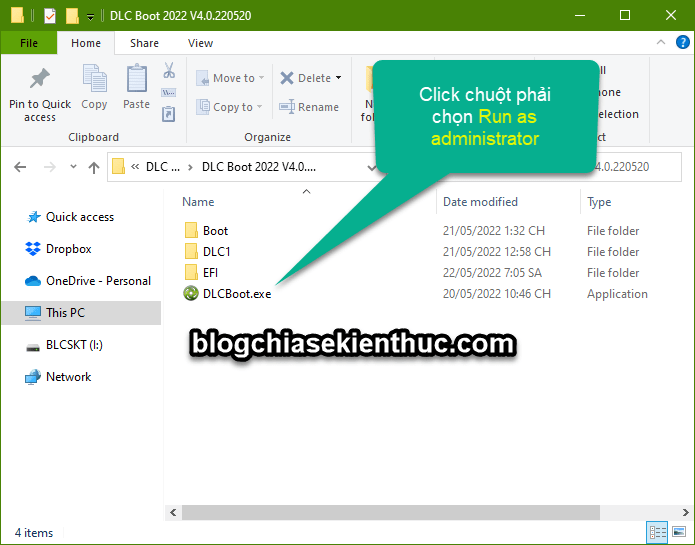
- Extract the trusted DLC Boot archive into a folder.
- Review the accompanying instructions, then run
DLCBoot.exeas administrator when required for writing the destination device. - Open the USB or external-disk creation tool from the main interface.
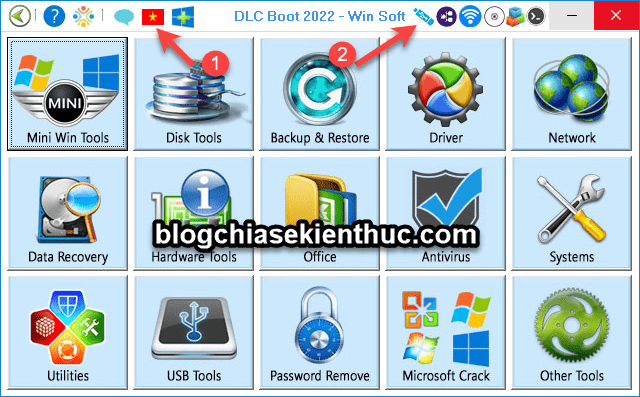
In the creation tool, confirm the destination and select a boot layout suitable for your target computer. The DLC Boot UEFI USB guide illustrates the related creation interface. Its older screenshots should be read alongside your release's instructions.
If you choose a separate hidden boot partition, allocate enough space for the actual package and any intended additions. Do not rely on an old fixed size without checking the current files. Review all formatting and partitioning warnings before starting, and wait for the write to finish before removing the device.
Boot and verify the result
- Restart the target computer and open its one-time boot menu using the manufacturer's documented key.
- Select the recovery drive in the appropriate UEFI or legacy mode.
- Start a Mini Windows environment supported by that machine.
- Check that the keyboard, storage and any required network connection work before relying on the drive for recovery.
If the USB is not listed, check its creation settings and the computer's firmware documentation. If disks are missing inside WinPE, investigate the storage driver rather than initializing or formatting an apparently empty disk. This guide to testing a bootable USB explains why a successful write alone is insufficient.
Installing a recovery menu on the internal disk
The launcher also offers Install DLC Boot Menu for Windows OS. This changes the computer's boot configuration. A separate tested recovery USB is usually easier to isolate from problems with the internal disk.
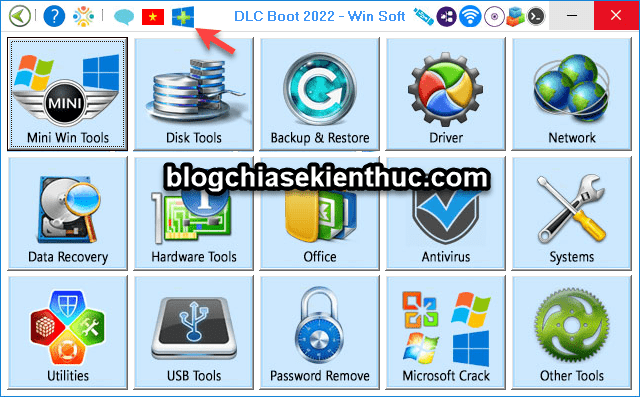
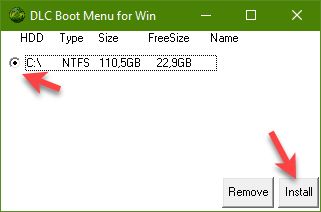
If you use this feature, back up the system and keep independent recovery media available. Confirm the Windows installation and supported boot mode in the release documentation before choosing Install. Do not select a partition merely because its drive letter matches an example.
Understanding the boot menus
| Menu item | Purpose |
|---|---|
| Mini Windows | Start a temporary Windows recovery environment; available architectures vary by menu and firmware mode. |
| Hard Disk Tools | Open disk and partition utilities. Review the selected disk before applying changes. |
| Backup or Restore | Access imaging tools. Restoring can overwrite the destination. |
| Boot From HDD / Operating System | Attempt to start an installed operating system. |
| Reboot / Shutdown | Restart or power off after completing the task. |

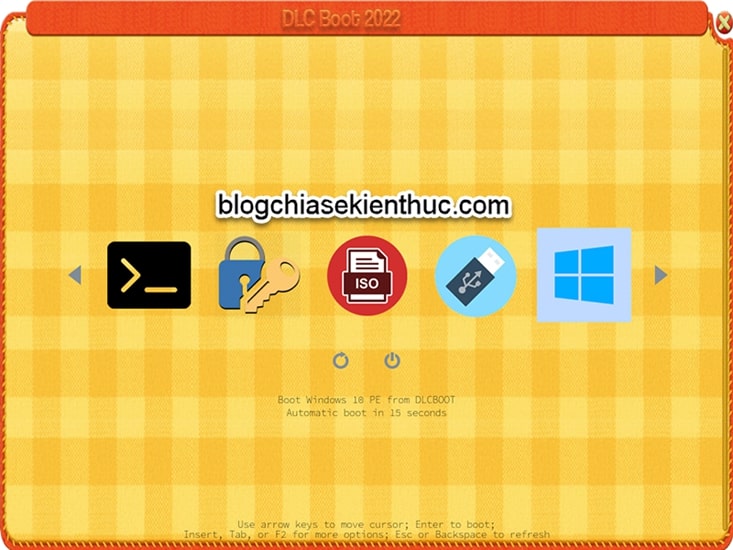
A recovery toolkit is most useful when tested before an emergency. Keep important backups on another device, and use disk-changing tools only after identifying the source, destination and intended operation.
Related Articles
 How to Create an NHV BOOT Rescue USB with Rufus
 How to create USB BOOT standard UEFI - GPT standard
 DLC Boot - Download DLC Boot here
 Create UEFI standard USB boot with DLC Boot
 How to create and extract Ghost in UEFI standard and standard GPT hard drive
 Anhdv Boot 2021: Legacy USB-Creation Guide and Important Checks
Reader Comments 0
Sign in with email or Google to join the discussion.