Table of Contents
A DLC Boot recovery USB starts a temporary environment with tools for examining disks, copying files and restoring backups. Creating the drive is only the first step: it also needs to boot on the computer you intend to repair and recognize that computer's storage.
This article documents older DLC Boot releases from 2013 through 2022. Its screenshots and videos are useful for maintaining those releases, but the software should not be presented as a current 2026 toolkit or guaranteed to support recent hardware.
Choose a release and prepare the drive
Use the developer's release information to identify the package and its supported creation method. Avoid anonymous repacks, obsolete mirror lists and unrelated download buttons. Check any supplied checksum against the exact file and build it describes; a matching checksum does not establish that an untrusted package is safe.
- Use a USB drive with enough space for the chosen image and any supported additions. Requirements vary by release.
- Back up the destination drive. Image writing and formatting can erase its contents.
- Identify the USB by capacity and model before selecting it in a disk-writing tool.
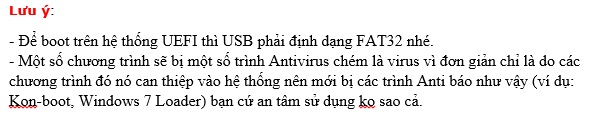
- Check the target computer's UEFI or legacy BIOS requirements. FAT32 alone does not make an image bootable in both modes.
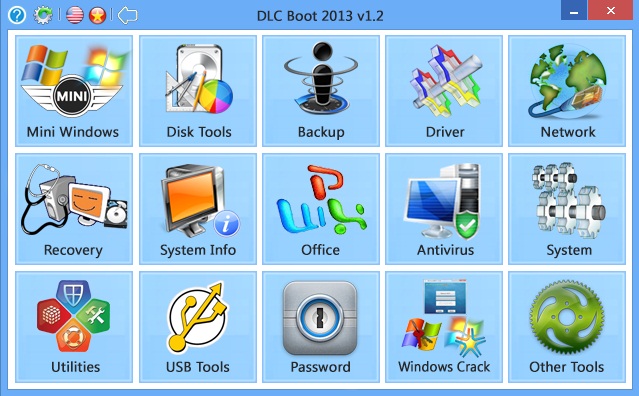
Typical categories include disk management, imaging, system information and file utilities. The exact app inventory depends on the release. Partition and restore operations can cause data loss; no bundled partition utility makes those operations risk-free.
Older ISO workflow using UltraISO
The following steps describe the DLC Boot 2013 workflow from the original guide. Use the creation tool and instructions supplied with a different release instead of assuming its procedure is identical.
- Open the DLC Boot ISO in UltraISO using File → Open.
- Choose Bootable → Write Disk Image.
- In Disk Drive, select the intended USB. Verify its capacity against the physical device.
- For this older workflow, the original guide uses USB-HDD+ as the write method. Review the image's instructions before using that setting.
- Choose Write, read the overwrite warning and proceed only after confirming the destination.
- Wait for completion and safely eject the device.
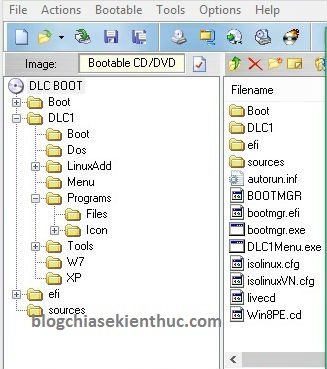
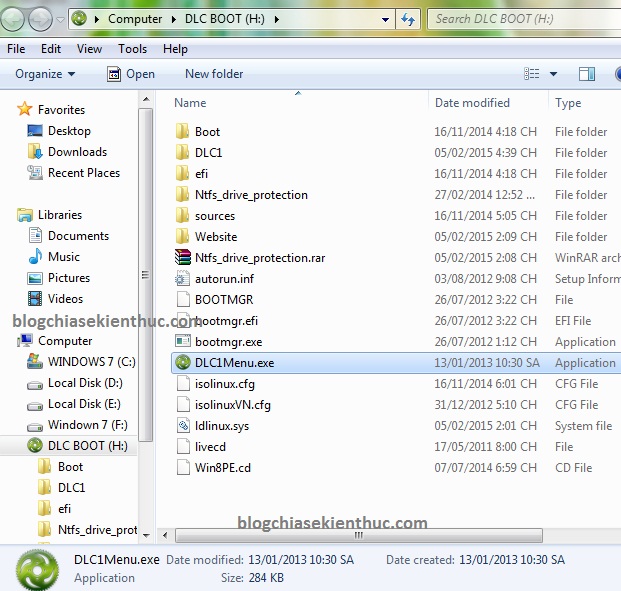
Some old packages include a DLC1Menu.exe launcher with a SysLinux/Grub4DOS switching utility under Other Tools. Use it only when the documentation for that exact package calls for the change. Bootloader changes and filesystem conversions can break a previously working layout.
Do not convert a working recovery partition to NTFS merely to store larger files. First check the image's firmware requirements and supported layout. A separate data partition or a newer supported creation method may be more suitable. See the DLC Boot UEFI creation guide for a related workflow.
Release-specific demonstrations
DLC Boot 2015
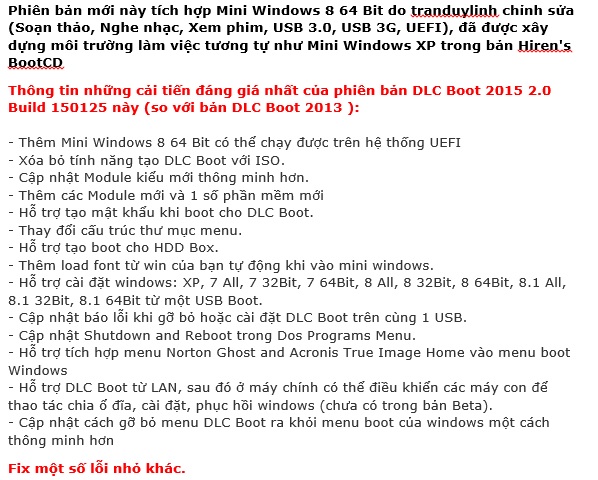
These screenshots and the original video document the older interface. Menu names, available tools and download locations can differ from subsequent releases.
DLC Boot 2016
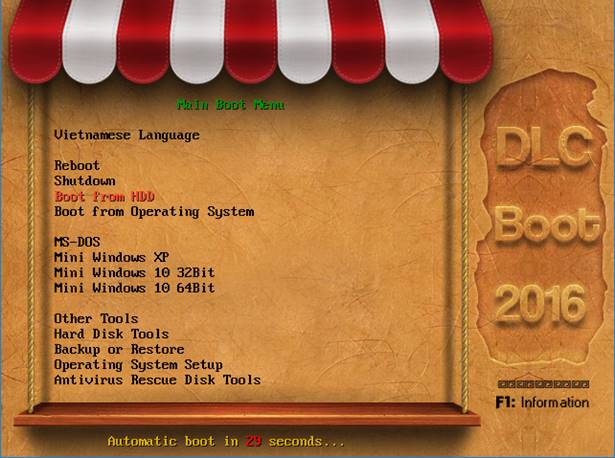
The 2016 generation includes Mini Windows environments and USB-creation features. Its age matters when troubleshooting newer storage controllers or network adapters; a successful boot does not mean every device will be recognized.
DLC Boot 2017 partition layouts
The first video demonstrates a hidden boot-partition workflow; the second shows a regular partition. Back up the destination before either method. A hidden partition helps prevent accidental edits in File Explorer, but it is not antivirus protection.
Adding Windows installation files
Some older DLC Boot packages support optional modules through their DOS or Windows software managers. Use only a module documented for your exact release. The original article's module download references are incomplete, so they should not be used as a reliable installation procedure.
Copying a Windows ISO onto a USB does not automatically add a working boot-menu entry. If you need to install Windows, a separately created installer is easier to verify. Installing from WinPE is another workflow, covered in this WinPE installation guide; confirm the destination and back up files before starting setup.
Test before performing a repair
- Restart and open the computer's one-time boot menu.
- Select the USB entry matching the intended firmware mode.
- Start the appropriate recovery environment and check keyboard, mouse and disk detection.
- Confirm that backup files and destination storage can be accessed.
- Exit without making changes during this initial test.
If booting fails, check the image, writing method and firmware compatibility before recreating the device. If a disk is absent or locked, investigate drivers or encryption rather than formatting it. A bootable USB test is useful preparation, but testing on the actual target machine remains necessary.
Related Articles
 4 tools to create USB boot install Windows 10
 How to Create a Hiren's BootCD PE USB with Rufus
 Detailed guide on creating a multi-purpose bootable USB drive
 How to create a Linux Bootable USB drive
 How to create a bootable USB drive using Grub4dos to install and fix operating system errors
 How to Create a Hiren’s BootCD PE USB with Rufus
Reader Comments 0
Sign in with email or Google to join the discussion.