Table of Contents
iSkysoft Data Recovery scans a storage device for files that may still be recoverable after deletion or formatting. Recovery is not guaranteed: the result depends on what happened to the data and whether its storage space has since been reused.
Stop saving files to the affected device as soon as you notice the loss. Do not install a recovery program on that drive or save recovered files back to it. If the missing files are on your system drive, continuing normal computer use can also write new data there.
Check simpler recovery options first
- Look in the Recycle Bin or Trash before running a scan.
- Check backups, cloud-service trash folders and available file version history.
- Confirm that the files have not simply been moved or hidden.
- If the device is damaged, making unusual noises or repeatedly disconnecting, stop repeated scan attempts and consider a recovery specialist.
For a broader troubleshooting sequence, see recovering lost or overwritten files. Software cannot promise to reverse every overwrite, repair every failing device or restore every deleted file.
Get the correct software and version
The screenshots below show the older iSkysoft Data Recovery interface. The iSkysoft website now also promotes Wondershare Recoverit, so the product name, menus, supported systems and license terms you encounter may differ.
Use the vendor's current information to confirm compatibility with your Windows or macOS version. Avoid old third-party download bundles and do not assume a historical license includes every current recovery feature. Check whether the trial can preview the files you need before buying a recovery license.
1. Select the recovery location
Connect the affected device without formatting it. Launch the program from another drive or a separate suitable computer where practical. In the older interface, select a mode such as Deleted Files Recovery or Recycle Bin Recovery, then identify the correct source location.
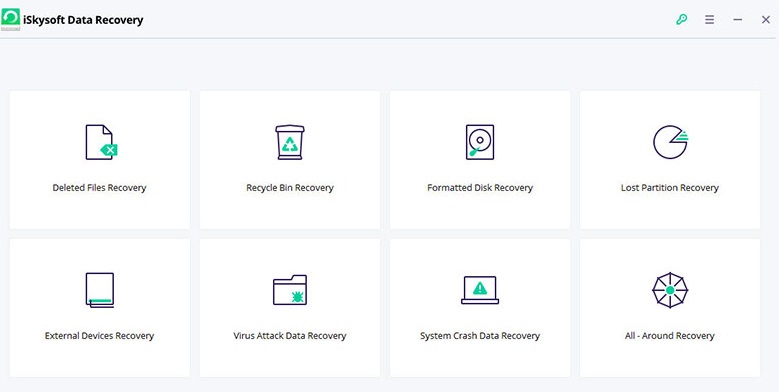
Choose the original location of the missing files. Identify an external device by its model and capacity as well as its drive letter, because letters can change between computers. If the drive is not recognized, do not initialize it merely to make a recovery program see it.
2. Scan and review the results
Start the scan and allow it to complete if the device remains stable. Scan time varies with the device, its condition and the selected scan type. Use any available filename, path or file-type filters to narrow the results.
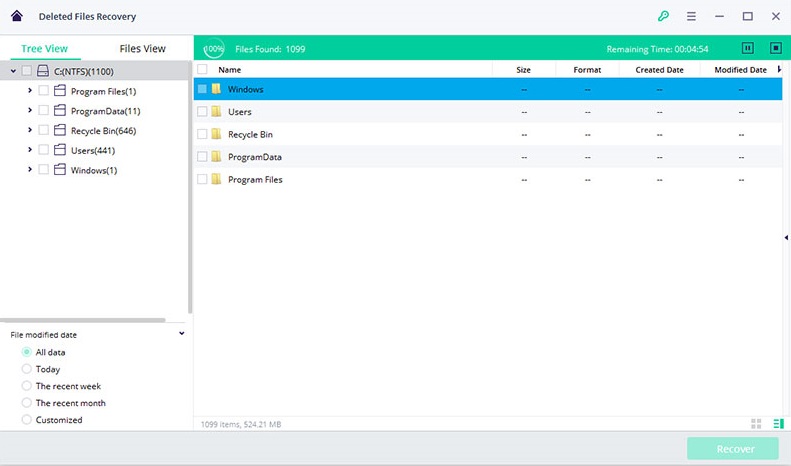
A file appearing in the results is not proof that its contents are intact. Preview important files where supported, and check multiple examples rather than relying on a filename alone. Deep scans can return generic names, duplicates or partial files.
The tool may locate documents, photos, videos, audio and archives, but support varies by version and file condition. A long extension list is less useful than confirming that your actual files can be opened.
3. Recover to a different physical drive
Select the files you need and choose Recover. Save them to a separate healthy drive with enough free space. Using a different folder on the affected drive does not avoid the risk of overwriting recoverable data.
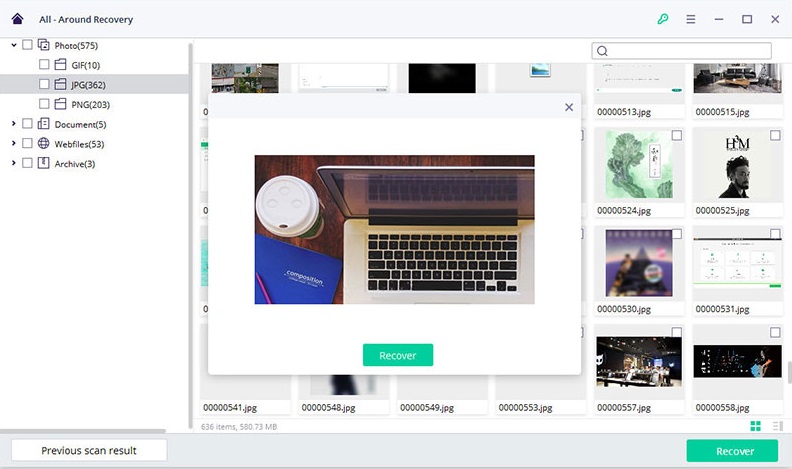
After saving, open a representative sample from the destination: check that documents display correctly, photos are complete and media files play. Keep the source device unchanged until you have verified the files you need.
When a scan is not enough
A deleted-file scan is not a universal solution for ransomware, encryption, physical damage or an unbootable computer. Recovery media can help access an otherwise readable drive, but it does not automatically repair the underlying fault. Use this damaged-drive recovery guide to distinguish file-copying situations from cases that warrant specialist help.
If a scan returns nothing usable, avoid repeatedly installing different tools onto the source drive. Recheck backups and decide whether the files justify professional assessment before attempting further changes.
Related Articles
 How to use iSkysoft Data Recovery to recover data
 Recover deleted data - Recover data that was Ghost, Format
 Recover accidentally deleted data in USB
 Recover deleted data with Recuva
 How to Recover Deleted Files with Recuva
 Invite Any Data Recovery - software that helps recover lost data on a Mac, costing 56 USD, is free
Reader Comments 0
Sign in with email or Google to join the discussion.