Table of Contents
Anhdv Boot can create a recovery USB that starts a temporary Windows environment when your installed system will not boot. Its one-click creation tool is the most direct route to the toolkit's intended partition layout.
This guide covers the 2024 generation. Some illustrations show the older 2022 interface, so file names and menu numbers may differ. Follow the text in your downloaded release rather than entering a number from an old screenshot.
Download and prepare
Get the package and instructions from the developer's Anhdv Boot 2024 page. Check that the edition and archive match the documentation. If a checksum is published for that exact file, compare it after downloading; a checksum copied from a different release is not useful.
- Back up everything on the destination USB or external drive. Creation can erase its existing partitions.
- Identify the destination by model and capacity, and disconnect other removable drives if practical.
- Keep your computer connected to reliable power during writing.
- Before recovery work on an encrypted computer, locate its BitLocker recovery key and keep it separate from the recovery USB.
Create the USB with the one-click tool
- Extract the downloaded archive using an archive utility.
- Find the included one-click batch file. Older releases name it
One_Click_Anhdv_Boot.bat; newer packages can use a different name. - Run it as administrator when required to write the USB, then choose your preferred interface language.
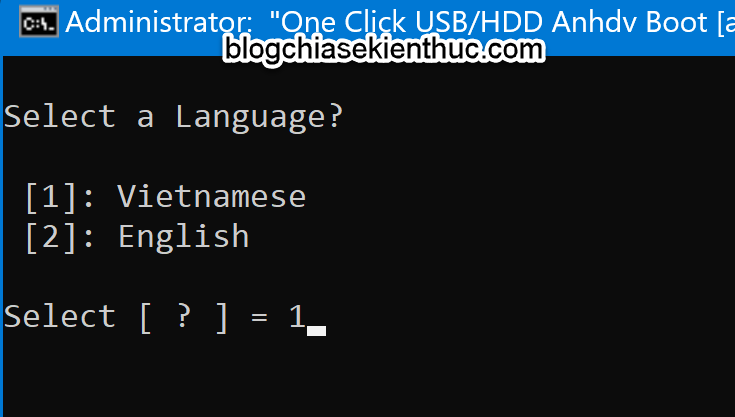
- Read the device list and choose the intended USB or external disk. Verify capacity and model before proceeding.
- Choose whether to use a separate hidden boot partition, following the release's prompts. Hiding it reduces accidental changes in File Explorer; it does not make the files immune to malware or encrypt them.
- If prompted for extra boot-partition space, allow for any supported packages you plan to add. Do not choose a size solely from an older tutorial.
- Review the data-erasure warning. Confirm only after checking the destination and backup.
- Wait for the completion message before closing the tool or removing the drive.
The developer's one-click creation instructions are the reference for the current prompts. An update option and a create-new option have different effects; do not choose a fresh creation when you intend to update an existing device.
Alternative ISO-writing tools
Some releases can also be written with Rufus or UltraISO. These routes may produce a different layout from the one-click method. Use the supported settings for your exact image, destination and firmware mode.
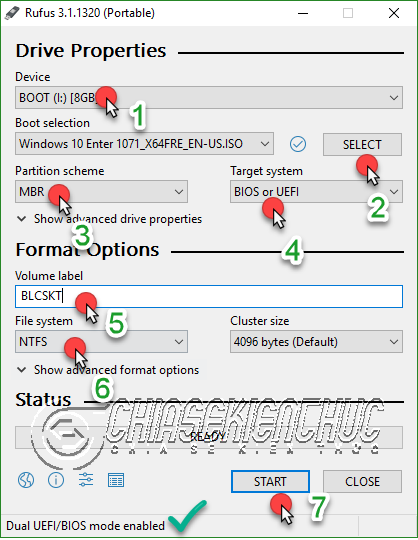
In Rufus, confirm the Device, select the intended ISO and review the partition scheme, target system and formatting warning before choosing Start. Do not assume an old NTFS/MBR combination will work with every UEFI machine. This UEFI and legacy boot guide explains the distinction. Avoid switching between tools repeatedly on a drive containing files you need.
Test the drive before relying on it
If the package includes QemuBootTester.exe, it can provide an initial boot check. A virtual test does not confirm that the USB will work with a particular computer's firmware, storage controller or network adapter.
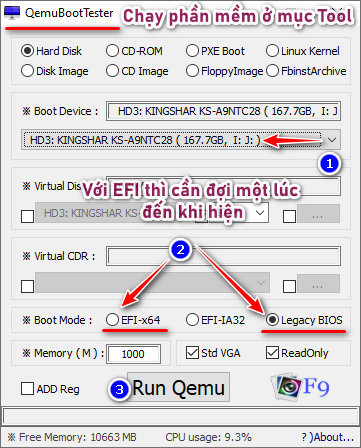
Restart the target computer, open its one-time boot menu and boot the USB in the intended mode. Confirm that WinPE loads, input devices work and the expected disks are visible. See how to test a bootable USB for additional checks. Exit without changing partitions during this initial test.
Use the toolkit without risking stored data
Hidden partition and added packages
The one-click tool includes partition-management options in supported releases. Select the option by its description to show or hide the boot partition. If using BOOTICE, verify the physical disk and partition before changing anything.
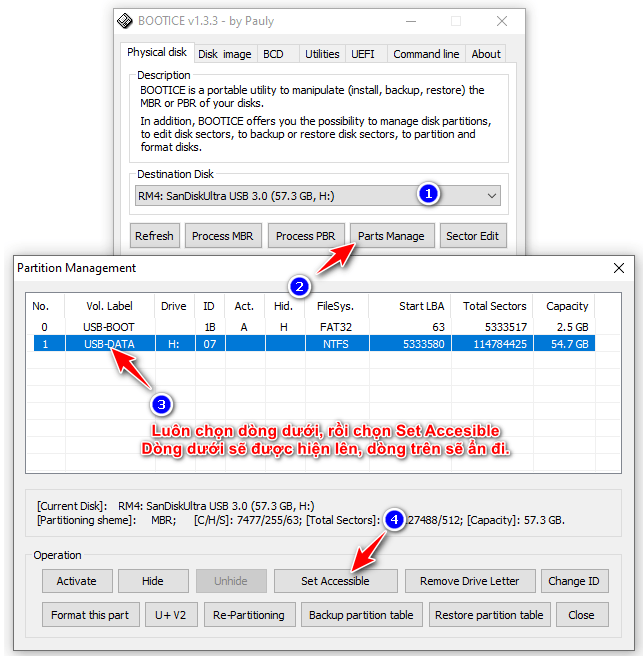
Only add packages intended for your release and edition. Showing a hidden partition makes its files easier to edit accidentally, so restore the intended visibility and retest afterward.
Windows apps and Wi-Fi profiles
Some versions provide a Windows app launcher in the toolkit's Apps folders. Its location varies by release. Use the supplied documentation rather than assuming every WinPE utility will run under installed Windows or needs administrator privileges.
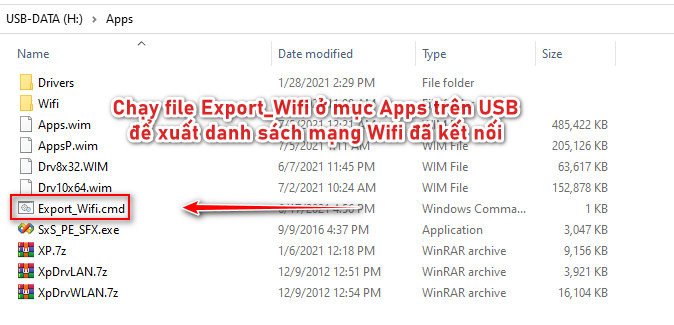
Import only Wi-Fi profiles you are authorized to use. Exported profiles can contain connection credentials; store them carefully and remove unneeded copies from a shared recovery drive.
Encrypted disks
WinPE does not remove BitLocker encryption. If a drive is locked, use the appropriate credentials or recovery key before attempting to access it. A missing drive or lock icon is not a reason to format it. Microsoft's recovery-key guidance explains where to look. Do not reinstall or delete partitions while trying to recover files you still need.
Video demonstration
The original 2024 demonstration is retained below. Compare its screens with your release's documentation before applying disk changes.





Reader Comments 0
Sign in with email or Google to join the discussion.