Table of Contents
A compatible Windows installation can sometimes be migrated from legacy BIOS/MBR booting to UEFI/GPT without reinstalling. The disk layout, startup files and firmware mode must all be coordinated. Changing only the firmware toggle can leave Windows unable to start.
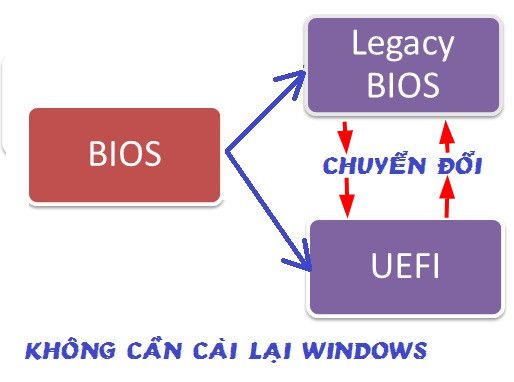
Back up important files and create a restorable system image before proceeding. “Without reinstalling” is not a promise that conversion is reversible or risk-free.
Confirm the starting point
- Run
msinfo32and read BIOS Mode to confirm the current Windows session uses Legacy. - Inspect the actual Windows system disk in Disk Management and confirm its partition style is MBR.
- Check the manufacturer's documentation for UEFI support and the correct firmware options.
- Keep tested recovery media and encryption recovery keys available.
- For a managed computer, coordinate the change with its administrator.
Do not assume every Windows 7-or-later installation is eligible for the same procedure. Use a supported migration path for the exact Windows release, disk and hardware. See checking firmware support for additional context.
Use Microsoft's MBR2GPT workflow where supported
MBR2GPT is Microsoft's tool for eligible Windows system disks. It validates the layout, prepares EFI startup files and changes the partition scheme. It is not a general converter for every data disk.
- Review its prerequisites and encryption guidance. BitLocker needs special preparation and follow-up.
- In an elevated command prompt in full Windows, validate the verified disk number. Replace N below; it is not a literal disk identifier.
mbr2gpt /validate /disk:N /allowFullOS- If validation fails, read the logs and resolve the identified requirement. Do not delete partitions just to bypass validation.
- Only after successful validation and backup, start conversion for that same disk:
mbr2gpt /convert /disk:N /allowFullOS- Confirm conversion succeeded, then enter firmware setup and select the documented UEFI boot configuration for Windows Boot Manager.
- Test startup, disk access and recovery configuration, and complete the documented encryption follow-up.
These commands show the full-Windows route. Windows PE uses different options. Read the tool's output before restarting or making another change.
What the older AOMEI screenshots mean
The original guide used a third-party partition tool from Mini Windows XP. That particular recovery environment is not a general requirement for converting Windows. Use current vendor instructions if choosing a third-party route, including its edition and system-disk restrictions.
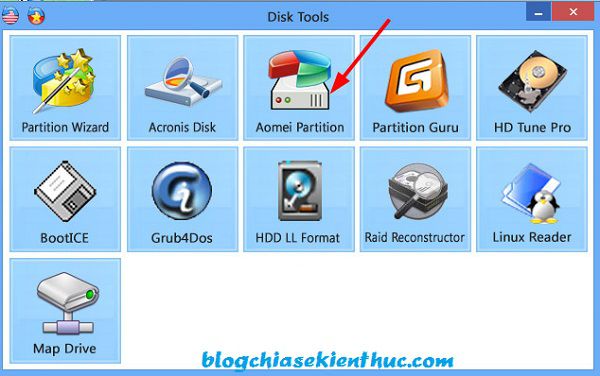
The next images show resizing and moving the Windows partition to make space. This is a separate disk-changing operation. Do not move the partition start or reserve a fixed 528 MB merely because an old tutorial did so.
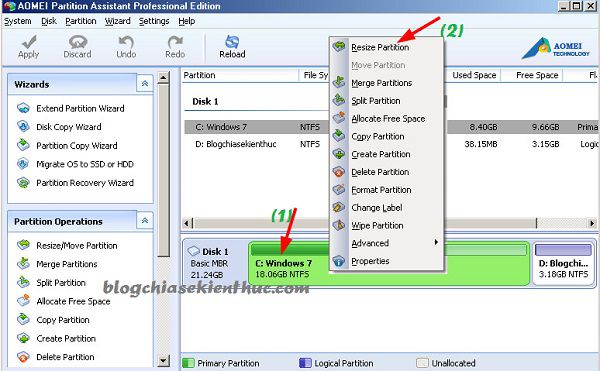
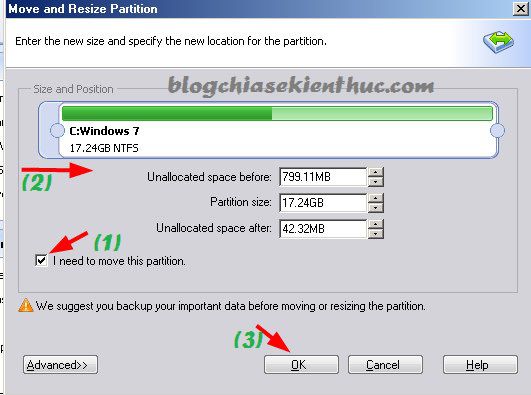
The conversion action targets a physical disk, not simply a folder or drive letter. Verify the correct disk and all pending operations before applying changes.
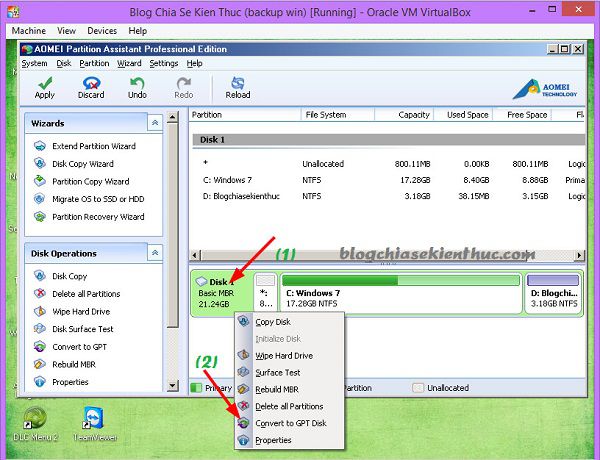
Why a GPT label is not enough
A UEFI Windows installation needs an appropriate EFI System Partition containing startup files. The Microsoft Reserved partition has another role, and Windows RE configuration is separate again. A tool that changes a disk's partition style does not necessarily perform every step required for a bootable system.
For related background, see Windows disk and partition roles. Avoid the original shortcut of switching firmware to UEFI first and assuming a subsequent conversion will always boot without errors.
If Windows does not start afterward
Record the exact error and the conversion result. Check that the firmware is selecting the intended Windows Boot Manager and disk. Do not repeatedly switch modes, format the disk or reinstall over files you need while diagnosing the problem.
A fresh UEFI installation is a separate option when preserving the existing installation is unnecessary or the migration path is unsupported. Back up first and use appropriately prepared installation media. Neither conversion nor reinstalling should be described as universally more stable without evidence.
Related Articles
 How to check the computer that supports EFI / UEFI or Legacy BIOS
 How to convert Legacy BIOS to UEFI in Windows 10
 How to check whether Windows is booting in UEFI or Legacy mode
 How to convert from Legacy to UEFI in BIOS
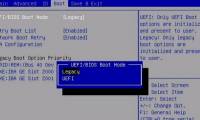 Steps to convert MRB to GPT drive structure in Windows 10
 What is UEFI and Legacy standards? Differences between UEFI, Legacy, BIOS
Reader Comments 0
Sign in with email or Google to join the discussion.