Table of Contents
Copilot Audio Expressions is an experimental Copilot Labs tool for generating expressive speech. It can read supplied text, expand a short idea into a voiced message, or narrate a story with a selected voice and delivery style. Because it is a Labs experiment, access, modes, languages, limits, and export options can change.
Open Audio Expressions in Copilot Labs
- Sign in to Copilot on the web.
- Open Labs from the sidebar.
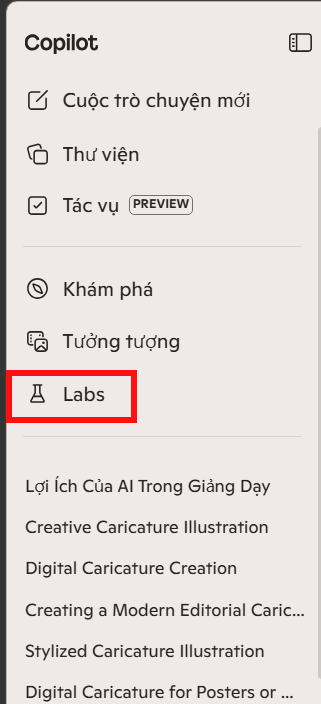
- Select Audio Expressions. If it does not appear, the experiment may not be available for the account or region.
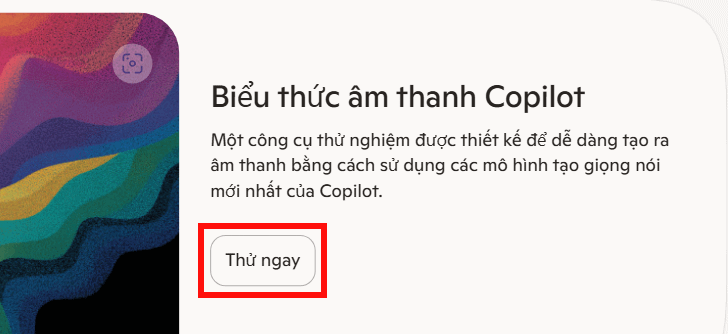
You can also check the current experiment directly on the Copilot Audio Expressions page. This tool is for producing an audio clip; it is different from Copilot Voice, which is a live two-way conversation.
Choose the right creation mode
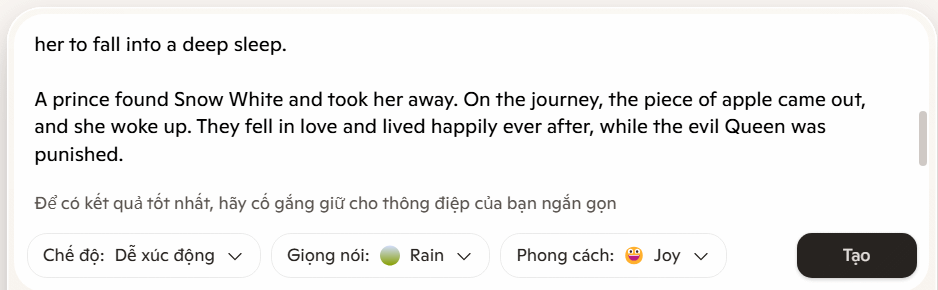
The interface can show three starting modes. Select the one that matches how much control you need.
- Emotional: provide a brief occasion or message and let Copilot expand it before voicing it. Use this only when you are willing to review AI-written wording.
- Story: supply a premise or short narrative direction. Copilot develops and narrates it, potentially varying delivery between characters.
- Plain text: paste the exact script you want read. This is the best option when wording must not change.
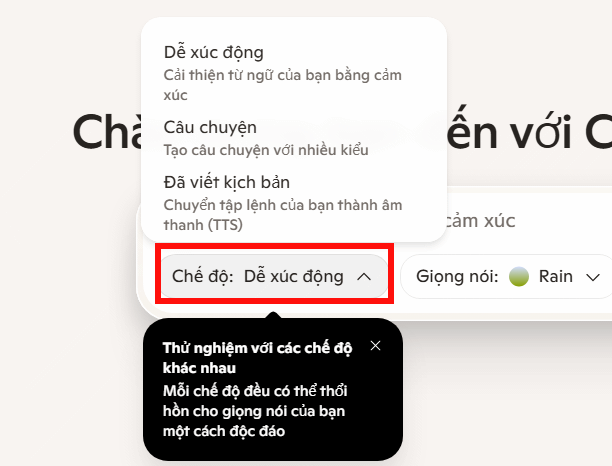
For announcements, training, accessibility, or approved copy, use Plain text and compare the spoken result against the original script. The more generative modes can add facts, names, or implications you did not request.
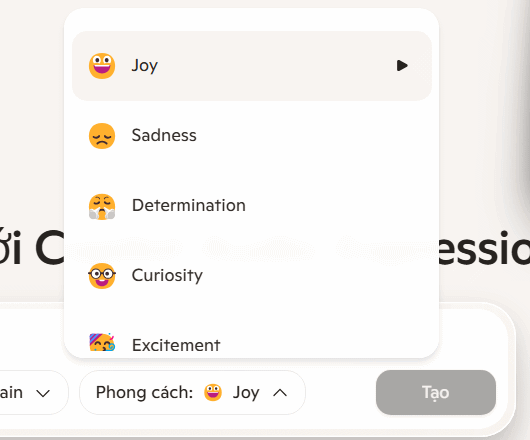
Select a voice and speaking style
Open Voice and preview the available voices before choosing one. Judge clarity and suitability for the audience rather than picking solely by how dramatic the preview sounds.
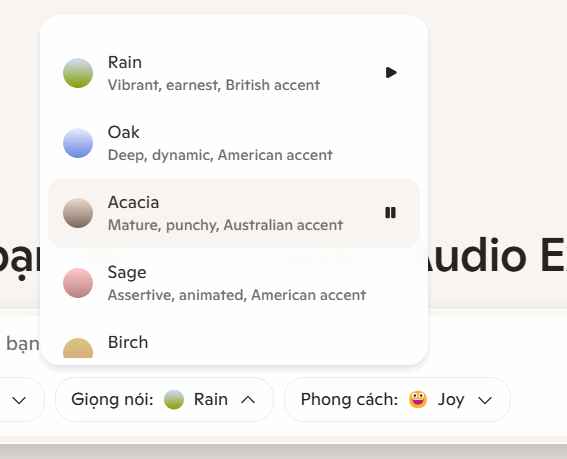
Next, choose a style or emotion. Punctuation and sentence length also affect pacing: commas can create short pauses, while long sentences may sound rushed. Write natural spoken language and spell out ambiguous abbreviations.
A controlled input might look like this:
Read the following exactly as written.
Audience: new employees
Delivery: calm, welcoming, and clear
Pace: moderate, with a short pause after each bullet
Pronounce “NEXA” as “NEK-suh”

Script:
Welcome to NEXA. In this short orientation, we will cover account security, emergency contacts, and where to find help.
Generate and review the audio
Enter the text or creative brief, then generate the clip. The original experiment launched with limited language support, so use the language choices currently shown in the interface rather than assuming every Copilot language is available.
Listen to the entire result and check:
- every word against the approved script;
- names, numbers, acronyms, and technical terms;
- pauses, emphasis, and sentence endings;
- consistent voice and volume;
- whether the emotional style changes the intended meaning.
If the pronunciation is wrong, rewrite only the affected word or sentence phonetically and regenerate a short test. Save the final script with the audio so future edits are traceable.
Compare delivery styles
The two preserved samples below demonstrate how the same or similar wording can feel different when the delivery style changes. Playback quality depends on the device and browser.
Cheerful delivery:
Melancholic delivery:
Use generated speech responsibly
- Do not present synthetic speech as a recording of a real person.
- Do not imitate or clone someone without informed permission.
- Check the current product terms before commercial distribution.
- Add a transcript and, for video, captions for accessibility.
- Avoid entering confidential or personal information that the audio does not require.
- Review generated story text for fabricated claims, harmful stereotypes, or copyrighted lyrics.
Microsoft says the expressive experience is powered by its MAI voice technology, but model capability does not replace editorial review. If Audio Expressions is unavailable or lacks the language or control you need, compare TipsMake's list of AI voice generator tools and its overview of voice makers for different workflows.
Export and finish the clip
Use the download or export control shown in the current experiment. If the clip will be placed in a presentation or video, trim silence and normalize levels in an audio editor without overwriting the source file. Keep the script, generated file, product settings, and disclosure note together as project records.
Related Articles
 Enable Text-to-speech Feature in iOS3 minutes read
 How to Convert Text into Viettel's Text to Speech Voice4 minutes read
 How to Use FPT. AI Speech Reads Text Like Google: Text to Speech3 minutes read
 7 Best Text-to-speech Transfer Apps for Android8 minutes read
 How to Convert the Voice into Viettel's Speech to Text Text3 minutes read
 How to Convert Text to Speech Using Zalo AI Text to Speech4 minutes read
Reader Comments 0
Sign in with email or Google to join the discussion.