Table of Contents
Swift Pair lets Windows 11 show a notification when a compatible Bluetooth device is nearby and ready to pair. You can enable or disable those prompts without turning off Bluetooth or removing devices that are already paired.
Turn Swift Pair notifications on or off
- Press Windows + I to open Settings.
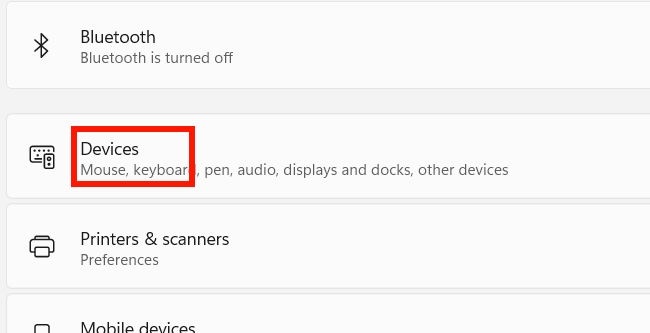
- Select Bluetooth & devices, then choose Devices.
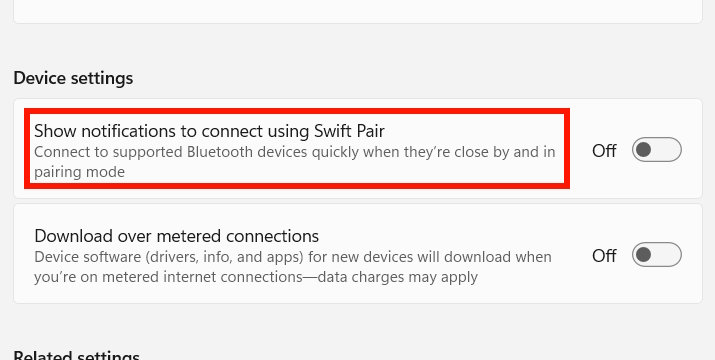
- Under Device settings, turn Show notifications to connect using Swift Pair on or off.
If Bluetooth itself is disabled, follow this guide to turn on Bluetooth in Windows before trying to pair a device.
What changes when you disable Swift Pair?
Disabling the option stops Windows from offering a quick pairing notification. It does not disable the Bluetooth radio, disconnect currently paired accessories, or prevent you from pairing a device manually through Settings > Bluetooth & devices > Add device.
For an example of the standard pairing process, see how to connect a wireless mouse to a Windows PC.
If the Swift Pair prompt does not appear
- Confirm that the accessory supports Swift Pair; not every Bluetooth device does.
- Turn on Bluetooth and place the accessory in pairing mode close to the computer.
- Open Settings > System > Notifications and make sure notifications are not being blocked.
- If the device was previously paired, remove it from the Devices list and pair it again.
- Restart both the computer and the accessory if the prompt still does not appear.
Using the Settings switch is the safest way to manage Swift Pair. Registry-based methods can vary by Windows build and policy configuration, so they are unnecessary for most users.
Related Articles
 How to Use Swift Pair for Super-fast Bluetooth Connection on Windows 103 minutes read
 How to Turn on or Turn Off the Logical Pairing with Bluetooth5 minutes read
 How to Enable and Connect Bluetooth on Windows 115 minutes read
 How to Turn Off Notifications for Connected Bluetooth Devices on Windows4 minutes read
 How to Easily Connect Bluetooth on a Windows 10 or 11 Computer10 minutes read
 Fix Computer Errors: Complete Guide: How to Fix ''try Connecting Your9 minutes read
Reader Comments 0
Sign in with email or Google to join the discussion.