Table of Contents
This guide explains how to compare Contents of 2 Text Files with Notepad ++, with clear steps, practical tips, and important checks before you begin.

Download and install Notepad ++
Notepad ++ is a free source code editor and an alternative to regular Notepad. Besides IDE software, Notepad ++ is also an indispensable editor in the programmer's computer because of its convenience and versatility, even many non-programmers use the software. this.
You can download Notepad ++ here: Download Notepad ++ (note the correct version selected for your Supported operating systems).
After downloading, run the file and install it. The installation is very simple and fast, just click Next - Next is done, except for choosing the installation directory of your choice.
Compare the contents of 2 text files with Notepad ++
OK, now let's get to the main point. To compare and compare 2 text files (text or source code) in Notepad ++, you manipulate as follows:
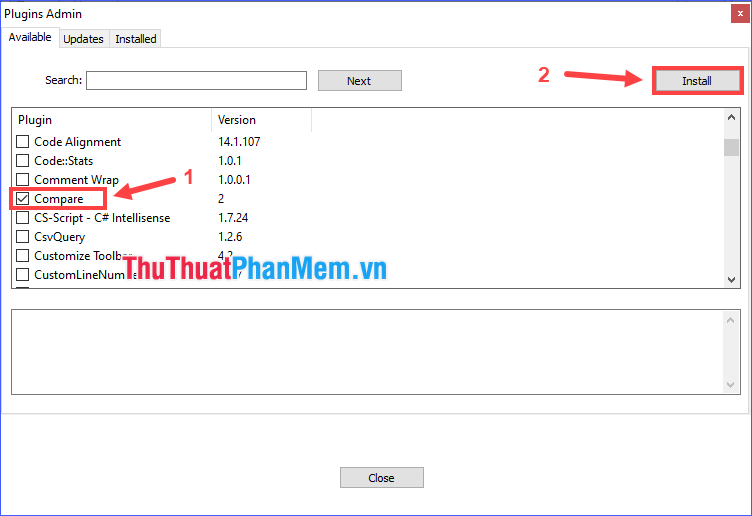
Step 1: Open Notepad ++. Click on Plugins on the Menu bar, select Plugins Admin.

Step 2: Select Compare and then click Install to install.
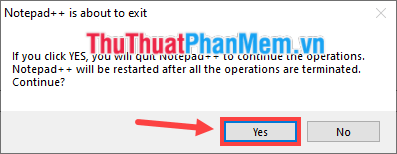
A confirmation message appears, select Yes .
Step 3: The program will automatically restart. Then open 2 text files to compare with Notepad ++.

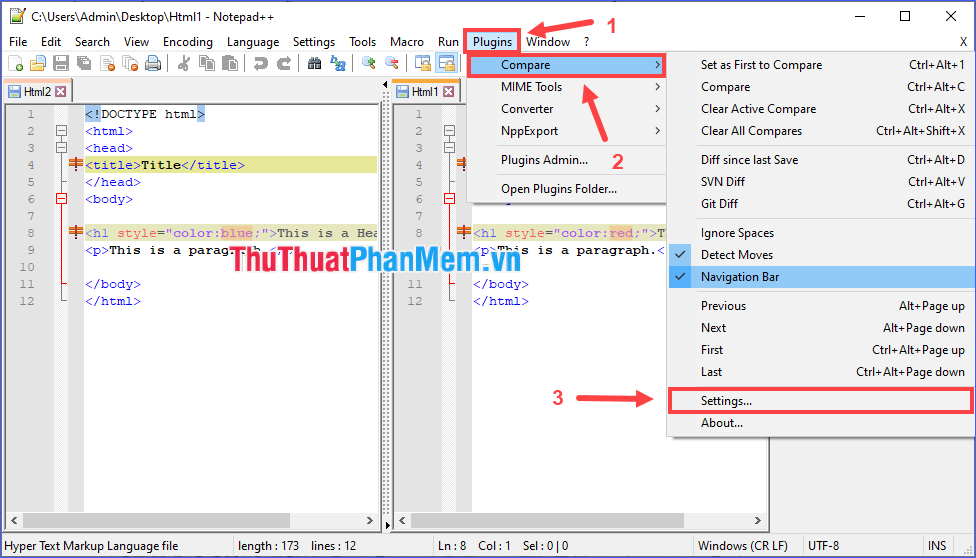
Step 4: Click Plugins on Menu bar, select Compare > Compare .

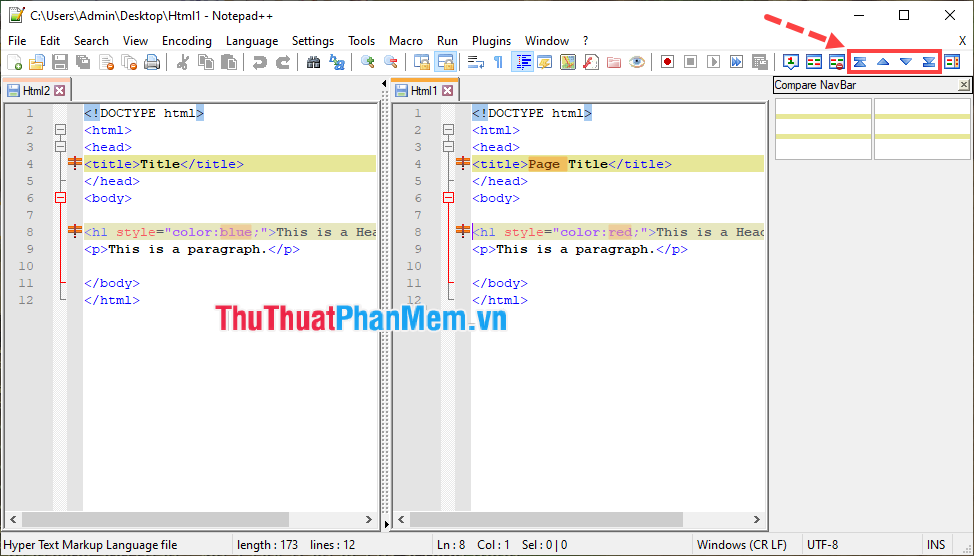
At this point, both text files will be displayed next to each other and the lines with differences will be colored to highlight. The scroll bars are also synchronized, so you can easily compare them. In addition, you can quickly navigate between differences with the arrow buttons on the toolbar.
* Tip: You can customize the color to highlight the differences by clicking Plugins > Compare > Settings. , then change the color in the section Change highlight (mark the difference) or Changed line (mark the difference) then press OK .
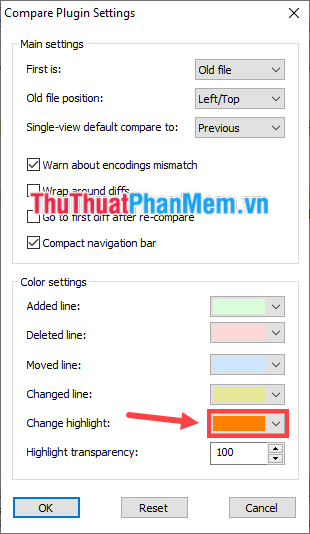
It is done! I have detailed instructions for you to compare the content of 2 text files with Notepad ++. I wish you successful implementation!
FAQ
What should I know about Compare Contents of 2 Text Files with Notepad ++?
Focus on the key features, requirements, limitations, and practical use cases explained in this guide.
How do I get the best results with Compare Contents of 2 Text Files with Notepad ++?
Follow the recommended steps, use current software or information, confirm compatibility, and review settings before major changes.
Are there any risks or limitations?
Potential limitations depend on compatibility, data quality, cost, privacy, support, and how the product or method is used.
Related Articles
 Using Notepad ++++ Compare Two Files with a Plugin9 minutes read
 What Is Notepad ++? Compare Notepad ++ and Regular Notepad4 minutes read
 How to Add an 'Open with Notepad as Administrator' Shortcut to3 minutes read
 Steps to Find and Replace Text in Notepad on Windows 105 minutes read
 7 Ways to Fix Notepad Not Opening Error on Windows6 minutes read
 How to Create Text Using AI on Notepad Windows 113 minutes read
Reader Comments 0
Sign in with email or Google to join the discussion.