Table of Contents
Windows 11 has separate settings for turning off the display, putting the PC to sleep, and requiring sign-in again. The original steps changed only the display-off timer, even though they called it a lock-screen timeout. Choose the control that matches what you want.
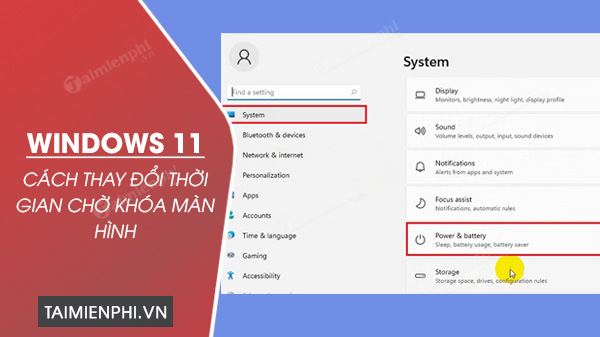
Method 1: Change screen and sleep timing in Settings
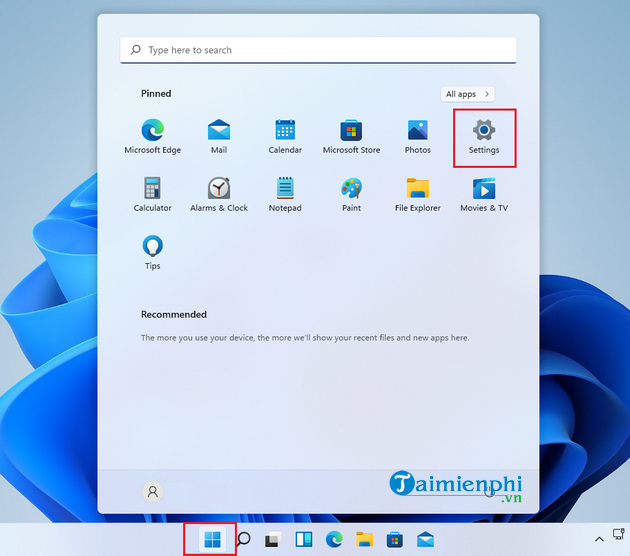
Step 1: Press Windows + I to open Settings.
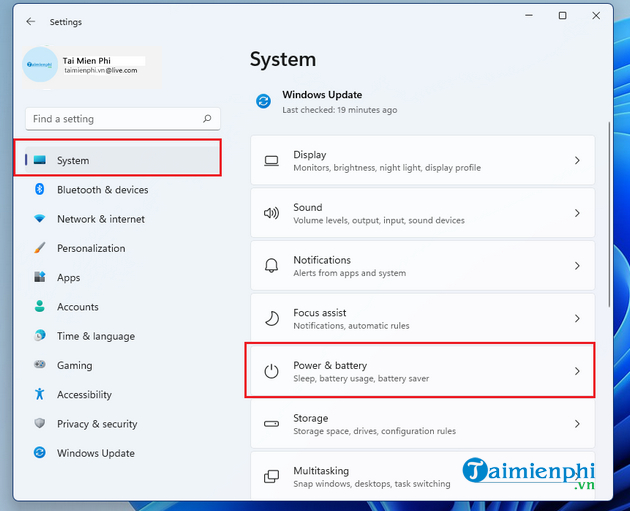
Step 2: Open System > Power & battery. On a desktop, the page may be named Power.
Step 3: Expand Screen and sleep or Screen, sleep & hibernate timeouts. Set separate values for turning off the display and putting the device to sleep, on battery and while plugged in.
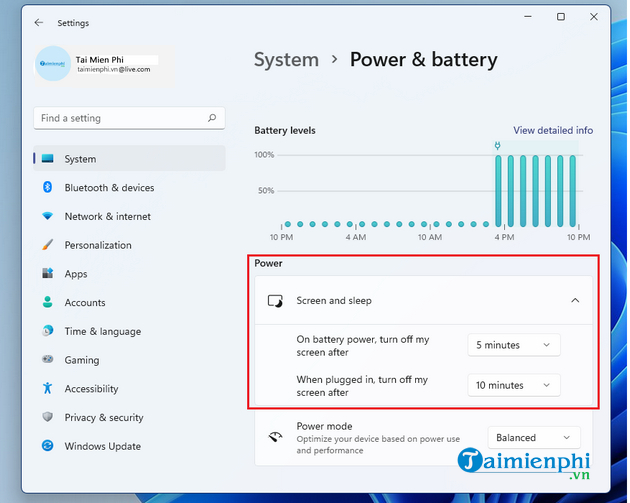
A longer display timeout uses more battery. Choosing Never prevents that automatic action but does not stop a company policy, screen saver, or manual lock.
Method 2: Use Control Panel Power Options
Step 1: Search for Control Panel, open Power Options, and select Choose when to turn off the display.
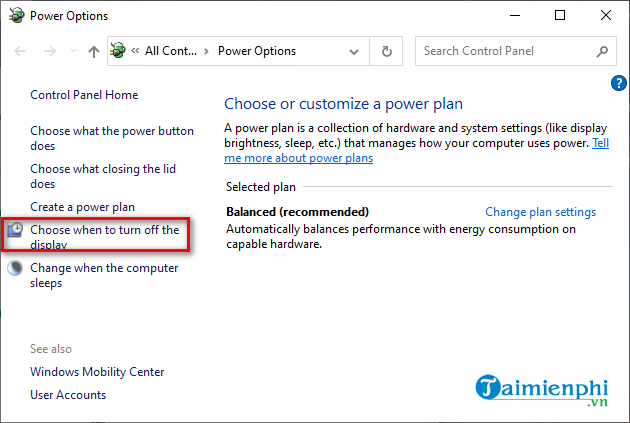
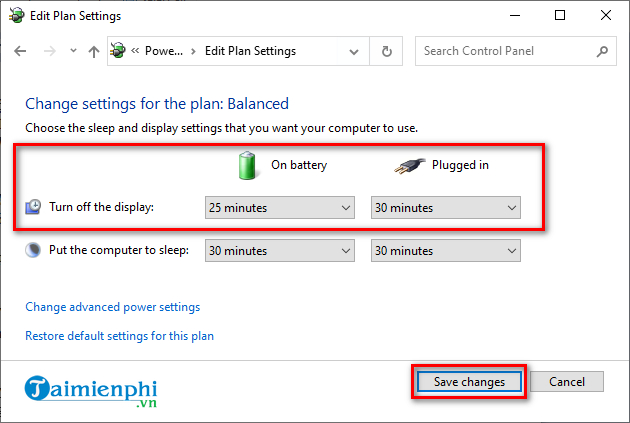
Step 2: Choose the display and sleep times for On battery and Plugged in, then select Save changes.
Advanced power-plan setting
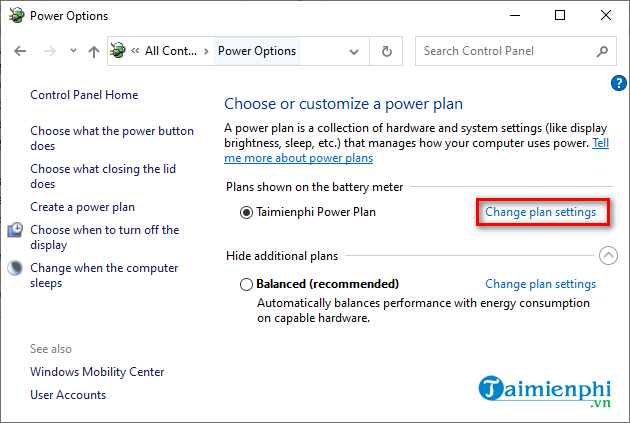
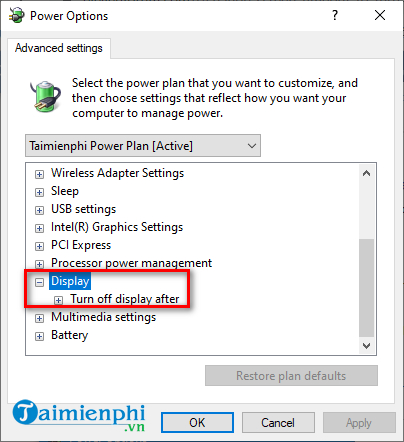
From Power Options, select Change plan settings beside the active plan.
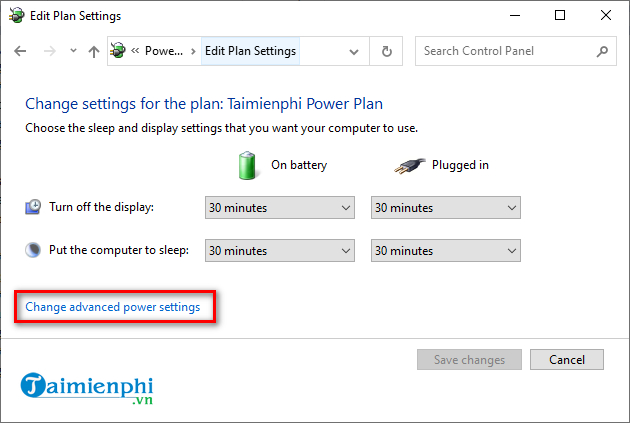
Select Change advanced power settings.
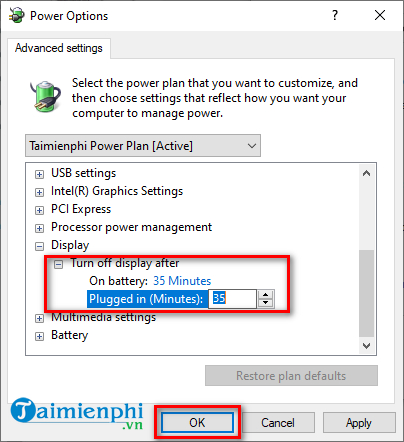
Expand Display > Turn off display after.
Enter the battery and plugged-in values, then select OK.
Method 3: Use powercfg
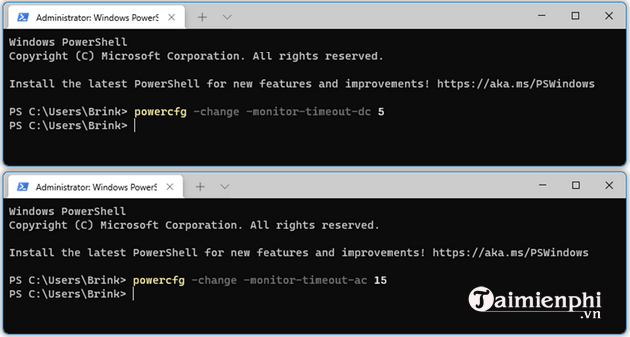
Open Command Prompt or Windows Terminal. Replace the numbers with the desired minutes:
powercfg /change monitor-timeout-dc 5
powercfg /change monitor-timeout-ac 15
dc applies on battery power and ac while plugged in. Use 0 only when you intentionally want the display never to turn off automatically for that power source.
The GUID commands in the original article were incomplete because they omitted the required timeout value. The shorter /change form above is easier to read and does the same job for the active power plan.
Make Windows lock and require sign-in
Turning the screen off does not always lock the account. For security:
- Open Settings > Accounts > Sign-in options.
- Under Additional settings, set when Windows should require sign-in after you have been away.
- Press Windows + L whenever you leave the PC and need it locked immediately.
For a timed lock independent of sleep, open Settings > Personalization > Lock screen > Screen saver, choose a Wait time, and enable On resume, display logon screen. A work or school policy may control these options.
See more ways to lock a computer securely.
Screen off, sleep, and hibernate are different
- Screen off: the display powers down while the PC can keep running.
- Sleep: the PC enters a low-power state and resumes quickly.
- Hibernate: the session is saved to disk and the PC powers down more fully.
- Lock: the session remains open but requires authentication to return.
If power use is the concern, compare Sleep and Hibernate in Windows before changing every timeout to Never.
Related Articles
 How to Change Windows 11 Screen Lock Timeout: Step-by-Step Guide3 minutes read
 How to Change Windows 11 Lock Screen Timeout4 minutes read
 How to Change Screen Lock Timeout in Windows 107 minutes read
 How to Change Lock Screen and Screensaver Timeout Settings on Windows9 minutes read
 How to Change the Lock Screen Background in Windows 106 minutes read
 Tricks to Customize the Windows 10 Lock Screen8 minutes read
Reader Comments 0
Sign in with email or Google to join the discussion.