Table of Contents
Windows 11 and Windows 10 let you move the Downloads known folder to another drive through its Location properties. This can free space on the system drive, but it does not make the computer inherently faster and it does not change browser-specific download paths that were set manually.
Before moving Downloads
- Create a folder such as
D:Downloads. Do not choose the root of a drive or another known folder such as Documents. - Confirm the destination is on a reliable internal drive that will remain connected.
- Back up important downloads before moving a large folder.
- Make sure the destination has enough free space.
Move the Downloads folder
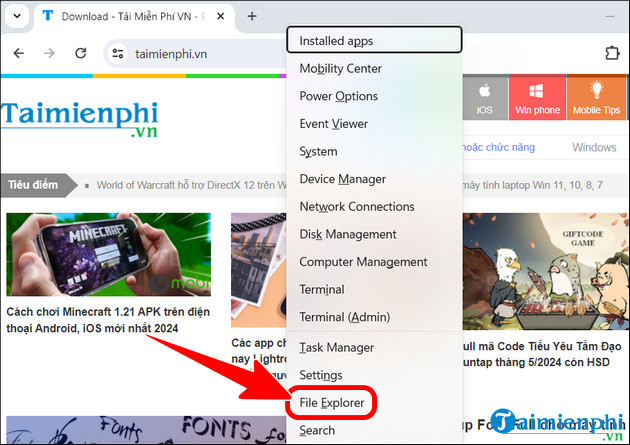
Step 1: Press Windows + E to open File Explorer. The original screenshot uses the Windows + X menu, but opening File Explorer directly is quicker.
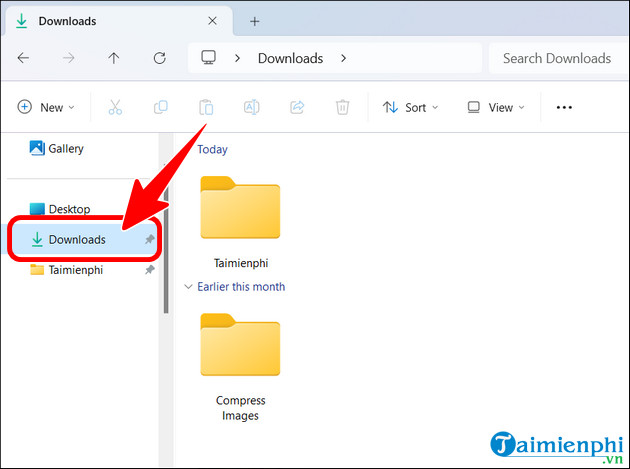
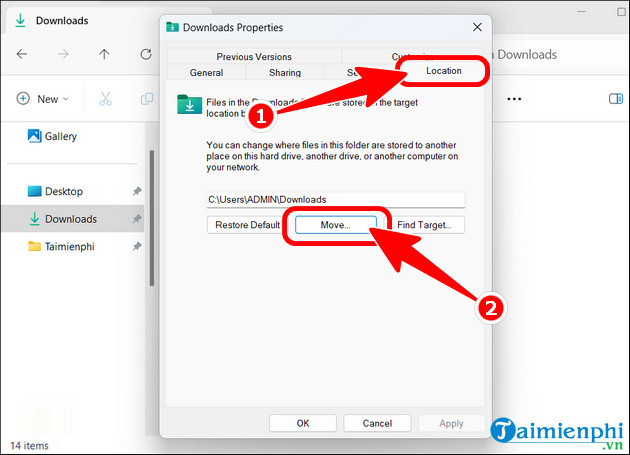
Step 2: In the navigation pane, right-click Downloads. If it is not pinned, browse to C:UsersYourName and right-click the Downloads folder there.
Select Properties.
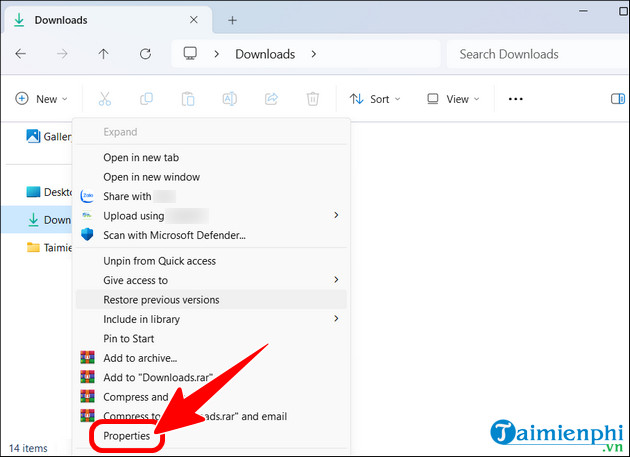
Open the Location tab and select Move.
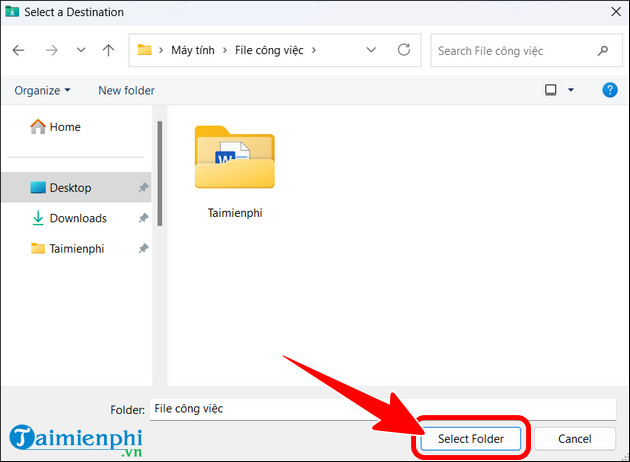
Step 3: Select the dedicated destination folder, such as D:Downloads, then choose Select Folder.
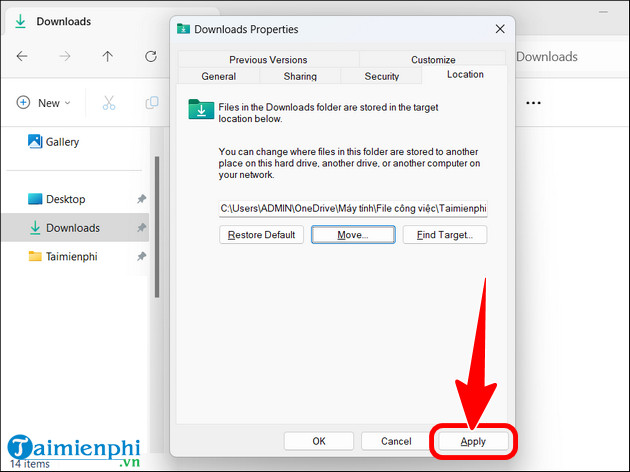
Select Apply.
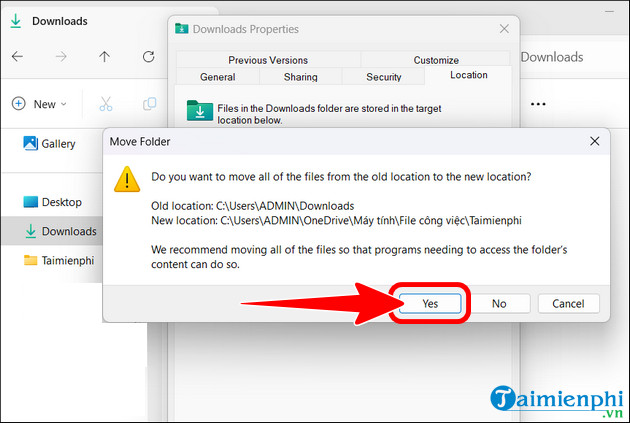
Windows asks whether to move files from the old location. Choose Yes to keep the known folder and its existing contents together. Do not shut down or disconnect the destination drive while files are moving.
Check browser download settings
Most browsers use the Windows Downloads known folder by default, but a browser can have its own custom path. Download a small test file or check the browser’s Downloads settings to confirm new files go to the expected location.
Restore the default Downloads location
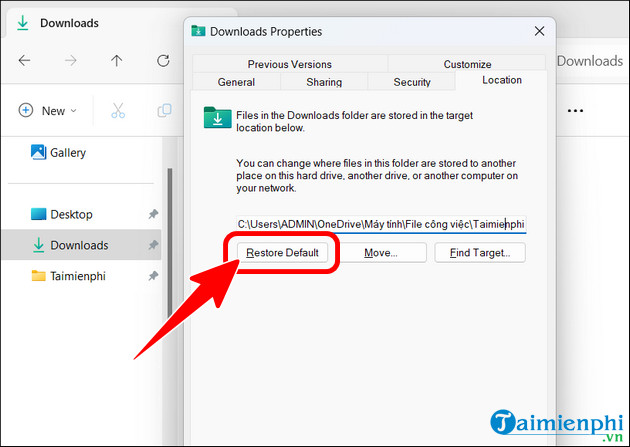
Open Downloads Properties > Location and select Restore Default. The usual path is C:UsersYourNameDownloads. Select Apply and choose whether Windows should move existing files back.
Troubleshooting
The Location tab is missing
Make sure you opened the actual Downloads known folder, not a shortcut or an ordinary folder named Downloads. Sign in with an account that has permission to change the folder.
Downloads opens slowly
Moving the folder may not solve a slow view. Large numbers of files, thumbnails, antivirus scanning, or an incorrect folder template can be responsible. See how to fix a slow Downloads folder.
You selected the wrong destination
Do not delete either folder immediately. Restore the default location or move it to a new dedicated folder, confirm where Windows now points, and compare the contents before removing duplicates.
If you are considering moving several profile folders, read the cautions in the guide to moving Windows user folders.
Related Articles
 Move Desktop, Download and Documents to Another Drive on Windows5 minutes read
 How to Fix Unresponsive Downloads Folder on Windows6 minutes read
 How to Cleaning up the Windows Downloads Folder4 minutes read
 How to Move Important Folder Folders from Drive C to Drive D, E3 minutes read
 How to Locate the Downloads Folder, Downloaded Files on4 minutes read
 How to Move the Windows Junk File Folder to Another Drive4 minutes read
Reader Comments 0
Sign in with email or Google to join the discussion.