Table of Contents
If you need to use multiple languages and want to switch between different languages on your Windows computer, we will need to use the language shortcut key on the computer. The default language change shortcut key is Windows + Space, which cannot be turned off by default, but you can also change the language shortcut key according to the article below.
How to change Windows language shortcuts via Settings
The Alt + Left Shift alternative language change shortcut is the remapped key.
Step 1:
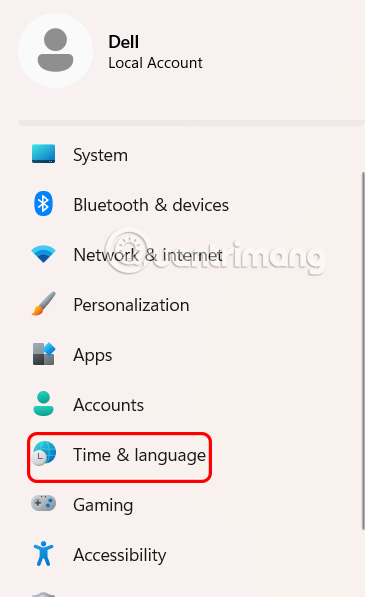
Open Settings on your computer and select Time & Language in the left menu.
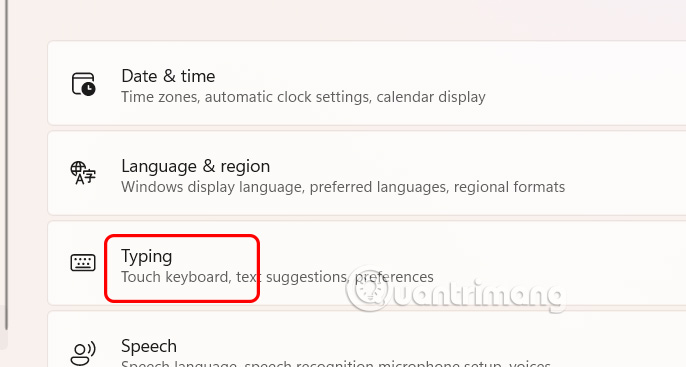
Next, look to the right, we select Typing to adjust the entry on the computer.
Step 2:
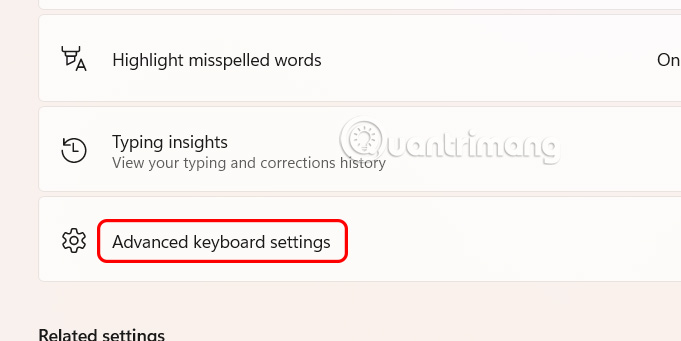
Then the user clicks on Advanced keyboard settings to open advanced keyboard settings on the computer.
Step 3:
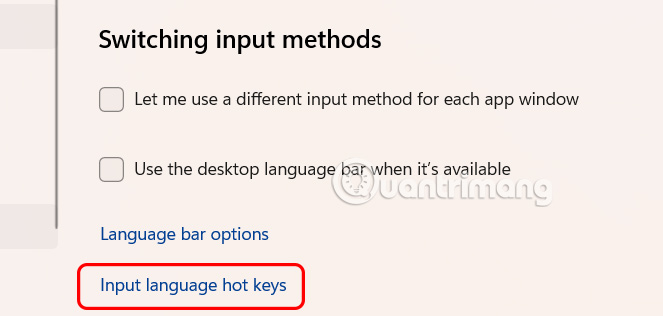
At this time, the user clicks on Input language hot keys to adjust the language shortcut keys on the computer.
Display the new interface, click Between input languages then click Change key sequence to change keys between input languages.
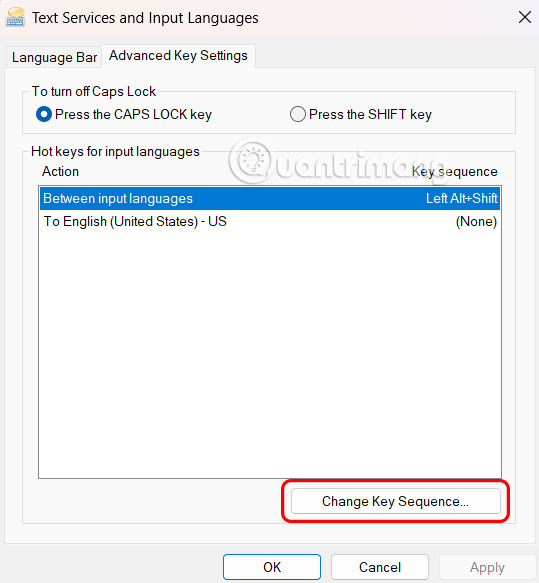
Step 4:
You can unassign the shortcut or set it to Ctrl + Shift or the 'grave accent' key (located to the left of the number 1 above the QWERTY keyboard). Click OK to save.
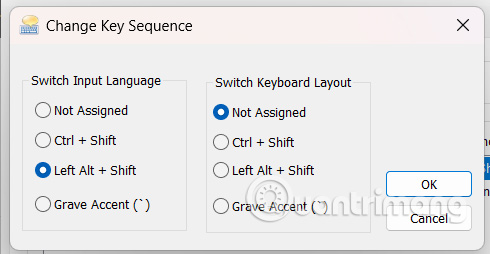
If you want, you can go back and change the language input shortcut in Windows to instantly switch to a specific language. The options here include Ctrl or Ctrl + Shift or Alt + Left Shift and a number, tilde, or grave accent (on some keyboards, the tilde and grave accent are on the same key as Shift, so you can't select one of the options).
Final Thoughts
Following the steps in order and checking version-specific settings should make it easier to Change Default Language Shortcuts Windows 11. If an option looks different, verify the device, app, or operating-system version before changing additional settings.
FAQ
What is the best way to Change Default Language Shortcuts Windows 11?
Start with the requirements described in the article and follow the steps in order. If you need to use multiple languages and want to switch between different languages on your Windows computer, we will need to use the language shortcut key on the computer.
What should you know about How to change Windows language shortcuts via Settings?
The Alt + Left Shift alternative language change shortcut is the remapped key.
What should you do if the instructions do not match your screen?
Check the device, software version, account permissions, and regional settings. Interfaces can change after updates, so use the closest matching option and consult the official support documentation when necessary.
Related Articles
 How to Change the Language System in Windows 109 minutes read
 Change Windows 10 to Vietnamese - the Default Language Will Be English7 minutes read
 How to Change the Language on Your Computer4 minutes read
 How to Convert Windows 8 // 8.1 Keyboard Language4 minutes read
 How to Change Keyboard Shortcuts in Photoshop6 minutes read
 How to Change Language in Windows 7: Practical Guide9 minutes read
Reader Comments 0
Sign in with email or Google to join the discussion.