Table of Contents
To change Windows 10 from English to Vietnamese, open Settings > Time & Language > Language, add Vietnamese, install its language pack, and select it under Windows display language. Save your work and sign out, then sign back in to apply the interface change.
The exact labels vary between Windows 10 releases. The screenshots below show an earlier interface, but the settings remain under Time & Language. Changing the display language is different from adding a Vietnamese keyboard for typing.
Check whether your Windows edition supports another display language
Open Settings > System > About and check the Edition under Windows specifications. If it says Windows 10 Home Single Language, the license supports only one display language. You can still add Vietnamese keyboard input, but Settings will not let you install Vietnamese as a second Windows interface language.
Install the Vietnamese language pack
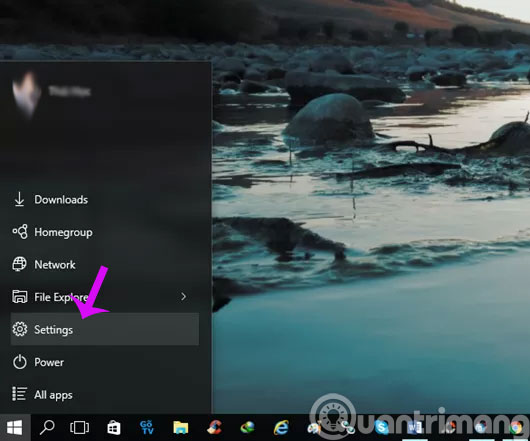
Step 1: Open the Start menu and select Settings.
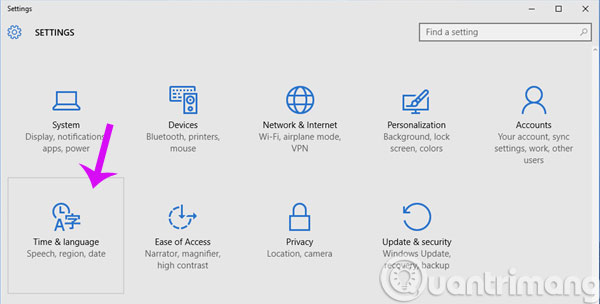
Step 2: Select Time & Language.
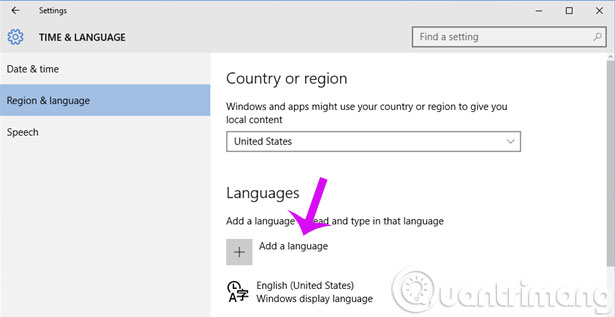
Step 3: Open Language or Region & language, depending on your Windows 10 build. Under Preferred languages, select Add a language.
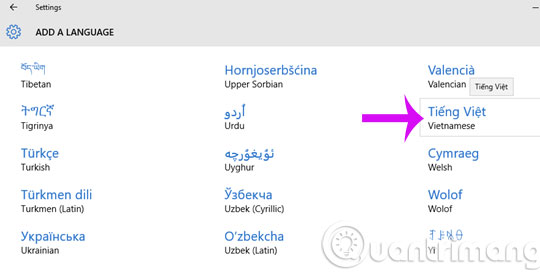
Step 4: Search for and select Vietnamese (Tiếng Việt), then choose Next.
Step 5: Select Install language pack. If the setup offers Set as my Windows display language, check it before selecting Install. On older builds, select the installed language and choose Set as default.
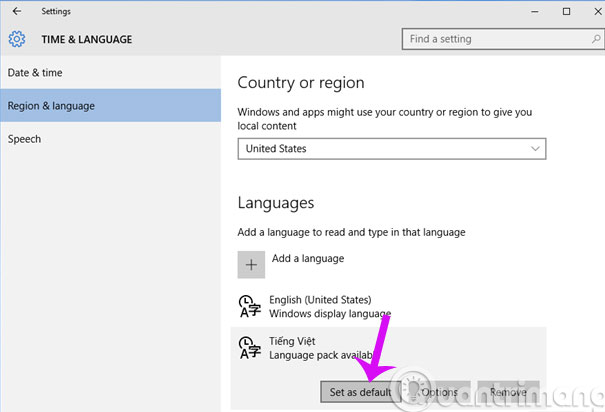
Step 6: If Vietnamese is installed but the display language is still English, select Vietnamese, open Options, and download the available language pack components.
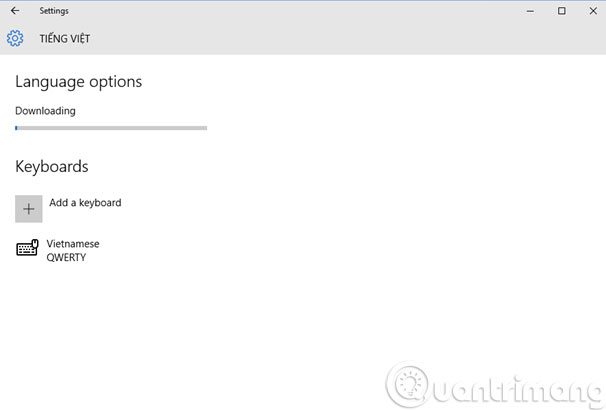
Step 7: Return to the Language page and choose Vietnamese from the Windows display language menu. Windows should indicate that the new language will apply after the next sign-in.
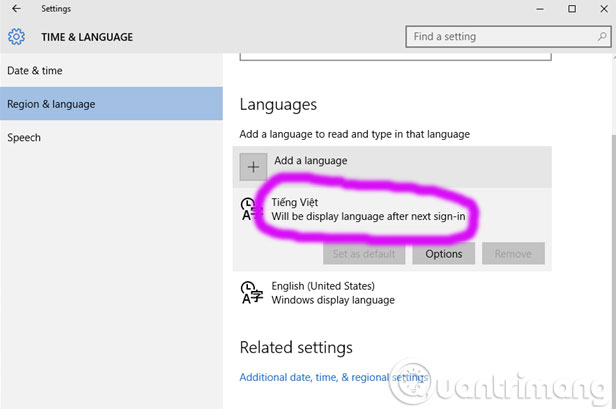
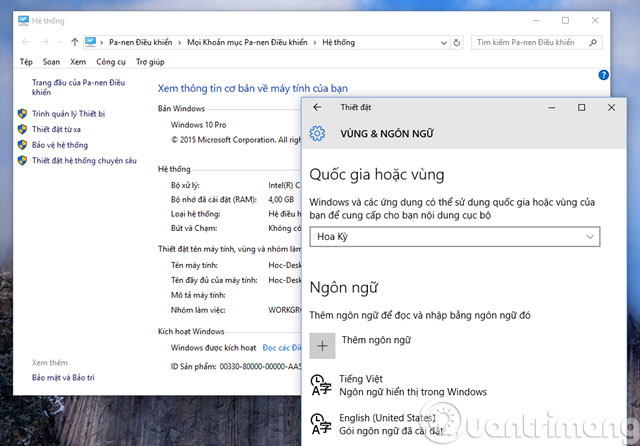
Step 8: Save open files, sign out of Windows, and sign back in. Restarting also works, but signing out is normally sufficient.
Switch between English and Vietnamese keyboards
Installing a language can add its keyboard layout. Press Windows + Space to cycle through installed input methods, or select the language indicator on the taskbar and choose a keyboard.
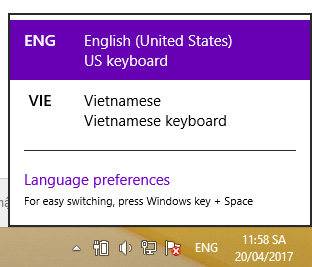
The selected keyboard affects typing, not the language of Windows menus. Check the current layout on the sign-in screen before entering a password, because the keys may produce different characters.
Add or remove a keyboard without changing the display language
- Open Settings > Time & Language > Language.
- Select Vietnamese or another preferred language, then choose Options.
- Under Keyboards, select Add a keyboard and choose the layout you need.
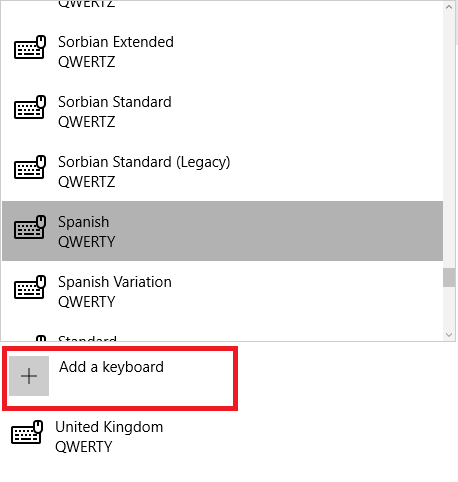
To remove an unwanted layout, select it in the same list and choose Remove.
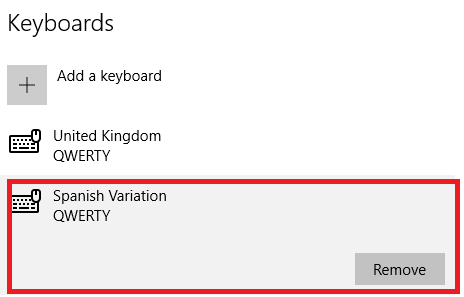
Windows keyboard layouts may not provide the same Telex or VNI workflow as dedicated Vietnamese input tools. The guide to Telex, VNI, and VIQR typing methods explains the difference between input methods and character encoding. You can also review how to use EVKey if you prefer a separate Vietnamese keyboard utility.
Configure speech features
Open Settings > Time & Language > Speech to view available speech language, microphone, and text-to-speech options.
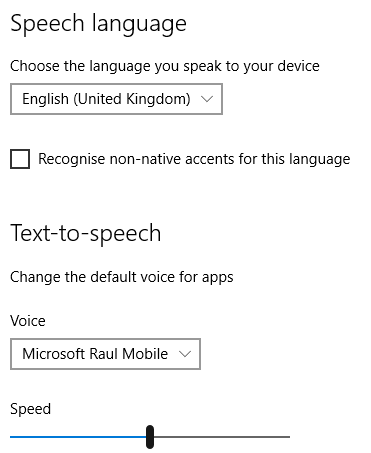
Speech recognition and text-to-speech availability depend on the language and installed optional features. A Vietnamese display pack does not guarantee that every speech feature or voice is available.
If Vietnamese does not appear as a display language
- Check the Windows edition: a Single Language edition cannot add a second display language.
- Install pending updates: language features are delivered through Windows Update, so a disabled or failing update service can block downloads.
- Check the connection: optional language components require internet access unless an administrator provides an approved offline package.
- Open Language options: confirm that the display-language component, not only keyboard input, was installed.
- Ask an administrator: a work or school device may restrict language changes through policy.
Use Settings or an administrator-provided package rather than downloading unofficial language-pack files. If you need the older operating system instead, see how to change the display language in Windows 7.
Related Articles
 Change Gmail Interface from English to Vietnamese2 minutes read
 How to Change Facebook Language on Computer3 minutes read
 Vietnamese Translation for Windows 107 minutes read
 Change Language on Ccleaner: Change Ccleaner Language to Vietnamese3 minutes read
 How to Convert Vietnamese, English Gboard Keyboard4 minutes read
 How to Switch to Vietnamese Interface for Windows 76 minutes read
Reader Comments 0
Sign in with email or Google to join the discussion.