Table of Contents
This updated guide explains how to auto-connect preferred Bluetooth devices on Android with clear steps, practical tips, and useful context. Ever get frustrated when your phone connects to the wrong Wi-Fi or Bluetooth device? Maybe it connects to a secondary network instead of your primary one, or connects to a headset when you want to connect to your car.
Set Wi - Fi Network Priority on Android
By default, Android phones do not always choose the strongest or most preferred network, but you can change that with a few quick tweaks.
Some Android phones have built-in Wi-Fi options that can help you set your preferred network. To see if your phone has this feature, open Settings -> Network & Internet -> Wi-Fi . (The exact path may vary depending on your device and Android version.)
Select your preferred Wi-Fi connection and enable the Auto-connect option. Leave it off for the rest.

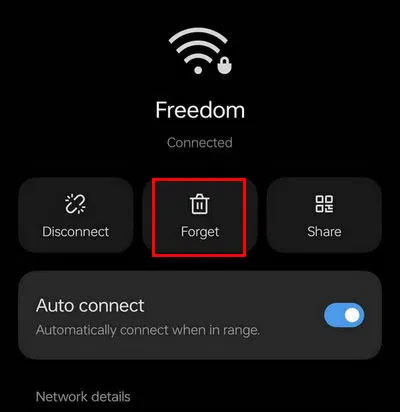
If your device does not offer built-in prioritization, you can choose to forget any networks you do not want to connect to automatically. Just tap the network name and select Forget .
If you want more control, third-party apps like Wi-Fi Prioritizer can help. These apps let you reorder your saved networks, making your phone connect to the network you prefer first. Install the app, grant the necessary permissions, and drag the networks into the order you want.

for instance, you can add your home network as the first priority on your Android device, followed by your work Wi-Fi, and then your car's network. Still, most such apps are available as APK files, so It is best to scan them thoroughly to ensure they're virus-free.
Configure Bluetooth Device Priority on Android
Managing Bluetooth connections is easy. The first method is to forget devices you do not want your phone to automatically connect to. open Settings -> Connected devices -> Bluetooth , tap the device you no longer need and select Forget or Unpair .
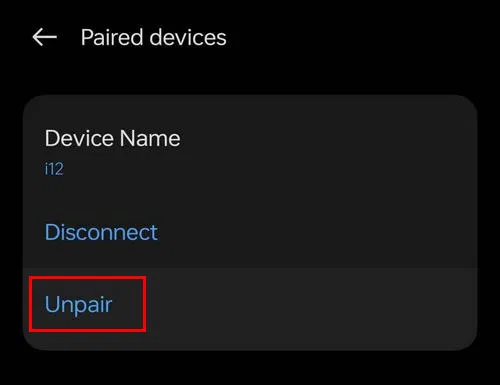
If you do not want to forget your device but still want to manage which device connects first, try manually connecting to your preferred device first. If you cannot locate your device, there are a few solutions to help you find a lost Bluetooth device.
Android tends to prioritize the most recently connected device. for instance, if you tend to want your phone to connect to your car's Bluetooth before your headphones, connect to your car first. Over time, your phone will start to prioritize that connection.
to automate even further, consider using an automation app. These apps let you set up rules that tell your phone which devices to connect to and when. Here's an example of how to do this using Automate:
Open Automate and choose the plus icon. In the next window, choose another plus icon to create a new flow. Select Connectivity -> Bluetooth device connected.
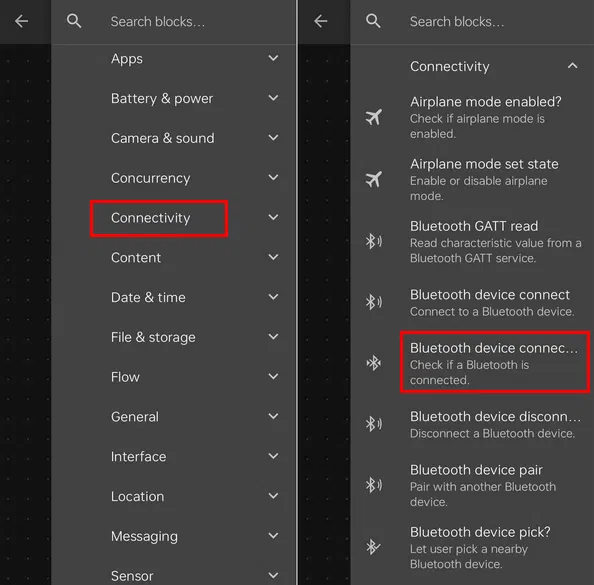
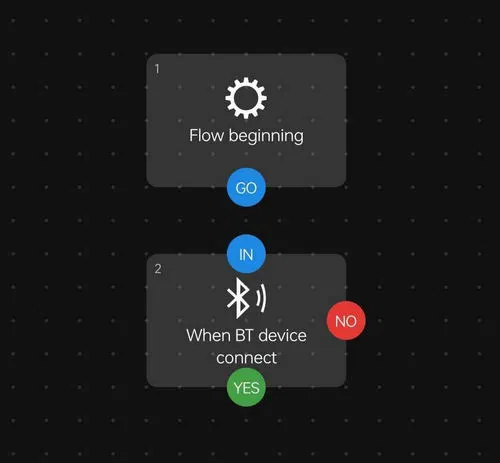
Drag and drop below the Flow Beginning block. Tap the block and select the Bluetooth device you want, then tap Save . Connect the bottom of the top block to the top of the bottom block.
Repeat the above process again, but this time, select the Bluetooth device connect block mentioned above. Connect the bottom part of the Bluetooth Device Connected? block to the top part of the Bluetooth Device Connect block.
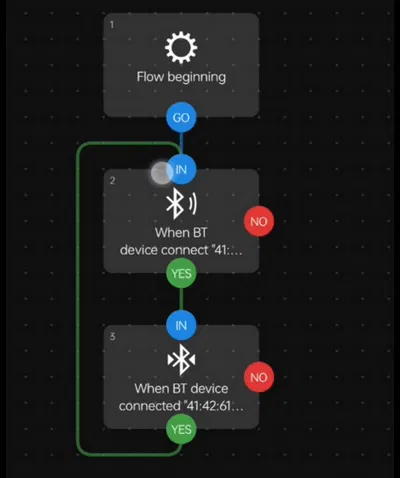
Tap the three-dot menu in the upper right corner and select Save . Go back to the main screen in the app and select the flow you just created. Tap Start to begin the automation.
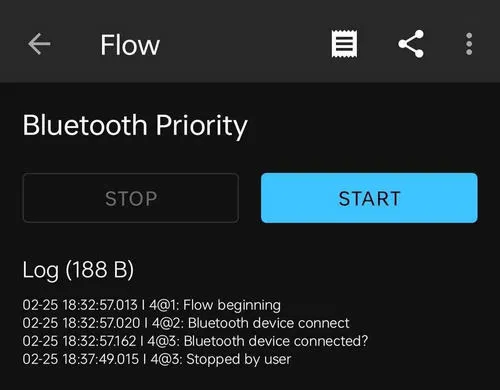
This will cause the Android device to automatically reconnect to your phone.
Troubleshooting Common Problems
Even after setting network priority and Bluetooth priority, things do not always work perfectly.
A common problem is when your Android phone connects to a weaker Wi-Fi network instead of the one you prefer. This can happen if the weaker network was previously used or had a stronger initial signal. To fix this, forget the unwanted network or switch to airplane mode to refresh the connection.
Bluetooth issues are also common. If your phone refuses to connect to the right device, turning Bluetooth off and on often helps. Another common Bluetooth issue is devices failing to connect after an update. If this happens, restarting both Android and the Bluetooth device should fix any remaining issues.
You may notice frequent disconnections. This often happens when you are out of range or when there are obstacles that are disrupting the connection. If this happens, consider moving closer to the device or clearing the area where the interference may be occurring.
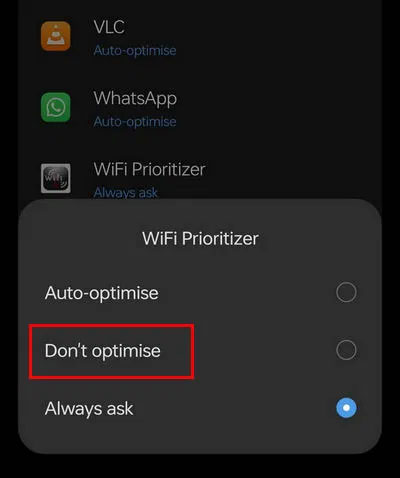
If you're relying on a third-party app, ensure Android's battery optimization settings aren't causing the problem. open Settings -> Battery -> App Settings -> App and select do not optimize to prevent apps from shutting down in the background.
If you've ever found yourself struggling to get your phone to connect to the right Wi-Fi network or Bluetooth device, you're not alone. Luckily, with a few simple tweaks, you can set your Android phone's network priority or Bluetooth priority to automatically connect to the right network or device without any extra effort. If you're on Windows, learn how to change network priority on your PC.
FAQ
What should I prepare before I auto-connect preferred bluetooth devices on android?
Review the requirements and options in the guide first. Having the correct device, app version, account access, or materials ready helps prevent avoidable errors.
How long does it take to auto-connect preferred bluetooth devices on android?
The time depends on the task and your setup. Most basic steps can be completed quickly, while downloads, updates, scans, or troubleshooting may take longer.
What should I do if the steps do not work?
Repeat the instructions in order, confirm that your software or device is supported, and check permissions, connectivity, and available updates before trying again.
Related Articles
 Instructions for Using Bluetooth on Devices14 minutes read
 How to Secure Bluetooth Devices1 minutes read
 How to Find Bluetooth Addresses Connected to Windows3 minutes read
 How to Use the Bluetooth Headset Properly6 minutes read
 The Software Supports Bluetooth Connection with the Computer5 minutes read
 Instructions on How to Set Up Bluetooth on Windows 108 minutes read
Reader Comments 0
Sign in with email or Google to join the discussion.