Table of Contents
Start with the symptom. If apps reload when you switch between them, check memory and background process settings. If notifications are late, look at battery restrictions and account sync. If menus feel slow but apps work normally, try shorter animations.
Restart the phone and check for low storage before testing. Change one setting at a time and repeat the action that felt slow, so you know which change helped. Settings names vary across Android phones.
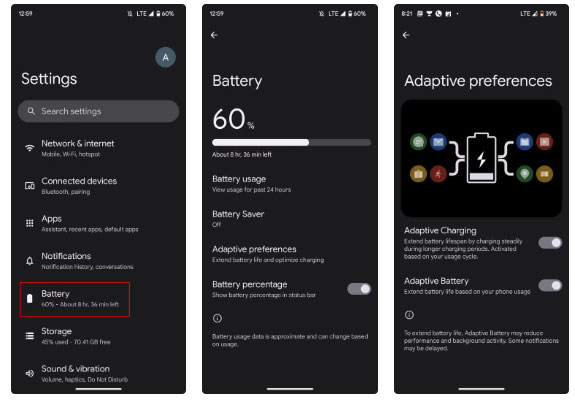
1. Adaptive Battery and delayed notifications
Adaptive Battery limits background work for apps you use infrequently. Keep it on for normal use. If one app sends notifications late, check its per-app battery setting first. On a Galaxy phone, also check whether the app is in Sleeping apps or Deep sleeping apps under Background usage limits.
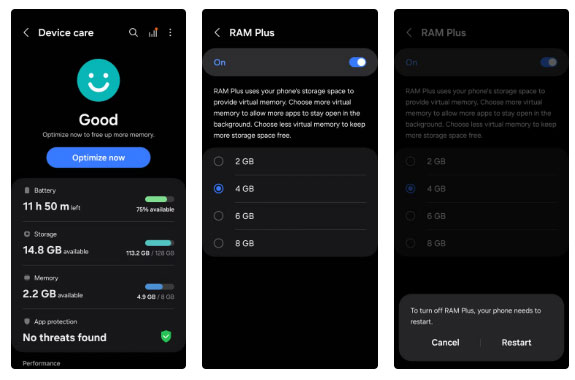
2. RAM Plus and app switching
Samsung’s RAM Plus is a virtual memory setting. Its effect varies by phone and workload. If frequent app switching feels sluggish, look under Settings > Device care > Memory > RAM Plus. Compare the same few apps after reducing or turning off RAM Plus, if your phone offers that choice. Restore the previous setting if apps reload more often. See how virtual RAM works on Android.
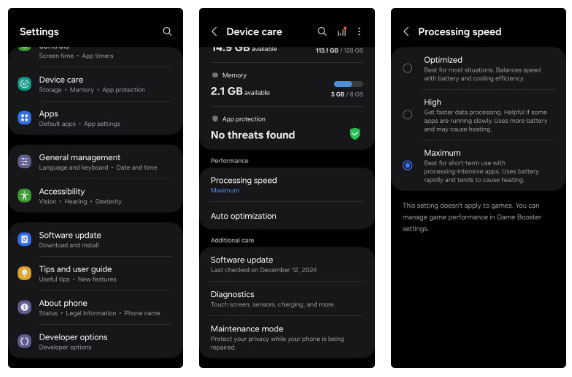
3. Processing speed and power saving
If a demanding app feels unusually slow, check whether Power saving is active. On Galaxy devices that offer Processing speed in Device care, use Optimized for everyday tasks. If a particular app still struggles, compare High with Optimized using the same task. Higher settings can use more battery and generate more heat. The Galaxy performance settings guide covers other One UI options.
4. Background battery use by individual apps
Open Battery settings and check which apps used power during a period when the phone was idle. Investigate unfamiliar or seldom-used apps with high background usage before restricting them in Settings > Apps > [app] > Battery. Keep background access for apps that need timely alerts, navigation, or syncing.
5. Account sync for mail, contacts, and calendars
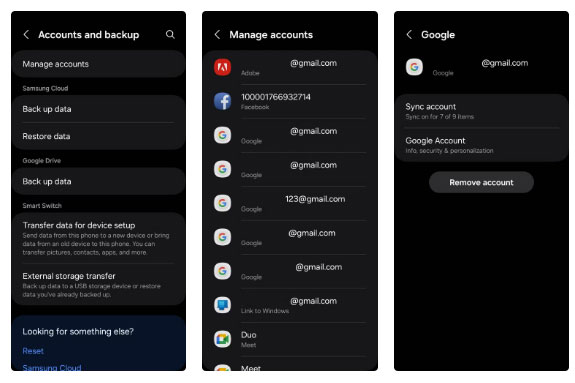
On Samsung phones, open Settings > Accounts and backup > Manage accounts and select an account to see its sync options. Turn off individual items you no longer use. Mail, contacts, or calendars you still rely on may stop updating automatically if you turn their sync off.
6. Animation scale and how fast menus feel
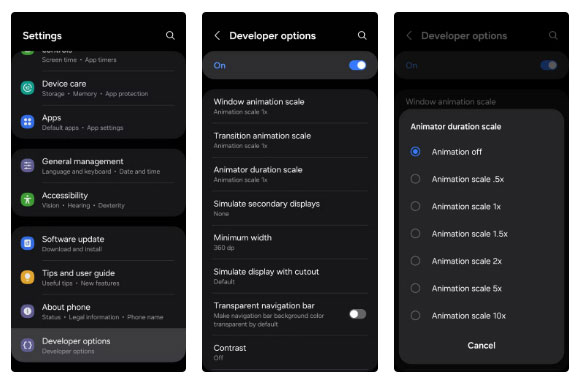
Shorter animations make transitions finish sooner. App loading and processing speeds stay the same. Try Remove animations in Accessibility if available. For finer control, tap Build number seven times in About phone (under Software information on Samsung), then set Window animation scale, Transition animation scale, and Animator duration scale to 0.5x in Developer options. Return them to 1x if the transitions feel abrupt.
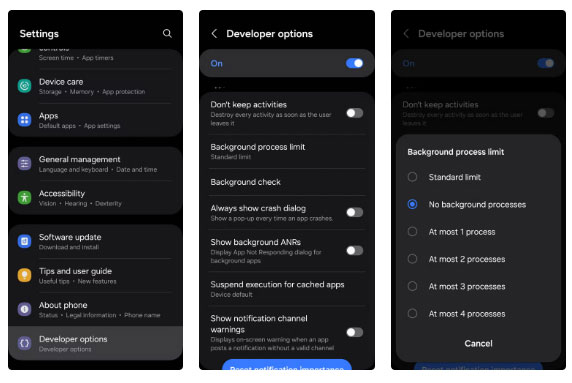
7. Background process limit and app reloads
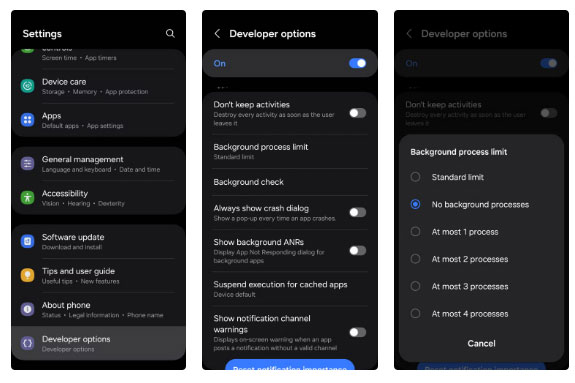
If you previously changed Developer options > Background process limit, restore Standard limit. A low limit can make apps start over when you return to them. Google lists this setting among its Android developer testing options.
Related Articles
 Secret Settings to Fix Laggy Old Android Phones
 5 types of preinstalled Android apps worth reviewing
 Instructions to reset Android phone to restore factory settings
 How to search for settings options in the Settings menu on Android
 Android Phone Default Settings Are a Privacy Nightmare: Here's What to Change Now!
 7 quick settings tiles on Android that make your phone more useful instantly
Reader Comments 0
Sign in with email or Google to join the discussion.