Table of Contents
Windows 11 can show two extra time zones alongside your local time, while the built-in Clock app can track a longer list of cities. Start with the notification-area clocks if you only need two locations; use World clock when you need a larger list. Optional Store widgets can put those times on the Widgets board or desktop.
Add two extra clocks to the taskbar flyout
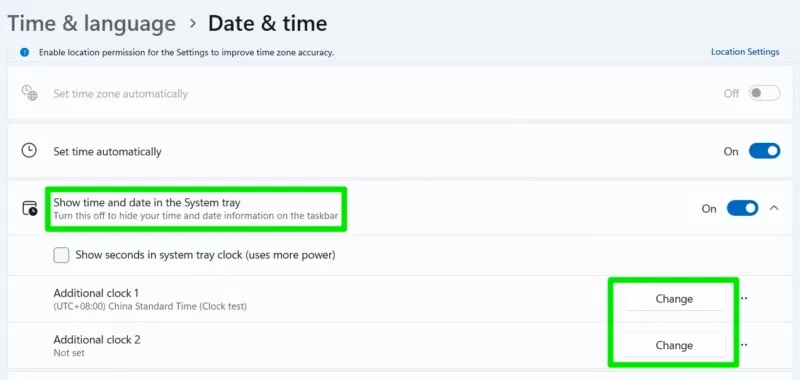
Right-click the date and time at the right end of the taskbar and choose Adjust date and time. In Settings > Time & language > Date & time, expand Show time and date in the System tray. Windows builds that include the newer controls show Additional clock 1 and Additional clock 2; select Change beside either one.
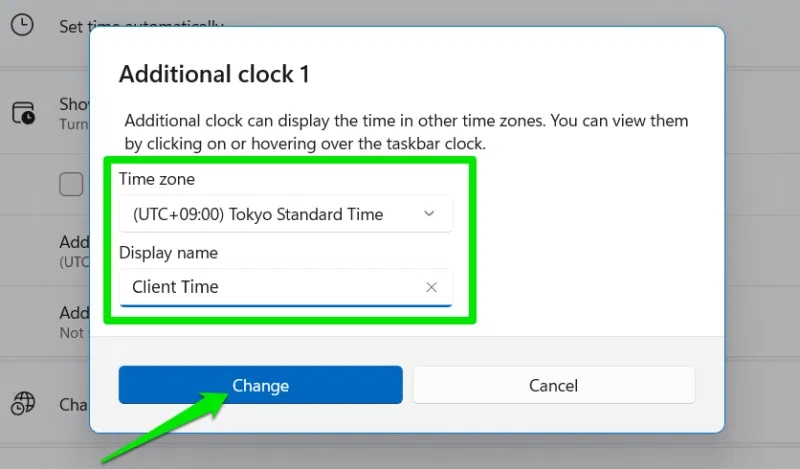
Choose a time zone, enter a short display name such as “London” or “Tokyo,” and save the setting. Repeat for the second clock if needed.
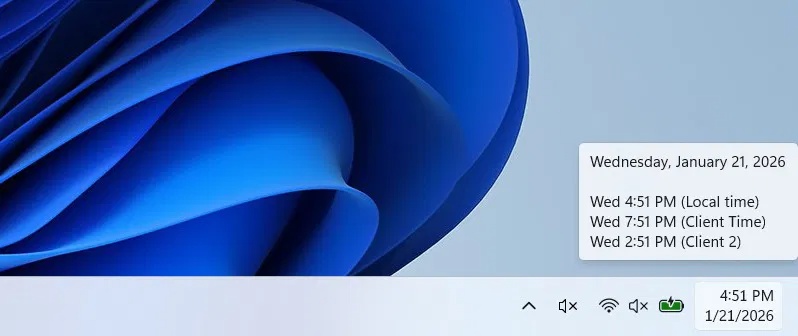
Hover over the taskbar clock or select it to see the extra times in the date-and-time flyout. These clocks do not remain permanently side by side on the taskbar.
If the Additional clocks controls are missing
Microsoft rolls out some Settings features gradually, so the same control may appear in a different place on another PC. Press Win + R, type timedate.cpl, and press Enter. Open the Additional Clocks tab, enable one or both clocks, choose each time zone and label, then select Apply. Microsoft also documents the main time and time-zone controls in its Windows date and time settings guide.
Track more cities in the Clock app
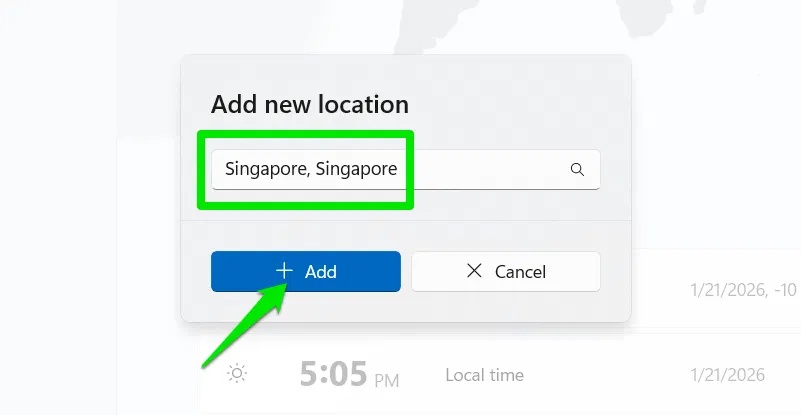
The Clock app is the simplest built-in choice for more than two locations. Open Start, search for Clock, and select World clock in the left pane. Choose Add a new city (the + button), search for a city, select it, and choose Add.
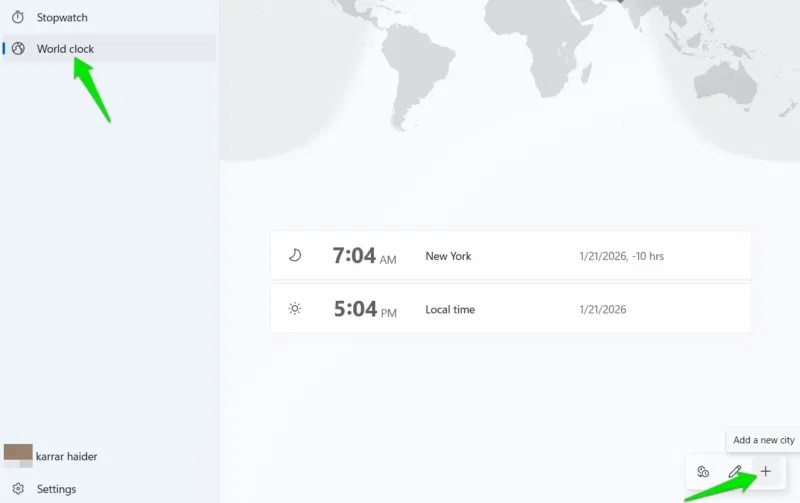
Repeat the process for every city you regularly check. Using a city instead of memorizing a UTC offset lets Windows account for local daylight-saving changes.
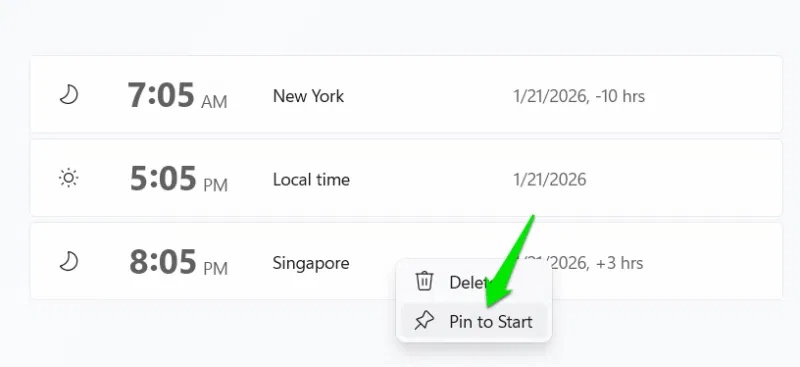
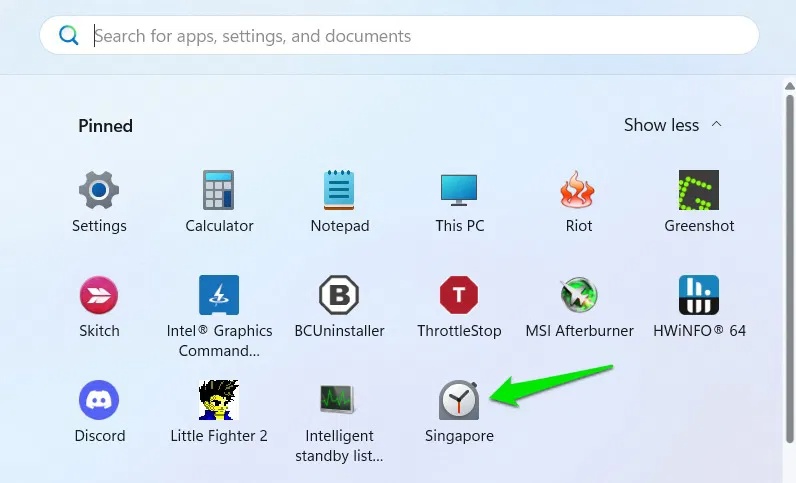
Right-click a city to see the actions supported by your installed version of Clock. If Pin to Start is available, it provides a faster route back to World clock. The pin may open the app rather than display a continuously updated live tile.
For a closer look at alarms, timers, Focus sessions, and other parts of the same app, see these useful Windows Clock features. Microsoft’s World clock instructions also cover adding and removing cities.
Add world times to the Widgets board
Press Win + W to open the Widgets board. Windows supports widgets supplied through Microsoft Store apps, but the exact buttons and layouts can change with Windows and app updates.
One option is Globe Time Widget in Microsoft Store. After installing it, open the Widgets board, choose the add-widgets control, and pin Globe Time. Open the widget menu and choose its customization option to add or remove cities.
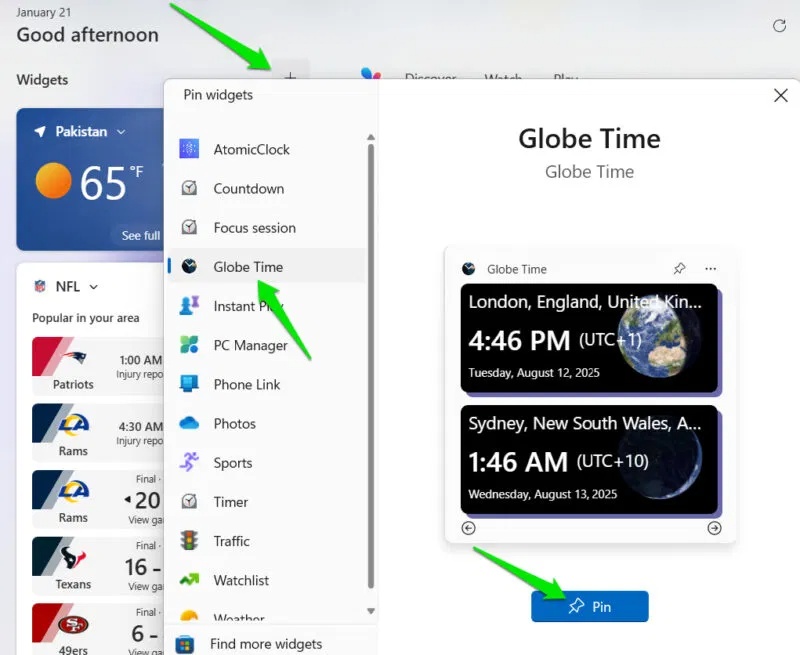
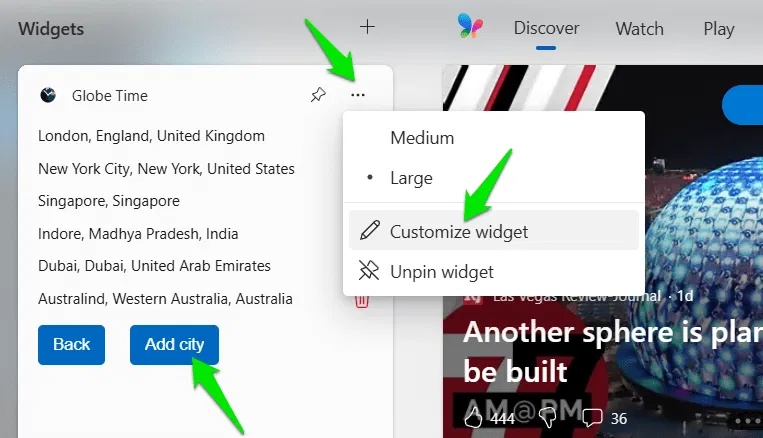
The widget can show several locations without opening Clock. When the saved list is longer than the visible layout, use its navigation control to move between groups.
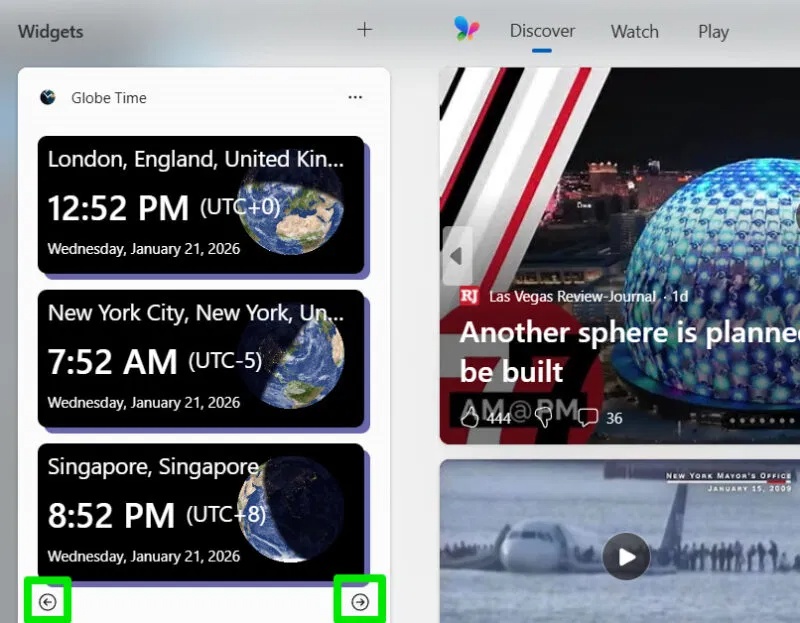
Because this is a third-party app, check its current Store listing, permissions, and recent reviews before installing it. If a taskbar-only arrangement is your goal, compare the approaches in our guide to adding multiple clocks in Windows 11.
Keep clocks visible on the desktop
Windows 11 does not include a built-in, always-visible desktop world-clock gadget. A Store app such as Widget Launcher can place clock widgets on the desktop. In that app, select its world-clock widget, adjust the appearance, and launch it.
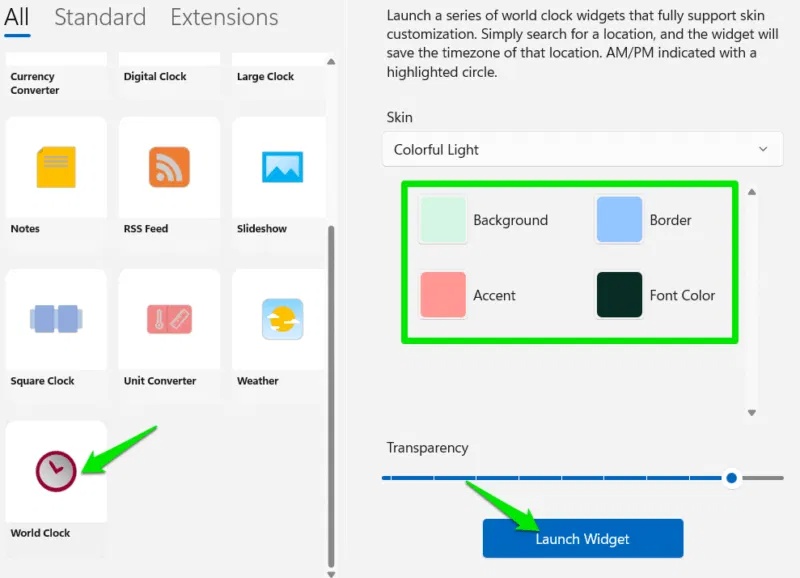
Move or resize the widget, then open its settings to choose the required location. Add another widget for each additional clock, subject to the limits of the current app version.
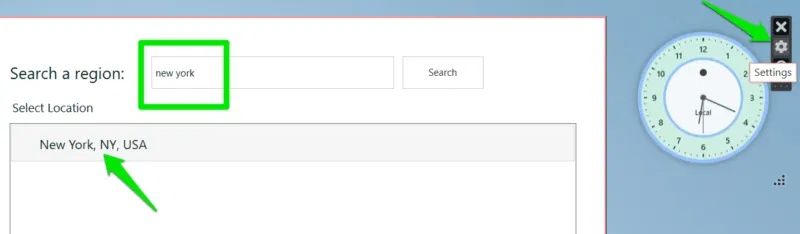
Desktop widgets run as third-party software, so keep the app updated and remove it if you no longer use it. The built-in taskbar flyout and Clock app require less setup and are usually the better starting point.
Keep the displayed times accurate
- Choose a city or named time zone: a fixed UTC offset may be wrong when that location enters or leaves daylight saving time.
- Let Windows set the clock automatically: in Settings > Time & language > Date & time, enable automatic time. Enable automatic time-zone detection if the PC supports it and you travel frequently.
- Synchronize a wrong local clock: use Sync now on the Date & time page before troubleshooting extra clocks.
- Check app updates: if a Clock or widget option does not match the screenshots, update Windows and the relevant Store app, then reopen it.
For most people, two notification-area clocks plus the Clock app provide everything needed. Add a third-party widget only when you need the information visible without opening a flyout or app.
Related Articles
 How to Add Multiple Clocks to the Windows 11 Taskbar3 minutes read
 Additional Clock: How to Show Multiple Time Frames on Windows 103 minutes read
 How to Insert a Clock into PowerPoint5 minutes read
 How to Teach Kids to Tell Time: Step-by-Step Guide14 minutes read
 Why Are the 'Forbidden Zones' on Mars Causing Even NASA to Hesitate to Explore Them7 minutes read
 3 Ways to Create Multiple Folders at Once in Windows 10/118 minutes read
Reader Comments 0
Sign in with email or Google to join the discussion.