Table of Contents
An AI-assisted digital competency lesson plan should connect technology use to a clear learning outcome. Adding a video, chatbot, or online quiz is not enough by itself. Students should use a digital tool to find, create, communicate, analyze, or evaluate information in a way that supports the subject being taught.
AI can help a teacher map an existing lesson to digital competencies and draft activities, but the teacher remains responsible for curriculum alignment, age appropriateness, accessibility, privacy, and factual accuracy.
Before using an AI lesson-plan generator
Prepare the source lesson and decide what must remain unchanged. Identify:
- the subject, grade level, lesson duration, and curriculum standard;
- the knowledge or skill students should demonstrate;
- the digital competency to be developed;
- available devices, accounts, internet access, and classroom support;
- students who need accessibility or offline alternatives;
- the evidence you will use to assess both subject learning and digital practice.
Do not upload student names, grades, personal records, or copyrighted material unless you have permission and understand the service's data practices. A sanitized lesson-plan template is usually enough for generating a first draft.
Create a draft with the Innovative Teacher tool
The screenshots below show the Innovative Teacher website workflow available when this guide was prepared. Labels, plan requirements, and interface details may change, so check the current site before purchasing or uploading a document.
1. Open the lesson-planning service
Visit the Innovative Teacher website and sign in or register if you decide to use the service. Review its current terms, privacy information, and pricing before entering classroom material.
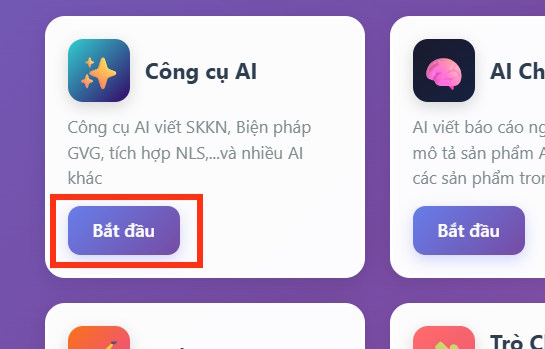
2. Find the AI tool
Open the AI Tools area in the website interface.
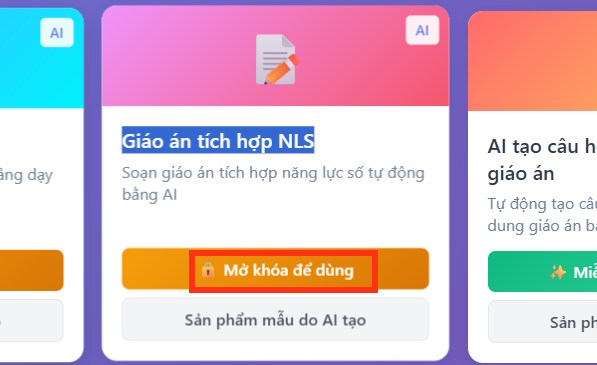
Choose the option for an NLS-integrated lesson plan. In this context, NLS refers to digital competency. If the site asks you to upgrade, inspect the price and renewal terms before continuing.
3. Set the teaching context
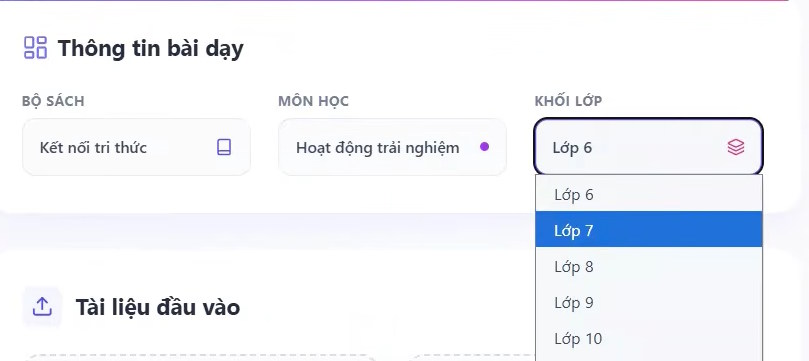
Select the textbook series, subject, and class or grade that match the source lesson. Verify each choice; a polished plan based on the wrong curriculum context is not useful.
4. Upload a clean source lesson
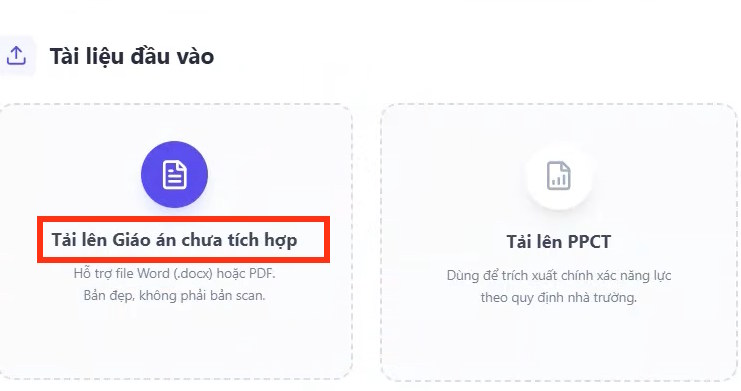
In the input-document section, upload the lesson plan you want to adapt. Use a copy with personal and confidential information removed. Keep the original file separately so you can compare every change.
5. Start AI processing
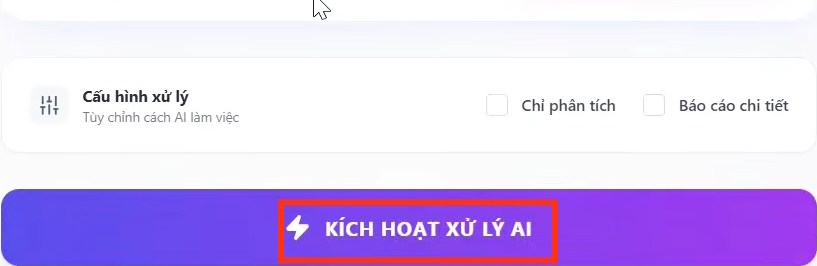
Keep required settings unchanged unless you understand their effect, then choose the control that starts AI processing. The tool should produce a draft rather than replace the original document.
6. Download and review the result
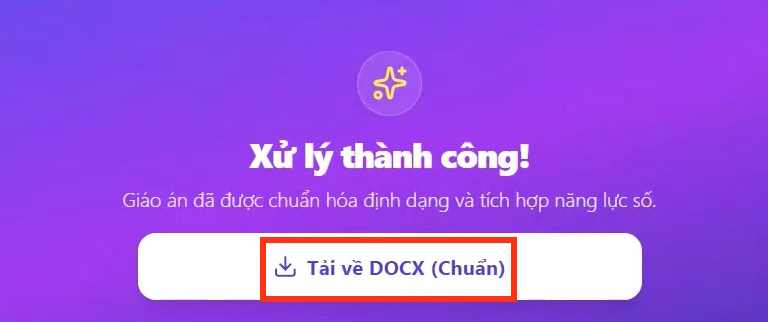
When processing finishes, download the generated plan. Do not use it in class until you have checked its objectives, instructions, resources, timing, and assessment.
How to improve the AI-generated draft
For every proposed digital activity, answer four questions:
- What will students learn? Name the subject outcome and digital competency.
- Why is technology needed? Explain what it enables that a simpler activity would not.
- What will students do? Use observable actions instead of vague directions such as “explore with AI.”
- How will learning be assessed? Define the product, behavior, explanation, or reflection that demonstrates success.
Replace generic activities with concrete instructions. For example, instead of “use AI to learn about ecosystems,” ask students to compare an AI-generated food web with a textbook source, identify two unsupported relationships, correct them, and cite the evidence used.
Teacher review checklist
- Every activity supports a stated curriculum outcome.
- Digital competency is practiced and assessed, not merely mentioned.
- Facts, examples, links, and generated media have been checked.
- Instructions fit the students' age, language level, and available time.
- Students have an accessible or offline alternative where needed.
- No student must disclose unnecessary personal information.
- The plan explains permitted and prohibited AI use.
- Assessment rewards reasoning and evidence rather than copied output.
- The teacher can complete the activity with the actual classroom devices and network.
Use AI as a planning assistant
A generated lesson plan is a starting point. The best result comes from combining the teacher's knowledge of the class with carefully scoped AI assistance. Preserve the original learning goal, add technology only where it improves the task, test the activity before class, and revise the plan after observing how students actually use it.
Related Articles
 Guide to Building AI-integrated Lesson Plans4 minutes read
 Guide to Creating Lesson Plans Using NotebookLM4 minutes read
 Create AI-Integrated Lesson Plans on NotebookLM3 minutes read
 Guide to Creating AI-integrated Lectures Using Claude AI4 minutes read
 How to Use AI to Create Quality Lesson Plans2 minutes read
 Prompt for Preparing 6th Grade Literature Lesson Plans6 minutes read
Reader Comments 0
Sign in with email or Google to join the discussion.