Table of Contents
Understanding guide to buying kindle and audible books on iPhone, iPad is easier when the main points are organized clearly. This guide brings together the essential details and practical considerations.
- How to delete books from Kindle?
With all digital items sold through iOS, Apple will get 30% of the value of the transactions. They include applications and songs, e-books sold through third-party applications. If Amazon sells books on Kindle apps or Amazon shopping apps, they will have to pay Apple 30% of the price of every purchase. So you need to visit the Amazon site and buy the book here.
Instructions for buying Kindle books on iPhone or iPad
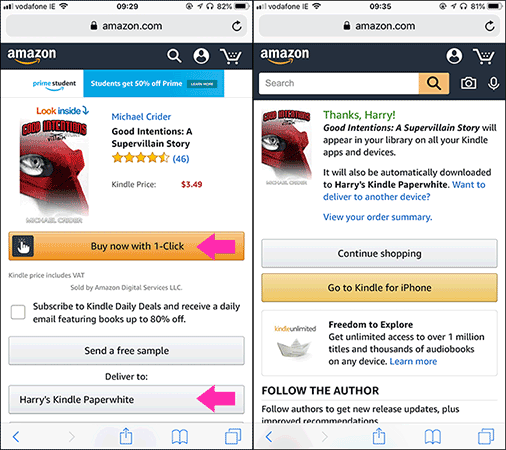
To purchase Kindle books on your iPhone or iPad, you must exit the app and access the Amazon website using a mobile browser. After logging in, click the Departments Link and then select the Kindle Store . You can also access the following link directly:
https://www.amazon.com/Kindle-eBooks

Now you can view the bestsellers on Kindle or use the search bar at the top of the screen to find the book you want to buy.

If you have multiple Kindle devices or applications, click the Deliver to: option , then select the iPhone or iPad you want to send the book to. This option only decides where the book is sent automatically. You can sign in to Kindle devices or apps with the same account and download the book there.
Next, click the Buy Now With One Click button . You need to sign in before making a transaction.
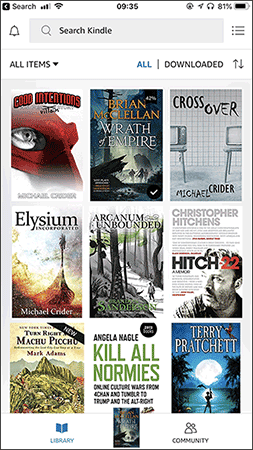
Open the Kindle application, the book will automatically show up in your library.
Instructions for buying Audible books on iPhone or iPad
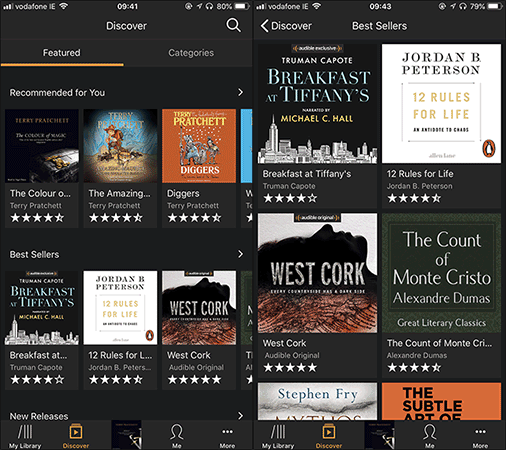
With Audible application, buying books will be easier. You can use the Discover Tab to browse audiobooks, then add them to your favorites list. However, you still can't buy them in the app.
Exit the app, open the web browser and visit Audible. com. Here, find the book you want to buy.
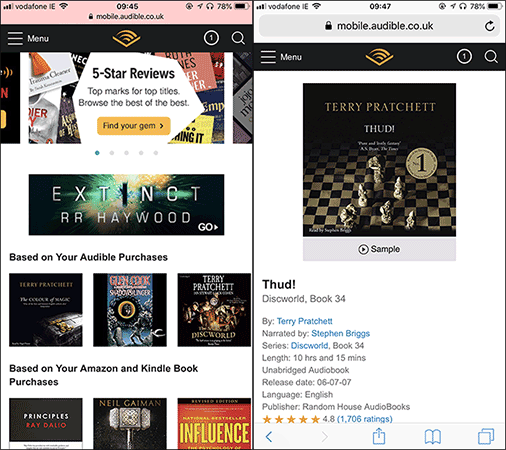
Scroll down and select the form of payment, Buy Now with 1 Credit (if you have a credit card) or select Buy Now for . Click Confirm Purchase And the book will be added to your Audible library.
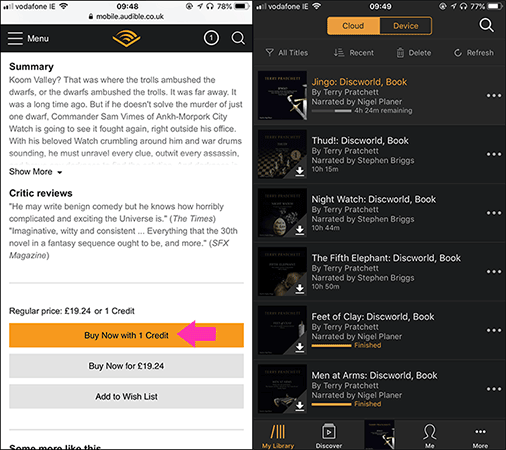
Buying books from these two popular reading services is a bit more complicated, but not too difficult, right. If you have a faster way to buy, please share with us.
- How to pay for apps on Google Play with Mobifone account
- How to change countries on Microsoft Store
- Instructions on how to download applications, games for iPhone and iPad
FAQ
What is the main benefit of guide to buying kindle and audible books on iPhone, iPad?
The main benefit is a clearer understanding of the topic and a practical way to apply the information covered in this guide.
What should I check before using guide to buying kindle and audible books on iPhone, iPad?
Confirm compatibility, review the required settings, protect important data, and use the latest supported version whenever possible.
What should I do if the result is different?
Repeat the steps carefully, verify permissions and version differences, and consult the product's official support documentation for changes not shown in the article.
Related Articles
 How to Delete Books from Kindle?6 minutes read
 Guide to Transfer Ebook into the Amazon Kindle5 minutes read
 Why Should You Use Boox Note Air 4C Instead of iPad or Kindle8 minutes read
 How to Transfer Books to Kindle: Clear Instructions9 minutes read
 2 Easy Ways to Transfer Books to Kindle: What You Need to Know7 minutes read
 How to Open Mobi Files on iPhone or iPad: Step-by-Step Guide4 minutes read
Reader Comments 0
Sign in with email or Google to join the discussion.