Table of Contents
The process for save and share animoji on iPhone, iPad is straightforward once you know where to find the right controls. The steps below explain what to do and what to check.
Animoji uses the camera before TrueDepth, simulating face movement with an animated character when you record audio messages. You can select characters, create an animoji and share it with friends. If you don't own an iPhone X, but still want to experience it, you can ask a friend to use iPhone X, create an Animoji and send it to you. You can then save and use it for other conversations.
How Save and Share Animoji on iPhone, iPad Works
Animoji way to save on iPhone or iPad
The process of saving Animoji into Photos application is like saving videos.
- Open the Messages Application on your iOS device.
- Open The conversation With Animoji you want to save to your phone.
- Touch Animoji .
Note: You can use 3D Touch to save photos to iPhone.
- Press The share button In the bottom left corner.
- Click the Save video Button.
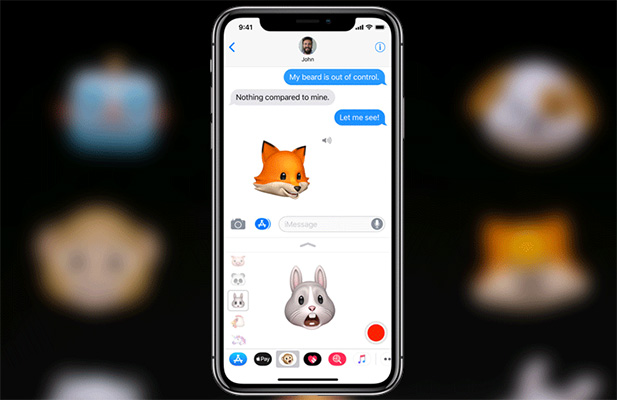
How to share Animoji on social networks from iPhone and iPad
- Open the Messages Application, then select The conversation With Animoji you want to share.
- Touch Animoji . Press The share button In the bottom left corner.
- Select the app to share Animoji. Then press send.
Note: When you share an Animoji on a social network or standard MMS message, it will take the video format.
How to share Animoji on iPhone or iPad
With the Animoji saved in the library, you can share it like any other video. Implementation: Open the Photos app> touch the Album tab> open the video album> find Animoji want to share> touch it> touch the share button and share it as usual.
- Animoji are available on iOS 11
- How to download an exclusive iPhone X animated wallpaper on other iPhones
- Download the official iPhone X Reflection ringtone from Apple
FAQ
What should I prepare before I save and share animoji on iPhone, iPad?
Review the requirements in the guide, confirm that your device or software is compatible, and save important work before changing settings related to save and share animoji on iPhone, iPad.
Why might save and share animoji on iPhone, iPad not work as expected?
The most common causes are incompatible versions, missing permissions, incorrect settings, or an interrupted internet connection. Recheck each step and restart the app or device when appropriate.
Can beginners follow these save and share animoji on iPhone, iPad steps?
Yes. Follow the steps in order, avoid skipping confirmation screens, and compare your interface with the screenshots because labels may differ slightly between versions.
Related Articles
 How to Use Animoji on iPhone X4 minutes read
 How to Fix Animoji Errors on iPhone4 minutes read
 Animoji Are Available on iOS 115 minutes read
 How to Use Animoji on All iPhone and Android Phones4 minutes read
 Did You Know How to Create Animoji Karaoke5 minutes read
 How to Convert Animoji to Animated GIF on iPhone and iPad4 minutes read
Reader Comments 0
Sign in with email or Google to join the discussion.