Table of Contents
To keep a Windows laptop running when you close the lid, open Control Panel > Hardware and Sound > Power Options, select Choose what closing the lid does, and set When I close the lid to Do nothing. Choose the setting separately for battery power and plugged-in use, then save the changes.

This is useful when the laptop is connected to an external monitor or needs to finish a download, backup, render, or other background task. It also prevents sleep and hibernation, so use it only when the laptop has adequate ventilation.
Change what happens when the laptop lid closes
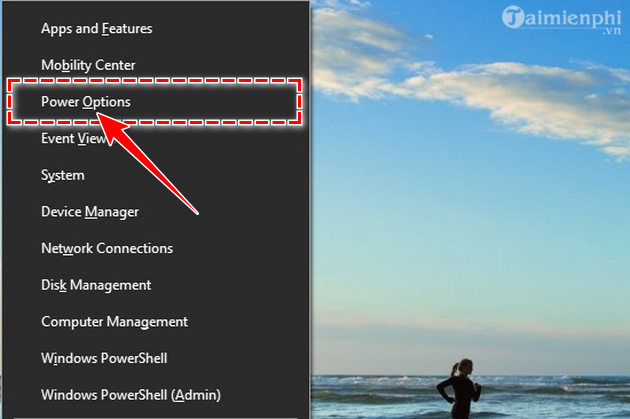
1. Open Power Options
Press Windows + R, enter control.exe /name Microsoft.PowerOptions, and press Enter. This opens the classic Power Options page directly on Windows 10 and 11.
You can also right-click Start or press Windows + X and select Power Options.
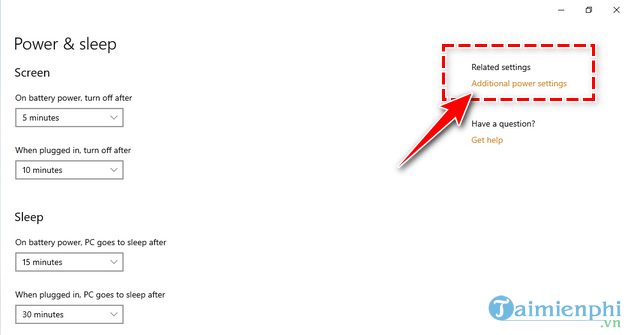
On older Windows 10 settings pages, select Additional power settings. On current builds, use the Related settings link if it appears, or open Control Panel as described above.
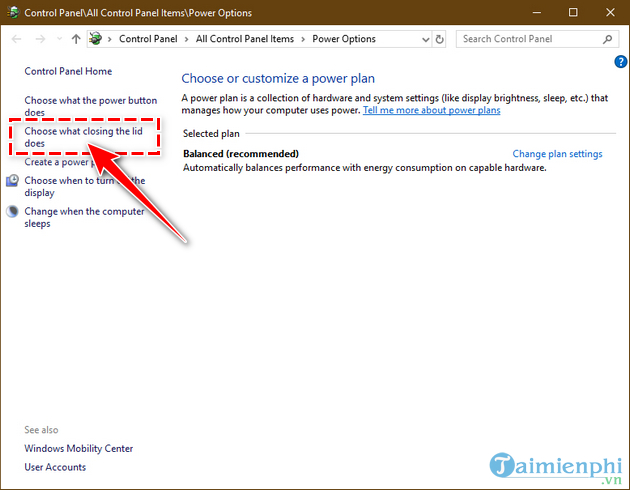
2. Open the lid settings
Select Choose what closing the lid does in the left pane.
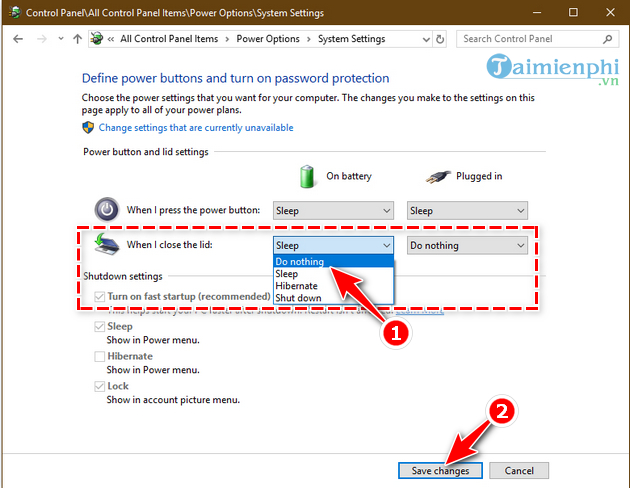
3. Set the action to Do nothing
In the When I close the lid row, choose Do nothing under:
- On battery if the laptop should keep running when unplugged.
- Plugged in if it should keep running on its charger or dock.
Select Save changes. A restart is not normally required.
Test the closed-lid setup
- Save open work before the first test.
- If using a desktop setup, connect the charger, external display, keyboard, and mouse.
- Close the lid and wait several seconds.
- Confirm that the external display remains active or that a download or other safe test task continues.
If the external monitor disconnects, press Windows + P before closing the lid and choose Second screen only or Extend. TipsMake's dual-monitor setup guide explains the display modes.
Important heat and safety precautions
Closing the lid turns off the built-in screen, but it does not put the laptop to sleep after this change. The processor, storage, fans, network connection, and external display output can continue working.
- Keep the laptop on a hard, stable surface or a stand.
- Do not put a running laptop in a bag, drawer, or other enclosed space.
- Do not cover intake or exhaust vents.
- If air enters through the keyboard or heat leaves near the hinge, check the manufacturer's guidance before running demanding tasks with the lid closed.
- Monitor temperatures during long renders, games, or other heavy workloads.
The display being off may reduce power use, but the laptop can still drain the battery quickly while active. Use Sleep for short pauses or Hibernate when you want the session saved with minimal ongoing power use. See TipsMake's comparison of Sleep and Hibernate in Windows.
Protect the laptop when the lid is closed
Do nothing does not automatically lock the session. Press Windows + L before walking away, especially in a shared space. You can also configure Windows to require sign-in when the computer wakes.
Be careful with audio, screen sharing, camera access, remote-control tools, and downloads that may keep running after the lid is closed. Close or pause anything that should not continue unattended.
If the setting is missing or does not work
| Problem | What to check |
|---|---|
| The lid options are greyed out | Select Change settings that are currently unavailable. An administrator account may be required. |
| The laptop still sleeps | Confirm that both battery and plugged-in lid actions are set correctly. Also review the manufacturer's power utility. |
| Settings revert | A work or school policy may enforce them. Contact the device administrator rather than bypassing policy. |
| The laptop wakes but the screen stays black | Open the lid, press Windows + Ctrl + Shift + B to reset the graphics driver, and update supported graphics and dock drivers. |
| The computer shuts down unexpectedly | Check for overheating, power loss, battery faults, and critical events; this is not normal lid behavior. |
Change only the screen timeout instead
If you merely want the display to turn off after inactivity while leaving the lid open, do not change the lid action. Open Settings > System > Power & battery > Screen, sleep & hibernate timeouts and choose when the screen turns off. Menu wording varies by Windows version. TipsMake's screen-off timer guide provides additional context.
Restore the lid action to Sleep or Hibernate when you no longer need closed-lid operation. Those choices reduce the chance of the laptop staying hot or exhausting its battery unnoticed.
Related Articles
 How to Fix Task Host Window Error Preventing Windows Shutdown9 minutes read
 Trick to Speed Up the Process of Shutting Down the Computer9 minutes read
 How to Fix the Error That the Computer Keeps Showing9 minutes read
 Computer Shuts Down Unexpectedly: Causes and Solutions6 minutes read
 Steps to Set Screen Off Time on Laptop5 minutes read
 How to Fix the Error of Your Computer Shutting Down Suddenly While in Use13 minutes read
Reader Comments 0
Sign in with email or Google to join the discussion.