Table of Contents
If you're having trouble with your computer constantly restarting and not displaying the BIOS screen, check out this article from TipsMake to learn how to fix this problem.
This article from TipsMake will guide you through several ways to fix the problem of your computer constantly restarting without displaying the BIOS screen.
Some signs to identify errors
Here are some signs that indicate your computer is constantly restarting without displaying the BIOS screen:
- The computer was working normally before the continuous restart error occurred.
- If you try to restart, the computer will start up and shut down after 2-5 seconds.
- There is no BIOS startup beep. - The BIOS
screen does not appear . - The BIOS or BOOT setup keys F2/Esc/Del are not working. - You recently upgraded your computer's RAM. - The computer keeps restarting.
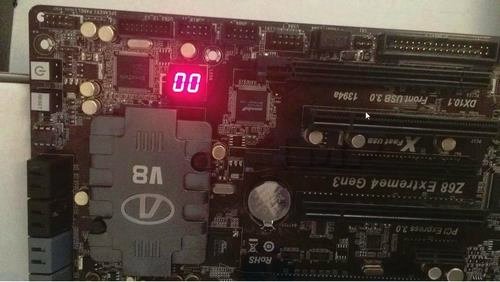
Fixing a computer that keeps restarting but doesn't display the BIOS screen
Below, TipsMake will guide you through some ways to fix the problem of your computer constantly restarting without displaying the BIOS screen.
Method 1: Clear CMOS
On the back of the motherboard, you'll see a small blue button; this button is used to clear the BIOS data. Using this button can help troubleshoot issues like the computer constantly restarting or related hardware compatibility problems.
Clearing the CMOS also means that any changes you made to the BIOS will be erased and the system will be reset to its default state. You will then have to reconfigure and update the BIOS for the computer to function properly.
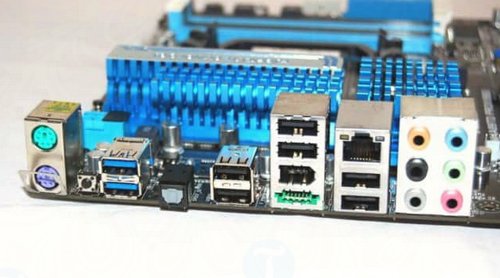
If you cannot find the CMOS clear button on your motherboard, you can refer to and apply the other solutions below to fix the error.
Method 2: Remove the CMOS battery
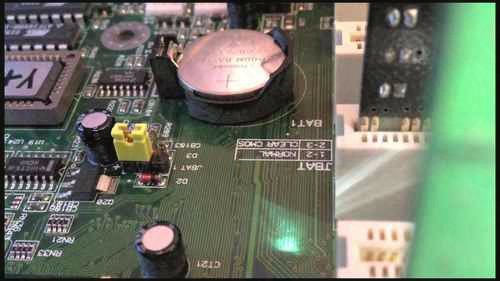
If the above solution doesn't work, try removing the CMOS battery to see if the error persists. However, note that after removing the battery, you must wait 10-15 minutes before reinserting it.
Additionally, when removing the CMOS battery, make sure you have disconnected all PSU power cables from the main power source to discharge any remaining power on the computer. If the computer continues to restart repeatedly, try replacing the CMOS battery .
Method 3: Remove RAM / change RAM slot / use a different RAM stick
A faulty RAM slot or dead RAM is the main culprit behind a computer constantly restarting. Follow the steps below to fix the problem:
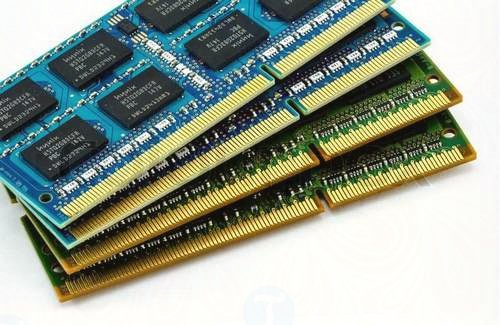
Step 1: Remove all RAM modules from your computer and then restart your computer.
Step 2: Try inserting a RAM module into different RAM slots and restarting the computer.
Step 3: Repeat the same steps with other RAM modules.
Step 4: Try inserting different new RAM modules to check if the RAM slots and RAM are faulty.
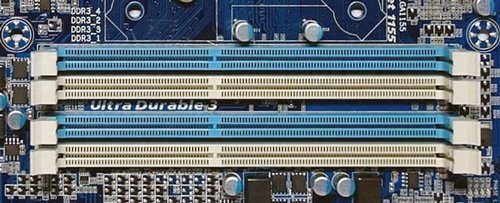
If the error is resolved, it indicates that the culprit was either the RAM or a RAM slot in your computer.
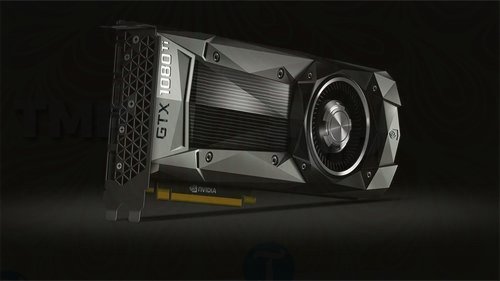
Method 4: Remove the GPU - Graphics Card
If the above methods don't work, try removing the graphics card from the RAM, then restart your system. If there's an empty PSI Express slot, try inserting the GPU card into the slot and restarting the system to see if the error persists.
While GPUs are rarely the culprit behind persistent computer restarts, that doesn't mean they never happen.
Method 5: Clean the dust from the motherboard.
In some cases, cleaning the computer and removing dust from the motherboard can also fix the problem of the computer constantly restarting without displaying the BIOS screen. Dust can affect components on the motherboard and cause the computer to constantly restart.
Please note that you should use computer and laptop cleaning tools; absolutely do not use your mouth to blow away dust, as saliva from your mouth can permanently damage the motherboard.
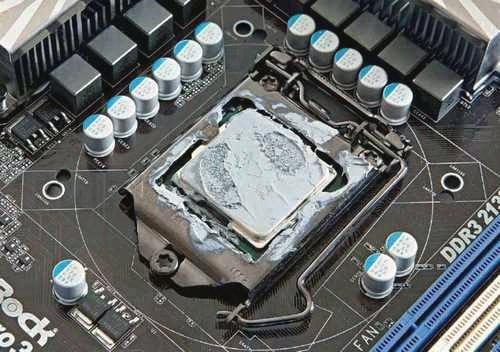
Method 6: Remove the processor and apply new Thermal Grease.
After prolonged use, the thermal paste on the processor can dry out, making it difficult to regulate the processor temperature even when using the best CPU cooler.
Carefully remove the CPU heatsink and processor from the motherboard. Next, use a soft, dry cotton cloth to clean off the thermal paste on the processor and CPU contact surfaces, apply a new layer of thermal paste, and reassemble the CPU heatsink. Finally, try restarting your computer and check if the error persists.
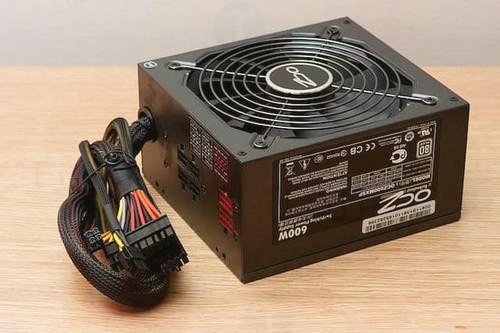
Method 7: Try different SMPS switched-mode power supplies.
An SMPS (Switched Power Supply) or switching power supply can also be the cause of a computer constantly restarting. Try a different SMPS to see if the problem persists. If it's gone, then your SMPS is the culprit. To fix the problem, the only solution is to buy a new SMPS.
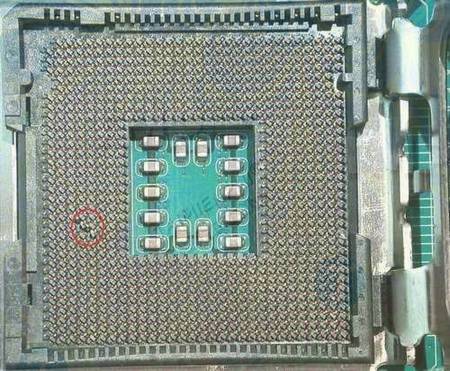
8. Check the CPU socket on the motherboard.
Carefully inspect the CPU socket on the motherboard for any bent or damaged pins. A bent CPU pin can be repaired, but if it's damaged, the entire socket is probably broken.
Repair the bent connector pins, then carefully reconnect the processor and restart your system to see if the error persists.
Method 9: Remove the HDD/SSD/DVD-RW/DVD drive.
Remove the hard drive and other unnecessary accessories connected to the computer, then restart the computer to resolve the issue.
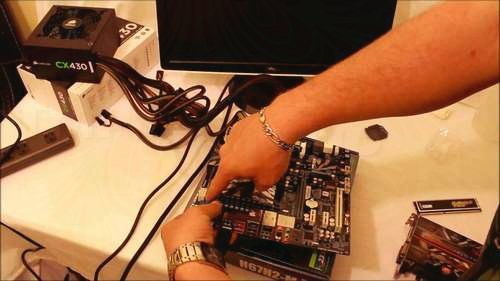
Method 10: Test the motherboard outside the computer case.
Remove the motherboard from the computer case and place it on a non-conductive surface, then try restarting your computer with only the CPU and check if the error persists.
The article above from TipsMake has guided you on how to fix the problem of your computer or laptop constantly restarting without displaying the BIOS screen. If you have tried all the above methods and they are still ineffective, your final solution is to take it to a reputable repair and warranty center for assistance.
Related Articles
 Display BIOS Information on Windows 10 Using Command Prompt4 minutes read
 Troubleshooting and Fixing the 'BIOS Checksum Error' on Your Computer3 minutes read
 5 Tips for Using the BIOS to Help You Master Your Computer8 minutes read
 The Fastest Way to Enter Windows 11 BIOS3 minutes read
 Instructions for Entering BIOS on Different Computers6 minutes read
 Understanding BIOS: an Indispensable Component of a Computer7 minutes read
Reader Comments 0
Sign in with email or Google to join the discussion.