Table of Contents
When a Windows computer suddenly has no sound, first check its output device, mute controls, and physical connections. A silent computer does not automatically have a failed sound card. Work through the checks below before reinstalling Windows or buying replacement hardware.
1. Check the speakers, headset, and source
- Confirm external speakers are powered and connected to the intended port.
- Check physical volume and mute controls on the speaker, headset, and keyboard.
- Try a second recording or application to see whether only one source is silent.
- If possible, test the headphones or speakers on another device.
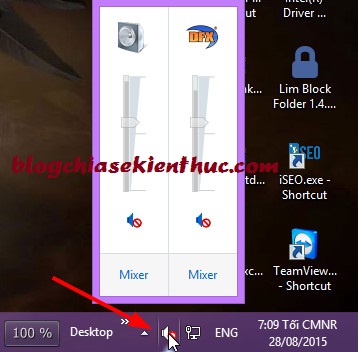
For a combined 3.5mm headset socket, use the appropriate plug and any manufacturer audio prompt. A combined socket does not universally require disabling Speakers and enabling a separate Headphones device.
2. Select the intended Windows output
Open Settings > System > Sound and inspect Output. Select the device you actually want to hear. HDMI monitors, Bluetooth headsets, USB devices, and virtual audio utilities can redirect sound away from laptop speakers.
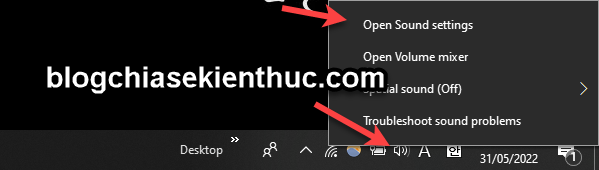
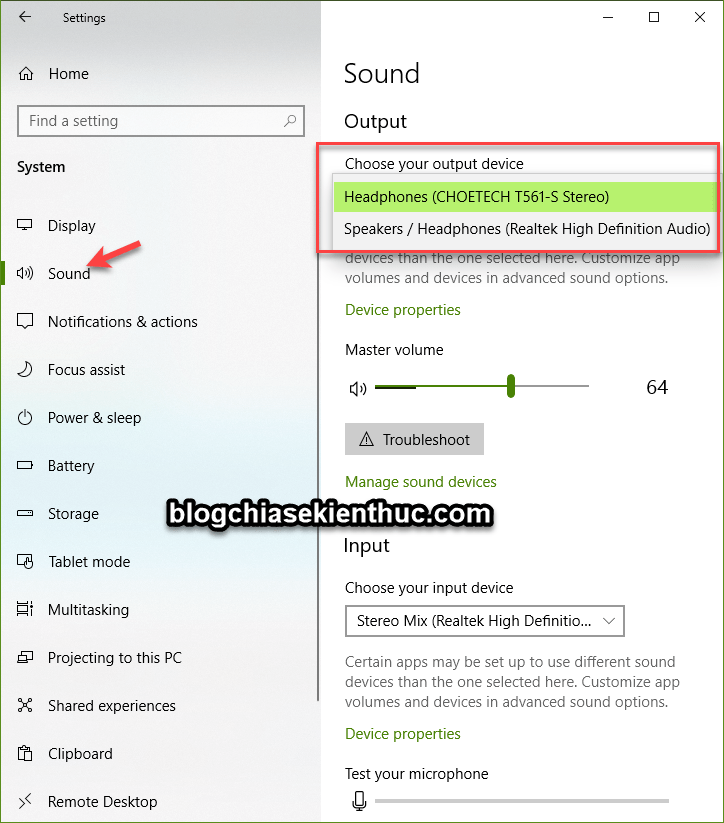
Also check Volume Mixer and the application's own output setting. If only one app is silent, its volume or device selection may differ from the Windows default.
The older quick-selection screenshots below show the same principle. The precise taskbar menu differs between Windows versions.

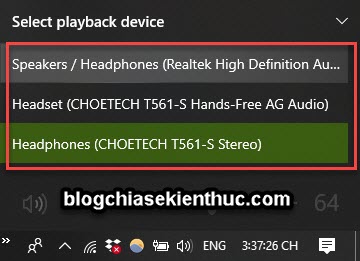
3. Check the classic playback dialog
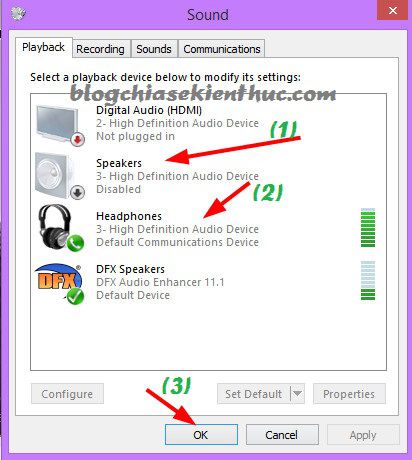
Press Windows + R, enter mmsys.cpl, and press Enter. On the Playback tab, inspect whether the intended device is disabled and enable it if appropriate. Set the correct default device when needed.
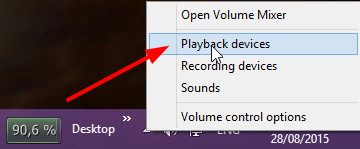
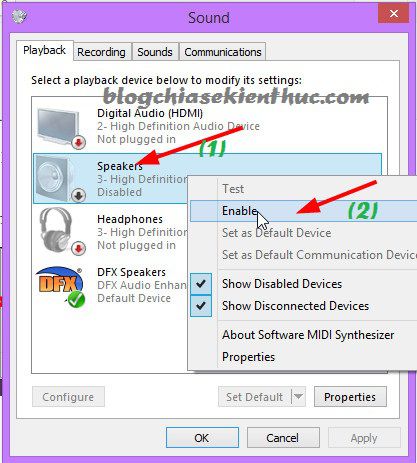
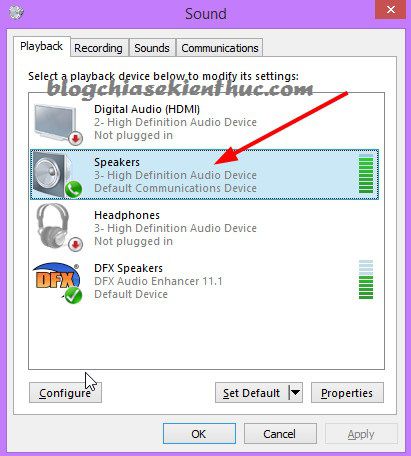
These screenshots show older Windows. A device's green status icon does not prove the physical speakers work, and naming can vary by driver.
Some Windows builds link to the same dialog through Sound settings:
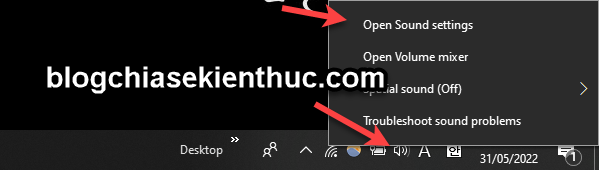
The following older image shows separate speaker and headphone entries. Change only the device relevant to your actual setup; do not disable every other output as a routine fix.
4. Restart and test without enhancements
Save your work and choose Restart. If the problem remains, temporarily turn off device audio enhancements and third-party effects, then test again. This can identify a processing conflict without replacing drivers.
Microsoft's no-sound guide covers output selection and enhancement checks. For audio that works but is too quiet, use the separate low-volume troubleshooting guide.
5. Run the current audio troubleshooter
Use the automated Audio troubleshooter in Windows' Get Help app where available. Follow its findings and retest after changes.
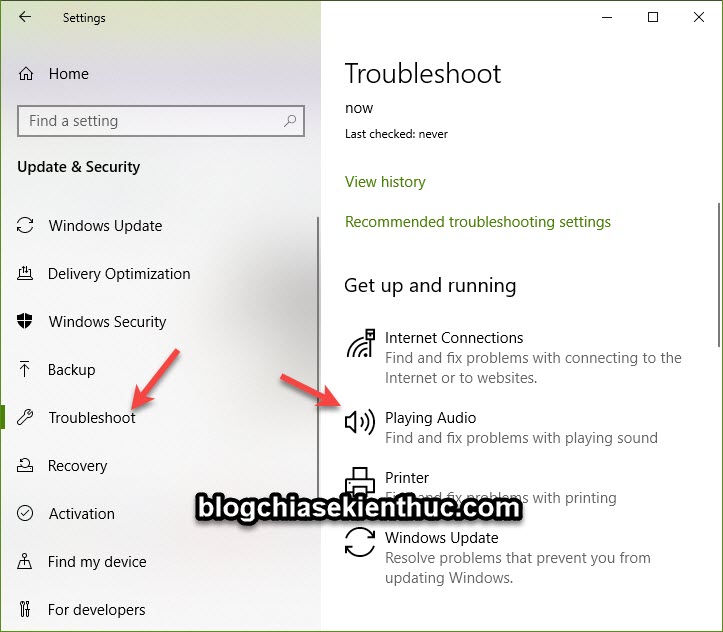
The screenshot shows an older Update & Security > Troubleshoot > Playing Audio path. Do not expect that exact page on every current Windows build.
6. Check the audio device and driver
Open Device Manager and inspect the relevant audio devices for warnings or disabled entries. A warning can point to a driver or device problem, but a normal icon does not rule out every fault.
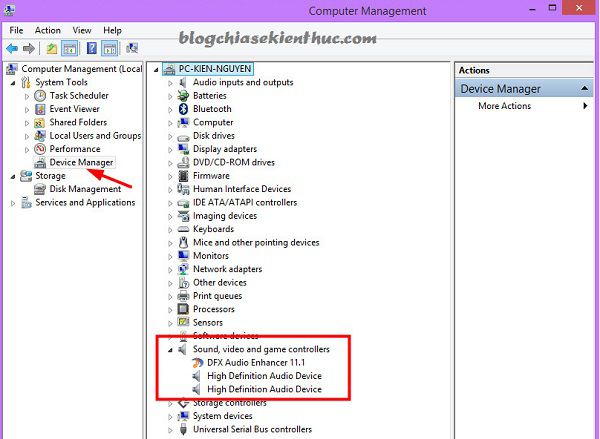
Obtain the audio driver for your exact PC or audio-device model and Windows version from its manufacturer. Avoid installing an unrelated bulk driver package to fix a single device. Restart after a driver installation and check output selection again.
If sound stopped immediately after a driver update, investigate the supported rollback or previous-driver option. If no output device is detected, follow Microsoft's missing-audio-device guidance.
7. Interpret headset and recovery tests carefully
If headphones work while built-in speakers do not, focus on routing, jack detection, speaker settings, and the speaker hardware. That pattern is a useful clue, not a complete diagnosis.
A rescue environment can provide another comparison, but it may lack the correct audio driver. No sound in WinPE does not prove the sound card is broken. Sound working there also does not by itself justify erasing the normal Windows installation.
Scan for malware when there are other signs of infection, using the computer's trusted security software. Do not assume that every audio failure was caused by a virus.
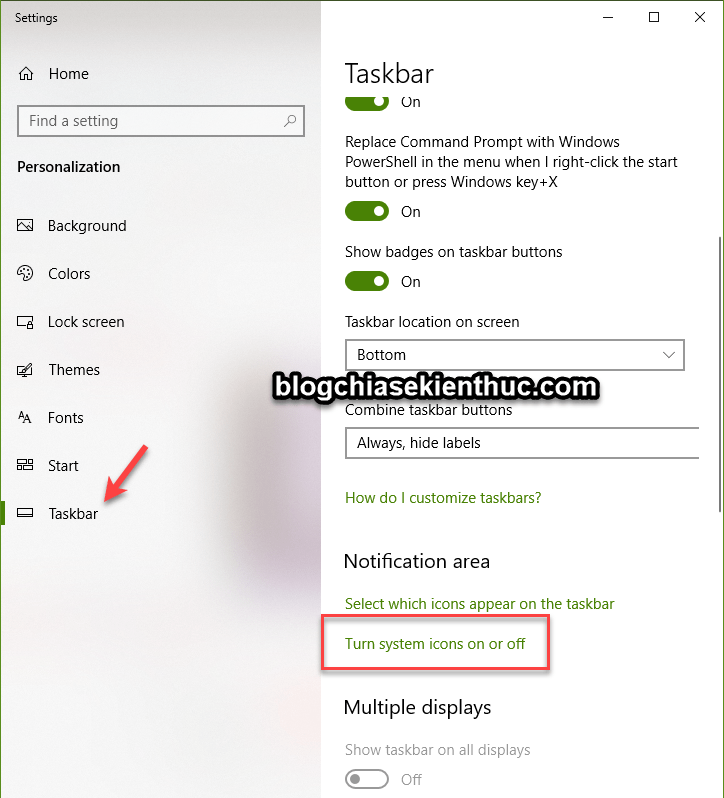
About a missing volume icon
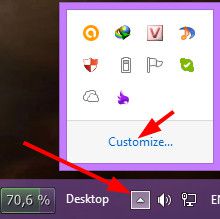
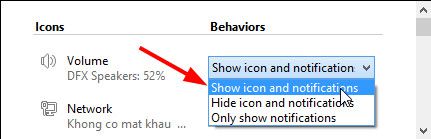
The volume icon is convenient, but it is not required for testing: Settings and mmsys.cpl remain alternative entry points. The following images show older taskbar icon controls rather than a universal Windows 11 path.
When to arrange repair
If known-working speakers or headphones remain silent after the correct routing and driver checks, seek device-specific support. Damaged jacks, failed speakers, and other hardware faults require different repairs. A USB audio device may help isolate a faulty analog path, but it will not repair every audio problem.
For communication-app-specific trouble, see the Discord audio checklist. Keep notes on which outputs and tests worked so support can narrow the cause.

![[Question] Why does my computer have no sound?](/data/thumbs_200x120/[question]-why-does-my-computer-have-no-sound_thumbs_200x120_TvakbmZfP.jpg)
Reader Comments 0
Sign in with email or Google to join the discussion.