Table of Contents
To add or change a Windows login password, open Settings > Accounts > Sign-in options and use the Password controls available for your account. First identify whether you use a local account, a Microsoft account, or a work or school account; they do not all have the same password-management options.
A Windows Hello PIN is different from the Microsoft account password. Changing one does not automatically change the other. Use the controls for the credential you actually want to update.
Identify the account and sign-in method
- Local account: its password belongs to that account on this PC.
- Microsoft account: its password also applies to online Microsoft services. Use Microsoft's verified change or recovery flow.
- Work or school account: follow the organization's policy and support process.
- Windows Hello: PIN, fingerprint, and face recognition are separate sign-in options, where supported.
Manage only accounts you own or are authorized to administer. If the current password is forgotten, use account recovery rather than treating a password-change guide as a bypass method. See the Windows account recovery guide.
Windows 11: add a local-account password
- Open Start > Settings.
- Choose Accounts > Sign-in options.
- Expand Password and select Add if the local account has no password and that option is available.
- Enter and confirm the new password, complete the displayed hint fields, and finish.
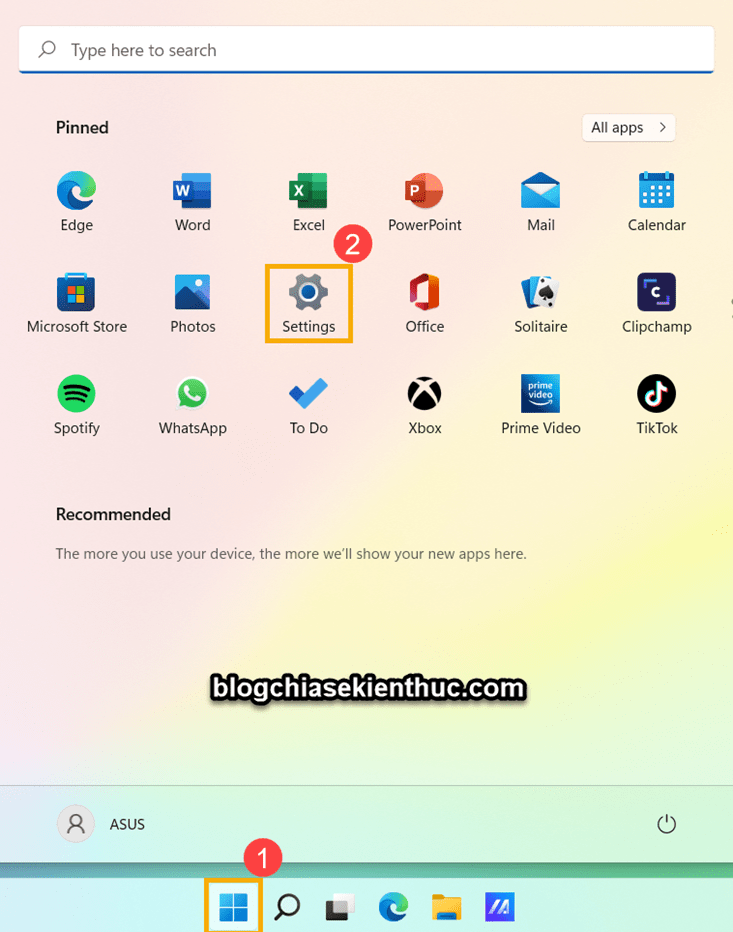
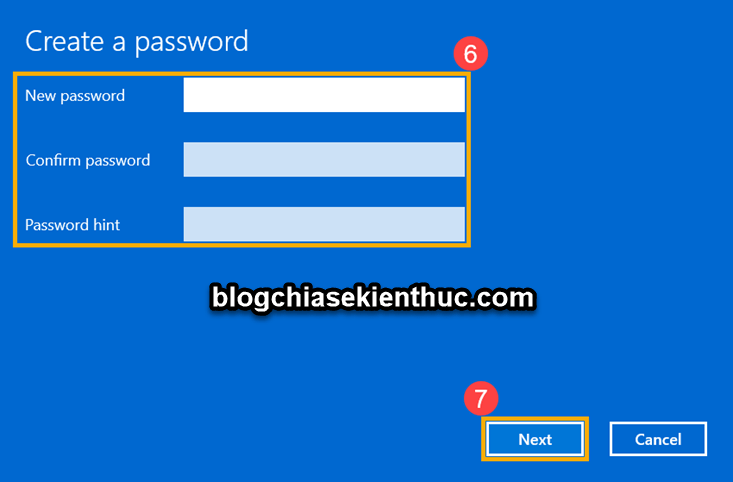
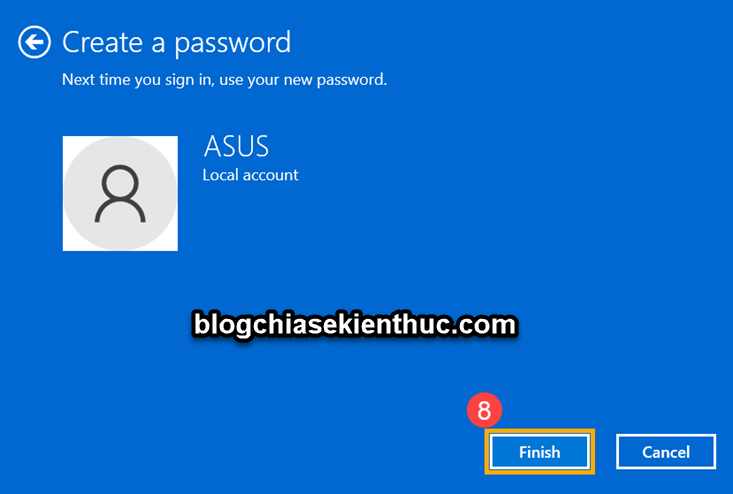
Choose a unique password and a hint that does not reveal it. Available controls depend on account type, device policy, and Windows Hello settings.
Windows 11: change an existing password
Return to Accounts > Sign-in options > Password > Change. Verify the current credential, enter and confirm the new password, and finish. For a Microsoft account, follow its identity-verification prompts.
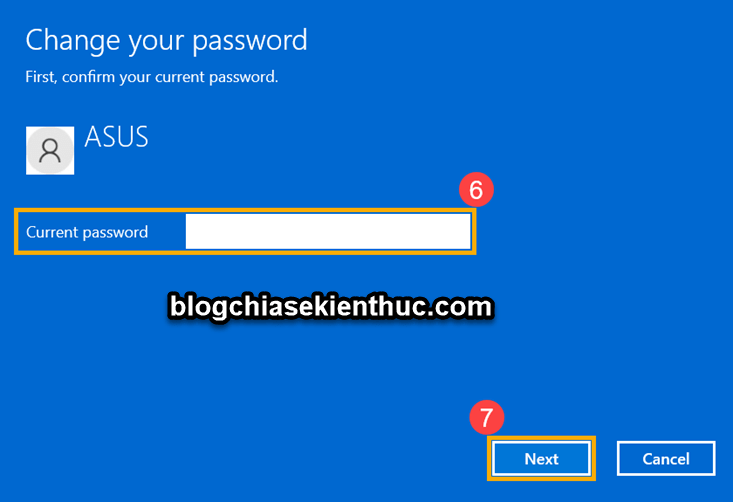
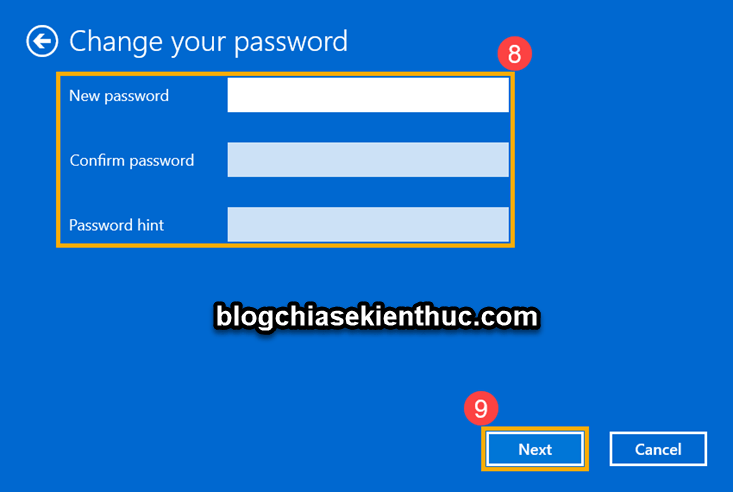
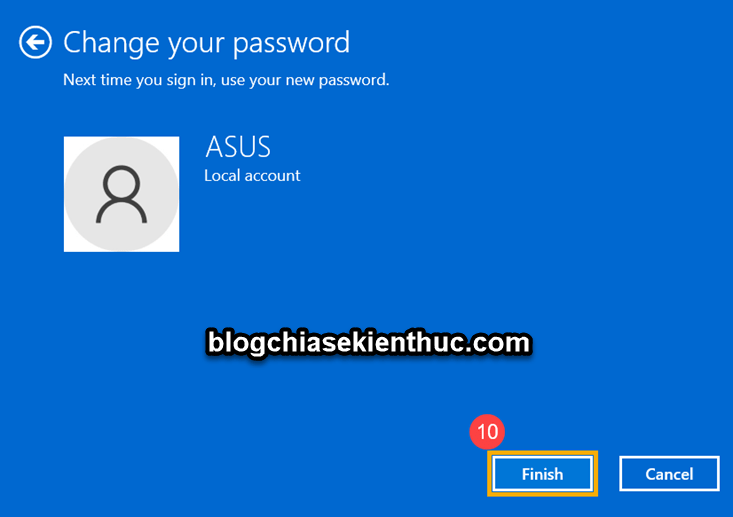
For official instructions, see Microsoft's local-account password guide and Microsoft-account password guide.
Windows 10: use Sign-in options
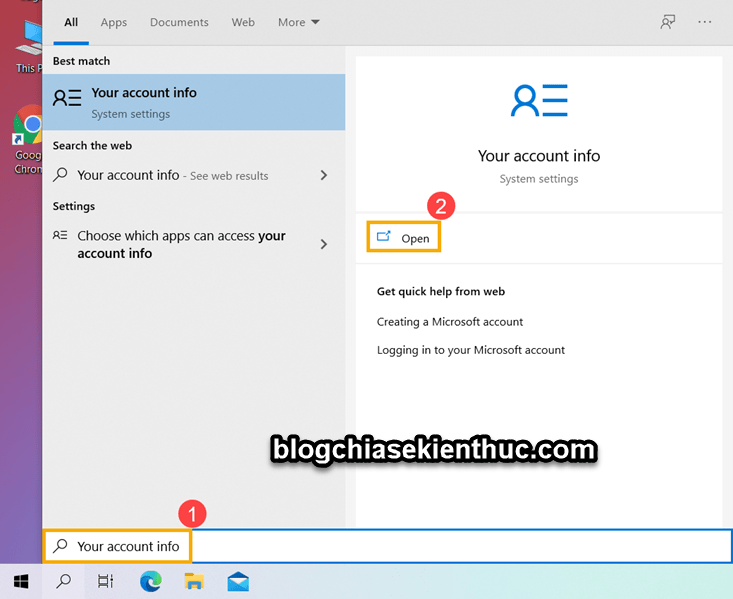
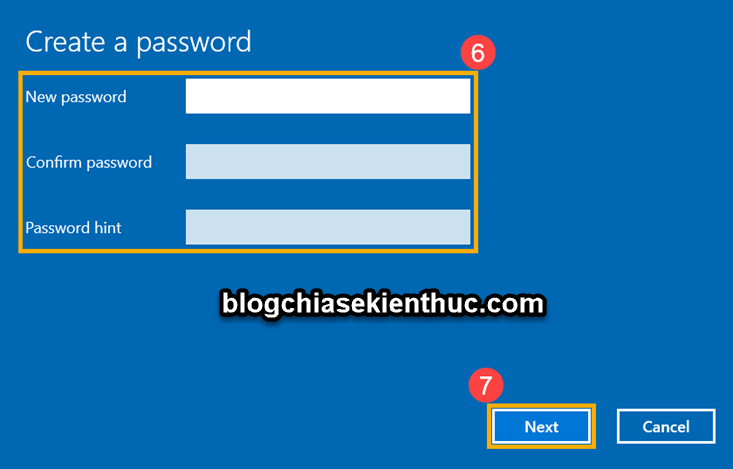
Open Settings > Accounts > Sign-in options. For a local account without a password, choose Password > Add and complete the fields. The older screenshots below illustrate the entry point and creation flow.
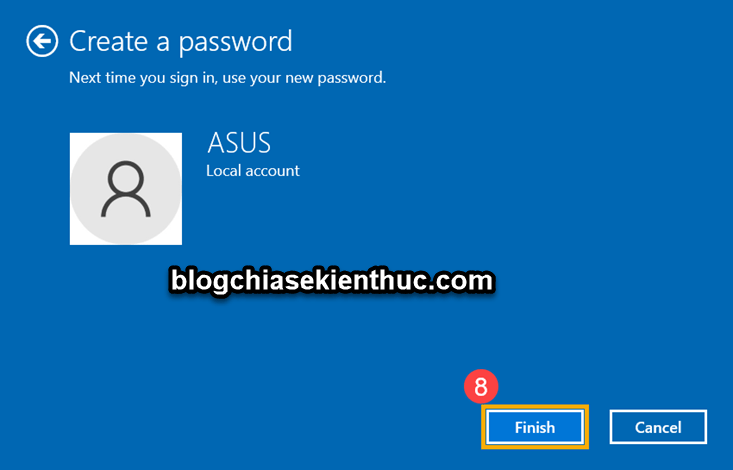
For an existing password, choose Change, verify the current password, enter the replacement, and finish.
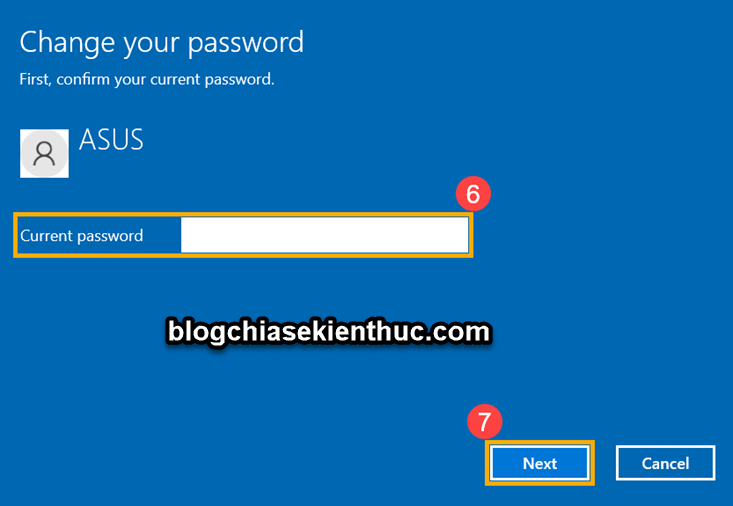
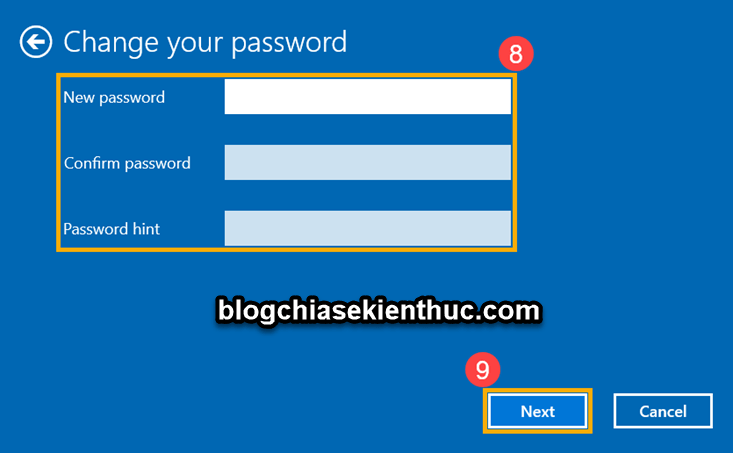
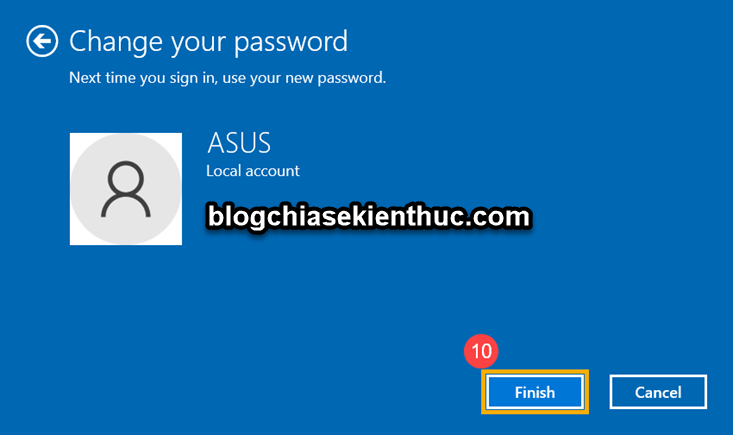
Removing a local-account password
On a personally managed local account, Windows may allow you to change the password to an empty value by leaving the new-password fields blank. Policy can prevent this. It is not the procedure for removing a Microsoft account's online password.
Anyone with physical access may then be able to use that local account without entering a password. Prefer a convenient Windows Hello sign-in method when the goal is faster access rather than an unprotected account.
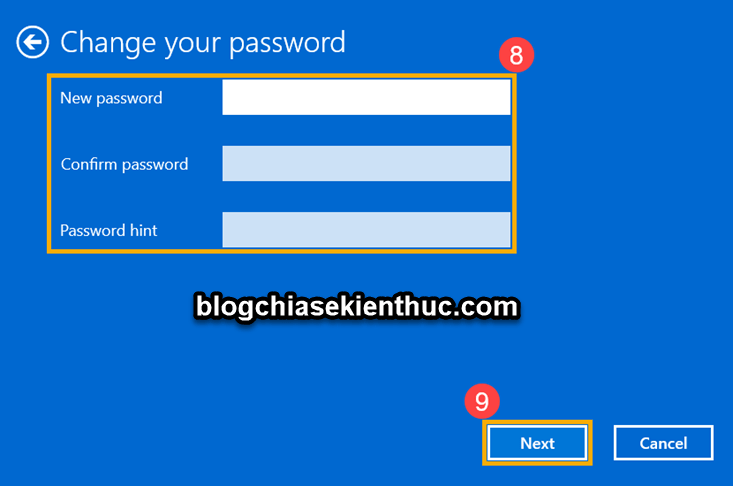
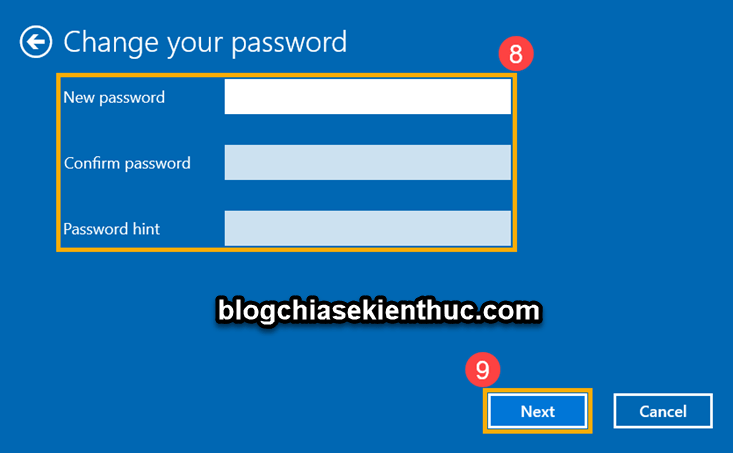
The screenshots show the blank-field approach for older local-account interfaces. Do not assume an unavailable control is an error that should be worked around on a managed PC.
Older Control Panel method
On older Windows versions, open Control Panel > User Accounts. Select your account, or an account you are authorized to manage, and choose the available create/change password action. Administrator resets of another account are different from changing your own known password and can affect access to protected information.
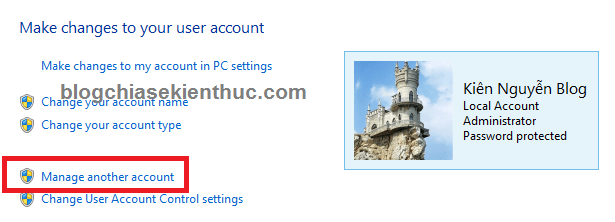
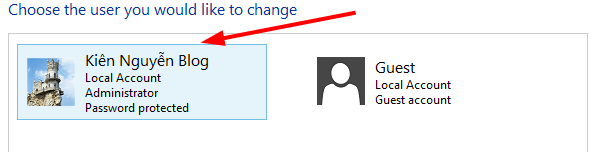
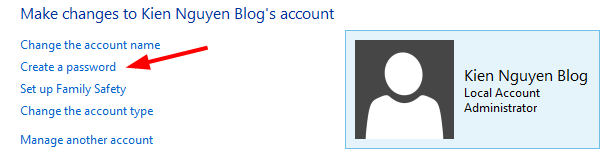
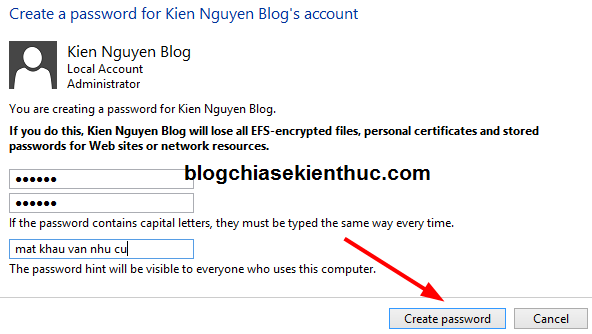
Older local-account password creation screens.
When changing your own password, enter the current password and the new one in the corresponding fields.
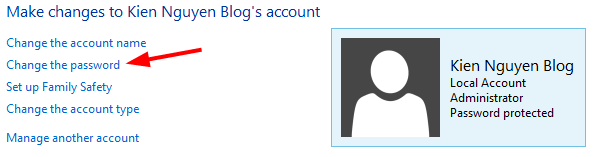
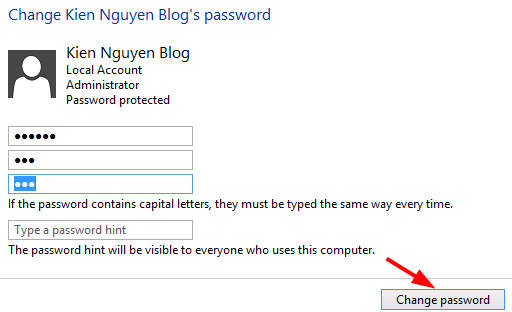
Older local-account password change screens.
Windows 8 and 8.1 sign-in controls
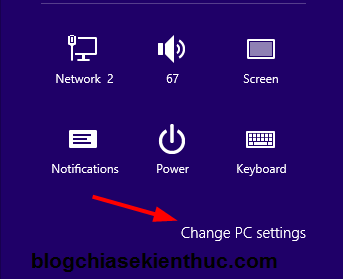
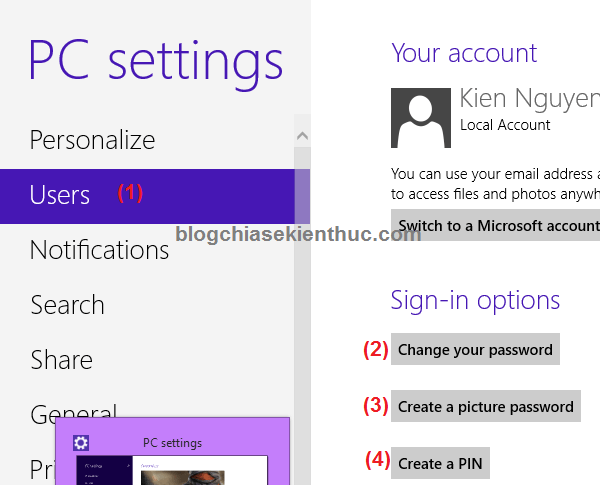
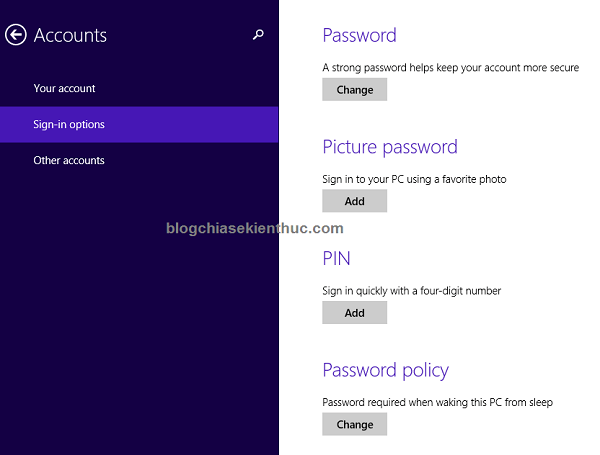
These legacy systems expose options through Change PC settings. Windows 8 uses a Users page; Windows 8.1 uses Accounts > Sign-in options. The available password, PIN, and picture-password choices depend on configuration.
Picture passwords in the older interface
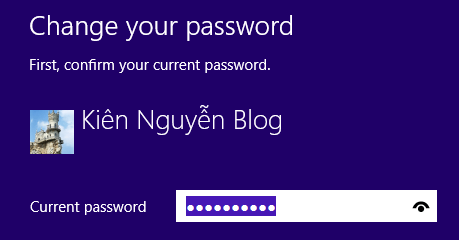
Where offered, select the picture-password setup option and verify your existing account password. Choose a picture and create the requested sequence of three gestures. These can include taps, lines, and circles; it is not limited to tapping three points. Repeat the gestures in order to confirm.
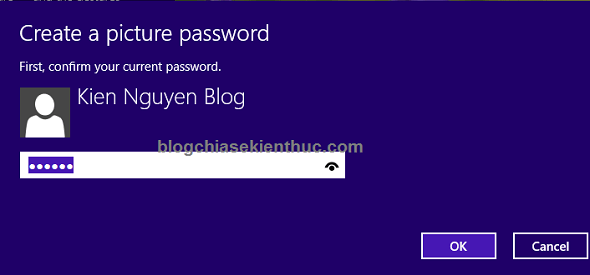
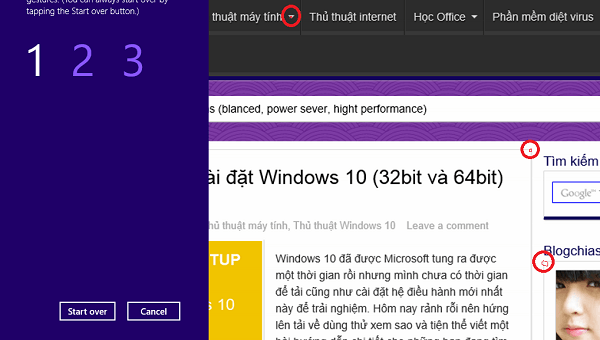
Use the picture-password Remove control to remove that sign-in option. Removing it is separate from deleting the underlying account password.
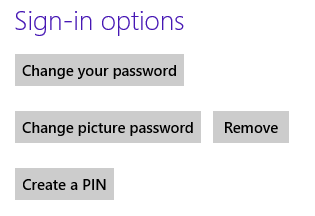
Automatic sign-in is a separate setting
The older netplwiz screens below configure automatic sign-in where supported. They do not delete the account's password. The checkbox can be absent because of device configuration or sign-in policies.
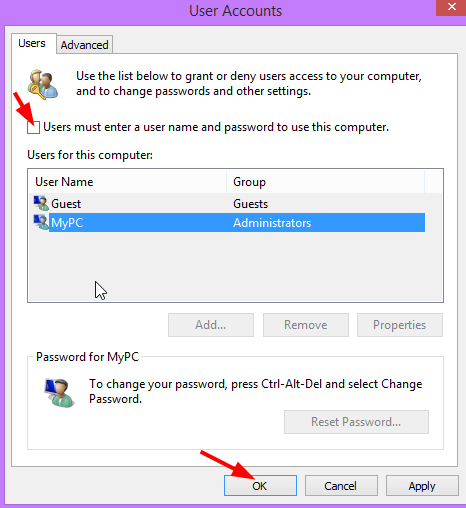
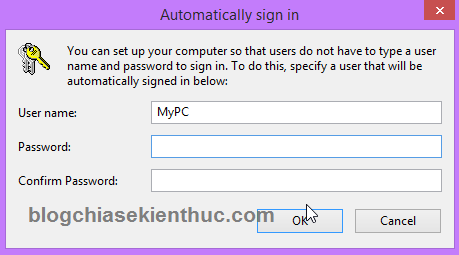
Automatic sign-in reduces the protection offered by the sign-in screen on that device. Do not confuse it with Microsoft's passwordless-account features or use it as a recovery method for an unknown password.
Verify the change and keep recovery options
Save work before signing out. Confirm that you can sign in using the intended method and retain appropriate recovery information. On shared or work devices, keep a sign-in requirement and use Windows + L when stepping away.
If you want local Windows sign-in rather than a Microsoft-account-linked profile, review the separate local-account switching guide. Switching account type, changing a password, and removing a PIN are different operations.
Related Articles
 How to Create, Change, or Remove a Windows 8.1 Password
 How to export and delete saved passwords in Firefox
 Collection of the most effective Windows password recovery tools
 How to View, Edit, or Delete Saved Passwords in Chrome
 What happens to passwords when you delete a password manager app?
 How to change DNS on Windows and Mac computers
Reader Comments 0
Sign in with email or Google to join the discussion.