Table of Contents
This guide covers explore mac's network utility with practical context and easy-to-follow details. Use it to understand the subject and apply the information confidently.
Network administration - Every Mac operating system has Network Utility integrated.This utility is located in the Utilites folder of the Apps folder, which is very useful in detecting problems with Internet connections. What we can do in a Terminal window using unix tools can also be done in Network Utility. When you open Network Utility, you will see 9 different tabs corresponding to 9 Network Utility utilities. Here we will learn what we can do with these 9 utilities. 1. Info The first tab of Netwok Utility, Info, gives us some general information about the network we are connecting to. The Network Interface drop-down menu shows all the different methods that the Mac can use to connect to the network. Typically, these methods include: Ethernet, Wireless and Firewire. Next is information about Hardware Address And IP Address . In case the network interface is connected, we will only have one IP address, otherwise it displays as Unknown (unrecognized) Hardware Address , or Mac Address , can be used to identify a system that is unique (although we can change this address).
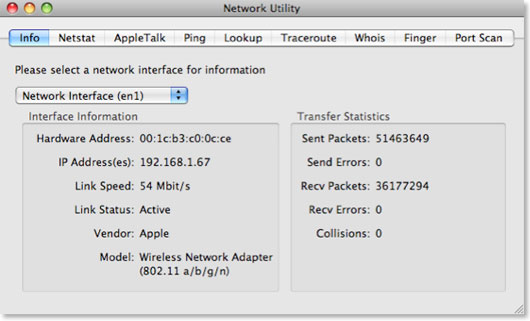 A very useful Mac address is when installing a Wi-Fi Router. We can install for most routers that only allow specific connected Mac addresses, which means that unassigned users will not be able to log in to your Wi-Fi network and connect to the Internet. 2. Netstat Netstat is a useful network debugging tool for administrators, but it is not appreciated by ordinary users. If you choose the Display routing table information option And then select Netstat , we will see a list of all computers on the network.
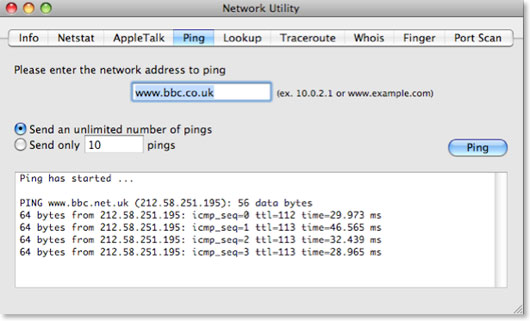
 If you choose the option Display the state of all current socket connections And then select Netstat We will see a list of network connections of the system. For example, the first items in the list will correspond to the visited Web pages. If you enter the addresses as Foreign Address In Safari, it is possible that the site displays. 3. AppleTalk The AppleTalk tab is quite similar to the Netstat tab, but only for an Apple protocol called AppleTalk. This protocol has been used quite commonly in the early stages of Mac, but now it has been abandoned and no longer supported in Snow Leopard (in Snow Leopard this tab no longer appears). 4. Ping Ping is a tool used to check if the Internet address is working. When pinging an address, we sent a small amount of data then it was sent back. You can use this tool to check if a website has crashed if it cannot be downloaded in Safari. Or in case the network connection shows signs of collapsing, we can ping pages that never crash, like Google. Com, bbc. Co. Uk, . To check if there is a problem with the network.
5. Lookup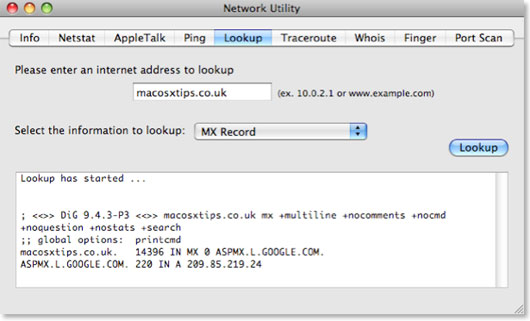 6. Traceroute
 8. Finger
5. Lookup
Lookup tool allows us to collect information about a website or IP address. The drop-down menu of the Select the information to lookup section allows us to select a number of different types of information. For example, when we perform a server name lookup on Macosxtips. Co. Uk We will be notified that this page is hosted by Dreamhost Server, and when we look up MX Record (or Mail Exchange Record), we will be notified that email is handled by Google.
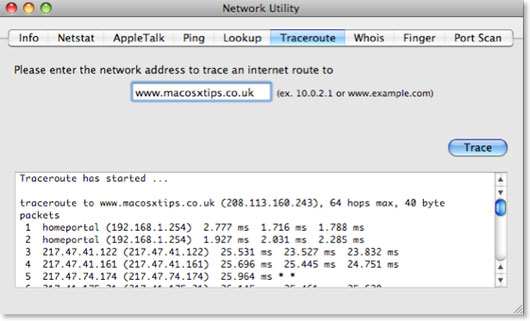
When we enter an address then select Trace , Traceroute will show the way that data is sent between the client and server. This tool allows us to check every server for which data is transferred.
You can use Traceroute to overcome some network problems by detecting data blocking points. In addition, we can use this tool when downloading a file with many different download links to choose the fastest link. Just enter those links into the Traceroute, so we can know which links are the fastest.
7. Whois
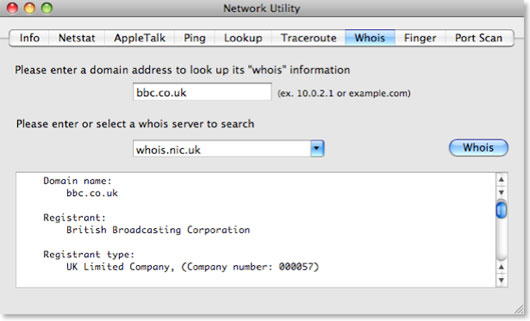
The Whois database gives us information about Internet addresses and who has registered them. The default Whois server, whois. Internic. Net, works fairly well with most addresses, but notice we need to enter the correct domain name. For addresses . Co. Uk Using whois server is Whois. Nic. Uk . We will get information such as the signer, the address, the time of registration, and the expiration date.
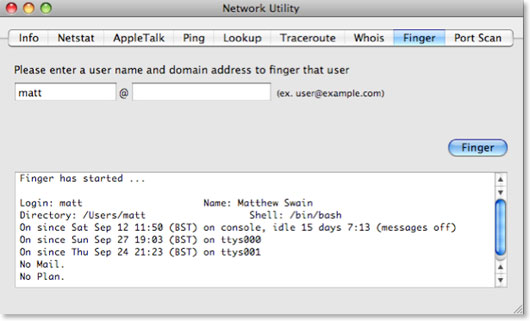
Developed in 1971, Finger is one of the first pieces of status updates that are currently being used by many social networking sites, such as Facebook, Twitter, etc. This tool is almost no longer available to users. Use, but with this tool we can check if our friends are available online, and can post . Plan Files to profiles like posting to blogs.
One of the most effective ways to use the Finger is to enter your user name or the name of another user on the Mac system, when the Finger button is pressed we will be notified that the user is currently logged in. No, and the amount of time posted before the user has made it.
9. Port Scan
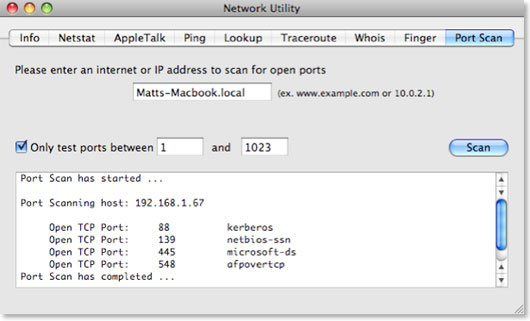
Port Scan, the last tab in Network Utility, has the function of checking which ports are open at a certain address. These network ports are a virtual version of the ports on the system, and each port is used for a different network traffic. For example, port 80 is used for Web sites. You can use Port Scan to check individual computers by entering the form [computer name]. Local . When we select Scan we will see this name appear in the Sharing Area of System Preferences . Tools like iTunes Sharing, Instant Messaging, BitTorrent, AFP and SMB Sharing all use different ports. If you see that one of these ports doesn't work, it may be because the firewall system has blocked it, so we can change the configuration to reopen it.
Just run Port Scan with the Sharing app or turn off and turn it on to check the ports that appear. We can then install the firewall to open this port and allow network traffic to pass through it. Note that the built-in firewall system in Mac OS X operates on an app platform rather than a port platform to simplify tasks for users.
FAQ
What should I check before following these steps?
Confirm device and software compatibility, save important data, and make sure you have the required permissions, files, and account access.
Why might the process not work?
Common causes include outdated software, missing permissions, incompatible hardware, an unstable connection, or completing a step in the wrong order.
Can I undo the changes if necessary?
That depends on the tool or setting. Use built-in restore options when available, keep a backup, and record the original configuration first.
Related Articles
 How to Connect Two Macs Together4 minutes read
 System Restore: Explore System Configuration Utility10 minutes read
 Steps to Change IP Addresses on Computers and Macs3 minutes read
 How to Access Other Computers on Mac5 minutes read
 Tips to Sell Your Old Mac for the Best Price6 minutes read
 Detected Two Extremely Serious Vulnerabilities in the Rconfig2 minutes read
Reader Comments 0
Sign in with email or Google to join the discussion.