Table of Contents
An ODP file is an OpenDocument Presentation: a slide deck saved in the open, XML-based OpenDocument Format (ODF). It is the default presentation format in LibreOffice Impress and is also supported by Microsoft PowerPoint and several web-based presentation tools.
ODP is useful when you want an editable presentation that is not tied to one vendor. However, a complex deck can look different when moved between ODP and PowerPoint's PPTX format, so check the slides before presenting or sharing them.
What does an ODP file contain?
An ODP file can store slide text, images, shapes, charts, speaker notes, transitions, and animations. The format is standardized as part of ODF, which helps compatible applications exchange presentations across Windows, macOS, and Linux.
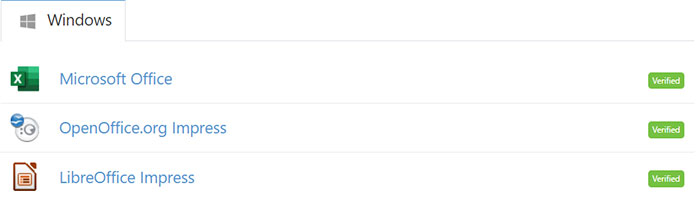
How to open an ODP file
LibreOffice Impress
LibreOffice Impress is the most direct desktop option and uses ODP as its native presentation format. Open Impress, choose File > Open, select the ODP file, and review any font or media warnings. LibreOffice is available from the official LibreOffice download page.
Microsoft PowerPoint
Recent desktop versions of PowerPoint can open ODP files. Use File > Open > Browse, select the file, and then inspect the deck carefully. Some transitions, SmartArt-style objects, charts, or advanced formatting may be simplified because ODP and PPTX do not support exactly the same features.
Google Slides
In Google Drive, upload the ODP file and open it with Google Slides. This is convenient when you do not have presentation software installed, but uploading also places a copy in your cloud account. Avoid this route for confidential decks unless the account and sharing settings are appropriate.
How to create or edit an ODP file
In LibreOffice Impress, create or edit the slides and choose File > Save As. Select ODF Presentation (.odp). In PowerPoint, use Save As and choose OpenDocument Presentation (.odp) when that option is available.
Keep an untouched copy of the original before converting formats. After saving, reopen the new file and check fonts, image placement, slide size, animations, embedded audio or video, charts, hyperlinks, and speaker notes.
How to convert ODP to PPTX
- Open the ODP file in LibreOffice Impress or PowerPoint.
- Choose File > Save As.
- Select PowerPoint 2007–365 (.pptx) or the equivalent PPTX option.
- Confirm any compatibility warning, then review every slide in the saved PPTX file.
PPTX is usually the better delivery format when the recipient will edit the presentation in PowerPoint. Do not delete the ODP original until the converted copy has been checked.
How to convert ODP to PDF
PDF is appropriate when recipients only need to view or print the slides. In LibreOffice Impress, choose File > Export As > Export as PDF. In PowerPoint, choose File > Export or Save As and select PDF. Direct export is preferable to converting ODP to PPTX first because each format change can introduce layout differences.
PDF preserves the visual layout but removes normal slide editing, transitions, and animations. Decide whether to include hidden slides or speaker notes in the export, and check links and page order in the finished PDF.
ODP or PPTX: which should you use?
| Choose ODP when | Choose PPTX when |
|---|---|
| You work mainly in LibreOffice or another ODF-compatible suite. | Most collaborators use Microsoft PowerPoint. |
| You prefer an open document standard. | The deck relies on PowerPoint-specific effects or features. |
| You need cross-platform editing with free desktop software. | You need the least conversion risk in a Microsoft 365 workflow. |
Before sharing an ODP presentation
- Use common fonts or embed fonts only when your software and font license allow it.
- Test the deck on the device and application that will be used to present it.
- Verify animations, transitions, charts, media playback, hyperlinks, and presenter notes.
- Export a PDF backup when recipients only need a stable visual copy.
- Treat unexpected presentation files as potentially unsafe; do not enable macros or active content from an untrusted source.
Related Articles
 How to Backup Photos on iOS 11 with Files Application5 minutes read
 Access Shared Files on the Network Even When Offline9 minutes read
 How to Unrar4 minutes read
 Convert CAD Files to PDF5 minutes read
 Delete the Most 'Stubborn' Files on Windows10 minutes read
 How to Edit Directly on PDF Files Like Word Files5 minutes read
Reader Comments 0
Sign in with email or Google to join the discussion.