Table of Contents
WebP is an image format developed by Google for efficient delivery on the web. A .webp file can use lossy or lossless compression and can include transparency, animation, color profiles, and metadata. Modern browsers support it, and many current image editors and operating systems can open it directly.
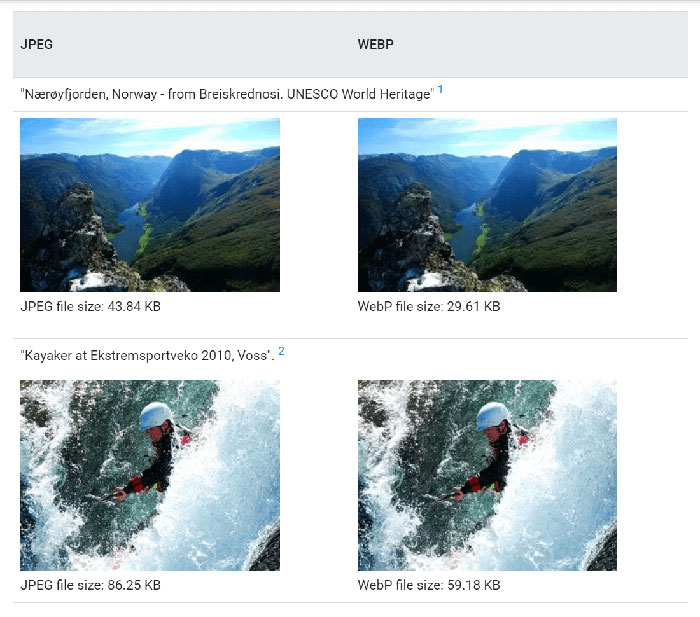
WebP can reduce transfer size compared with older formats at a similar visual target, but it does not guarantee a smaller or better image. The result depends on the source, dimensions, encoder, quality setting, metadata, and competing format. Compare the actual outputs rather than converting every image with one preset.
What WebP supports
| Capability | WebP support |
|---|---|
| Lossy compression | Yes; useful for photographs and other continuous-tone images |
| Lossless compression | Yes; useful when exact pixels must be preserved |
| Alpha transparency | Yes |
| Animation | Yes |
| Metadata | Exif and XMP can be stored |
| Color profiles | ICC profiles can be stored in the extended container |
| Vector graphics | No; use SVG when the artwork should scale as vectors |
Why websites use WebP
- Lower transfer size: a well-encoded WebP can require fewer bytes than an equivalent JPEG, PNG, or GIF.
- Faster image delivery: fewer transferred bytes can improve loading on constrained connections.
- One format for several needs: WebP can cover photographs, transparent graphics, and animation.
- Reduced bandwidth use: savings matter when a site serves many large images or receives substantial traffic.
Smaller images can contribute to better page performance, but WebP alone does not improve search rankings. Dimensions, responsive sources, lazy loading, caching, server configuration, layout stability, and meaningful page content also matter.
When another format may be better
- Use SVG for logos, icons, diagrams, and illustrations that should remain sharp at any size.
- Use PNG when a workflow requires exact pixels and cannot accept WebP.
- Use JPEG for broad compatibility with old applications or devices.
- Test AVIF when maximum compression is important and the target environment supports it.
- Keep the original camera, design, or editing file as the archival master; WebP is usually a delivery copy.
How to open a WebP file
Use a web browser
Drag the file into a current Chrome, Edge, Firefox, Safari, or Opera window, or right-click it and choose the browser from Open with. This is the simplest cross-platform viewing method.
Use the operating system or an image editor
Recent Windows and macOS versions can preview many WebP files, and current releases of applications such as Paint, Preview, Photoshop, GIMP, and other editors may support the format. Support can depend on the application version and whether the file is animated.
If an app cannot open the image, update it or use a trusted converter. Do not rename .webp to .jpg; changing the extension does not change the encoded data.
Convert WebP to JPG or PNG in Windows Paint
- Save the WebP file locally.
- Right-click it and choose Open with > Paint.
- In Paint, select File > Save as.
- Choose JPEG for a photograph without transparency, or PNG when transparency or lossless pixels matter.
- Use a new filename and inspect the exported image.
JPEG cannot preserve transparency or animation. PNG can preserve transparency in a still frame but will not reproduce a WebP animation through an ordinary still-image export.
Convert WebP on macOS
If Preview opens the file, choose File > Export, select JPEG or PNG, set the available quality options, and save a copy. If Preview does not support that particular WebP, use a current image editor or command-line converter from a trusted source.
Use an online converter carefully
A browser converter can be convenient for a non-sensitive image. Before uploading, consider whether the file contains a face, document, location metadata, unreleased product, private screenshot, or copyrighted material you are not allowed to share. Read the service's retention and deletion terms and use a local converter for confidential images.
Convert for web publishing without losing the original
- Start from the highest-quality source, not a repeatedly compressed JPEG.
- Resize it to the largest display size actually needed.
- Remove unnecessary metadata while preserving the correct color profile.
- Export several WebP quality settings.
- Compare visual details at the intended display size and record each file size.
- Keep the original source and use the chosen WebP only as a delivery asset.
For automated workflows, Google's cwebp encoder exposes presets and separate quality and compression-effort settings. The official cwebp documentation describes the current options.
Serve WebP in HTML
All major current browsers support WebP, but a fallback can still be useful for older software or specialized clients. The <picture> element lets the browser choose a supported source:
<picture>
  <source srcset="photo.webp" type="image/webp">
  <img src="photo.jpg" alt="Describe the image">
</picture>
Also provide responsive dimensions, width and height attributes, useful alternative text, caching, and appropriate loading behavior. A new format cannot compensate for an image served at several times its displayed dimensions.
Common conversion problems
| Problem | Cause or fix |
|---|---|
| Transparent background becomes black or white | The destination is JPEG or the converter flattened alpha; export to PNG for still transparency |
| Animation disappears | A still-image editor exported only one frame; use an animation-capable converter |
| Colors shift | The color profile was removed or interpreted differently; preserve and test ICC handling |
| Text and edges look smeared | Lossy quality is too low; raise quality or use lossless WebP/PNG |
| Converted file is larger | The source was already efficient or the settings are unsuitable; compare formats instead of assuming |
Judge the output by visual fidelity, compatibility, and total delivered bytes. “WebP” is a set of encoding choices, not a guarantee that every conversion is optimized.
Related Articles
 Tricks to Save and Convert. Webp Images to JPG / PNG Quickly3 minutes read
 Learn About WEBP Image Format3 minutes read
 4 Ways to Open WebP Images on Windows 105 minutes read
 How to Convert Webp Image to PNG, JPG on Chrome, Coc Coc9 minutes read
 How to Easily Convert DALL-E 3 WebP Images to JPG or PNG: Clear Instructions6 minutes read
 Google Chrome: Complete Guide: How to Prevent Google Chrome from Saving8 minutes read
Reader Comments 0
Sign in with email or Google to join the discussion.