Table of Contents
PDF stands for Portable Document Format. It is a file format designed to preserve a document's page layout across different devices and operating systems. A PDF can contain text, images, vector graphics, form fields, links, annotations, attachments, audio, video, or digital signatures, although not every viewer supports every interactive feature.
PDF is a good choice for distributing a finished report, form, manual, invoice, resume, or print-ready document. It is less convenient than an editable source file when several people must rewrite the content or restructure the document.
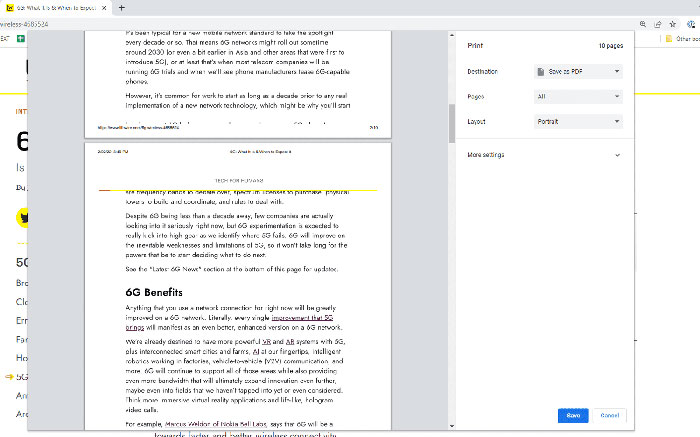
What a PDF preserves
A well-created PDF packages or references the information needed to render fixed pages. Fonts can be embedded, images keep their intended placement, and page dimensions do not change because another person uses a different word processor. This makes a PDF more predictable for viewing and printing than sending an editable document.
Preservation is not absolute. A missing font, damaged file, unsupported multimedia element, or poorly generated PDF can still display incorrectly. Accessibility also depends on the file's structure: a scan with no text layer is not equivalent to a tagged PDF with headings, reading order, selectable text, and alternative text.
Main advantages and limitations
| Benefit | Important limitation |
|---|---|
| Consistent page layout | Fixed pages are harder to reflow on a small screen |
| Broad viewer support | Forms, scripts, 3D objects, audio, and video may not work in every viewer |
| Can combine text, graphics, and forms | A scanned PDF may contain only images until OCR adds a text layer |
| Compression options | A PDF is not automatically small; high-resolution scans can be very large |
| Password and encryption support | Security depends on the encryption and password strength, and permission restrictions are not foolproof |
| Electronic and digital signatures | Acceptance and legal effect depend on jurisdiction, process, identity evidence, and recipient requirements |
How to open a PDF
Modern browsers and operating systems include basic PDF viewers. Double-click or tap a PDF and it normally opens in the default browser, Preview on macOS, Files or Preview on Apple devices, or another installed reader. A dedicated reader may be needed for advanced forms, certificates, annotations, portfolios, or multimedia.
If the file does not open, download it again, confirm that the extension is .pdf, and try a current trusted viewer. Treat an unexpected PDF like any other untrusted attachment: verify the sender and avoid enabling embedded actions or opening attachments inside it without a clear reason. TipsMake's comparison of free PDF readers can help when the built-in viewer is insufficient.
How to create a PDF
Export from the source application
In Word, Excel, PowerPoint, Pages, and many design applications, use File > Export or Save As and choose PDF. Export usually preserves links, headings, bookmarks, and accessibility better than printing to PDF. See the guide to converting a Word document to PDF for the common Word workflow.
Print to PDF
Windows and macOS can create a PDF from an application's Print dialog. This is useful when export is unavailable, but it may flatten form fields, remove links, or lose document tags and bookmarks.
Scan paper documents
A scanner or phone camera can create a PDF from paper. Crop and straighten each page, use an appropriate resolution, and run optical character recognition (OCR) if searchable text is required. Proofread OCR output, especially names, numbers, tables, and uncommon symbols.
How to edit a PDF
The required tool depends on the change:
- Annotate: highlight, comment, draw, or add a note without altering the original content.
- Fill a form: enter data into existing fields or add text to a flat page.
- Edit content: change existing text or images with a full PDF editor.
- Organize pages: reorder, rotate, insert, extract, or delete pages.
- Redact: permanently remove sensitive content with a true redaction tool.
Drawing a black rectangle over text is not secure redaction; the text may remain searchable or recoverable. For available editing tools, compare TipsMake's free PDF editors. Keep the source document when possible: editing the original and exporting a new PDF is usually cleaner than modifying the PDF itself.
Combine, split, and compress PDFs
A page-organizing tool can merge several files into one, extract selected pages, or split a long document. Before merging, standardize page orientation and check whether bookmarks, form fields, signatures, or page labels must be preserved.
Compression reduces file size by downsampling images, changing image encoding, removing unused objects, or simplifying content. Use the least aggressive setting that meets the size limit and inspect diagrams, small text, photographs, and scanned signatures afterward. Keep an uncompressed master because quality lost through downsampling cannot be restored.
Convert a PDF to another format
Conversion to Word, Excel, PowerPoint, images, or plain text is an approximation. A digitally generated PDF with clean text converts more accurately than a scan, while complex columns, equations, tables, and custom fonts often need repair. TipsMake's guide to PDF-to-Word tools explains common options.
OCR can make a scan searchable, but its result should not be treated as a verified transcription.
PDF passwords, permissions, and encryption
A PDF can use a password to control opening or to express restrictions on printing, copying, or editing. Use modern encryption, a long unique password, and a secure method to share that password separately from the file.
Permission restrictions are not the same as strong access control: some software may ignore them after the file is opened. For highly sensitive information, use an approved secure sharing system with authentication, access logs, expiration, and revocation rather than relying only on a PDF password.
Electronic signatures vs. digital signatures
An electronic signature can be a typed, drawn, or inserted mark indicating intent to sign. A digital signature uses a certificate and cryptography to validate the signer and reveal whether signed content changed afterward. Neither means that ordinary edits to every PDF automatically leave a trustworthy audit trail.
Follow the recipient's instructions. A pasted signature image may be acceptable for one form and rejected for another that requires a certificate, verified signing service, or handwritten original.
Accessibility and final checks
- Use real headings, lists, table headers, and a logical reading order.
- Add alternative text to meaningful images.
- Set the document language and a descriptive title.
- Ensure selectable text or accurate OCR is present.
- Check color contrast and keyboard access to form fields.
- Open the exported file in a second viewer and inspect every page.
- Remove comments, hidden layers, attachments, and metadata that should not be shared.
Keep the editable source and use PDF as the distribution copy. That combination provides reliable presentation without sacrificing the ability to revise the document properly later.
Related Articles
 All You Need to Know About ZIP Files - What Is a ZIP File?5 minutes read
 What Is a DAT File? How to Open DAT Files, How to Read DAT12 minutes read
 What Is DMG File?7 minutes read
 M3U Is What File? How to Open, Edit and Convert M3U Files8 minutes read
 What Are BMP Files? What Is a DIB File?5 minutes read
 How to Reduce PDF File Size by Software6 minutes read
Reader Comments 0
Sign in with email or Google to join the discussion.