Table of Contents
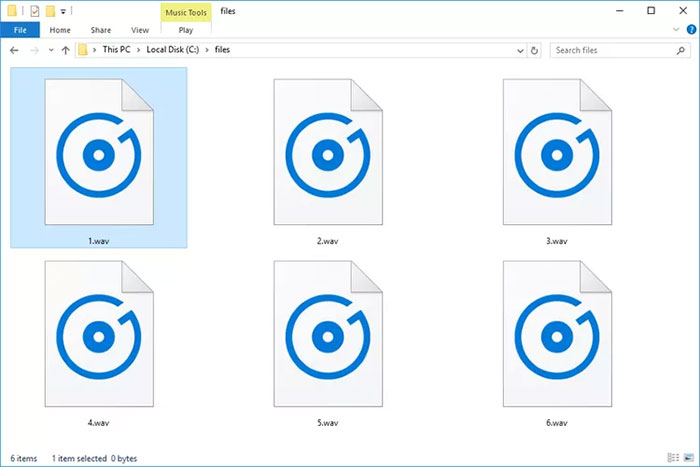
A WAV file is a Waveform Audio File Format container, commonly identified by the .wav or .wave extension. It is often used for uncompressed PCM audio in recording, editing, sound effects, and archival workflows, although the WAV container can also hold some compressed audio formats.
WAV is widely supported and convenient for production, but uncompressed files consume much more space than MP3, AAC, or FLAC versions of the same recording.
What determines WAV quality and file size?
For uncompressed PCM audio, the important settings are:
- Sample rate: how many times the signal is measured per second, such as 44.1 kHz or 48 kHz.
- Bit depth: the number of bits used for each sample, which affects available dynamic range.
- Channels: mono, stereo, or a multichannel layout.
- Duration: longer recordings require proportionally more storage.
A rough PCM file-size calculation is sample rate × bit depth × channel count × duration, plus a small amount of container overhead. For example, doubling the sample rate or channel count roughly doubles the audio data size.
Higher numbers are not automatically better for every use. Match the recording and delivery requirements, and avoid repeatedly changing sample rate or bit depth without a clear purpose.
Is every WAV file uncompressed?
No. WAV is a container built around the RIFF family of structures. PCM is the most common payload, but a WAV can contain other audio encodings. The file extension alone therefore does not reveal whether the audio is lossless, compressed, or supported by a particular player.
How to open a WAV file
Most current operating systems can play common PCM WAV files with their built-in media applications. VLC and other established cross-platform players handle many additional variations. Audio editors such as Audacity, Adobe Audition, and professional digital audio workstations can display and edit the waveform.
If one WAV plays and another does not, the second file may use an unsupported codec, be incomplete, or have an incorrect extension. Try a current trusted player and inspect the media information. Opening binary audio in a text editor is not a meaningful playback or repair method.
Why a WAV file may fail to play
- The download or recording was interrupted.
- The WAV contains a codec or channel layout the player does not support.
- The file is extremely large or uses a variant the software cannot parse.
- The extension was changed even though the underlying file is not WAV.
- The storage device or transfer damaged part of the file.
Work on a copy if the recording is important. A transcoder may recover readable portions from some damaged files, but conversion cannot recreate audio data that is missing.
WAV, FLAC, MP3, or AAC?
| Format | Compression | Good choice for |
|---|---|---|
| WAV with PCM | Uncompressed | Recording, editing, interchange, sound libraries |
| FLAC | Lossless compressed | Smaller archival or listening copies where supported |
| MP3 | Lossy | Broadly compatible listening and sharing |
| AAC | Lossy | Modern devices, streaming, and video workflows |
Converting an MP3 or other lossy source to WAV does not restore discarded detail. It only decodes the compressed audio into a larger file. Keep a lossless master when future editing or new delivery formats may be needed.
How to convert WAV to MP3, AAC, or FLAC
Desktop tools such as Audacity, VLC, FFmpeg, and many audio editors can convert WAV without uploading the recording. The labels vary, but the basic process is:
- Open or import the WAV file.
- Choose Export or Convert.
- Select MP3, AAC/M4A, or FLAC according to the intended use.
- For a lossy format, choose a bitrate or quality preset appropriate for speech or music.
- Preserve the sample rate and channel layout unless the destination requires a change.
- Save to a new filename, then listen at the beginning, middle, and end.
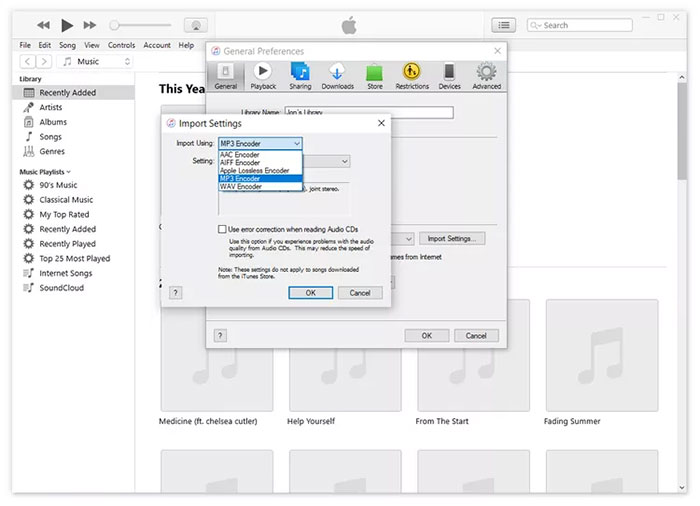
Choosing an output format
- Use FLAC to reduce storage while preserving decoded audio exactly, provided the receiving software supports it.
- Use MP3 when broad compatibility matters most.
- Use AAC for many current mobile, streaming, and video workflows.
- Keep WAV for active editing or when a production system specifically requests it.
Should you use an online converter?
An online converter may be convenient for a small, non-sensitive file, but it requires uploading the recording to another company. Use a local tool for interviews, meetings, unreleased music, customer data, or any audio you are not authorized to share. If you use a web service, check its file limits, output settings, and retention policy.
Check the converted file before deleting the WAV
Confirm the duration, channel count, metadata, loudness, and absence of clipping or synchronization problems. Keep the original WAV or another lossless master until the output has been backed up and accepted by its destination.
Related Articles
 All You Need to Know About ZIP Files - What Is a ZIP File?5 minutes read
 What Is a DAT File? How to Open DAT Files, How to Read DAT12 minutes read
 What Is DMG File?7 minutes read
 M3U Is What File? How to Open, Edit and Convert M3U Files8 minutes read
 What Are BMP Files? What Is a DIB File?5 minutes read
 How to Reduce PDF File Size by Software6 minutes read
Reader Comments 0
Sign in with email or Google to join the discussion.