Table of Contents
An ODT file is an OpenDocument Text document. It uses the open OpenDocument Format (ODF) standard and can store formatted text, styles, images, tables, links, fields, and other word-processing content. ODT is the default text-document format in LibreOffice Writer and is also supported by Microsoft Word and several web-based editors.
ODT and DOCX serve similar purposes, but their feature sets are not identical. A document can change when moved between applications, especially if it uses tracked changes, complex fields, advanced layout, macros, unusual fonts, or application-specific features. Keep the original and inspect a converted copy before distributing it.
What is inside an ODT file?
An ODT is normally a ZIP-based package containing XML files for document content, styles, settings, and metadata, plus embedded resources such as images. That structure supports application-independent document exchange, but users should open it through a word processor rather than manually editing the internal XML.
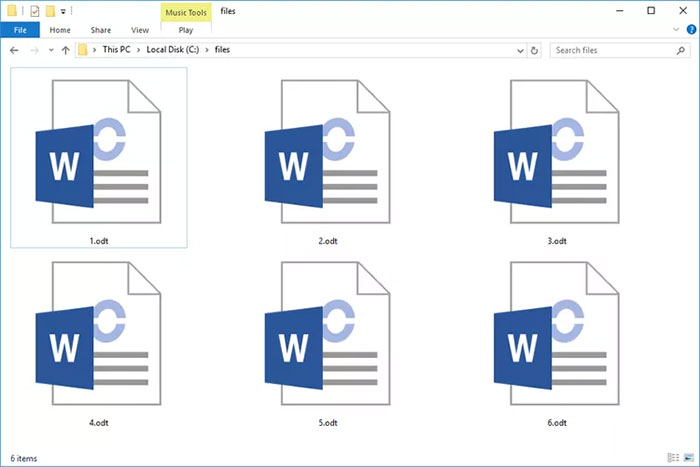
Do not assume that every unrelated file ending in .odt is an OpenDocument document. Check the source and file type before opening an unexpected attachment; another application can reuse an extension for its own data.
ODT compared with DOCX
| Question | ODT | DOCX |
|---|---|---|
| Standard | OpenDocument Format maintained through OASIS and standardized for office documents | Office Open XML format used by Microsoft Office |
| Common editor | LibreOffice Writer and other ODF applications | Microsoft Word and compatible applications |
| Best use | Open-format workflows and ODF-based organizations | Workflows centered on Microsoft Word features |
| Cross-format risk | Advanced features and layout can change when saved in the other format | |
How to open and edit an ODT file
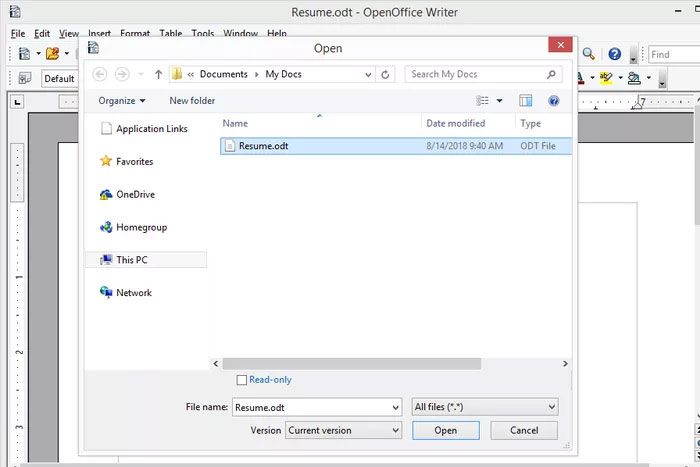
LibreOffice Writer
LibreOffice loads and saves OpenDocument formats by default, making Writer a natural choice for ODT files.
- Open LibreOffice Writer.
- Choose File > Open.
- Select the ODT file and choose Open.
- Edit the document and use File > Save to keep it in ODT.
Download software only from the official LibreOffice website.
Microsoft Word
Current desktop versions of Word can open and save ODT documents. Select File > Open, choose the file, and accept any compatibility notice. If the document will be edited extensively in Word, save a separate DOCX copy first.
Microsoft documents specific feature differences between ODT and DOCX. For example, some collaboration, field, or formatting behavior can be changed or removed during conversion. Review the official compatibility comparison when fidelity matters.
Google Docs and other web editors
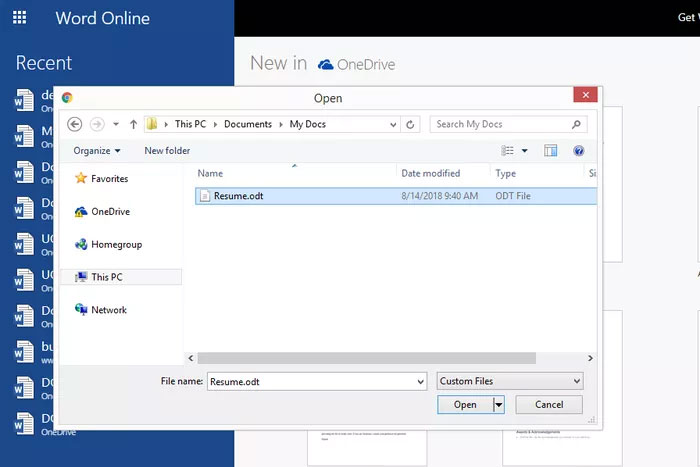
Google Drive can upload and open many ODT files in Google Docs. Microsoft 365 web support can depend on the storage location and feature being used. A web editor is convenient, but it uploads the document to a service; do not use that route for confidential material unless the account, organization policy, and data terms permit it.
Phones and tablets
LibreOffice-compatible, Microsoft Word, and other document apps can open ODT files on supported mobile platforms. On iPhone or iPad, Microsoft may request permission to convert an ODF file using its online service. Read that prompt before allowing a sensitive document to leave the device.
Convert ODT to DOCX
With LibreOffice
- Open the ODT in Writer.
- Choose File > Save As.
- Select Word 2007–365 (.docx) or the current DOCX filter.
- Use a new filename and confirm the format choice.
- Open the DOCX in Word and inspect every page.
With Microsoft Word
- Open the ODT file.
- Choose File > Save a Copy or Save As.
- Select Word Document (.docx).
- Save a separate copy and review any compatibility warning.
Do not overwrite the only ODT copy until the converted document has been verified.
Convert ODT to PDF
Use the source editor's PDF export rather than an unknown online converter:
- Open the ODT in LibreOffice Writer or another trusted editor.
- Choose File > Export As > Export as PDF, or the application's equivalent.
- Set page range, image quality, accessibility, bookmarks, and security options as needed.
- Export, then open the PDF in a separate viewer.
PDF is appropriate for a finished distribution copy, while ODT should be retained for later editing.
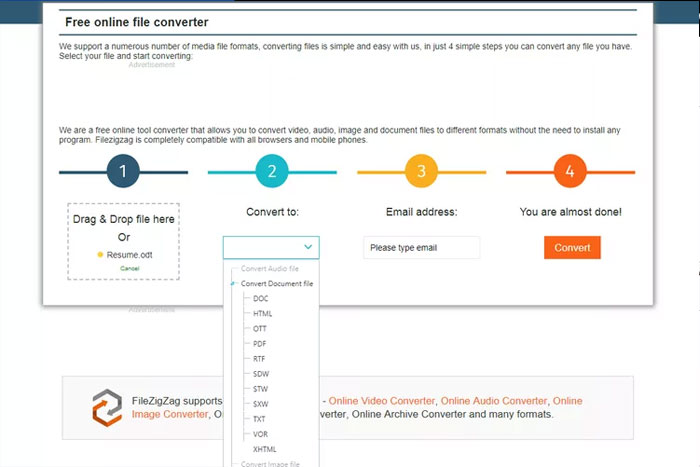
Use an online converter only when appropriate
A browser service may be convenient on a device without an editor, but the document is usually uploaded to a third party. Before using one, check:
- whether the file contains personal, financial, legal, work, or student information;
- the service's retention, deletion, training, and sharing policy;
- file-size and page limits;
- whether the output adds a watermark or changes fonts;
- whether the site uses the correct secure domain and connection.
For sensitive files, use an approved local application or organization-managed service.
Check formatting after conversion
- Compare page count, margins, page breaks, headers, and footers.
- Check fonts, line spacing, lists, tables, columns, and anchored images.
- Review footnotes, endnotes, citations, cross-references, and automatic fields.
- Confirm that comments and tracked changes were preserved or intentionally resolved.
- Test links, form controls, and embedded objects.
- Run spelling and accessibility checks in the destination application.
If an ODT file will not open
- Confirm the file downloaded completely and is not zero bytes.
- Try LibreOffice Writer or a current version of Word.
- Make a copy before attempting repair.
- If the application reports corruption, ask the sender to reopen and export the original again.
- Do not rename the extension to
.docx; changing a filename does not convert the package. - Scan an unexpected attachment before opening it and avoid enabling macros or embedded actions.
The safest workflow is to edit in the document's native format, export a separate copy for the recipient, and verify that copy in the software the recipient will use.
Related Articles
 All You Need to Know About ZIP Files - What Is a ZIP File?5 minutes read
 What Is a DAT File? How to Open DAT Files, How to Read DAT12 minutes read
 What Is DMG File?7 minutes read
 M3U Is What File? How to Open, Edit and Convert M3U Files8 minutes read
 What Are BMP Files? What Is a DIB File?5 minutes read
 How to Reduce PDF File Size by Software6 minutes read
Reader Comments 0
Sign in with email or Google to join the discussion.