Table of Contents
The Canon LBP2900/2900B needs a compatible CAPT printer driver before Windows can send print jobs to it correctly. Download the driver from Canon's support site, match it to your Windows architecture, and connect the USB cable only when the installer asks. Avoid third-party driver packages, which may be outdated or contain unwanted software.
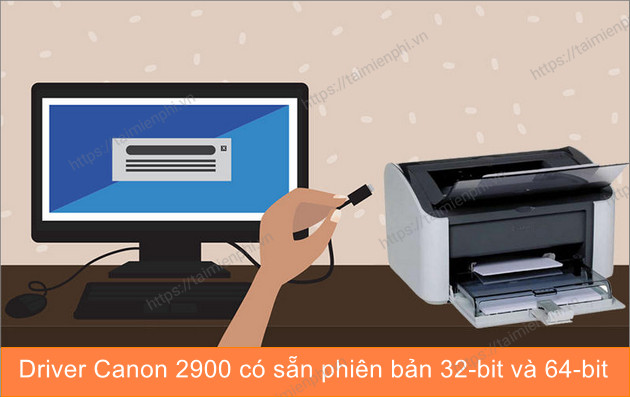
Download the correct Canon LBP2900 driver
- Open the official Canon LBP2900 support page. If Canon redirects you to a regional site, search there for LBP2900 or LBP2900B.
- Select your exact operating system and language. Canon's available downloads can differ by region and OS version.
- Choose the driver whose architecture matches Windows. To check, open Settings > System > About and read System type. Most current PCs use 64-bit Windows; do not assume.
- Read Canon's compatibility notes and license, then download the file. If your Windows version is not listed, do not force an older driver; consult Canon support or use a computer with a supported OS.
The older screenshots below show the CAPT installer used by many LBP2900 packages. Button names and folder layouts may differ in a newer or regional download. For another walkthrough, see TipsMake's Canon LBP2900 Windows installation guide.
Install the driver with a USB connection
1. Prepare the printer and Windows
- Sign in to Windows with an account that can install drivers.
- Keep the printer switched off and disconnect its USB cable from the computer unless Canon's instructions say otherwise.
- Close unnecessary programs and remove any incomplete LBP2900 installation before trying again.
2. Extract the downloaded package
Open the Canon download. A self-extracting package may ask where to unpack its files or display an extraction command.
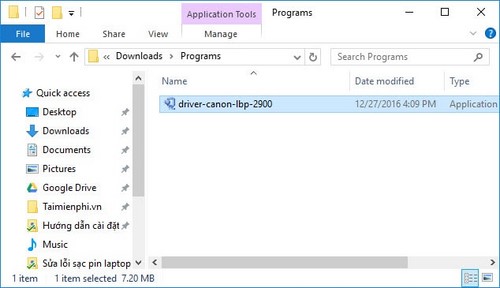
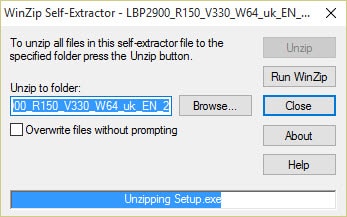
If the package displays an extraction option, run it and note the destination folder.
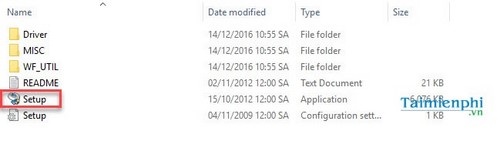
Open the extracted folder. Depending on the package, you may need to open an x64 folder for 64-bit Windows or a 32-bit folder for 32-bit Windows.
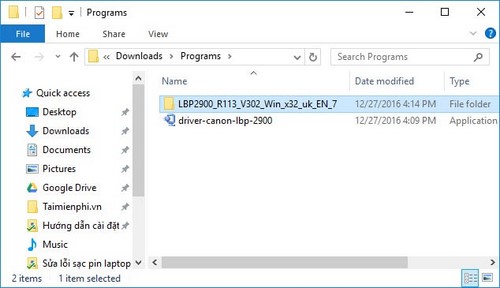
3. Start Setup
Double-click Setup.exe. If Windows shows a User Account Control prompt, confirm only after checking that the publisher and file location are what you expect from the official Canon download.
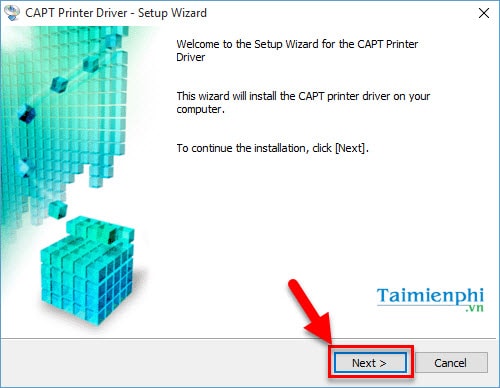
Select Next to begin.
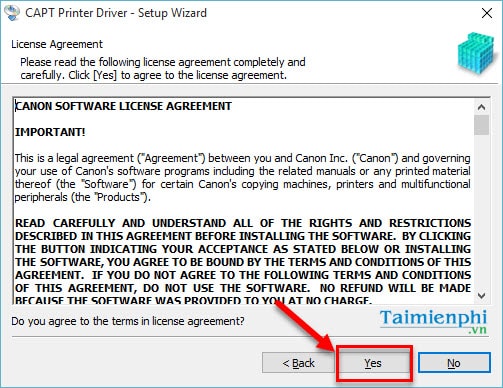
Read the license terms and select Yes if you accept them.
4. Choose the connection method
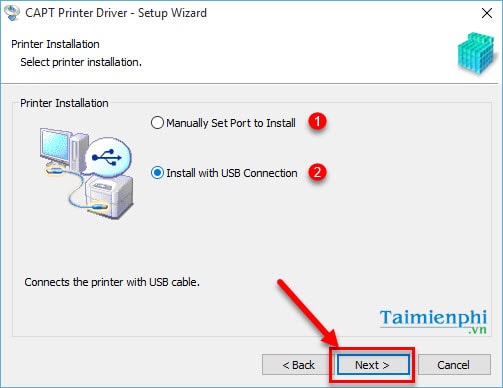
For a printer connected directly to this computer, choose Install with USB Connection. Manually Set Port to Install is intended for a configured port or shared/network setup and is not the normal choice for a direct USB connection.
If Windows Firewall asks whether to allow a Canon installer component, confirm that the request belongs to the official installer and allow only the access needed for the selected setup.
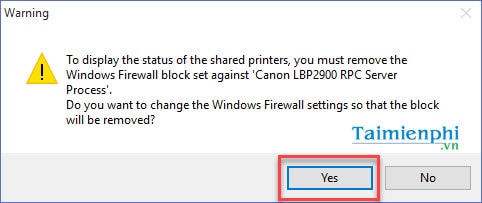
5. Connect and switch on the printer
When the installer displays the connection screen, attach the printer directly to a USB port on the computer and switch it on. Avoid an unpowered hub during setup.
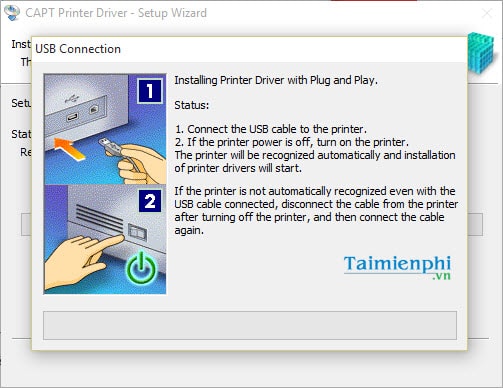
Wait while Windows detects the printer and the installer copies the driver.
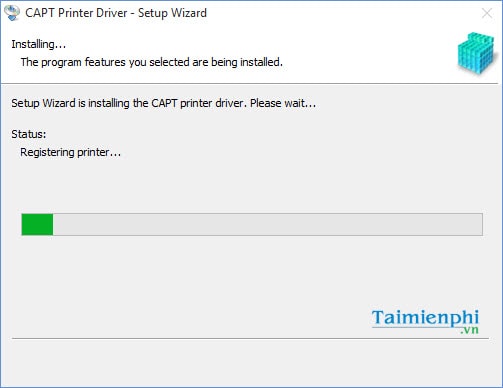
6. Complete setup
When installation finishes, restart Windows if the installer requests it.
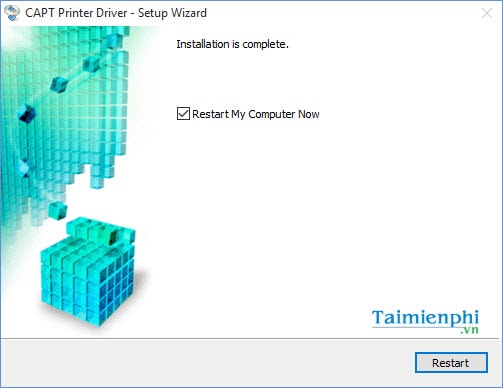
Verify that the printer works
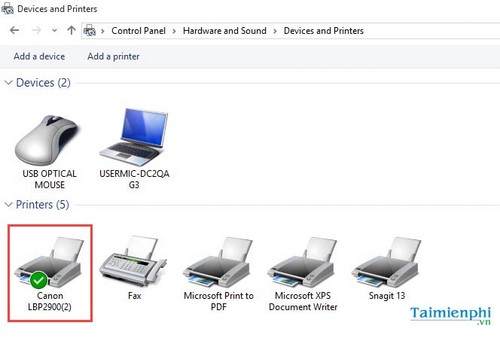
- Open Settings > Bluetooth & devices > Printers & scanners. On older Windows versions, open Control Panel > Hardware and Sound > Devices and Printers.
- Select Canon LBP2900 or Canon LBP2900B. Set it as the default printer only if that suits your workflow.
- Open Printer properties and print a test page. A green check mark in an older Control Panel view only identifies the default printer; it does not by itself prove that printing works.
Fix common installation problems
| Problem | What to check |
|---|---|
| The installer says the driver is incompatible | Download the package for the exact Windows version and 32-bit or 64-bit architecture shown in System type. |
| The downloaded file will not open or extract | Delete it and download it again from Canon. Confirm that security software has not quarantined part of the package. |
| The installer cannot detect the printer | Wait until prompted before connecting it, switch the printer on, try another direct USB port, and test with a known-good USB cable. |
| An old installation blocks setup | Remove the LBP2900 from Printers & scanners, uninstall the previous Canon driver package, restart Windows, and run the official installer again. |
| The printer appears but jobs remain queued | Clear the queue, confirm the printer is online and not paused, restart the Print Spooler or Windows, and reconnect the USB cable. |
| Installation completes but printing fails | Print a Windows test page and check that the selected port and device are the LBP2900. See the guide to fix Canon LBP2900 errors on Windows. |
For model-specific usage after setup, TipsMake also covers adjusting Canon LBP2900 print density. Mac users should obtain a driver that explicitly lists both their macOS version and the LBP2900 model; Windows packages cannot be installed on macOS.
Related Articles
 Driver Canon 2900 - Driver Canon 2900 Download and3 minutes read
 Download Canon 2900 Printer Driver for Windows 10, Windows 74 minutes read
 Download Links for Canon Printer Drivers: Complete List3 minutes read
 How to Install Canon 2900 Drivers on Windows 11/10/7 Computers4 minutes read
 Link to Download the Most Complete Printer Driver (HP5 minutes read
 How to Install Canon 2900 Driver on Computer4 minutes read
Reader Comments 0
Sign in with email or Google to join the discussion.