Table of Contents
Learn how to install Canon 2900 Drivers on Windows 11/10/7 computers with clear steps, practical tips, and troubleshooting guidance for common issues.
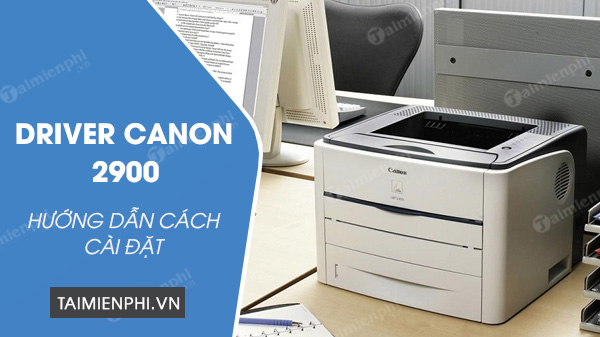
System requirements
- Computers running Windows XP/Vista/7/8/8.1/10/11
- Canon LBT 2900 printer
- Cable connecting the printer and the computer
Instructions for installing the Canon 2900 printer on a computer
Step 1: Download the Canon 2900 driver installer here. Step 2: After downloading, click directly to open the file.
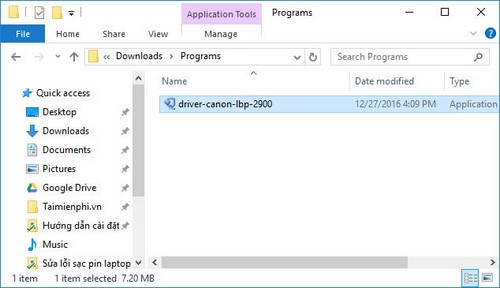
- click Run Winzip
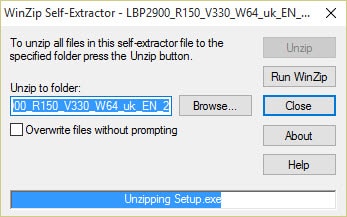
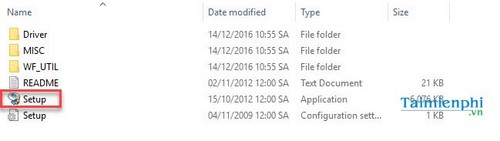
Step 3: The file will automatically extract to another folder; go to that folder.
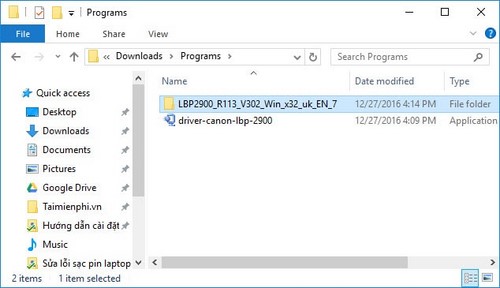
- Select the Setup. exe file
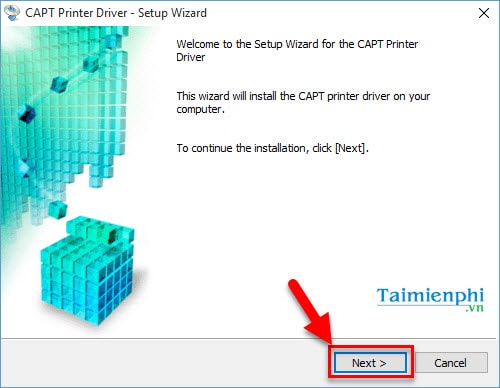
Step 4: Click Next to begin the installation process.
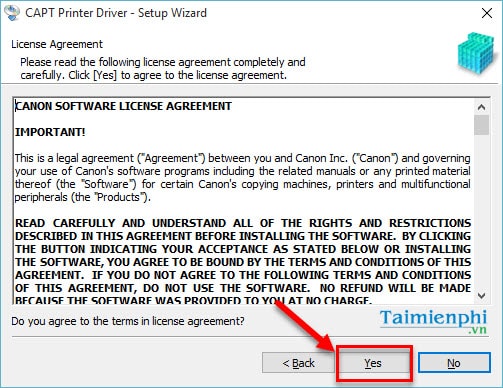
Step 5: Click Yes to agree to the terms of use and continue the installation process.
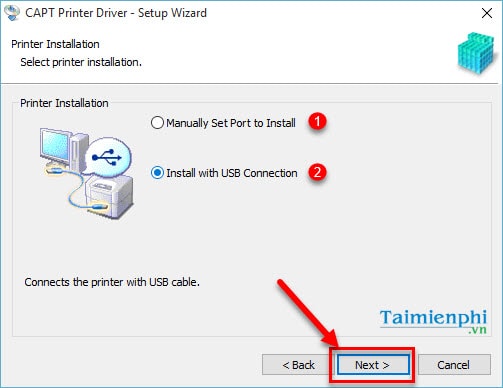
Step 6: You need to choose one of the following two methods - (1) Manually Set Port to Install: Install via network port using a custom method - (2) Install with USB Connection: Install via direct wired connection.
Here, if you are connecting the printer to your computer via cable, select the second installation method ( Install with USB Connection ) and click Next to continue.
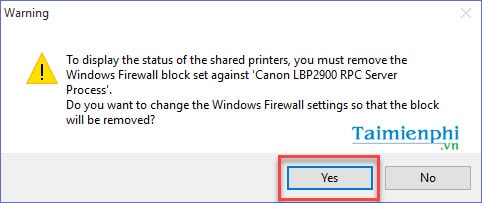
Step 7: A firewall warning will appear for the printer; click Yes to continue.
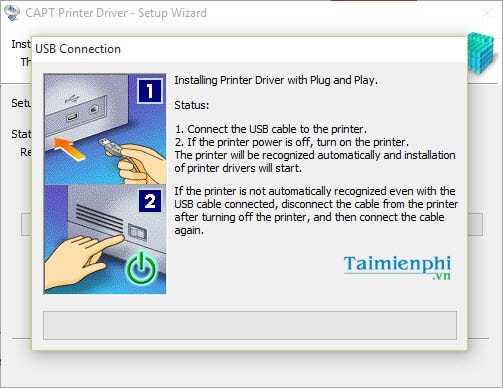
Step 8: The process of establishing a connection between the printer and the computer via USB will begin. Use the cable to connect the computer and printer so the driver can check compatibility and start the installation. - Note: If the printer does not automatically recognize the connection even after plugging in the cable, please unplug the cable from the printer, then turn off the printer, plug the cable back in, and restart the process. If it still doesn't work, check the connection cable.
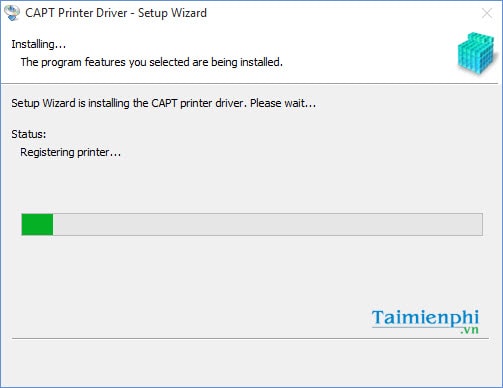
Step 9: After a successful connection, the Canon 2900 driver will begin installing on your computer.
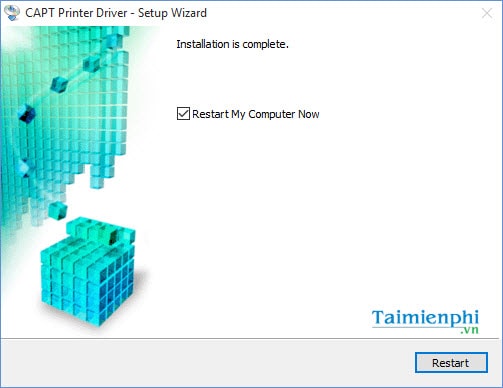
Step 10: The installation process is complete. Click Restart to restart your computer.
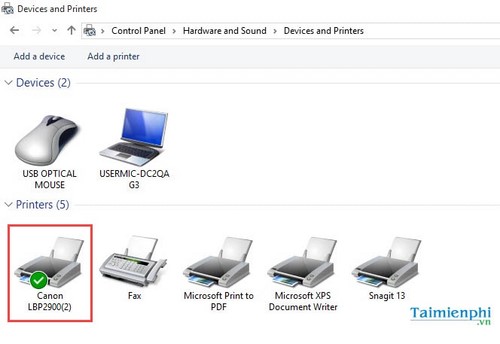
Step 11: After restarting your computer, keep the computer connected to the printer, then check if the printer has recognized the driver. - Go to Control Panel > Hardware and Sound > Devices and Printers
- In the list of printers, if you see the Canon 2900 LBP printer icon with a green checkmark, it means the Canon 2900 LBP driver has been successfully installed on your computer.
- To print, simply open the file => press Ctrl+P => select Canon 2900 LBP under the Target Printer and print as usual.
So, you have now completed installing the Canon 2900 64-bit driver on your computer. The installation process is similar for other printer models . After installing the printer, you can share it with other computers on your LAN network for convenient printing of Word documents.
FAQ
How can you install Canon 2900 Drivers on Windows 11/10/7 computers?
Learn how to install Canon 2900 Drivers on Windows 11/10/7 computers with clear steps, practical tips, and troubleshooting guidance for common issues.
What should you know about system requirements?
Computers running Windows XP/Vista/7/8/8.1/10/11 Canon LBT 2900 printer Cable connecting the printer and the computer.
What should you know about instructions for installing the Canon 2900 printer on a computer?
Step 1: Download the Canon 2900 driver installer here. Step 2: After downloading, click directly to open the file.
Related Articles
 Driver Canon 2900 - Driver Canon 2900 Download and3 minutes read
 How to Install Canon 2900 Printer for Macbook8 minutes read
 Driver Canon 2900 - Canon LBP2900/2900B Printer Driver: Complete Overview5 minutes read
 Download Links for Canon Printer Drivers: Complete List3 minutes read
 How to Install Canon LBP 2900 Printer on Windows4 minutes read
 How to Disassemble an Acer Aspire ES1-532G Laptop7 minutes read
Reader Comments 0
Sign in with email or Google to join the discussion.