Table of Contents
You can shut down a Windows laptop entirely from the keyboard, but save your work first. A normal shutdown lets apps close cleanly; commands that force apps to exit can discard unsaved changes.
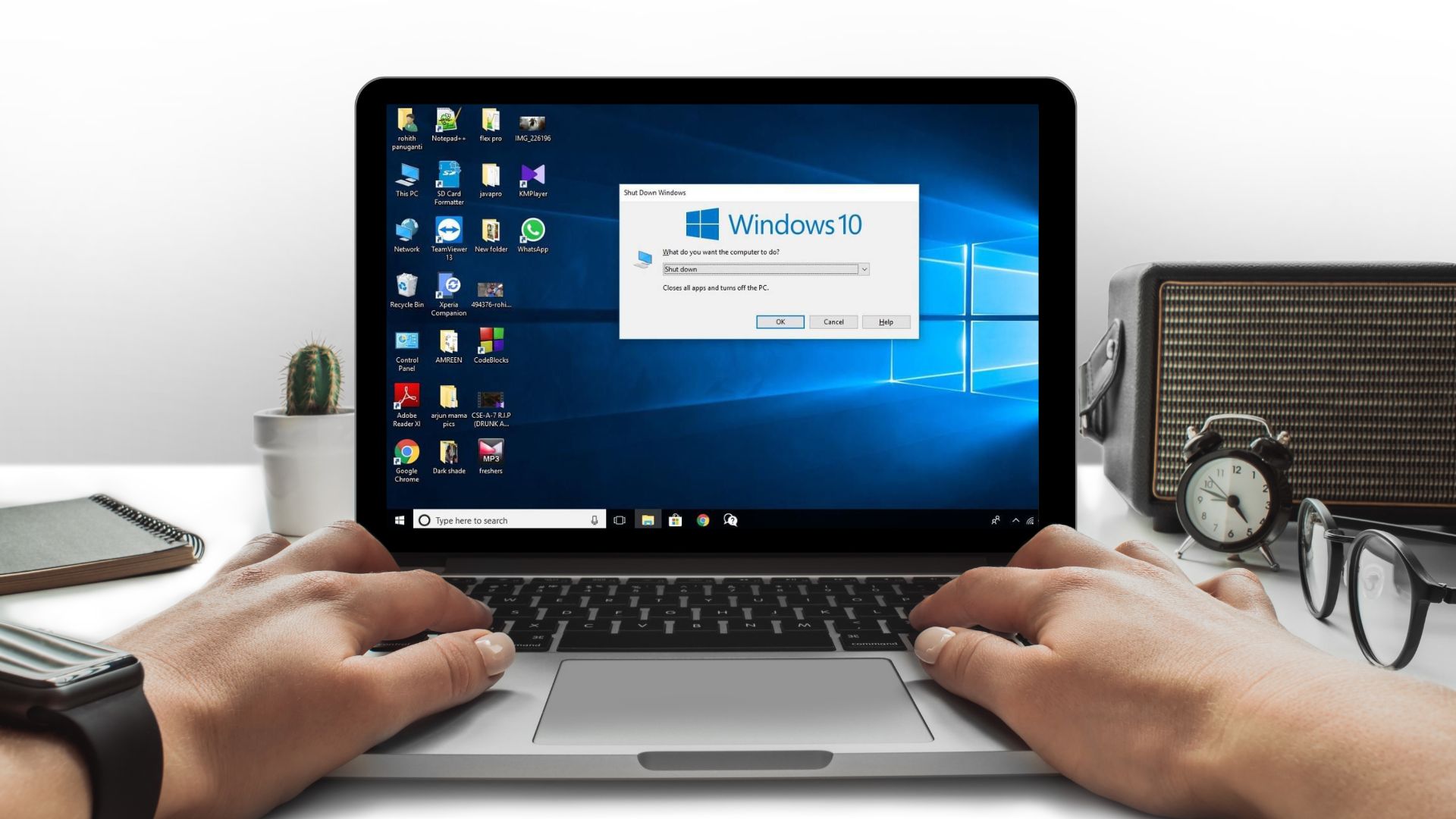
Use Ctrl + Alt + Delete
- Press Ctrl + Alt + Delete.
- Use Tab to reach the power icon in the lower-right corner.
- Press Enter, choose Shut down with the arrow keys, and press Enter again.
This method works even when the desktop or Start menu is difficult to navigate, provided Windows still responds.
Use Alt + F4 from the desktop
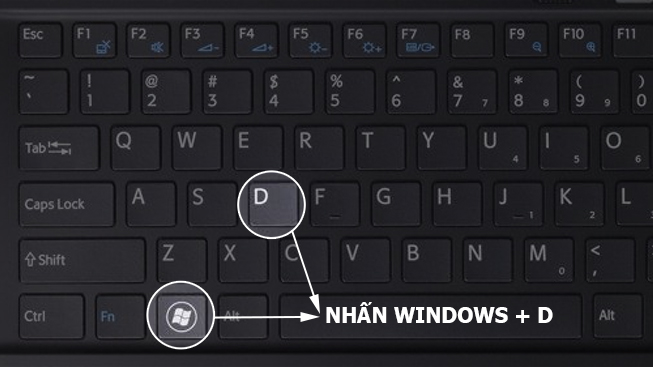
- Save work and press Windows + D to focus the desktop.
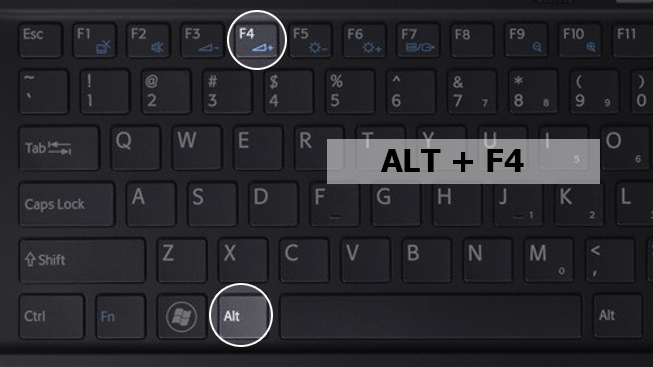
- Press Alt + F4.
- Choose Shut down in the list and press Enter.
If the desktop is not focused, Alt + F4 closes the active app instead. That can be useful, but it may prompt to save work.
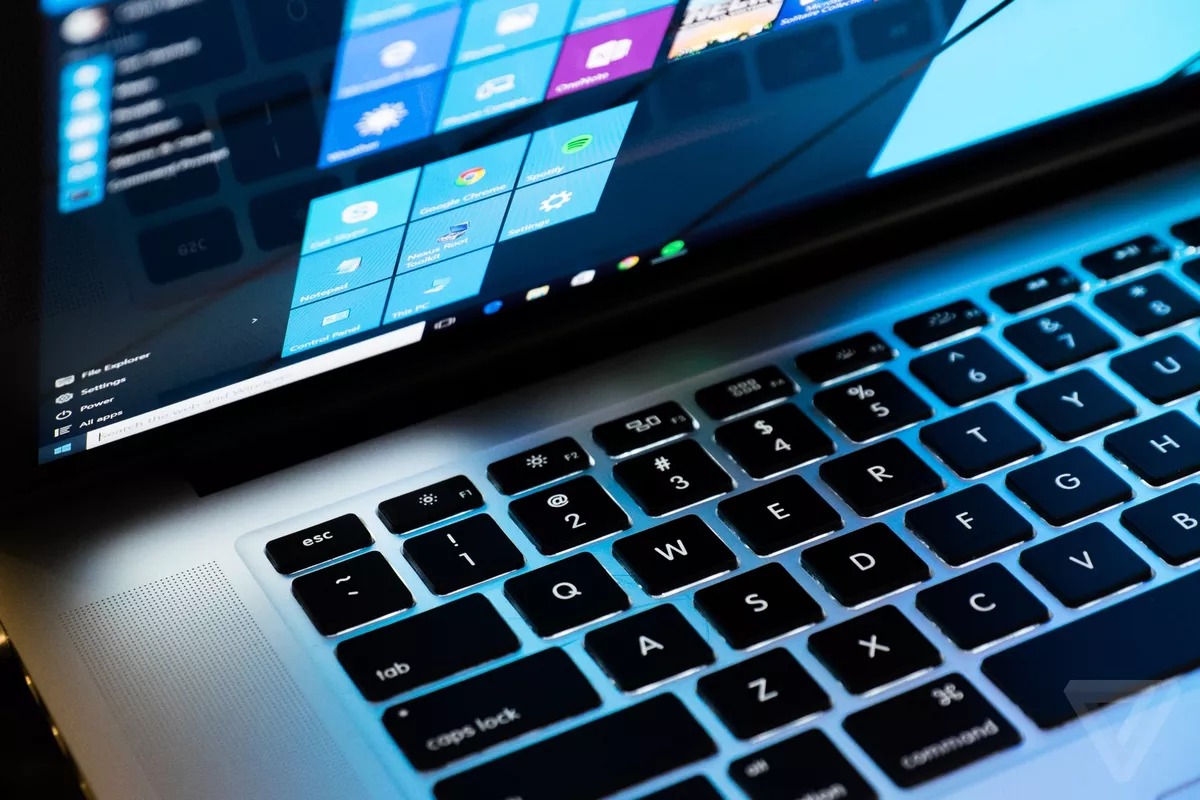
Use the Power User menu
Press Windows + X, then press U to open the Shut down or sign out submenu and U again to shut down. Menu accelerators can vary with language, so verify the highlighted item before the final keypress.
Use a command
Press Windows + R, enter shutdown /s /t 0, and press Enter. This requests an immediate shutdown. Do not add /f for routine use; that forces applications to close without giving them time to save.
To schedule a shutdown, replace 0 with a delay in seconds. Cancel a pending shutdown with shutdown /a.
Shutdown versus restart and sleep
- Shut down: closes the session and powers off.
- Restart: closes the session and starts Windows again; use it when an update or support step requests a reboot.
- Sleep: preserves the session in memory for a quick return but still uses some power.
- Hibernate: saves the session to storage where supported and uses almost no power.
Windows Fast Startup can make shutdown/startup differ from a full restart, so choose Restart when troubleshooting.
If Windows is frozen
- Wait briefly and try Ctrl+Shift+Esc to close only the unresponsive app.
- Try Ctrl+Alt+Delete and a normal shutdown or restart.
- Only if the computer remains completely unresponsive, hold the physical power button until it turns off.
A forced power-off can corrupt open data. Never use it during a BIOS or firmware update.
Protect the laptop and your data
Using the physical power button for a configured normal shutdown does not inherently wear out the computer; holding it to force power off is the risky action. You can configure a short power-button press under Power Options. Before travel or storage, shut down fully and ensure the laptop is not hot inside a bag.
For other power controls, see shutdown, restart, sleep, and hibernate differences and Windows keyboard shortcuts.
Related Articles
 How to Turn on Laptop Keyboard Light on Windows 1010 minutes read
 How to Turn Off Laptop Keyboard to Use Separate Keyboard Quickly6 minutes read
 How to Use KeyboardTest to Check the Computer Keyboard6 minutes read
 How to Turn on HP Laptop Keyboard Light Properly and Simply: Practical Guide8 minutes read
 How to Turn Off the Laptop Keyboard to Use an External Keyboard4 minutes read
 How to Turn on the HP Laptop Keyboard Light Laptop4 minutes read
Reader Comments 0
Sign in with email or Google to join the discussion.